---
title: "How to Create Custom Widgets"
slug: "create-custom-widgets"
tags: ["Custom Widgets", "Administration", "Dashboard"]
updated: 2026-11-05T06:45:38Z
published: 2026-11-05T06:45:38Z
canonical: "docs.biztalk360.com/create-custom-widgets"
---
> ## Documentation Index
> Fetch the complete documentation index at: https://docs.biztalk360.com/llms.txt
> Use this file to discover all available pages before exploring further.
# How to Create Custom Widgets
## Creating Custom Widgets
In this article, we will take a comprehensive look at the steps involved in adding a Custom Widget to the Administration dashboard. In BizTalk360, users can create custom widgets and associate them with their dashboard. Through the custom widget, the user can (for example) integrate the BizTalk360 API and third-party APIs (like Salesforce, Power BI, and Azure, etc.), and create database queries by using Secure SQL Queries.
Follow the steps as shown below to create a custom widget and pin it to the Administration dashboard. This will enable the operations team to monitor required activities from the dashboard.
- Log in to BizTalk360
- Select the environment from the environmental panel.
- On the **Administration** screen, click **Add Widget**
- In the **Add/Remove Widget blade**, scroll to the end and click **Add Custom Widget**.
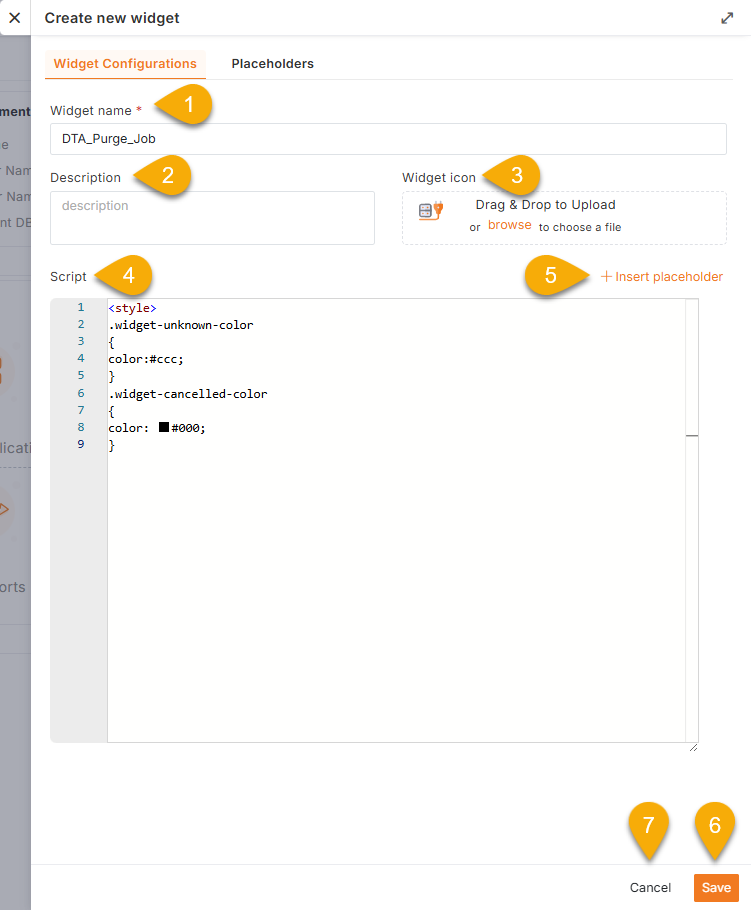
The Add New Custom Widget blade will request the basic configuration details like:
1. **Widget Name -** Enter a friendly name that helps to identify the custom widget. Ex. DTA Purging Job
2. **Description** - Enter a short description of the widget.
3. **Widget Icon** - This section allows the user to add a logo for the custom widget.
4. **Script** - Type the script into the space provided.
5. **Insert Placeholder**
- While working with API integrations, there may be scenarios where credentials (such as username, password) or other confidential details are required. Instead of hardcoding such information, it is recommended to define them as placeholders and refer to them within the code.
- Additionally, many widgets often use the same values like styles, variables, or configuration settings. To avoid repeating them and make updates easier, users can create and utilize placeholders. For example, values like the environment ID and SQL instance name can be set as placeholders. This makes the code cleaner, reusable, and consistent across different custom widgets that use similar values. To know more about placeholders, [refer this article](/v12/docs/hiding-confidential-information-in-custom-widgets). 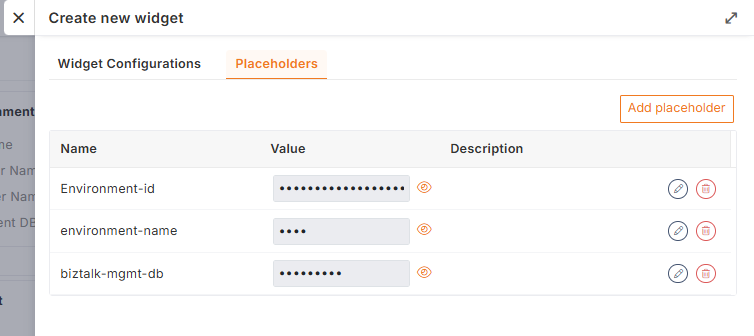
6. **Save** - Click Save to store the custom widget configuration.
7. **Cancel** - Click Cancel to cancel the custom widget creation process.
## Supported Languages and Frameworks in Custom Widgets
The **BizTalk360 Custom Widgets Script Editor** supports the use of the following front-end technologies:
### HTML & CSS
HTML is supported in custom widgets to structure the content and layout. It helps in building the visual representation of the widget, such as tables, charts, or displaying text, making it easy to present data in a user-friendly way. CSS can be used to style and format the widget, allowing users to adjust the appearance, layout, and responsiveness.
**Example: Basic HTML Structure for a Custom Widget**
```xml
Simple Text Widget
HTML is supported in BizTalk360 custom widgets to structure the content and layout.
```
### JavaScript
Custom widgets support **JavaScript** for implementing business logic, manipulating the DOM, handling user interactions, and integrating with REST APIs. It can be used to build dynamic, interactive widgets by fetching data from **BizTalk**, **BizTalk360 internal services**, or any other **internal or external sources**, and rendering them through various visual elements.
#### Calling a Sample API and Storing the Response
The following example demonstrates how to:
- Call a REST API using `fetch` or `XMLHttpRequest`
- Parse the JSON response
- Store the response in a variable
- Display part of the data inside the widget
```javascript
```
### Bootstrap
Bootstrap classes are pre-defined CSS styles that help quickly style elements and make the widget responsive. They provide layout control, typography, and utilities, widely used in front-end development. Users can apply these Bootstrap classes in custom widgets to efficiently style elements, manage layouts, and ensure responsiveness, such as the following:
- `container`: Defines a responsive fixed-width container.
- `row`: Creates a horizontal group of columns.
- `col-12`: Specifies a column that spans the full width of the container.
- `btn`: Applies default button styling.
- `table`: Styles the table with borders and padding.
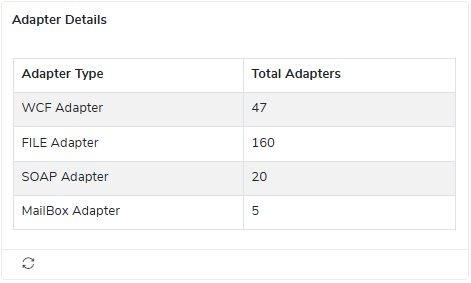
**Example: Displaying Adapter Counts in a Table with Bootstrap**
```xml
Adapter Type
Total Adapters
WCF Adapter
wcfAdapterCount
FILE Adapter
fileAdapterCount
SOAP Adapter
soapAdapterCount
MailBox Adapter
mailBoxAdapterCount
```
Here’s a sample view of the Adapter count details widget in tabular format.
### Highcharts
Highcharts is a JavaScript library that enables the creation of interactive and visually engaging charts. It supports various chart types such as line, pie, and bar. In custom widgets, users can leverage Highcharts to dynamically visualize data, making it easier to track trends, compare data, and present insights in a clear and visually appealing manner.
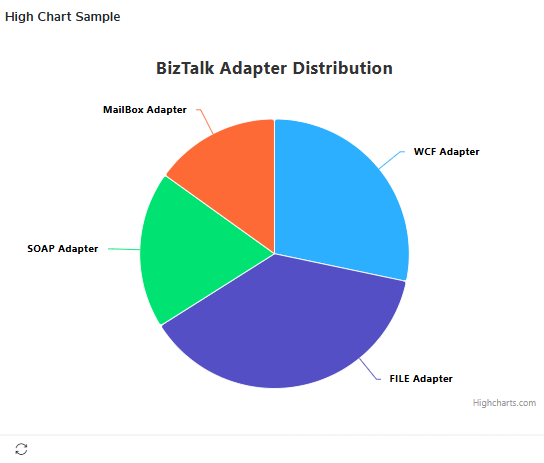
**Example: Pie chart to visualize the number of adapters.**
```xml
```
Here’s a sample view of the Adapter count details in a chart format.
### Font Awesome
**Font Awesome** provides vector icons that can be used across different platforms. User can easily add **icons** to the widgets to enhance UI clarity and interactivity.
**Example: Using Font Awesome Icons**
```xml
Settings
User
Server
Database
Configuration
```
## Sample Custom Widget
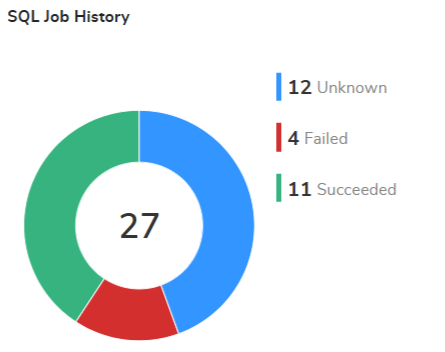
Let's take a quick look at a real-world use case: **Visualizing the status of SQL jobs**: In many systems, SQL jobs are used to automate tasks such as database maintenance, backups, and data processing. Displaying their success or failure in an easy-to-understand way helps in quickly assessing the overall health of the system's automated processes.
In this case, we can use **the BizTalk360 API** to retrieve the history of all SQL Jobs.
The code below retrieves SQL job status data from the `GetSqlJobsHistory()` API and binds it to a **Highcharts donut chart**. It uses placeholders (like environment ID, SQL instance name and etc.) to make the widget reusable across other APIs.
```xml
```
Here’s how the widget looks like: it displays a donut-style chart that visually represents the status of SQL jobs, with color-coded sections for each job status. The chart is clean and easy to read, showing the count of each status, such as Succeeded, Failed, Unknown, Canceled, and Ignore.
Similarly, users can create custom widgets to present meaningful insights by leveraging various BizTalk360 APIs or integrating with external APIs. These widgets can be tailored to show data like messages processed, environment health, or third-party metrics—helping teams monitor key operations in real time.