Based on the alarm settings, BizTalk360 will trigger alerts for the errors and warnings to the corresponding communication channel (SMS/Email).
However, there may be cases when there is an issue with the gateway, SMTP settings, or the Monitoring service that stops running and you do not receive the notification emails.
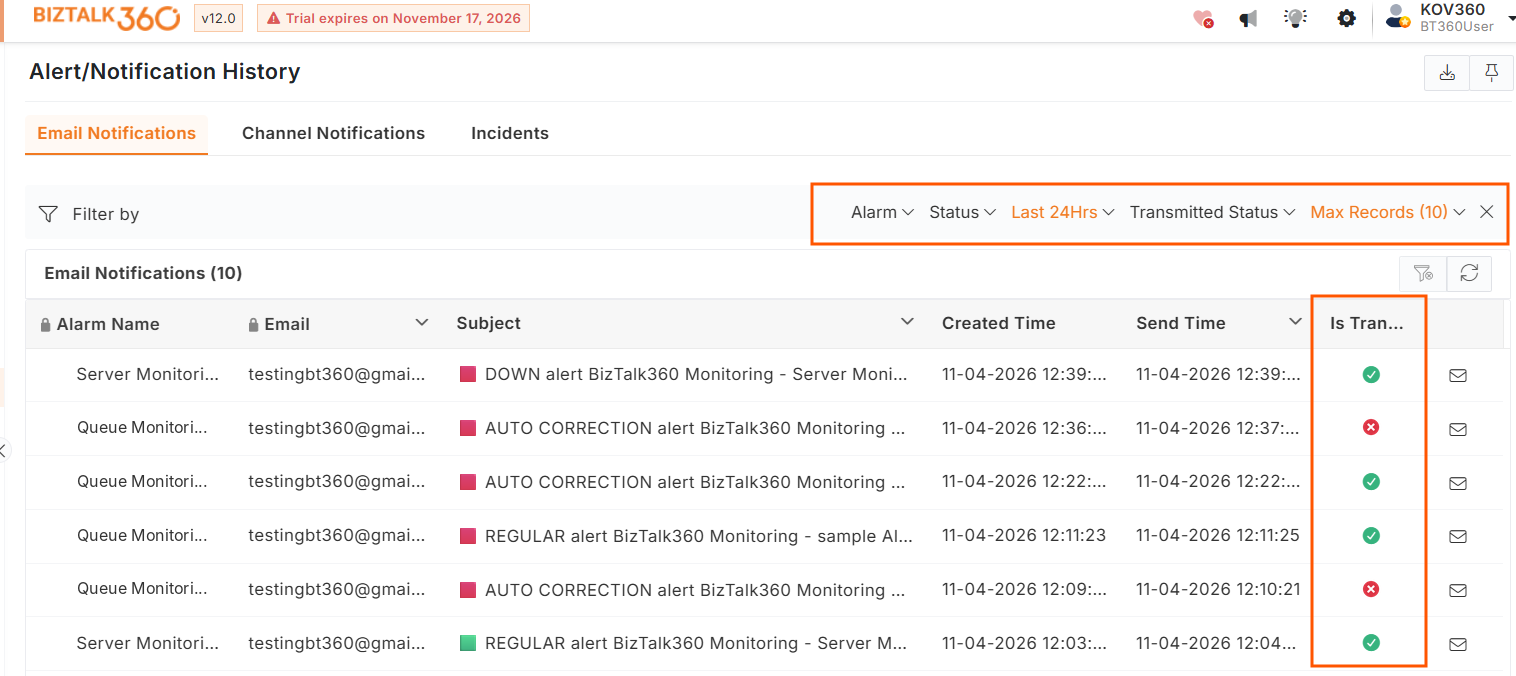
In these situations, to know when the last successful email/SMS was sent from the system, there is an option in BizTalk360 where you can see the Alert/Notification history information. The Is Transmitted column informs the users whether alerts were actually sent to the notification channel or not.
Viewing the Alert/Notification History
- Log in to the BizTalk360 application.
- Click Monitoring in the landing page.
- Click the expand button against the Notification History tab and select Alert History
- EMAIL NOTIFICATIONS– Provides the list of email notifications that have been triggered from the application. The screen displays 10 records as default.
Alarm Name: Filter by a specific alarm name.
Status: Filter based on the overall alarm status.
Date Time Range: Filter by Last 24 Hours (default), Last 30 Days, Last 90 Days, or a Custom date and time range.
Transmitted Status: Filter based on whether the notifications are Transmitted or Not Transmitted.
Max Records: Specify the maximum number of incident to display. The default selection is 10 records.
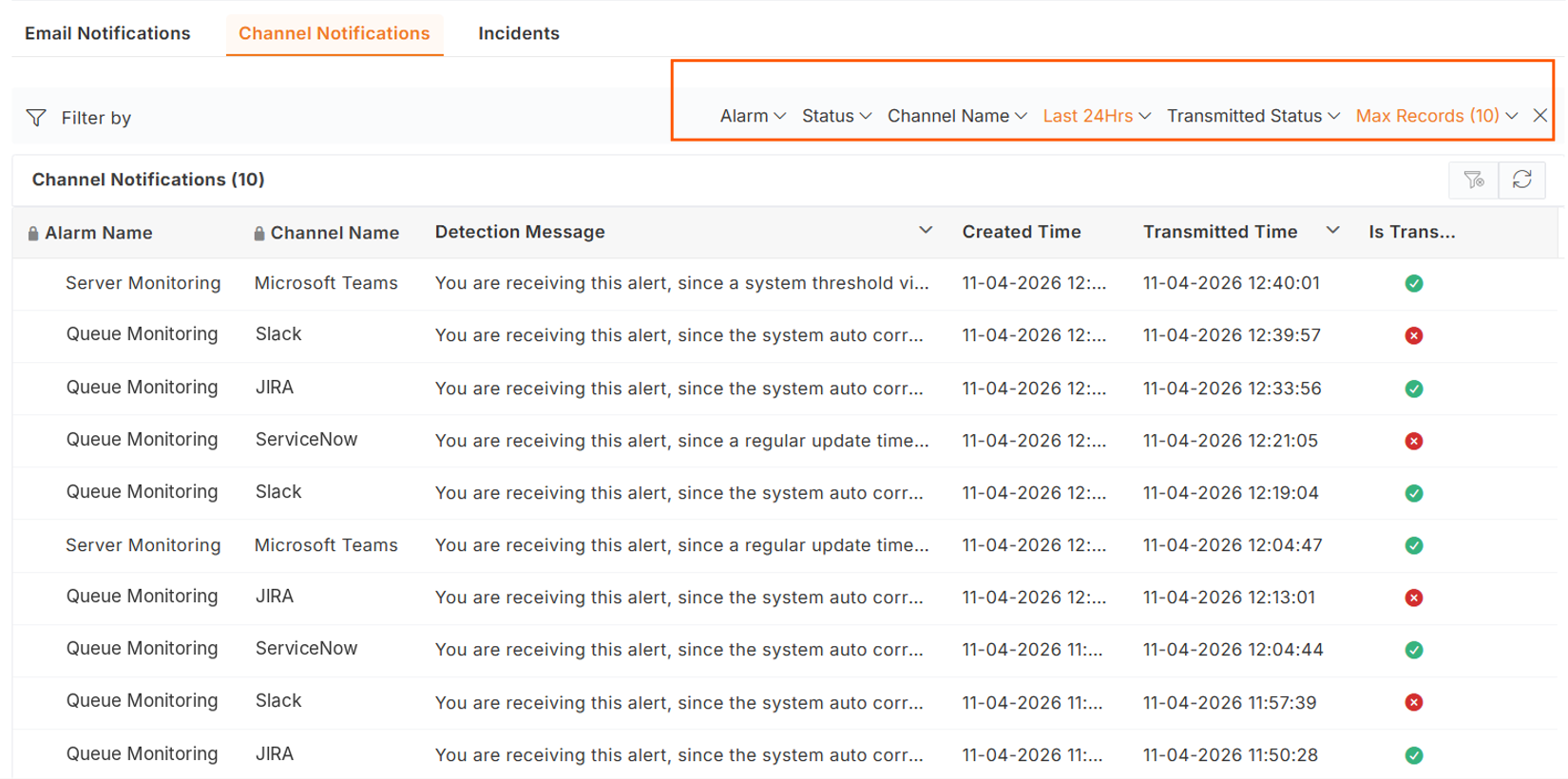
- CHANNEL NOTIFICATIONS– Displays the list of channel notifications triggered by the application. The screen displays 10 records as default. Users can filter the records based on the following criteria:
Channel Name: Filter records by a specific notification channel name.
Alarm Name: Filter records by a specific alarm name.
Status: Filter records based on the overall alarm status.
Date Time Range: Filter records based on the selected time range. The available options are Last 24 Hours (default), Last 30 Days, Last 90 Days, and Custom.
Transmitted Status: Filter records based on their transmission status – Transmitted or Not Transmitted.
Max Records: Specify the maximum number of records to display. The default selection is 10 records.
- SMS/TEXT NOTIFICATIONS – Provides the list of SMS/text notifications that have been triggered from the application. The screen displays a maximum of 25 records.
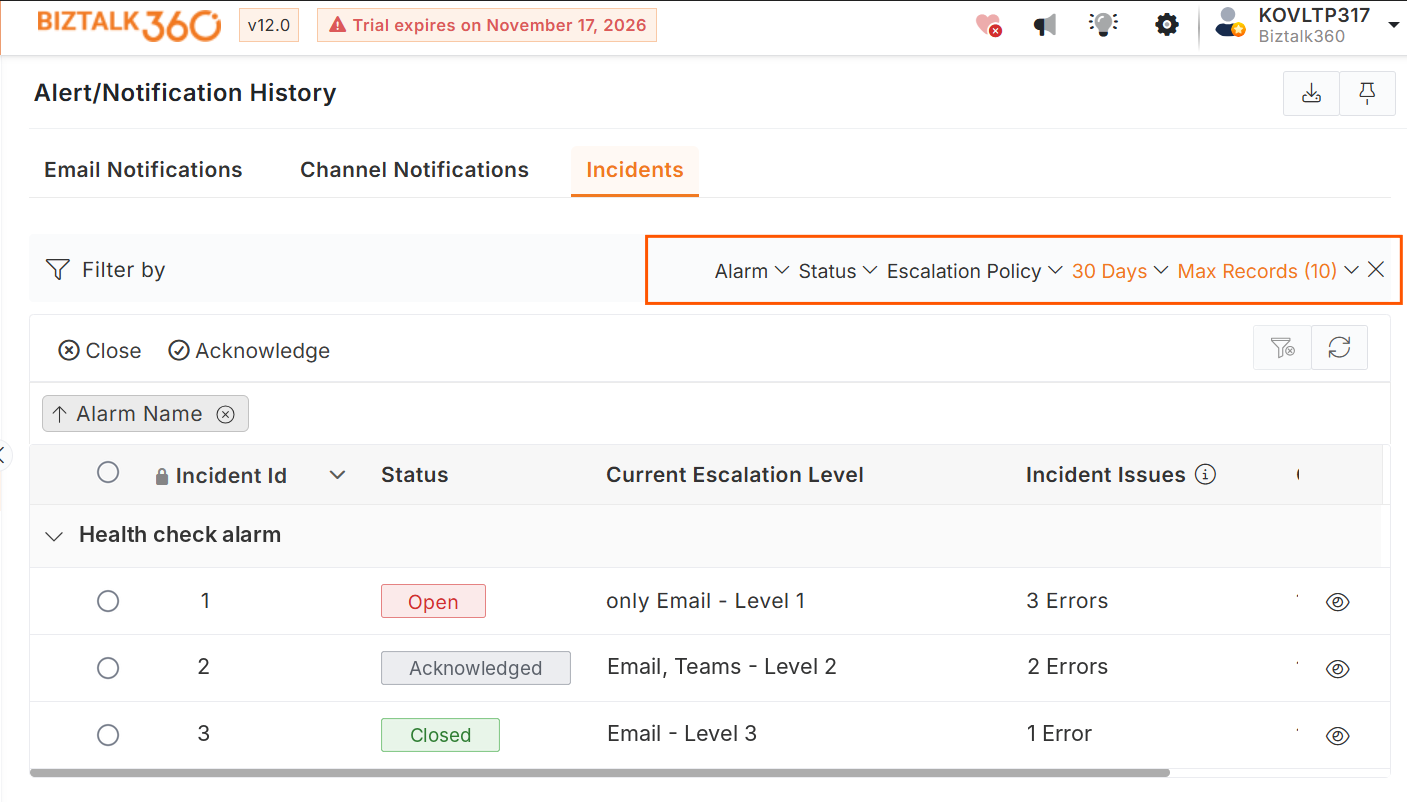
- INCIDENTS - It displays all the incidents triggered from the alarm and user can filter using various filter options.
Alarm: Filter incidents based on the alarm associated with them. Users can select the required alarm to view its related incidents.
Status: Filter based on the incidents status (open, close and Acknowledged)
Escalation Policy: Filter incidents based on the escalation policy configured for the alarm.
Time Range: Filter incidents based on the time period in which they were created. The default selection is Last 24 Hrs.
Max Records: Specify the maximum number of incident records to display. The default selection is 10 records.
- EMAIL NOTIFICATIONS– Provides the list of email notifications that have been triggered from the application. The screen displays 10 records as default.
- Click the Export to Excel option at the right corner of the page to download the output in Excel format.


Preview Notification
Email alerts sent from BizTalk360 can be viewed in the alert history by clicking the email icon.
