ServiceNow automates enterprise IT operations, creating a single system of record for all IT processes within an organization. The advantage with BizTalk360 is that ServiceNow is one of the pre-defined notification channels along with Slack, WebHook, and Microsoft Teams that are available with BizTalk360. All that you need to do is, configure the ServiceNow Notification Channel and map the notification channel with the Alarms in the environment in order for BizTalk360 to be able to trigger notifications into ServiceNow.
Configuring ServiceNow Channel in BizTalk360
- Log in to the BizTalk360 application.
- Navigate to Settings->Notifications->Notification Channel .Select Service Now channel .
- Click on the ellipse icon next to the ServiceNow Channel name (B360.Notifier.ServiceNowNotification) .Click Edit configuration to update the details which helps BizTalk360 to connect and transfer the alert to respective Service Now URL.
- Basic Details : These are prepopulated values , however you can update the Logo , Enable/Disable the channel , Channel Name etc.
- Service Now Instance : Enter the URL of the ServiceNow instance.
- Authentication Settings - Select either Basic or OAuth Authentication which is supported by your organisation
- Basic Authentication : Provide Username and Password for Basic Authentication type
- OAuth2 Authentication : Supports 3 options ,Client credentials, Refresh token and Password credentials.
- Client credentials - Provide the client Id, client secret and Oauth URL of the ServiceNow instance.
- Refresh token - Provide the client Id, client secret, Refresh token and Oauth URL of the ServiceNow instance.
- Password credentials - Provide the client Id, client secret, OAuth URL, Username and password of the ServiceNow instance.
- Notification Settings - Update the notification settings to determine when alerts should be triggered ,whether it's upon detecting errors or warning violations in the environment.
- Proxy Settings - If your environment operates under a proxy, update the proxy settings with the relevant details.
- Finally, to save the ServiceNow configuration click Save.
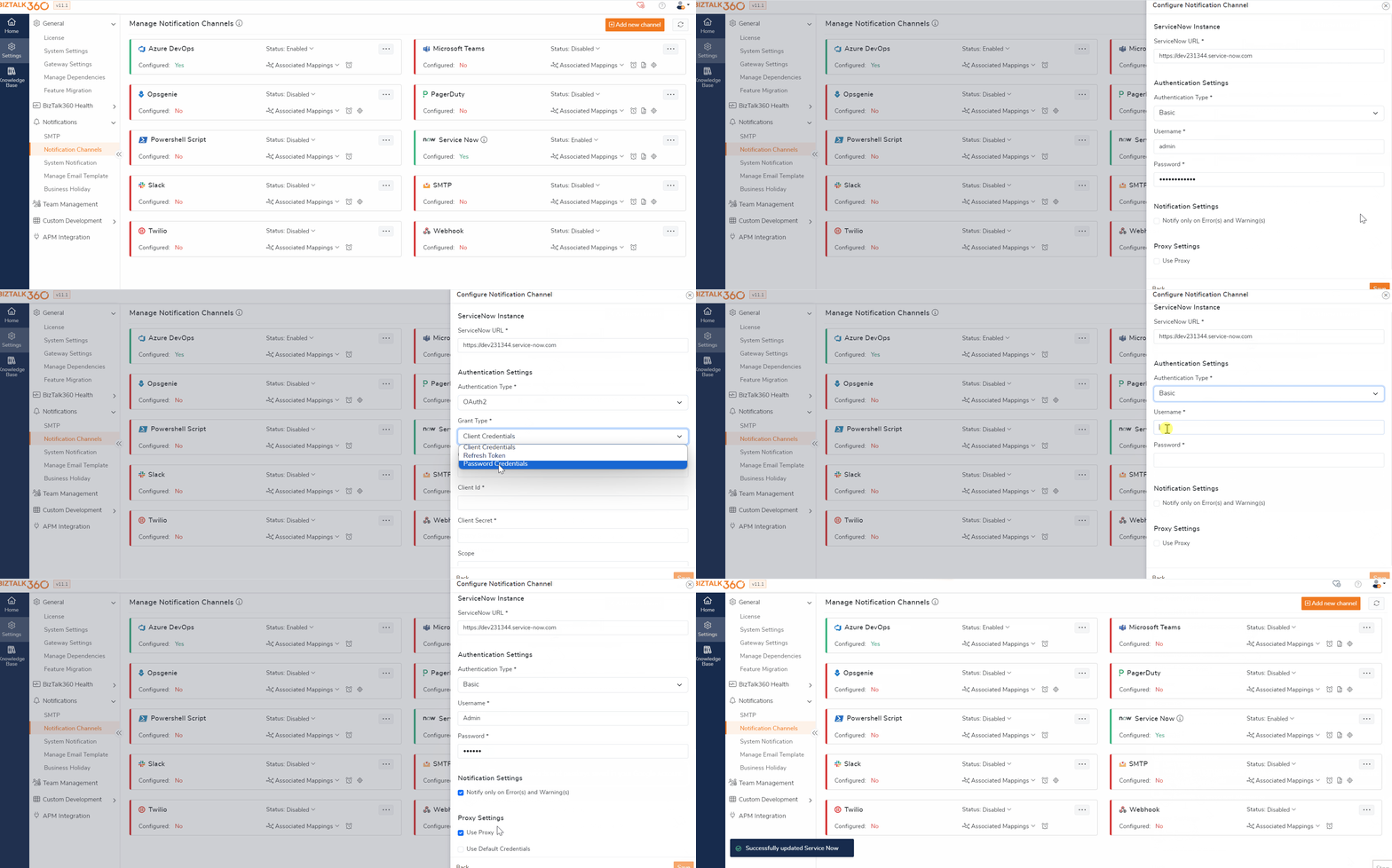
On Successful configuration, you can enable ServiceNow channel on the Alarm and Automated Task configuration page. which ensures that monitoring alerts or automated task alerts are sent to the designated ServiceNow URL.
Enable ServiceNow Notification in Alarm Configuration
BizTalk360 will start monitoring the status of the artifact based on the threshold condition. If there is any threshold violation, you will receive the alerts to the configured ServiceNow notification channel.
To enable the ServiceNow notification channel, you need to follow the steps as shown below:
- Navigate to Manage Alarm section .Select the respective alarm.
- Under notification configuration , Find and enable ServiceNow channel.
- Upon enabling the ServiceNow channel , you can configure how you want biztalk360 alerts to be notified in your ServiceNow. Based on the level of the criticality/scenario you can choose the option. Alarm will be notified as an incident /event or both on the threshold violation.
1)ServiceNow Incident Configuration
To receive the BizTalk360 notification as an incident update Short description , Impact , Urgency as( 1 , 2, 3- low, medium and high) ,Assignment group . Optionally you can provide Category, Sub Category, Configuration Item and Comments based on you business need.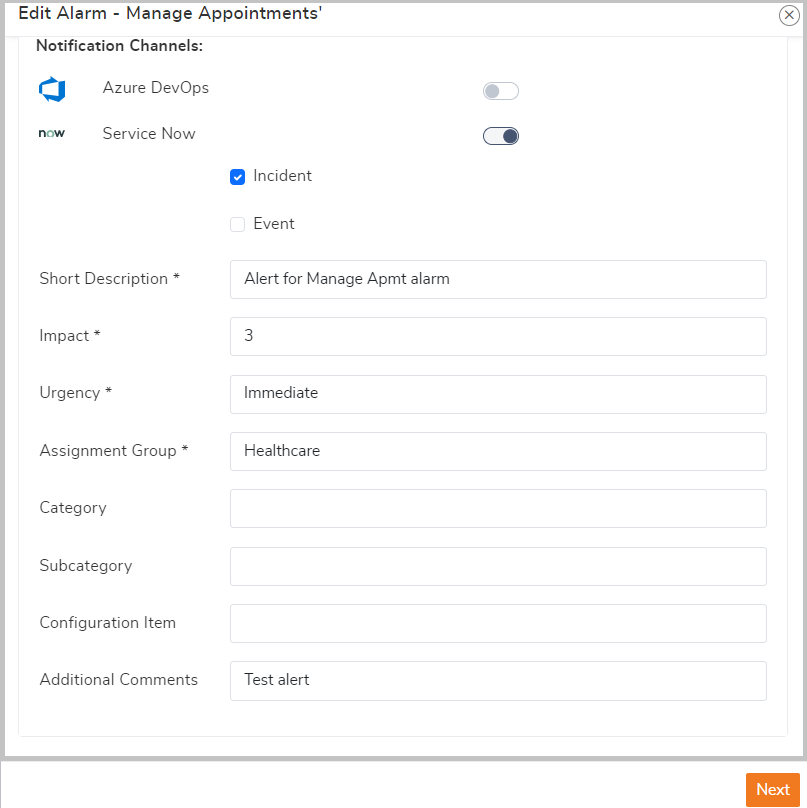
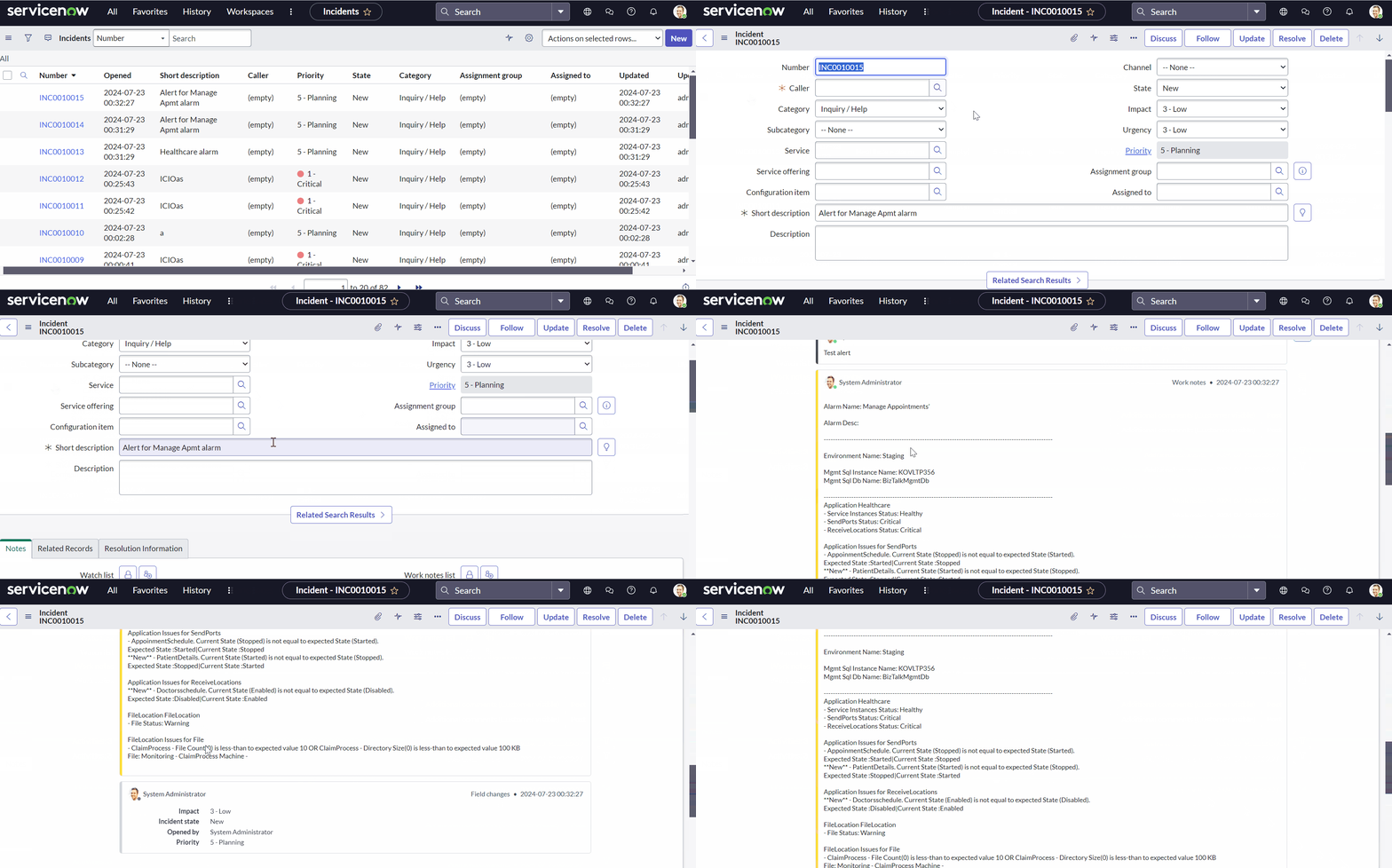
Below video illustrate the incident created from BizTalk360.
2)ServiceNow Event Configuration
Users can receive the notification as a Service Now Event, with that further actions can be taken based on the business logic created.
The Events can be triggered as below,
- Consolidated Event - One Single event will be triggered for all the issues raised in the alarm. For example, if 2 applications are mapped for monitoring and if there is a violation noted in 2 applications then everything will be consolidated and trigger as a single event.
- Send Event Per Issue - Each issue is notified as a single event. For example, If 4 artifacts under the same application are mapped for monitoring then in case of violation event is triggered for each issue.
Severity Settings:
The event severity is set based on the alarm Notification Priority configuration.
When the Notification Priority is set to Critical, Warning, or Healthy, then event severity corresponds to the alarm issue level.
For example, if the Notification Priority is set to Critical and a critical issue occurs in the alarm, then the event will be raised with a severity level of Critical.
The severity of the event is set based on below ,
Issue status of Alarm | Notification Priority | Event raised with severity level |
|---|---|---|
Warning/Critical | Warning | Critical |
Healthy | Warning | Clear |
Critical | Critical | Critical |
Warning | Critical | Warning |
Healthy | Critical | Clear |
Healthy/ Warning/ Critical | Healthy | Critical |
- If the Notification Priority is set to None, you can explicitly set the severity yourself. The option to set the severity is enabled, and you can select the severity level (Critical, Major, Minor, Clear, or OK) from the dropdown menu. Whenever an event is raised from BizTalk360 for this particular alarm, it will be based on the chosen severity. 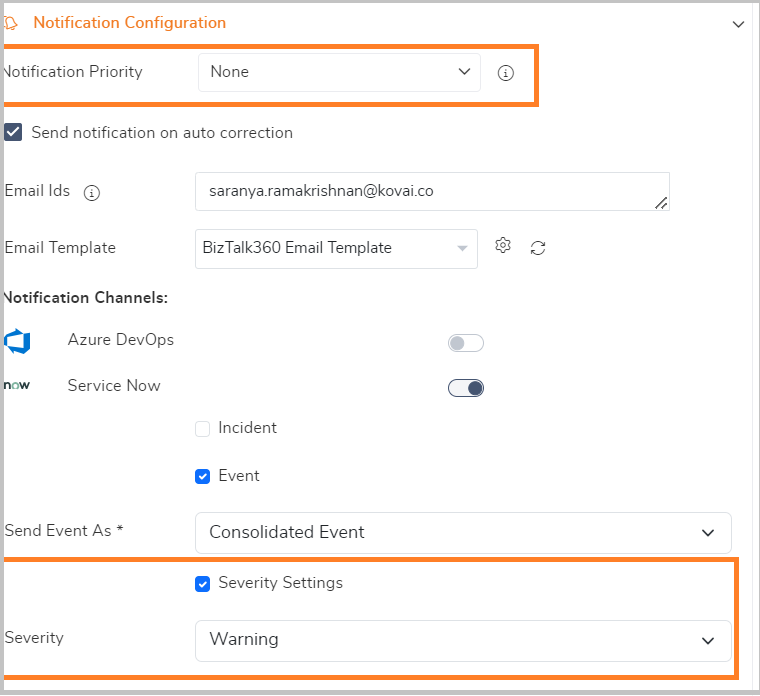
Below is the sample Service Now Event triggered from BizTalk360.
.png)