The Enhanced EDI Data Access capability in BizTalk360 allows users to effortlessly retrieve, and analyze EDI transaction data using a comprehensive, user-friendly interface with advanced query and filtering options. This feature helps streamline EDI operations and enhance visibility into the message exchange lifecycle with trading partners.
This feature provides an intuitive interface for users to access critical EDI data such as:
Interchanges and their Acknowledgments
Batch Status
AS2 MDN Status
Transaction Set Details
Functional Acknowledgments
Interchange and Ack Status
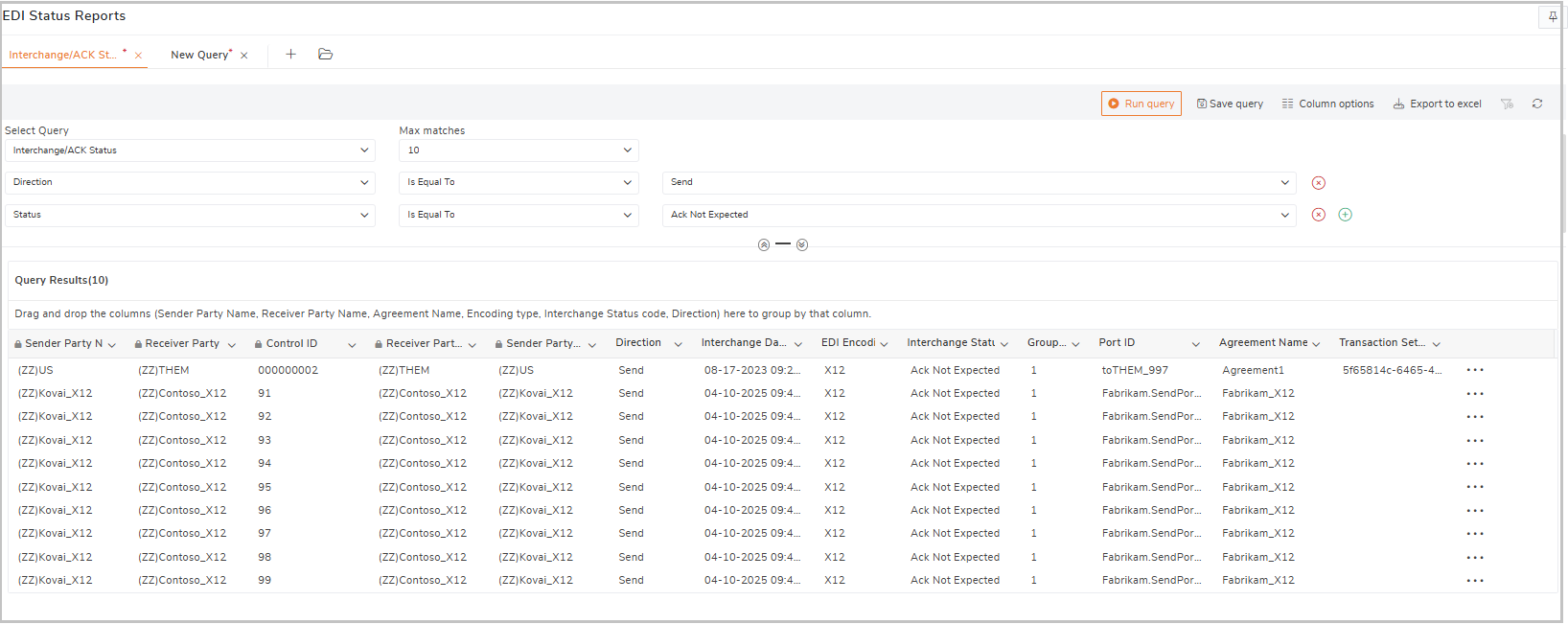
The Interchange and ACK Status report enables users to easily view the list of EDI interchanges along with their corresponding acknowledgments. This interface provides detailed insights into each interchange processed by the BizTalk Server, allowing users to verify whether a particular interchange was successfully received and processed by the trading partner.
Each record includes the technical acknowledgment (ACK) status of individual interchanges, helping users quickly identify whether the interchange was:
Positively Acknowledged (Accepted)
Negatively Acknowledged (Rejected or Errored)
Pending or Missing (Acknowledgment not received yet)
Advanced Filtering Capabilities -To streamline data retrieval and analysis, the platform offers advanced filtering options. Users can filter the interchange records based on the following parameters:
Sender Party
Receiver Party
Interchange Status (Accepted / Rejected / Error)
Interchange Date and Time
Direction (Inbound / Outbound)
Interchange Control ID
Example - Fabrikam, a retail company, sends outbound EDI interchanges (e.g., purchase orders) to Contoso, a trading partner. Fabrikam wants to verify that all outbound purchase orders (POs) sent to Contoso over the past 7 days have been acknowledged.
Steps to Verify Interchange ACK Status
Navigate to BizTalk360 > EDI > Reports.
In the Query Type dropdown, select Interchange/ACK Status.
Under Max Matches, select the number of records to fetch (e.g., 10, 25, 50, 100).
Apply the following filter values:
Sender: Fabrikam
Receiver: Contoso
Direction: Outbound
Interchange Date Range: Last 7 Days
Click Execute Query. The results will list all matching interchanges along with their ACK statuses, making it easier for Fabrikam to ensure successful EDI communications with Contoso.
Clicking on a record automatically navigates users to the Transaction Set details. The system prepopulates key filters—Control ID, Direction, Interchange Date/Time, and Sender/Receiver Party—to streamline further analysis .
Functional Acknowledgement Status (Out of box)
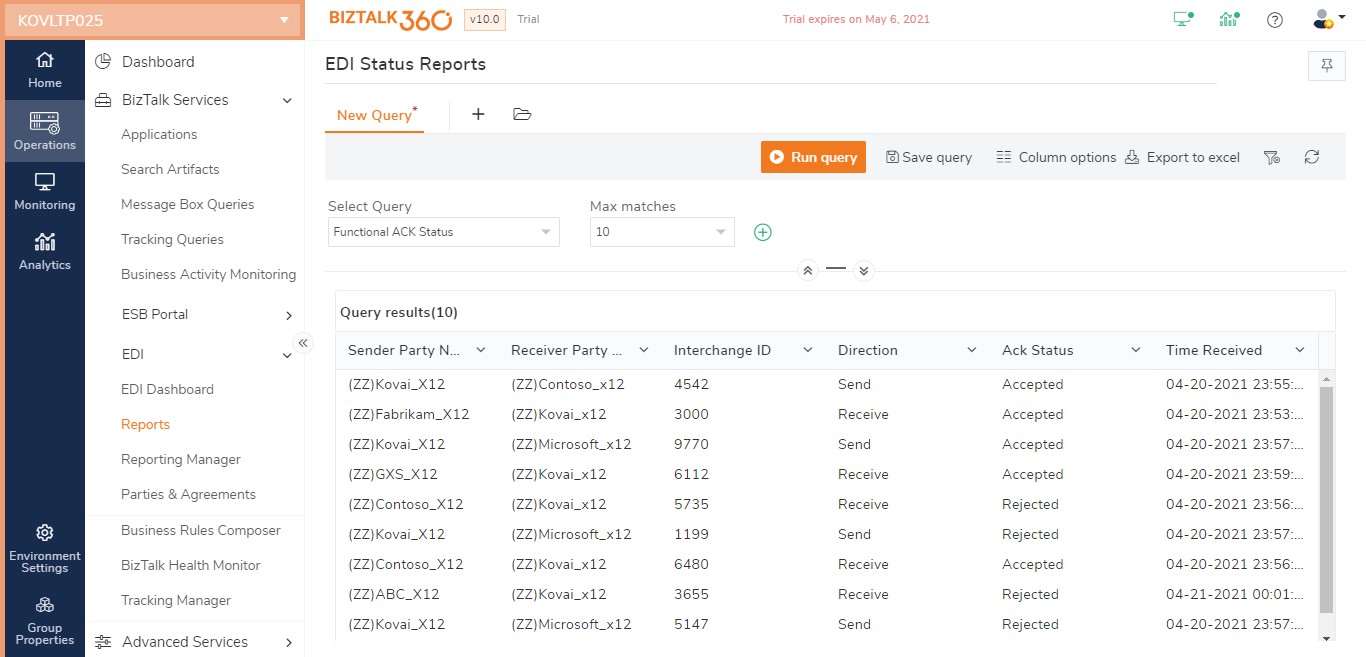
BizTalk360 brought the Functional Acknowledgement (997) Status Reporting as out-of-box capability to provides users with a centralized and intuitive interface to track the acknowledgment status of functional groups exchanged between trading partners.
Use Case :
Fabrikam, sends EDI 850 (Purchase Order) messages to its trading partner Contoso. These messages are transmitted in an X12 interchange containing one or more functional groups with transaction sets (850).
Upon receiving the interchange, Contoso returns:
TA1 (Technical Acknowledgement) — confirms the interchange was structurally valid.
997 Functional Acknowledgement — confirms whether each functional group and transaction set was accepted or rejected.
Suppose if the validation of one or more groups or transaction sets fail at Contoso, it may send functional acknowledgement with error status.
To look at the status of these functional acknowledgements in BizTalk, you have to locate the original interchange , right click on the individual record and navigate to functional acknowledgements. To simplify the process, Functional ACK Status Reporting has been introduced which provides an aggregated view of 997 acknowledgments . This allows users to quickly query and view the status of acknowledgements directly from a UI, with rich filtering capabilities to filter by Party, Direction or Message Type
Steps to Access Report
Navigate to the EDI Status Reports screen . Administration->EDI ->Reports .
Under Build Query Expression, use the dropdown and choose Functional ACK Status
Max Matches -Define how many results to retrieve (e.g., 10, 25, 50, 100)
Add Filters to Narrow Down ResultsYou can add filters based on the following parameters:
ACK Status: Filter based on positive or negative acknowledgement
Agreement Name: Choose the EDI agreement used
Direction: Whether it’s Send or Receive
Interchange Date Time: Filter by date range using On or Before / On or Later
Interchange ID: Unique identifier for the interchange
Receiver Party / Sender Party
Example - you can query Direction is Equal To Receive , ACK Statues is Equal to Rejected.
The result will display the matching records, including ACK status, agreement, sender/receiver, and more.
Interchange Aggregate Report
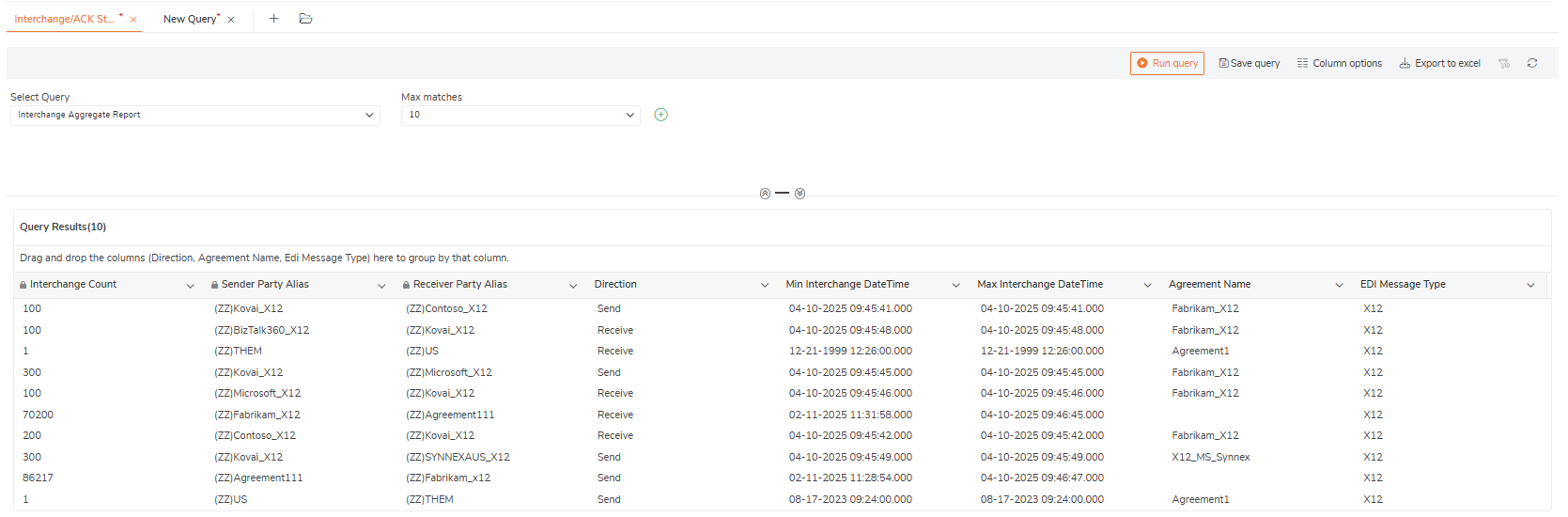
The Interchange Aggregate Report in BizTalk360 provides a summarized overview of EDI interchange traffic. It groups interchanges by sender, receiver, direction, agreement, and message type, allowing teams to gain insights into their EDI communication flow without manually reviewing individual messages.
Consider a scenario where Fabrikam, a large retailer, regularly exchanges EDI messages with trading partners such as Contoso, Tesco, and Microsoft. Instead of analyzing each individual interchange, Fabrikam’s EDI team can run an aggregate report to quickly understand the volume and flow of messages between trading partners.
For example:
The report may show that (ZZ)Kovai_X12 → (ZZ)Tesco_X12 had 20,000 interchanges sent.
It may also show that (ZZ)Silco_X12 → (ZZ)Kovai_X12 had 194,600 interchanges received.
This aggregated view helps users quickly identify patterns, trends, or anomalies in the data.
Steps to Access Report
Navigate to Administration → EDI → Status Reports.
In the Build Query Expression section, choose Interchange Aggregate Report from the dropdown list.
Set the Max Matches value (e.g., 10, 25, 50, 100) to control how many results you want to retrieve.
Filters - You can apply filters to refine the report and focus on specific data sets. Available filters include:
ACK Status: Filter based on positive or negative acknowledgement
Agreement Name: Choose the EDI agreement used
Direction: Whether it’s Send or Receive
Interchange Date Time: Filter by date range using On or Before / On or Later
Interchange ID: Unique identifier for the interchange
Receiver Party / Sender Party
Click Run Query
Batch Status
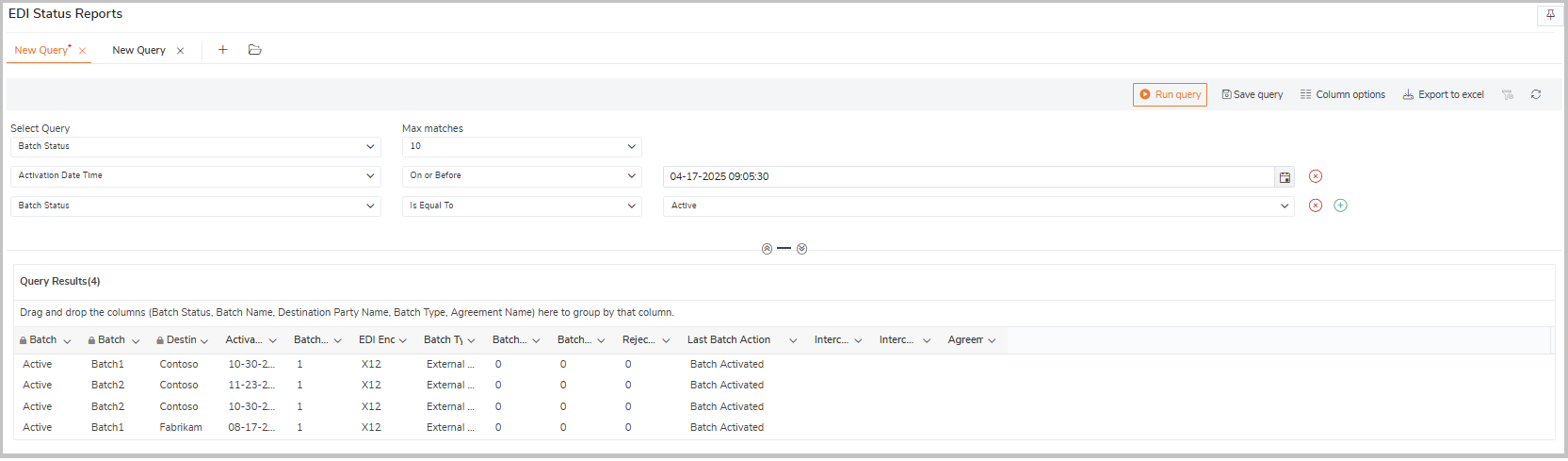
The Batch Status Report enables users to monitor and analyze EDI batches processed in BizTalk Server. This report provides a summary view of batch processing activities, highlighting key details such as batch status, batch name, activation time, and associated trading partners.
The interactive navigation allows users to click on any batch status entry to directly navigate to the Transaction Set Details page. The system automatically applies the relevant filters (such as batch name, date, and party), enabling seamless troubleshooting and data analysis.
Steps to Access Report
Navigate to Administration → EDI → Reports
In the Build Query Expression section, choose Batch Status from the dropdown list.
Set the Max Matches value (e.g., 10, 25, 50, 100) to control how many results you want to retrieve.
Filters - You can apply filters to refine the report and focus on specific data sets.
Activation Date Time
Batch Name
Batch Status
Destination Party
EDI Encoding Type
Click Run Query to view the results
Transaction Set Details
The Transaction Set Details view offers a granular, message-level breakdown of all EDI transaction sets (such as 850, 810, 856) processed through BizTalk Server. This feature helps users closely monitor individual transaction activities and troubleshoot specific message failures.
Steps to Access the Transaction Set Report
Navigate to Administration → EDI → Reports.
In the Build Query Expression section, select Transaction Set from the dropdown list.
Set the Max Matches value to specify how many results to retrieve (e.g., 10, 25, 50, 100).
Apply filters to refine your query based on specific criteria:
Control ID – Filter by the unique control number of the transaction.
Direction – Choose between Send or Receive messages.
Interchange Date Time – Define the date range for transaction processing.
Sender/Receiver Party – Specify the involved trading partner.
Status – Filter by transaction set processing status (e.g., Successful, Failed).
Click Run Query to retrieve the results.
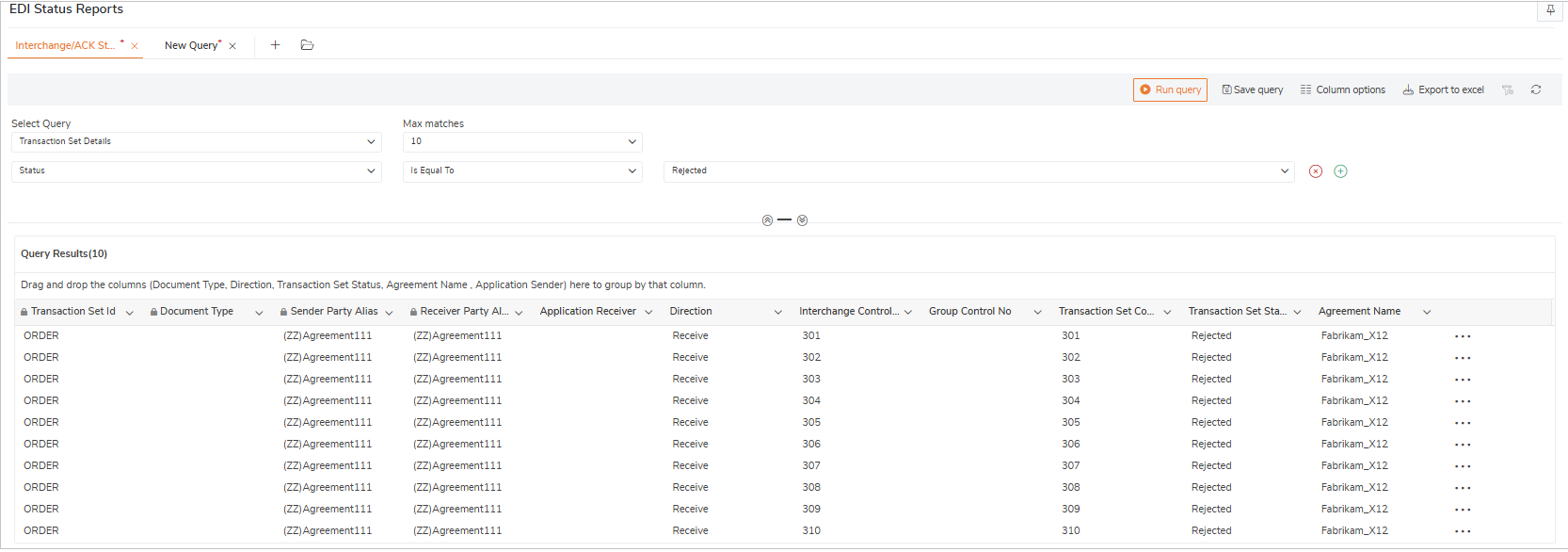
The query lists the individual transaction set records that match the search criteria. Each record includes the following details:
Transaction Set
Document Type
Sender Party Alias
Receiver Party Alias
Application Sender/Receiver
Direction
Transaction Set Control Number
Transaction Set Status
Agreement Name
View the message content by clicking the message property icon ... at the last column of each transaction .
Clicking on a transaction entry automatically navigates users to the Interchange ACK Report. The system prepopulates key filters—Control ID, Direction, Interchange Date/Time, and Sender/Receiver Party—to streamline further analysis .
Transaction Set Aggregation Details
The Transaction Set Aggregation Details view provides a high-level summary of EDI transaction sets processed through BizTalk Server. This report aggregates data by transaction set type, direction, status, and trading partners, offering a consolidated view of EDI activity over a selected time range.
Steps to Access the Transaction Set Report
Navigate to Administration → EDI → Reports.
In the Build Query Expression section, select Transaction Set Aggregate from the dropdown list.
Set the Max Matches value to define how many results you want to retrieve (e.g., 10, 25, 50, 100).
Apply filters to refine your query based on specific criteria:
Interchange Count
Sender/Receiver Party Alias
Direction
Interchanges
Agreement Name
EDI Message Type
Click Run Query to retrieve the results.
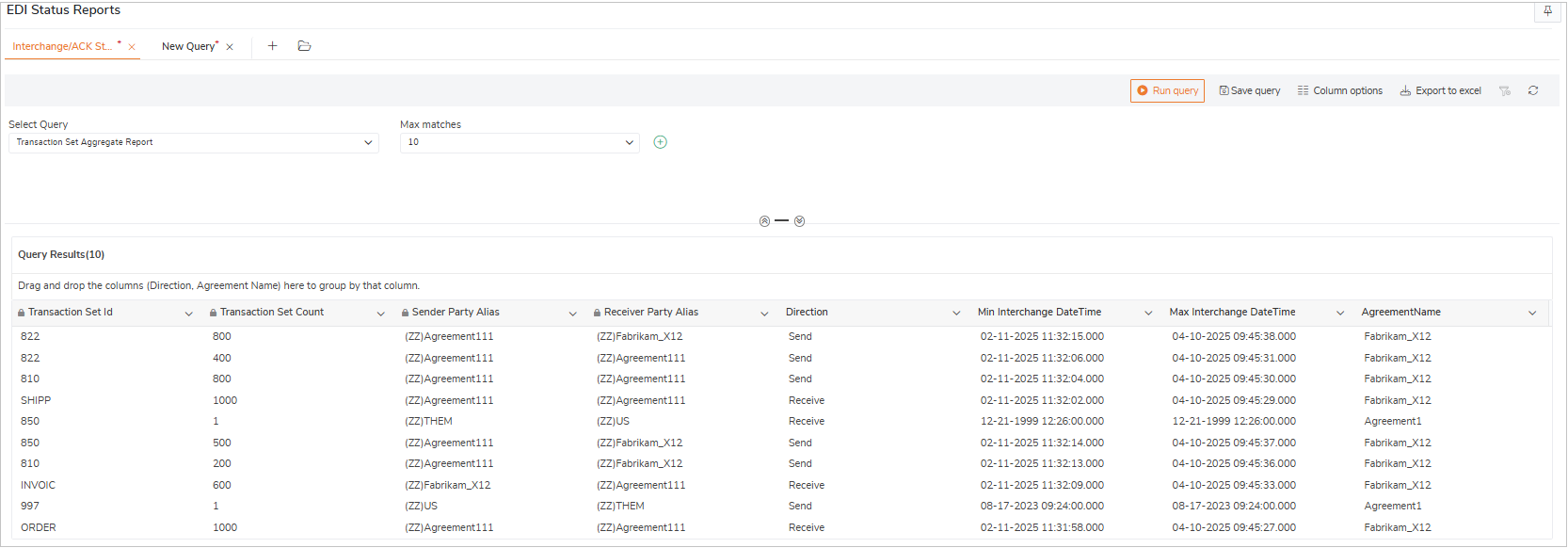
The query displays key information such as Interchange Count, Party Details, Direction, Agreement Name, and EDI Message Type.
Users can group the results by Direction, Agreement Name, or Message Type to easily analyze trends and partner communication patterns.
Common Querying and Filter Options
Save Query – Save frequently used queries for quick access during future analysis.
Column Options – Choose which columns to display in the query result by customizing the visible fields.
Export to Excel – Export the query results to an Excel file for offline analysis or sharing with stakeholders.
Grid Filter – Use advanced filtering options (such as Contains, Equals, Not Equals, Is Null, etc.) directly within the results grid to refine the displayed data.
