BizTalk360 has an option where administrators can stop monitoring and sending alert notifications for a specific timeframe. Say, if the deployment of BizTalk applications is supposed to take 1 hour, you can create a schedule to stop alerts during this period.
You can create a single maintenance schedule and apply it to multiple environments at once. This helps avoid duplicate configurations and ensures consistent maintenance configuration across environments.
Follow the below steps, to configure Maintenance schedule.
Navigate to Environment settings->Monitoring ->Maintenance.
In the Maintenance schedule section click on New Schedule to create a new schedule which opens a blade you need to configure the Environments, alarm exclusion and schedule execution. Let's see the maintenance schedule configuration in detail below.
For example, when an organization plans a deployment that affects production, staging environments between 9:00 AM and 11:00 AM. Instead of creating separate maintenance schedules in each environment, administrators can create one maintenance schedule by selecting multiple environments, apply the same maintenance time period and alarm exclude configurations.
Use Case: While creating a maintenance schedule, users can select one or more environments where the maintenance should be applied. The same schedule configuration will be executed across all selected environments. Only license activated environments will be available for selection. Let’s have a case like configured the schedule for all the environments weekly once Friday from 2PM-3PM. Also, another schedule has configured on the specific environment say “Envi A” with same Friday 1PM to 2.30PM in that case “Envi A” will have maintenance from 1Pm to 2.30PM, where the other environments get the maintenance on 2PM to 3PM.
Alarm Execution
In the schedule configuration, you can specify the alarms that you want to skip from maintenance. Though during the maintenance, the selected alarm will update the monitoring status and send alerts to configured email IDs.
Schedule Execution
The maintenance schedule can be configured to start maintenance immediately or at a later point in time based on the maintenance plan.
Immediate Maintenance
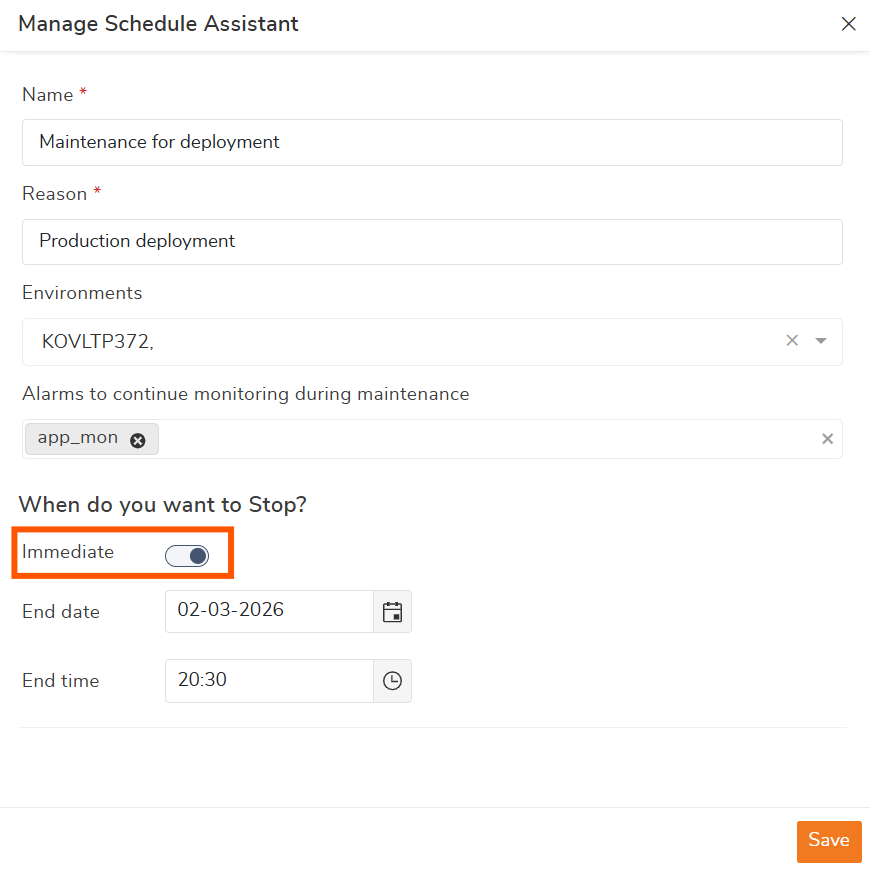
You can set up the maintenance immediately from the current time by, enabling the 'Immediate' option and providing the maintenance end date and time in the schedule configuration. For instance, an urgent deployment requires alerts to be stopped immediately across multiple environments.
Future Maintenance
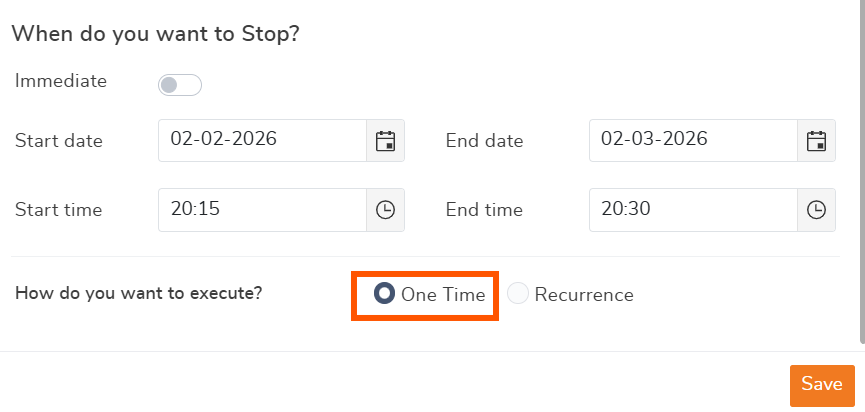
Configure the schedule with Start and end date times to stop receiving alerts during the future maintenance period. A future maintenance schedule can be configured for only once or recurrence execution.
1.One-Time execution - The schedule will execute only once based on the start/End Time configured.
Say, for instance, you want to stop the notification alert during the deployment which has been planned on the 21st of January from 9 AM to 11 AM. Then you can create a schedule with on-time execution. You will not receive any alerts from 9 AM to 11 AM on 21st January.
2. Recurrence Execution - The schedule will be created once and can be executed multiple times based on the recurrence pattern configured during the selected start and end time.
Configure the recurrence schedule with the below recurrence pattern:
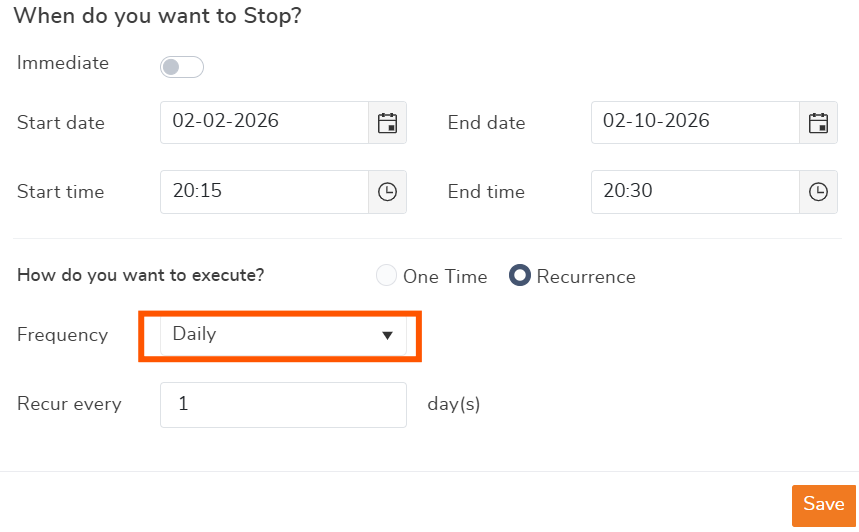
Daily: The Schedule will execute every single day or 2 days/3days once during the configured start and end date-time.
Scenario, the below image describes, the schedule will execute every 2 days once from 9 AM to 11 AM, from the start date January 22 to the end date January 28.
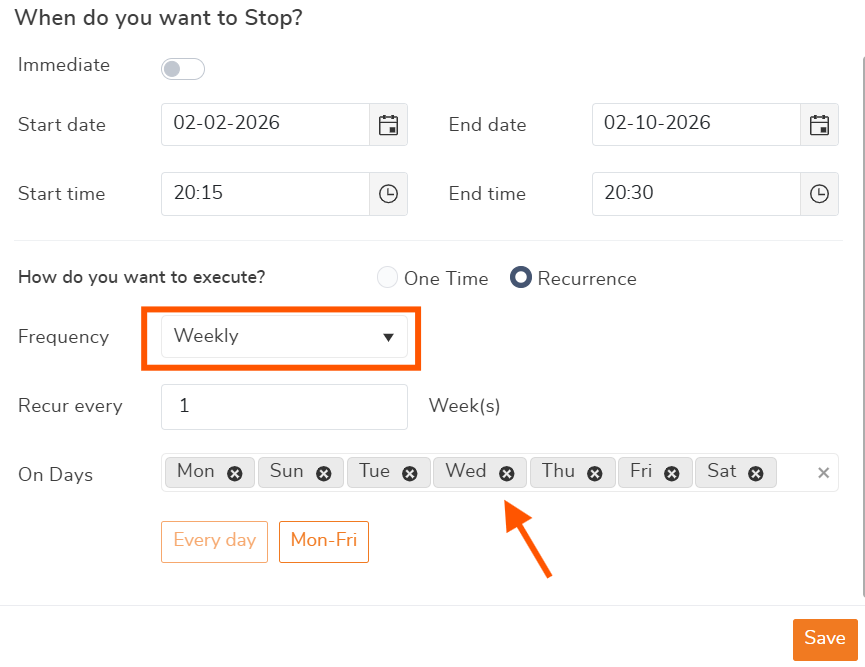
Weekly: The Schedule will execute every week or 2 weeks/3weeks once during the configured start and end date-time period. you can also define whether you want to execute the schedule during all the days in a selected week, or only on the particular days.
Scenario - Say for instance, if you want to stop receiving alerts all the weekend for the whole 1 year. Then configure a schedule with start and end date for 1 year.
Recurrence Pattern: Weekly frequency -> Recur every week -> On Saturday and Sunday.
Monthly - The schedule will recur on a monthly basis. Say you can define in which month you are planning for maintenance and also you can configure the Date of the month / Day of the week the maintenance is planned.
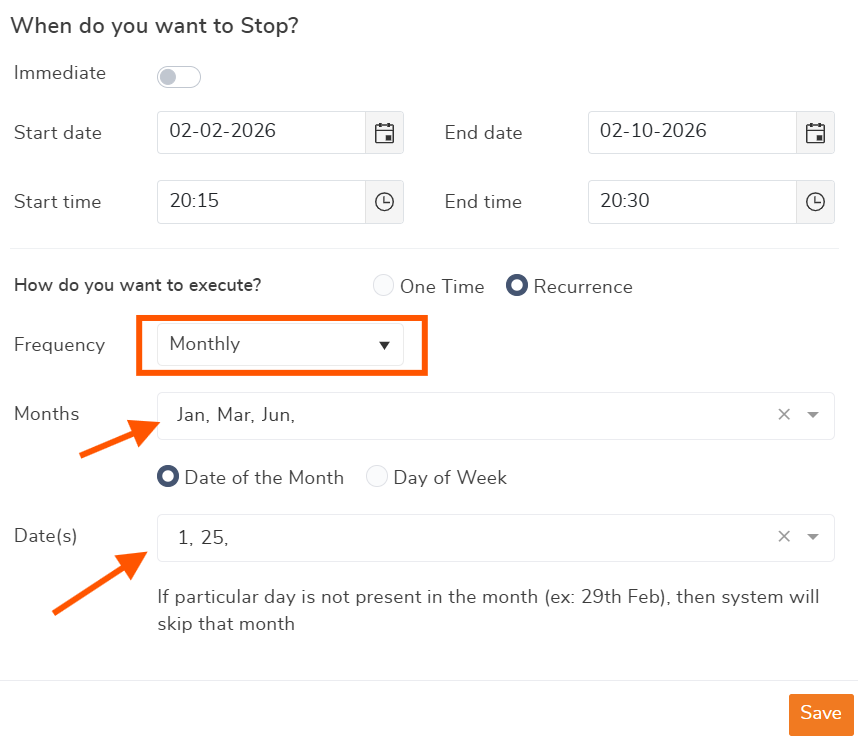
Date of Month - The schedule will get executed on the specific dates of the configured month. The below image explains the schedule will repeat every 1st and 15th of January, May, and December Month.
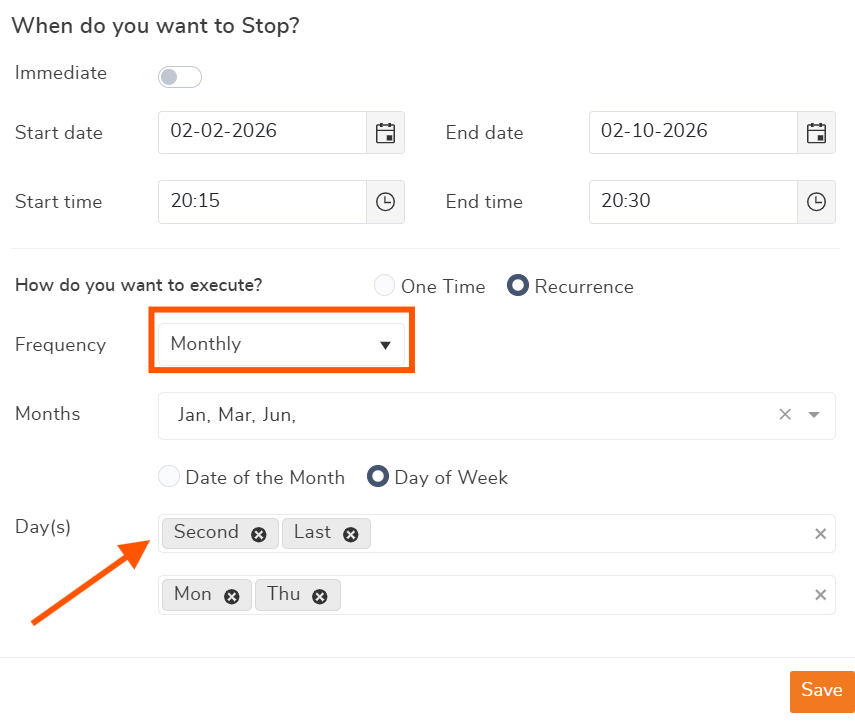
Day of the week - The schedule will repeat on every configured day of the week on the selected month. For instance, if you want to maintain the system on the last Sunday of every month, you can configure it as below.
Months - All Months, Days - Last Sunday.
Schedule Execution History
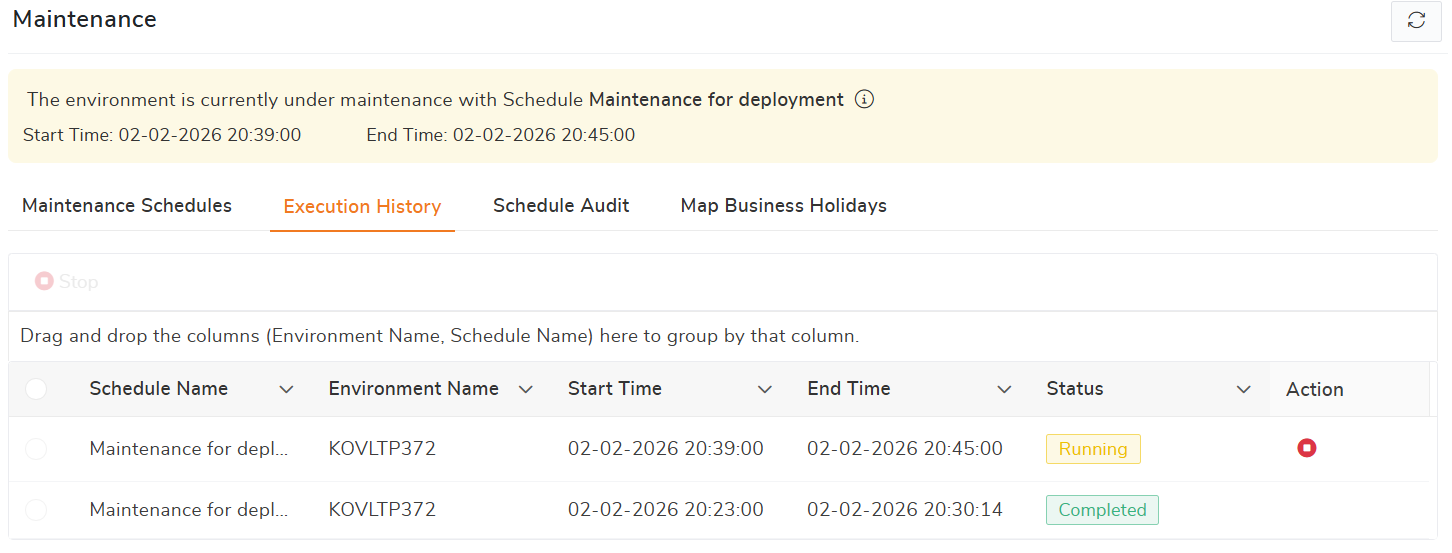
The Schedule Execution History section provides a consolidated view of all maintenance schedule executions across environments. This helps administrators track when a maintenance schedule was executed, its duration, and its execution status. This section is especially useful for operational validation, audits. Using the Schedule Execution History section, the administrator can view individual execution entries for each environment confirm the exact start and end times of maintenance Identify if any maintenance was stopped before completion
For each maintenance execution, the following details are displayed:
Schedule Name – Name of the maintenance schedule.
Environment Name – Environment in which the maintenance was executed
Start Time – Date and time when the maintenance started
End Time – Date and time when the maintenance ended
Status – Current or final state of the execution (for example, Running, Completed, or Stopped).
An administrator schedules a recurring maintenance window every weekend for Production and staging environments. After a deployment weekend, the administrator wants to verify whether the maintenance was executed as planned, which environments were put under maintenance, whether the maintenance completed successfully or was stopped manually. This ensures transparency and provides clear evidence that alerts were intentionally suppressed during the defined maintenance window.
Stop Maintenance
Users can manually stop an active maintenance schedule before the configured end time. If a deployment planned for two hours completes in one hour, maintenance can be stopped manually to resume alert notifications immediately.
Navigate to the Schedule Execution section for the currently active schedule, click the Stop button.
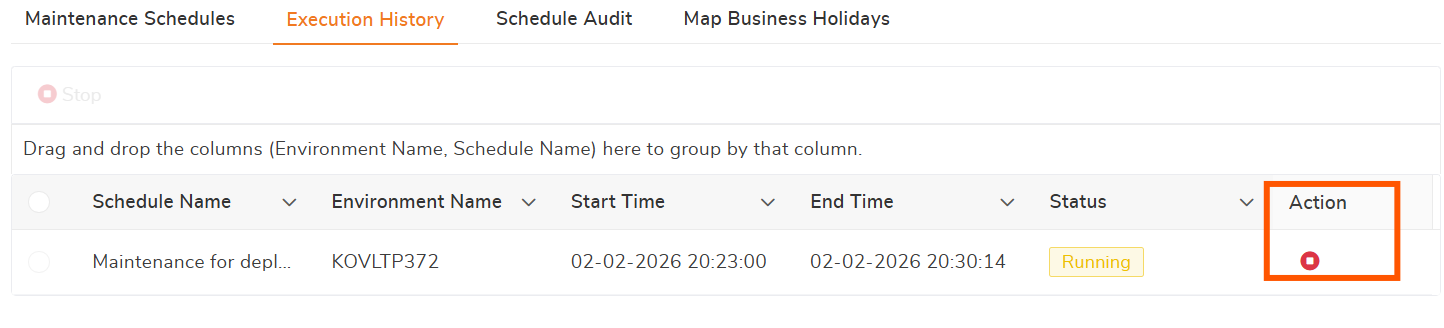
Also, the maintenance can be stopped from the administration dashboard and Monitoring dashboard by selecting the environment.
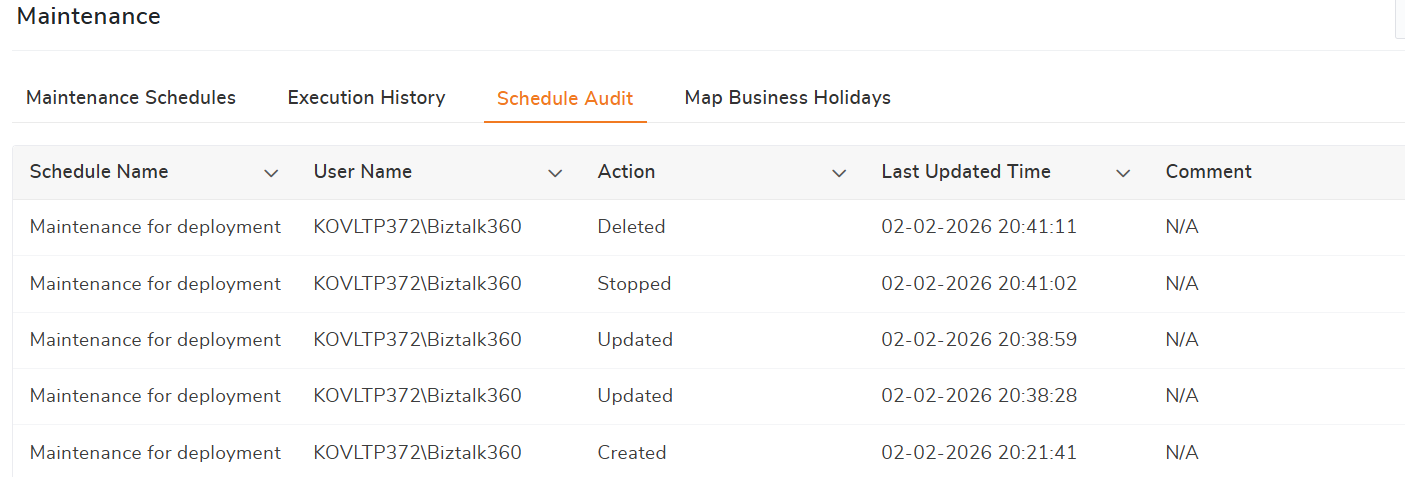
Schedule Audit
All maintenance-related activities are audited for reference and compliance. The following actions are recorded along with the username and timestamp:
Create – New maintenance schedule created.
Update – Schedule configuration modified
Delete – Schedule deleted to stop execution
Stop – Maintenance stopped manually
Complete – Maintenance completed after the configured period (system action).
Points To Remember:
1. You can exclude alarms to be able to receive alerts from such alarms during maintenance
2. During maintenance, no alert will be triggered for the alarm and Autocorrect will also not execute
3. You can edit the schedule and stop the maintenance in between. i.e before the maintenance period gets over