BizTalk360 allows users to customize the template of the emails they receive from the product. The user can set up email templates based on their needs in the terms of theme, by editing the XSLT file. Besides that, they can also customize the footer text and captions. This article explains how to set up email templates.
What is new in v11.4 ?
-To prevent formatting issues, the option to manually edit the XSLT in email templates is removed. As a result, when user upgrade to version 11.4, any custom changes made to the XSLT will no longer be retained—they will be reverted to the default BizTalk360 style
Setting up an Email Template
- Login to BizTalk360.
- Click 'Settings' (gear icon) on the home page.
- Click 'Notifications' in the menu panel on the left side of the screen.
- Click 'Manage Email Template' which will navigate you to the Manage Email Template section.
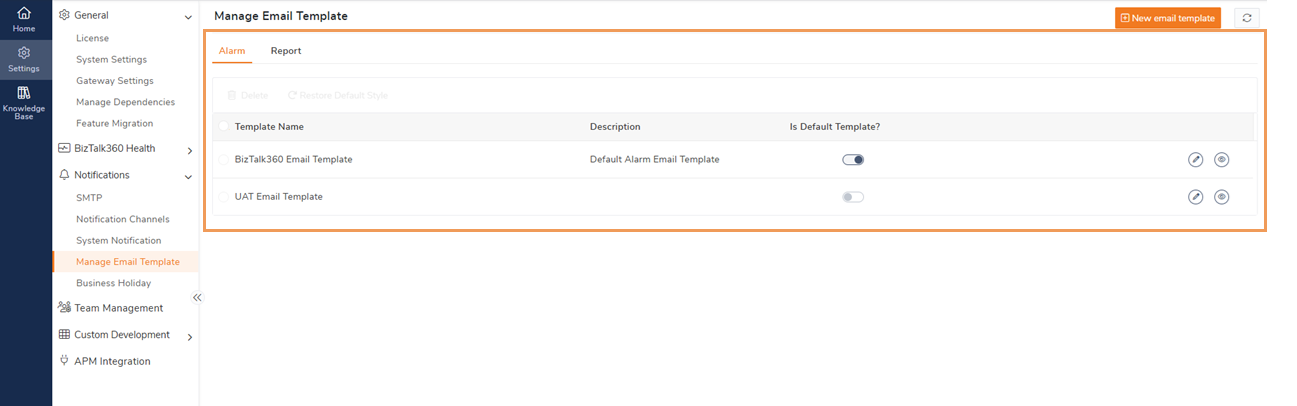
To create a new template, click on the 'New Email Template' icon. A new blade will open where user can update the Email Details and Customize the style ,
Email Details
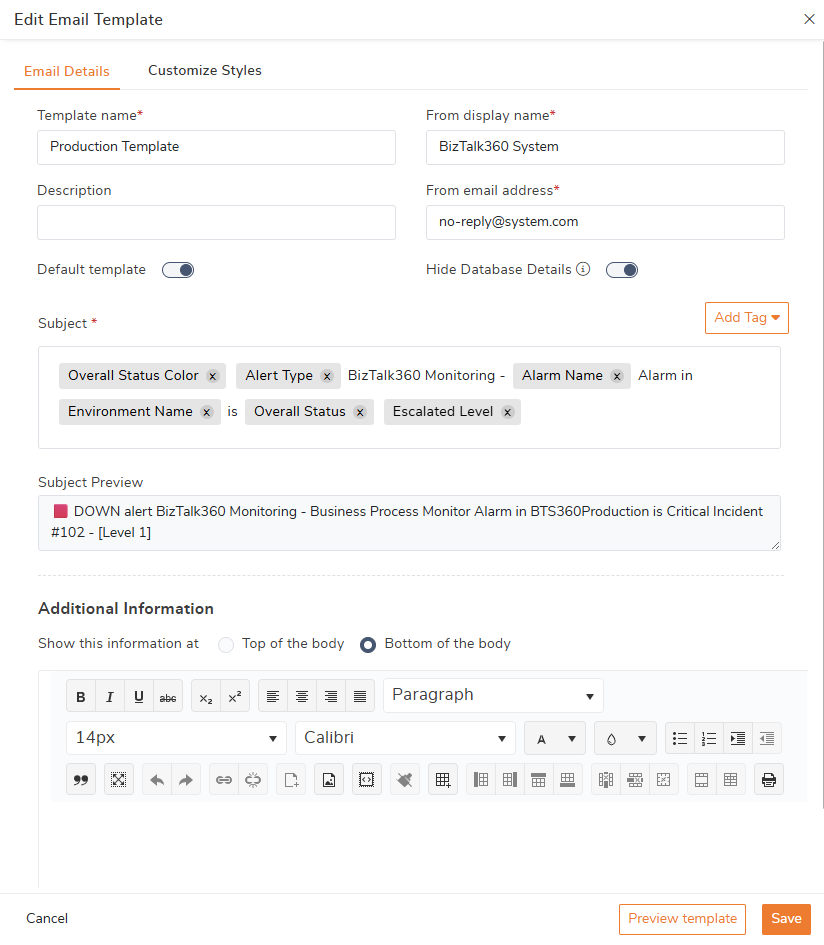
User can update the following information in the Email Details screen:
- Template name
- Description
- Default Template - Enable this toggle option to make this template as a default one for all the alerts.
- Hide Database details :Enable this option to hide the BizTalk/SQL server instance and database details from monitoring alerts.
- From Display name
- From Email Address
- Email Subject and preview : User can customize predefined information such as the color of the overall status, alert type, alarm name, and environment name in the email subject. Additionally, User can include your own text in the subject along with the predefined values. Using Preview option ,these changes can be previewed before save.
For example, it may be difficult to distinguish alerts received for different business processes. To address this, user can create separate templates for each business process. Include relevant business information in the subject to improve understanding, categorization, and searchability.
- Additional Information : This section enables users to include custom messages, instructions, or any other content that enriches the notification’s context. In many enterprise environments, alert emails are reviewed by both technical and non-technical stakeholders who may need different levels of information to act promptly. To support this, BizTalk360 provides a customization option within the email template configuration where users can define additional business-specific information using a text editor. For example: when a critical (P1) alert is triggered due to a complete service outage, the “Additional Information” section becomes vital for quick and effective resolution. It allow team to include urgent instructions or specific actions needed, such as “Immediate resolution required as no users can access services” given in the below image. This added context helps the Infrastructure Support Team understand the severity and respond without delay. Including contact details like "infra-support@example.com" ensures clear communication. Overall, this section enhances clarity and speeds up incident response during high-impact outages.
Email Style Customization
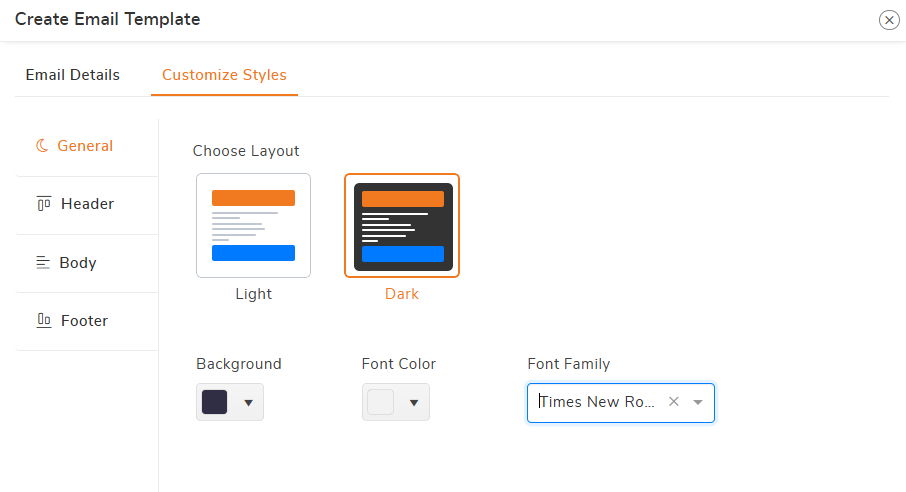
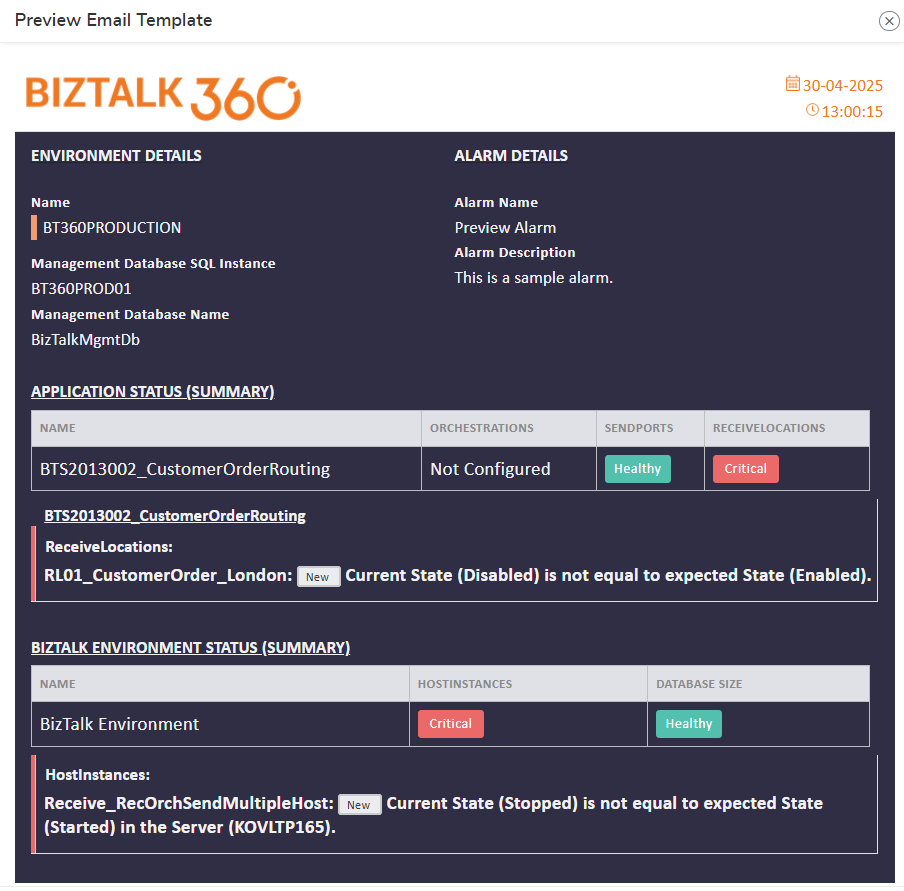
In the next tab Customize Style, users can select a layout that supports different Light and Dark themes. After choosing a theme, they can preview the template by clicking the 'Preview Template' button or the eye icon after saving.
In the section below, users can further modify their template using various customization options.
- General : In this section, users can select the layout, background color, font color, and font family for the template.
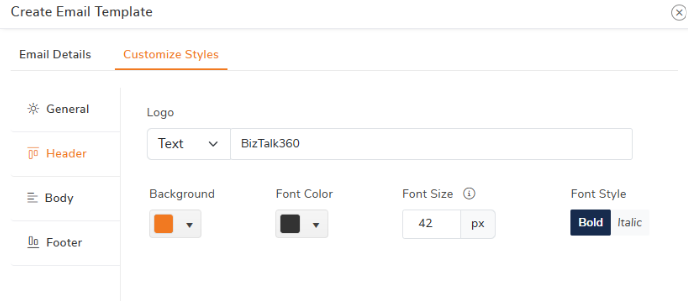
- Header : In header section, users can choose either text or a logo for the template header. They can also select a background color and adjust the font color, font size, and font style to enhance the appearance of the text.
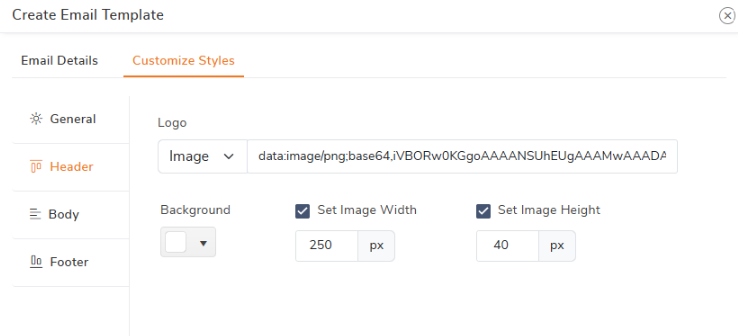
If an image is selected for the logo, the user must provide the image URL. To customize it, several options are available, such as adjusting the background color, setting the image width, and configuring the image height
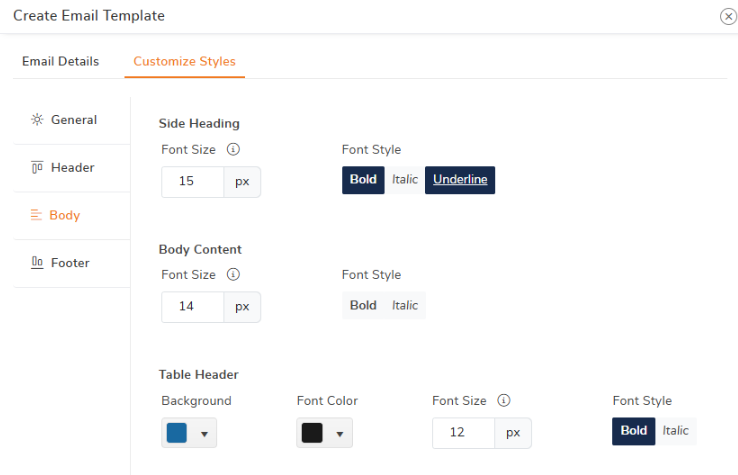
- Body : In this section, users can customize the side heading, body content, and table headers by adjusting the font size, font style, as well as the background and font colors.
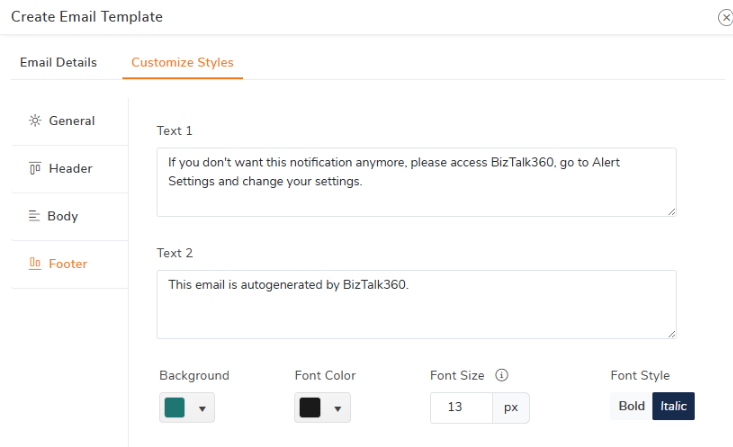
- Footer : Users can customize the text in the footer section and adjust options such as background and font color. They can also set the text size and font style.
Preview Template
After customizing each section, users can view the template by clicking the "Preview Template" button before applying changes. Alternatively, once the template is saved, they can view it anytime by clicking the eye icon.
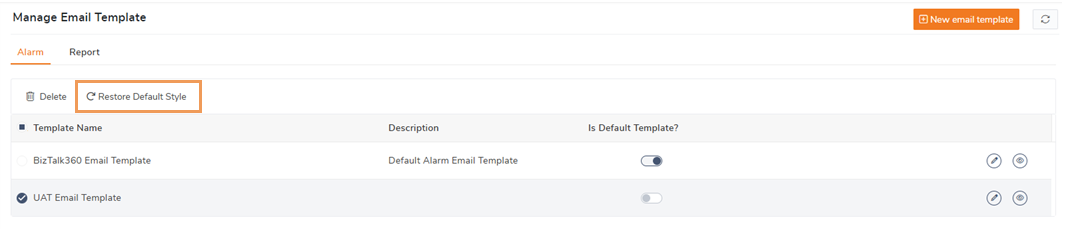
Restore Default Style
To restore the email template to its default style, click on the "Restore Default Style" option within the template settings. This will reset all customizations, including layout, font style, and colors, bringing the template back to its original configuration.
Alarm Configuration of an Email Template
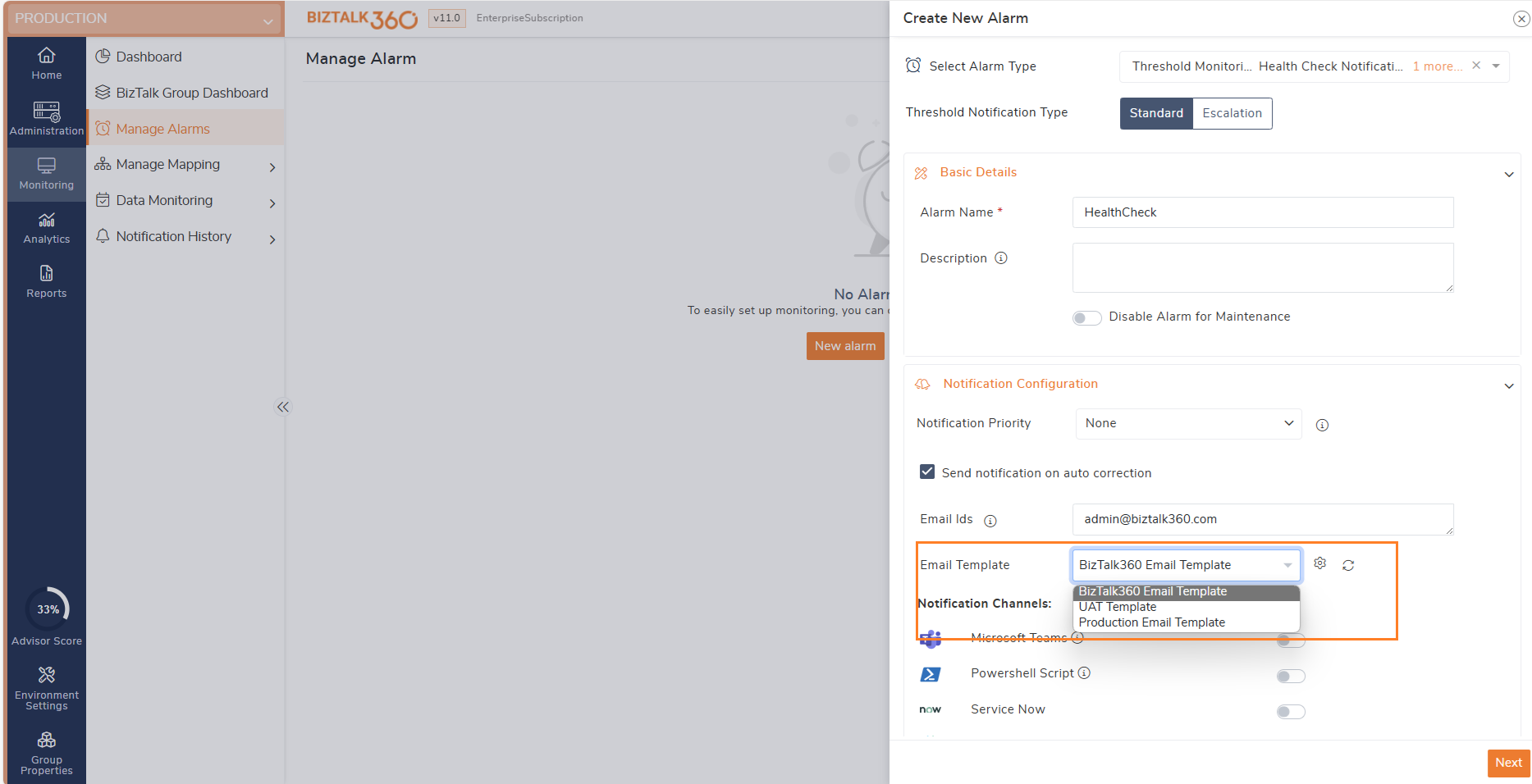
In the Alarm Configuration section, you can select the Email template that has been created in the Manage Email Template section. To select a template, follow the instructions below:
- Login to BizTalk360
- Click the 'Monitoring' section in the environment panel.
- Select the 'Manage Alarm' section.
Import/Export
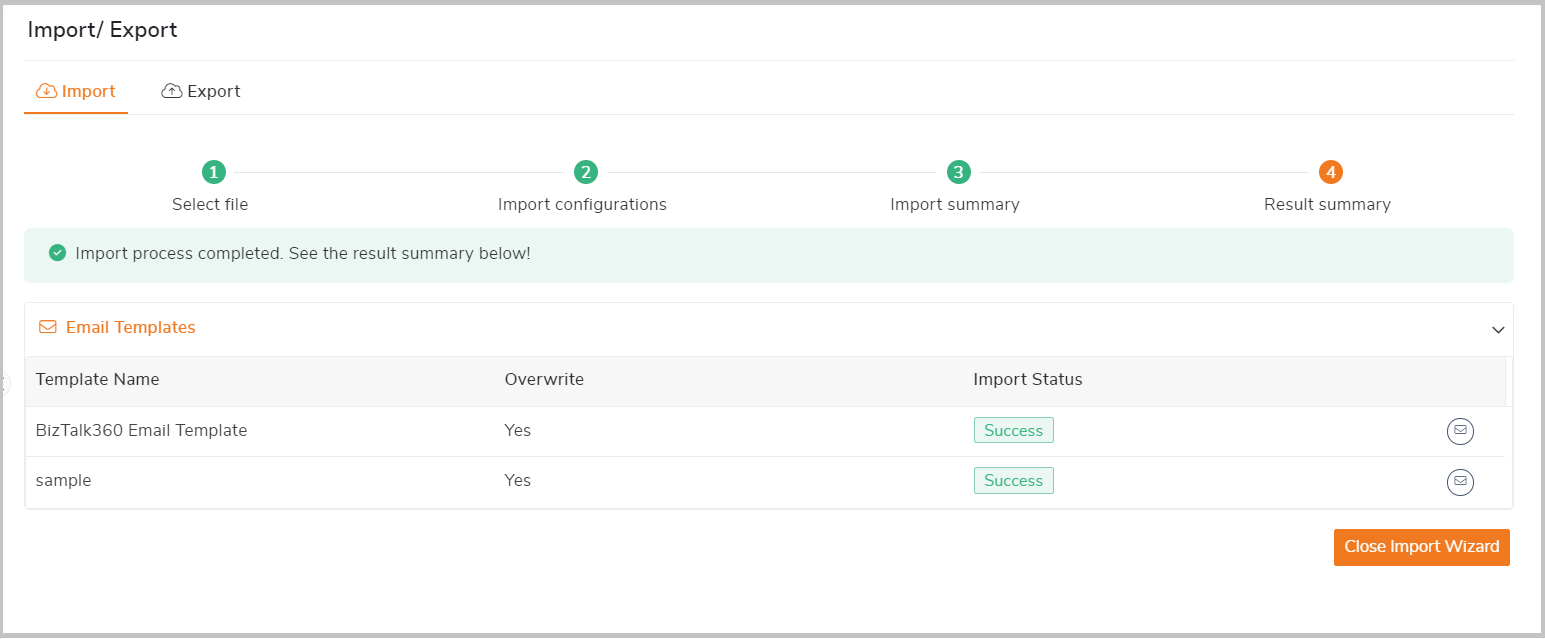
With the Import Export Feature, you can import the Email template from one server to other. Say when you customize the template based on your company use, you can quickly import the template from development server to production server, ensuring consistency in alert notifications across environments.
Note: If the user imports a older version templates that contains XSLT changes then these modifications will be overridden, and the template will revert to the default style after the import.
This process reduces the risk of manual errors and accelerates the deployment of updated templates.
To import/export the templates navigate to Environment settings->General->Import/Export.
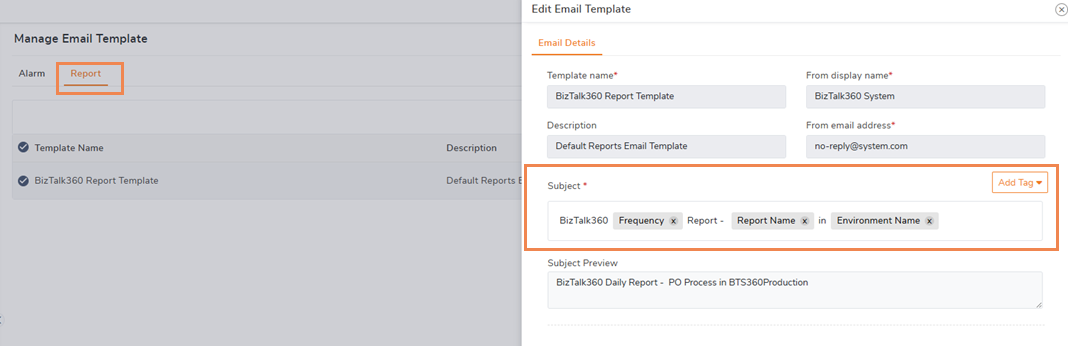
The default email template "BizTalk360 Report Template" will be applied to all the reports. Unlike alarm email template, the reporting template cannot be edited, deleted, modified or the XSLT can be restored. However, users have the flexibility to customize the subject line of the email template according to their specific needs.