This section describes the BizTalk360 service account prerequisites that should be met to be able to install and work with BizTalk360. This consists of the following parts:
BizTalk group permission
SQL Server Permission
Minimum permissions at the database level
What happens when you don't provide Admin permissions to the BizTalk360 service account
Our recommendation
BizTalk360 Server Prerequisites
Follow this article for the BizTalk360 Server Prerequisites.
BizTalk group permission
Create a Service Account for BizTalk360
You need to create a separate or new service account for BizTalk360 to run the IIS Application pool and Monitoring/Analytics service. You can create a new Windows account for the service account (say, svcBizTalk360). Once you have created the service account, you need to add it to the following NT groups:
Local Administrators Group, this access is required on:
All BizTalk Servers from the licensed BizTalk360 group
The SQL server(s) which contain(s) the BizTalk databases
In case BizTalk360 is installed on a separate server(s)
The server(s) on which BizTalk360 is installed
BizTalk Server Administrators Group
BizTalk Server Operators Group
BizTalk Application Users Group
BizTalk Isolated Host Users Group
SSO Administrators Group
IIS_IUSRS group
Note: You also need to make sure you make these settings across the multiple environments where you install BizTalk360. You also need to provide SQL Server SYSADMIN access to the service account. Read this to know more about the necessity to give SYSADMIN access.
Important: Please make sure that you log in to BizTalk360 server with the service account and proceed with the new installation or upgrade. This is to ensure that all permissions are in place and that you are able to log in to BizTalk360 without any issues.
To add, view, or manage users and groups, you need to follow the below steps (From Windows 2012 server):
Navigate to 'Computer Management' in the Windows Metro UI view
In the tree view, expand the 'System Tools' and 'Local Users and Groups' option
Dedicated BizTalk360 Service Account
Using a shared service account with elevated permissions such as Local Admin and System Admin poses significant security risks. Therefore, we recommend creating a dedicated account for the BizTalk360 service and granting the necessary permissions to enhance security and isolate credentials.
SQL Server permission
Grant access to BTS_ADMIN_USERS SQL Role in the BizTalk Management Database
To grant access to 'BTS_ADMIN_USERS_SQL' role (on Windows 2012 server and later version),
Navigate to 'SQL Server Management Studio' in the Windows Metro UI view
In the Object Explorer panel, connect to SQL Server Instance and expand the tree view on the left side. Expand the SQL Server and 'Databases' and click 'BizTalkMgmtDb' database.
Right-click on the BizTalkMgmtDb database and select the 'New Query' option.
Copy and paste the following values and click 'Execute' to execute the query
GRANT SELECT ON dbo.adm_OtherDatabases TO BTS_ADMIN_USERS;
GRANT SELECT ON dbo.adm_Server2HostMapping TO BTS_ADMIN_USERS;
GRANT SELECT ON dbo.adm_ServiceClass TO BTS_ADMIN_USERS;
GRANT SELECT ON dbo.BizTalkDbVersion TO BTS_ADMIN_USERS;
GRANT SELECT ON dbo.adm_BackupHistory TO BTS_ADMIN_USERS;
In addition to the above steps, it is required to provide "SQLAgentOperatorRole" for the BizTalk360 service account and execute the below mentioned SQL query against MSDB in order to monitor SQL Jobs in BizTalk SQL Instances.
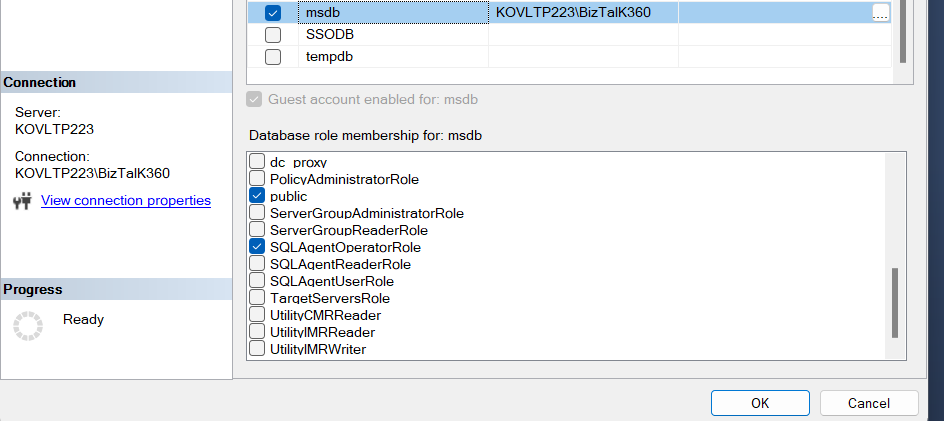
Replace BizTalk360ServiceAccount with your actual BizTalk360 service account in the below query.
GRANT SELECT ON sysjobs TO [BizTalk360ServiceAccount];
GRANT SELECT ON sysjobschedules TO [BizTalk360ServiceAccount];
GRANT SELECT ON sysjobhistory TO [BizTalk360ServiceAccount];
GRANT SELECT ON sysjobsteps TO [BizTalk360ServiceAccount];
GRANT SELECT ON syscategories TO [BizTalk360ServiceAccount];
GRANT SELECT ON sysjobservers TO [BizTalk360ServiceAccount];
GRANT SELECT ON sysoperators TO [BizTalk360ServiceAccount];
GRANT SELECT ON sysalerts TO [BizTalk360ServiceAccount];
GRANT EXECUTE ON sp_help_job TO [BizTalk360ServiceAccount];
GRANT EXECUTE ON sp_start_job TO [BizTalk360ServiceAccount];
GRANT EXECUTE ON sp_stop_job TO [BizTalk360ServiceAccount];
GRANT EXECUTE ON sp_help_jobhistory TO [BizTalk360ServiceAccount];
Microsoft SQL Server Authentication Modes
The SQL Server database engine has two types of authentication modes — Windows authentication mode and SQL Server and Windows Authentication mode (mixed mode). BizTalk360 supports both SQL authentication modes to connect to the SQL Server, however BizTalk360, by default, uses SQL Server and Windows authentication mode (mixed) mode.
If in case the SQL server is configured for Windows Authentication mode, you will see an error when you launch the application for the first time:
Default BizTalk360 installation creates and uses a SQL server for authentication
Make sure either both Windows and SQL authentication is enabled on the SQL instance, where BizTalk360 database is hosted, or Change the config files (web.config and monitoring service.config) to use Windows Authentication.
If you still want to use Windows Authentication mode, you need to make changes to BizTalk360ConnectionString in the web.config in the BizTalk360 Web Installation folder:
You will find the Web.config file in the BizTalk360 Web Installation folder (C:\Program Files (x86)\Kovai Ltd\BizTalk360\Web)
To use Windows authentication mode, change the above connection strings by uncommenting (removing ) the first line and commenting the second line (adding )
In addition to making the changes to BizTalk360ConnectionString in web.config file, you need to make the changes in BizTalk360.monitor.exe.config file in the BizTalk360 Service Installation folder. To change the security SQL server authentication mode:
In SQL Server Management Studio Object Explorer, right-click the server, and then click Properties
On the Security page, under Server authentication, select the new server authentication mode, and then click OK
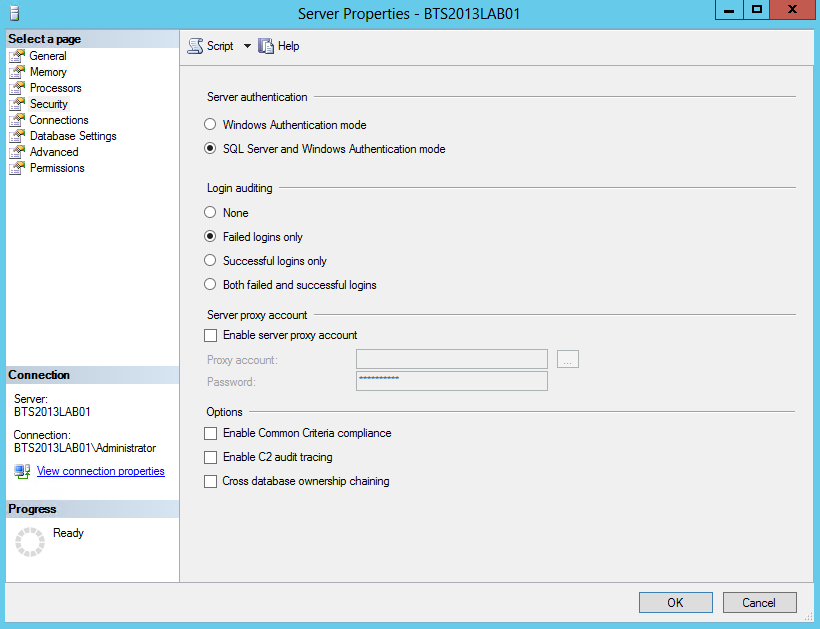
In the SQL Server Management Studio dialogue box, click OK to acknowledge the requirement to restart the SQL Server
In Object Explorer, right-click your server, and then click Restart. If SQL Server Agent is running, it must also be restarted, Post BizTalk360 installation, a user profile has to be created for the Service account with Super User access privileges. Only then, BizTalk360 can perform operation automation capabilities (such as Resume/Suspend/Terminate) in the Message Box data monitor.
Minimum permissions at the database level
It’s recommended to provide SYSAdmin permission for the BizTalk databases to the BizTalk360 service account. But for some of the organizations due to internal policy, it is restricted to provide SYSAdmin. Hence in such cases, you can provide the minimum permission as per the above article suggested. As an overview of the above recommendations, here is the matrix that you can follow
Database | VIEW DATABASE STATE | BTS_ADMIN_USERS | BTS_HOST_USERS | BAM_CONFIG_READER | db_datareader | db_owner | SQLAgentOperatorRole |
BizTalkMsgBoxDb | Yes | Yes | Yes | Not Available | Yes | ||
BizTalkMgmtDb | Yes | Yes | Yes | Yes | Yes | ||
BizTalkRuleEngineDb | Yes | Yes | Yes | Not Available | Yes | ||
SSODB | Yes | Not Available | Not Available | Not Available | Yes | ||
BizTalkDTADb | Yes | Yes | Yes | Not Available | Yes | ||
BAMPrimaryImport | Yes | Yes | Yes | Not Available | Yes | ||
EsbItineraryDb | Yes | Not Available | Not Available | Not Available | Yes | ||
EsbExceptionDb | Yes | Not Available | Not Available | Not Available | Yes | ||
BAMArchive | Yes | Yes | Yes | Not Available | Yes | ||
BizTalk360 | Yes | ||||||
msdb | Yes |
What happens when you don't provide Admin permissions to the BizTalk360 service account
The service account will have powerful access, but all other users who access BizTalk360 will have very limited access, they don't even need to belong to any BizTalk groups, BizTalk360 abstracts all the security requirements.
BizTalk360 service account user without Local (Windows) Admin permission
BizTalk360 installation will not be proceeded using the service account user privileges. Service account should have local (Windows) admin privileges in all the servers (BizTalk Server, SQL Server).
Considerations while installing BizTalk360: Login to the machine with the service account which has Local Admin privileges. Open a command prompt with Admin privileges and navigate to the downloaded BizTalk360.msi file to proceed with the installation
Note: If the BizTalk360 installation is started with no admin privileges it will encounter the runtime access issue
If the service account is not provided with the local admin privilege, the following functionalities will not work as expected:
In the Advanced Event Viewer, only the installed machine details were fetched
BizTalk Server and SQL server system-related details will not be displayed under Operations, BizTalk360 UI -> Operations -> Infrastructure Settings -> BizTalk Services/SQL Services. It will just spin for a long time
BizTalk Server and SQL server system related details will not be displayed, and exceptions will be thrown under BizTalk360 UI -> Monitoring -> Manage Mapping -> BizTalk Servers / SQL Servers.
File monitoring will become “Orphaned” if you configure.
Analytics will work partially; for some of the counters, details are fetched from the database directly; another system-related information like CPU, Available Memory will not be shown as it requires elevated permissions.
BizTalk360 service account user without SYSADMIN permission
When the BizTalk360 service account (domain user account) doesn’t have SYSADMIN privileges on the BizTalk360 Database, you will not able to open the BizTalk360 web page, it will throw a login failed exception.
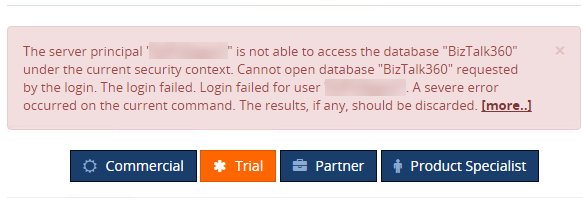
To solve this, the user must be provided "db_owner" permission or SYSADMIN access in the BizTalk360 Database security.
When the BizTalk360 service account (domain user account) doesn’t have Sysadmin privileges on the BizTalk Database (BizTalkMgmtDb), you might face the below exception during the activation of the license.
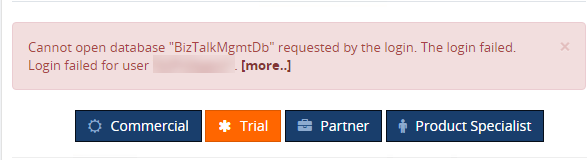
BizTalk360 makes a direct query to some of the BizTalk databases for performance reasons. For that, you need to provide SELECT/EXECUTE permission for the BizTalk360 service account. Hence, assigning SQLAgentOperatorRole for the service account would be sufficient here.