**BizTalk360 Prompts For Login Credentials When I Click Settings
There may be times when you notice BizTalk360 requesting for login credentials as shown below.
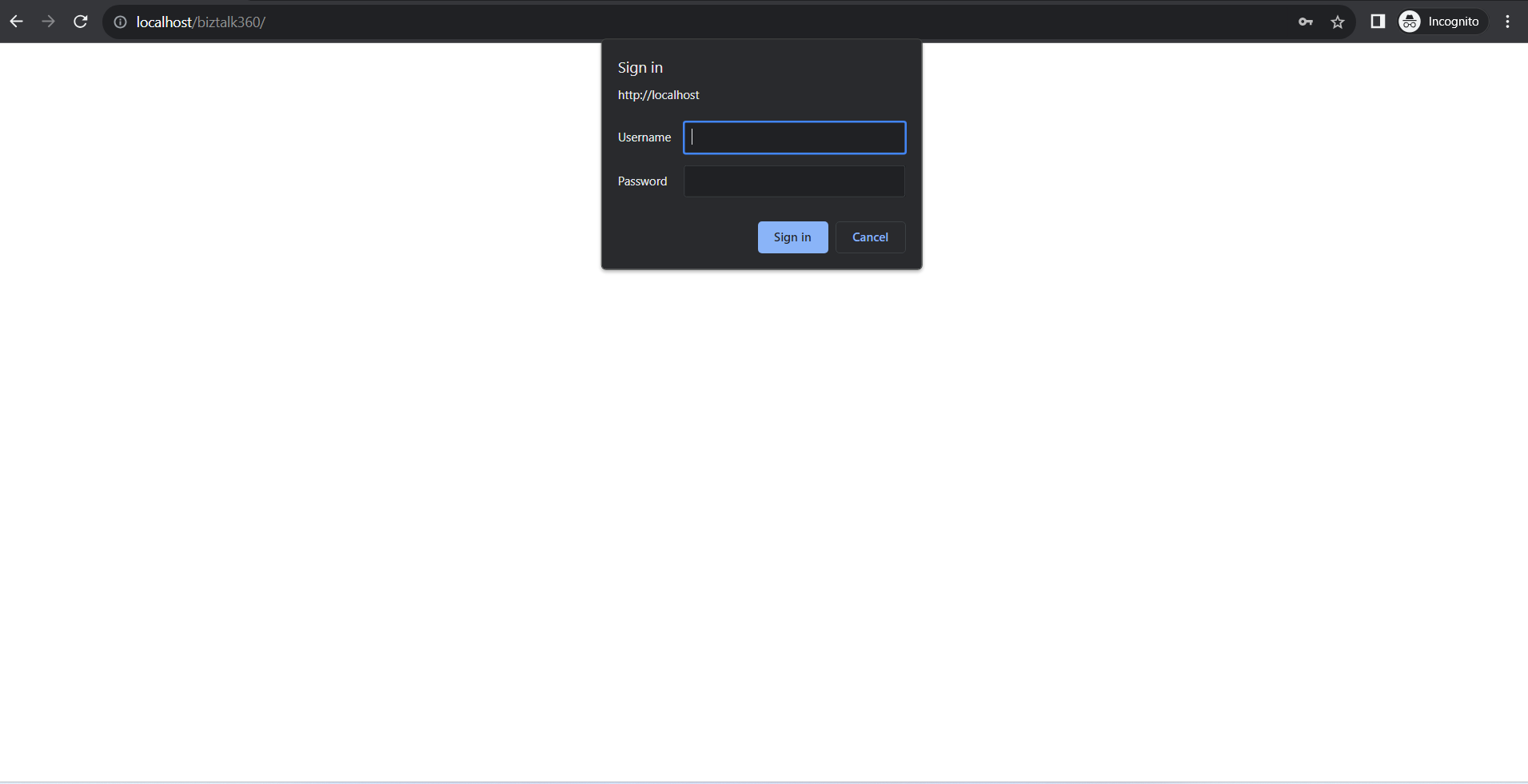
This error occurs mainly due to the "Anonymous Authentication" set as Enabled under IIS settings. **
Follow the steps as shown below to rectify this problem.
- Open IIS Manager
- Navigate to "Authentication" setting
- Toggle the status of "Anonymous Authentication" to Disabled
- Refresh the BizTalk360 Settings page
Error Type: This collection already contains an address with scheme http. There can be at most one address per scheme in this collection
One of our customer recently reported this error after installation of BizTalk360
Server Error in '/BizTalk360' Application.
This collection already contains an address with scheme http. There can be at most one address per scheme in this collection.
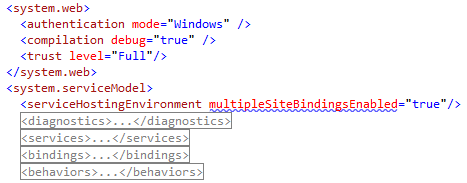
If your service is being hosted in IIS you can fix the problem by setting 'system.serviceModel/serviceHostingEnvironment/multipleSiteBindingsEnabled' to true or specifying 'system.serviceModel/serviceHostingEnvironment/baseAddressPrefixFilters'.
Parameter name: item
Description: An unhandled exception occurred during the execution of the current web request. Please review the stack trace for more information about the error and where it originated in the code.
Exception Details: System.ArgumentException: This collection already contains an address with scheme http. There can be at most one address per scheme in this collection. If your service is being hosted in IIS you can fix the problem by setting 'system.serviceModel/serviceHostingEnvironment/multipleSiteBindingsEnabled' to true or specifying 'system.serviceModel/serviceHostingEnvironment/baseAddressPrefixFilters'. Parameter name: item
Reason:
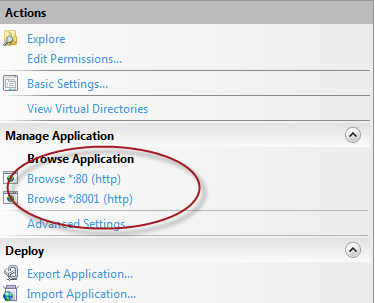
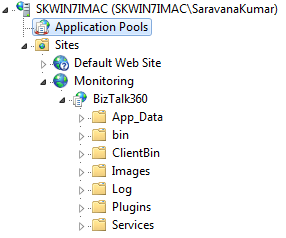
The main reason for this exception is due to multiple bindings enabled for the the IIS website under which BizTalk360 is installed. You can check this easily by seeing the right hand side pane as shown below:
There are couple of ways we can sort this issue:
Solution #1:
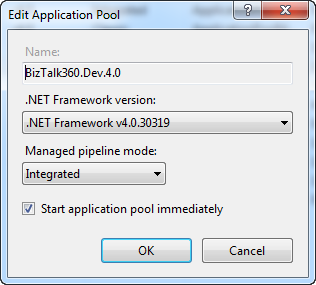
If ASP.NET 4.0 is installed on the server, you can change the BizTalk360 IIS Application pool to use ASP.NET 4.0 as shown in the below picture:
And you can add the following line to the Web.Config file
Solution #2:
If in case you don't have ASP.NET 4.0 running in the server, then your second option is to create a dedicated website for BizTalk360 with a custom port number (ex: 90) and install BizTalk360 in the dedicated website instead of the default website.
You must create the website manually before starting the BizTalk360 installer. The installer will display the options in the drop down box to choose the website.
Configure The Active Directory Server With LDAP Over SSL
If you are using LDAP authentication over SSL, you need to make the following changes in the BizTalk360 database to allow BizTalk360 to use SSL for LDAP authentication.
- In the BizTalk360 database, check the dbo.b360_admin_GlobalProperties table for a row with value "AD_PATH" under the "SettingKey" Column
- If the row exists, delete the row
- Add the following row to the table
- Make sure you change the server name and DC as per your environment
- INSERT INTO dbo.b360_admin_GlobalProperties (SettingKey,SettingValue)VALUES ('AD_PATH','server01:636/OU=users,DC=kovai,DC=com'
- Once you have made these changes, BizTalk360 should be able to use SSL for LDAP authentication.
Error Type: Could not load type 'System.Runtime.Diagnostics.ITraceSourceString'...
If you face an error message as shown below,
Could not load type 'System.Runtime.Diagnostics.ITraceSourceStringProvider' from assembly 'System.ServiceModel.Internals, Version=4.0.0.0, Culture=neutral, PublicKeyToken=31bf3856ad364e35'
Solution
You need to install the patch (Microsoft .NET Framework 4.5.2) as mentioned in the following support article: https://www.microsoft.com/en-us/download/details.aspx?id=42642.
The reason for the error is mainly because .NET is not installed in the machine.
Error Type: The specified directory service attribute or value does not exist
When you are trying to create a new User Access Policy via the setting link you may encounter the error message "The specified directory service attribute or value does not exist"
Scenario 1
This happens because if there is no container specified, the principal context class will create a System.DirectoryServices.DirectoryEntry object by binding to built in CN=Users container to start searching for users.
If the user performing the search does not have permission to read the attributes of default users contain, the search operation will fail, thus causing, "the specified directory service attribute or value does not exist”, exception.
Resolution:
Make sure the IIS application pool identity is not running under a local account and you are trying to configure a domain user. If IIS application pool is running under a domain account, make sure the account have read access on the "User" container.
Scenario 2
For majority of the cases you will be fine with the default settings, unless the domain administrator has changed the default container (CN=Users) where the user objects are stored.
In such cases, it's necessary to specify your user container store, so that BizTalk360 understand where to look for.
Resolution:
In order to resolve this issue, you simply add a new setting with key="AD_PATH" and value=" " in the b360_admin_GlobalProperties table.
Example SQL:
INSERT INTO dbo.b360_admin_GlobalProperties (SettingKey,SettingValue)VALUES ('AD_PATH','OU=Users,dc=kovai,dc=com')
The network path was not found. errorCode: Ox2003
If you see the below Error for the host instance in throttling analyser
errorText: Unable to collect performance data for Category:biztalk:Message Agent, Counter:Message publishing throttling state,Host Instance:BVCoreProcessingHost,Server:Server01. Error:The network path was not found. errorCode: OX2003
category: BizTalk:Message Agent
counter: Message publishing throttling state
timestamp: 02-21-2015 17:17:42.500
Follow the steps as shown below to ensure the network connectivity to that counter is available:
- Login to the server installed with BizTalk360 and its monitor service, using credentials used for BizTalk360 Monitor Service
- Run PerfMon
- Select counters from computer where BizTalk Server is installed and for which the Throttling data is to be collected
- Make sure if you are able to read data for below counters under group BizTalk:Message Agent and the instances
- a. Counter:Message publishing throttling state - For Publish Throttling
- b. Counter:Message delivery throttling state - For Delivery Throttling
- If these checks are positive, you will be able to view the data for these counters. Restart the BizTalk360 monitoring service to start collecting the throttling data.