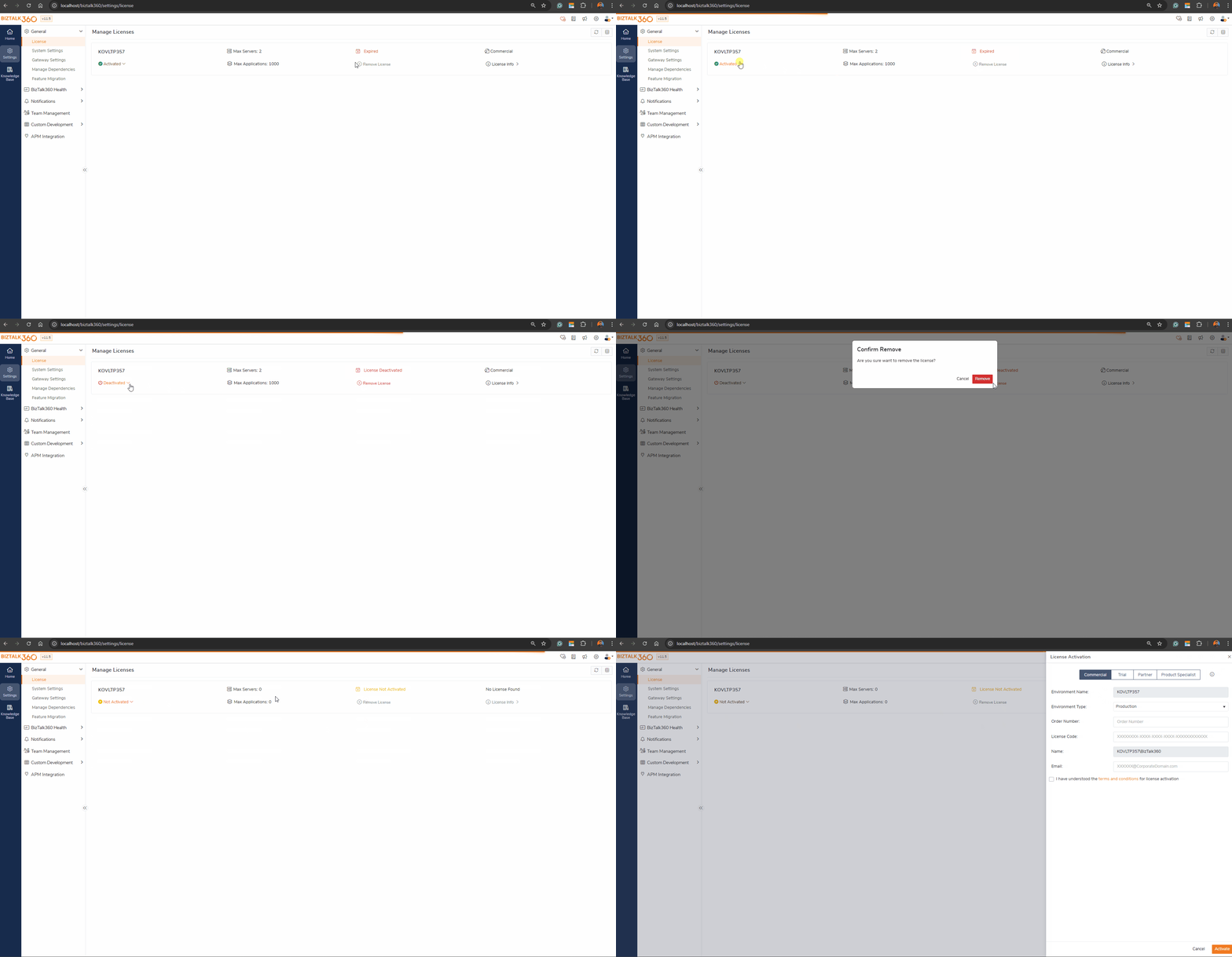
In case you have an internet connection from the machine where BizTalk360 is installed, you can follow below steps to activate/deactivate license.
Activating the Commercial license with Internet connection
Once you have received the license certificate with the order number and license code details, follow the steps as shown below to activate the license:
- Log in to BizTalk360 (as a Super user)
- Navigate to Settings -> General -> License page to activate the license , which lists all the configured environments along with the license activation status.
- Select Activate option from the dropdown in the desired environment .which opens the license activation blade.
- Select Commercial tab as the license type
- Since we are activating a Subscription Enterprise edition license for Production Environment -
- Select the Environment Type as "Production"
- Enter the Order Number and License Code from the License and Service Certificate issued by BizTalk360 licensing team
- Enter the email address.We recommend you to provide a valid corporate email id.
- Select the check box to confirm you accept our terms and conditions
- Click Activate to activate the license for the environment. If there are any validation errors, it will be displayed at the top of the pop-up screen.
- If the activation was successful, you will be navigated back to the Manage Licenses screen. The License Activation Status will be displayed as Activated, Product License Type will display the status as Commercial, and the Expiry date will also be listed.
Deactivating the Commercial License with Internet connection
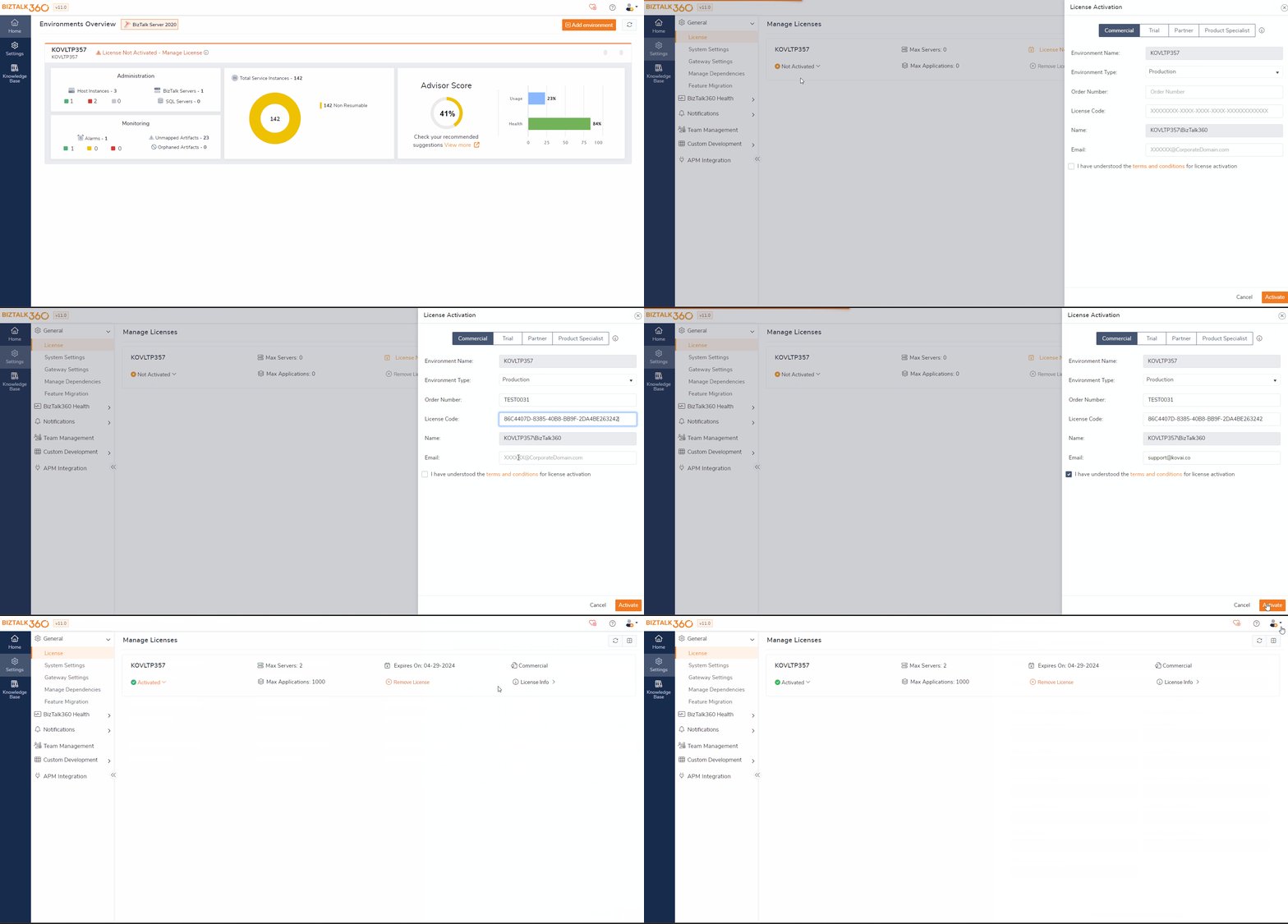
In case you are upgrading to a newer version of BizTalk360, you need to deactivate the license before you will be able to perform the upgrade. Also, when you wish to use the license key in a different environment (of the same type) for specific reasons, you need to deactivate the license.
IMPORTANT POINT TO REMEMBER
If in case you are decommissioning a BizTalk360 server, please keep in mind that you MUST deactivate the active license(s). Failing to deactivate the license(s) will mean that you will not be able to use the same license on a different Production or Non Production environment. You will see an error message as "There is already an active license for this order number/license code. Please deactivate the current license".
Follow below steps, to deactivate the license:
- Log in to BizTalk360 (as Super User)
- Navigate to Settings -> General -> License page to activate the license , which lists all the configured environments along with the license activation status.
- Select the environment you want to deactivate the license (The current status of this environment will be listed as Active) . Click on the status dropdown which provides an option to deactivate the license.
- Once deactivated the License status will be changed as Deactivated.
Deactivating/Removing Expired Commercial License
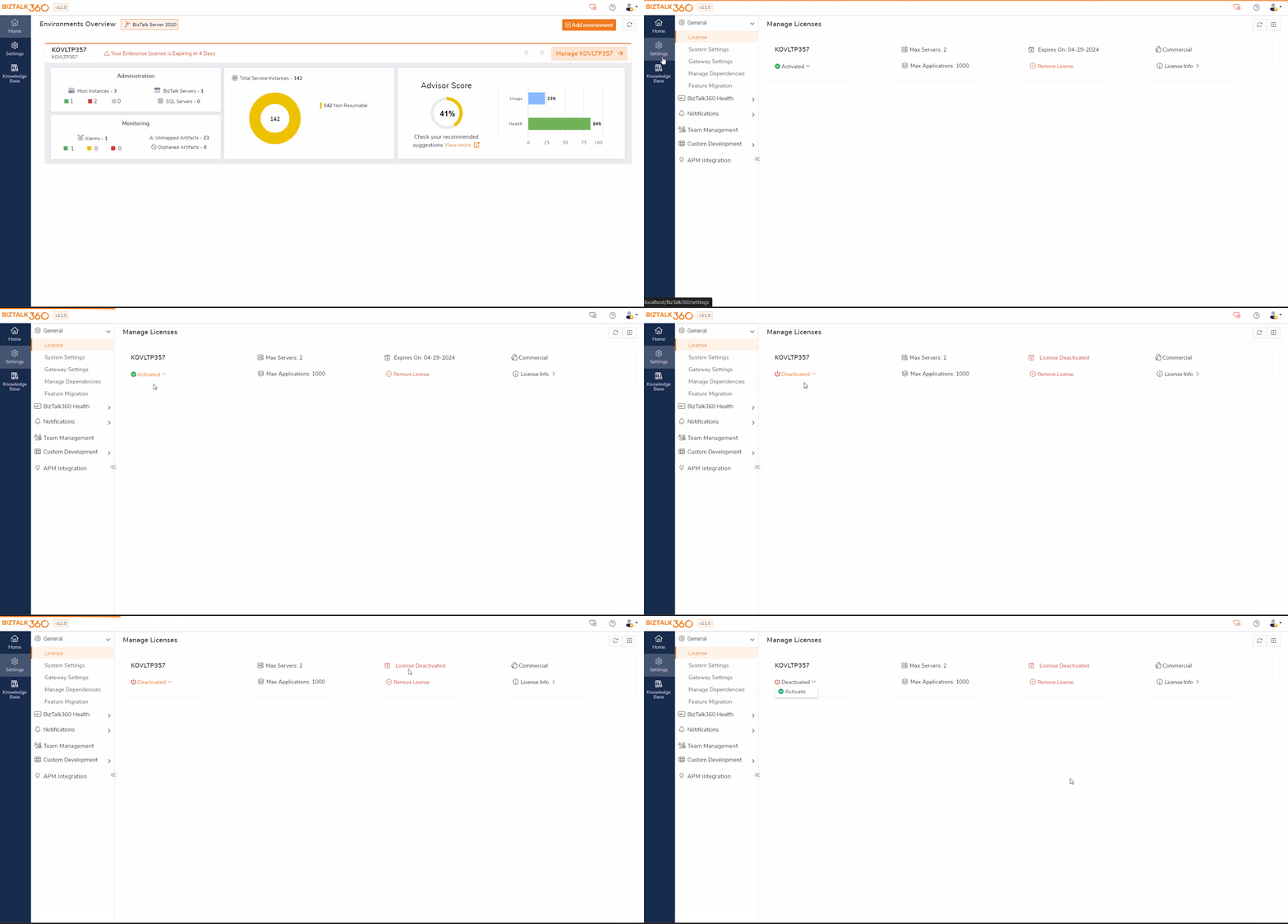
There is a possibility that the license was not deactivated before the expiry date. In such cases, the expired license cannot be removed directly. However, starting from version 11.3, BizTalk360 provides an option to deactivate expired licenses. Once the license is deactivated using this feature, you can proceed to remove it from the system.
Follow the below steps to deactivate the expired license:
- Log in to BizTalk360 (as Super User)
- Navigate to Settings -> General -> License page to activate the license , which lists all the configured environments along with the license activation status.
- Select the environment you want to deactivate the license (The current status of this environment will be listed as Expired) . Click on the status dropdown, which provides an option to deactivate the license.
- Once deactivated, the License status will be changed to Deactivated.