It is important to ensure the physical infrastructure and configuration of your IIS servers are healthy for proper functioning. To manage IIS servers in BizTalk360, you need to manually add them to the portal.
Adding IIS Servers
To add IIS servers to the BizTalk360 portal, follow the steps below:
Log in to BizTalk360 and select the desired environment.
Navigate to Environment Settings.
Under the General section, select IIS Server.
Click Add IIS Server.
In the IIS Server Name box, enter the name of the IIS server that you want to add. Once the server is successfully added, it will be displayed in the grid along with details such as the Server Name, Cluster Type, and Logging Status.
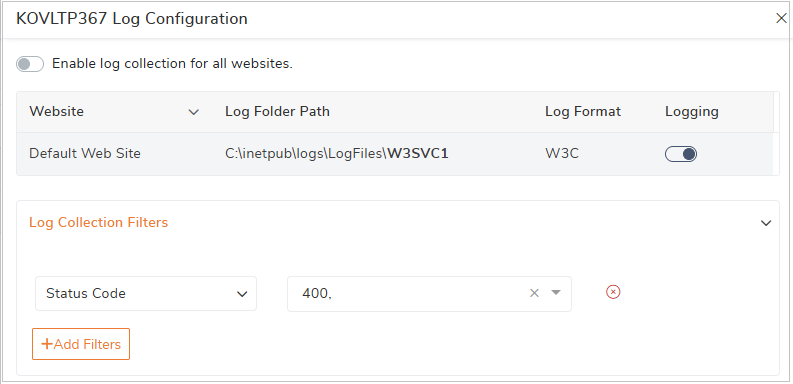
Log Configuration - Once the IIS feature is enabled, click on the respective server to open the Log Configuration blade.
Enable Logging-The configuration blade displays all the available websites on the server along with Website Name, Log Folder Path ,Log Format .Enable the Logging toggle for a website to start collecting logs for that particular website.
Log Collection Filters- You can further refine the log collection by configuring filters based on Status Code ,HTTP Method ,Port ,URI .Only logs that match the configured filter criteria will be collected.
Example: If you configure the Status Code filter with 400, BizTalk360 will collect only the IIS log entries that have an HTTP status code of 400 (Bad Request).This filtering capability helps reduce unnecessary log collection and allows administrators to focus on specific requests and errors
.gif)
Permissions required for accessing IIS Servers in BizTalk360
Once the IIS Server is added, BizTalk360 automatically validates the server configuration and displays the permission, accessibility, and prerequisite details. This includes:
Server Permissions:
Local Administrator privileges (or)
If direct local Administrator access is not granted, the BizTalk360 service account, or a group to which the BizTalk360 Service account belongs, must be granted explicit Read permissions on the IIS configuration folder: %SystemRoot%\System32\inetsrv\config
WMI Namespace access
Pre-requisites:
RPC availability
WMI Service status
TCP 135 connectivity
Service Accessibility:
IIS PowerShell Web Admin Module
PerfMon access for analytics data collection
It helps administrators quickly verify whether the BizTalk360 service account has the required access to IIS resources.
For example, when a user adds an IIS server, BizTalk360 performs automatic checks to confirm the AppPool logon account, WMI connectivity, and PerfMon access. If the server is not reachable or required permissions are missing, the user can immediately identify the issue through the red indicators and take corrective action.
This proactive validation ensures that IIS monitoring functions smoothly without interruptions and eliminates troubleshooting delays due to missing configurations.
.gif)
The number of IIS Servers you can manage is based on the licensing tier.
Silver & Gold tier - 4 IIS servers.
Platinum tier - 8 IIS servers.
Please contact license@biztalk360.com to monitor more IIS servers.