The BAM Dashboard provides an interactive and intuitive interface for visualizing and analyzing Business Activity Monitoring (BAM) data in real time. It has no pre-defined widgets. Users can configure widgets based on the BAM views deployed in their environment. The BAM views are listed along with the activities which allows users to configure widgets with various chart types such as line, area, column and table. Users can select specific BAM views and activities along with its related activities and view the data within a defined date-time range. The provision to configure widgets by applying filters based on BAM column values is also available to get a prominent overview on relevant business data.
Widgets Configuration
The Widget Configuration enables users to design and customize widgets that display BAM (Business Activity Monitoring) data in real time. Each widget represents a focused view of one or more BAM activities, allowing users to get an insight on critical business metrics at a glance. Users can configure what data to display, how to visualize it, and which filters to apply ensuring that the widget presents only the most relevant and actionable insights for their business operations.
Users can configure widgets like,
Active transactions for a specific period of time.
Completed transactions for the past month.
Average order processing per week.
Assume that an organization wants to monitor all their logistics currently being processed in real time. If the number of active Inbound Orders suddenly spikes while Outbound Orders remain low, it may indicate a delay in shipment processing or a potential system bottleneck. Early identification allows the team to take corrective actions immediately to maintain SLA compliance. In such case, they can add a widget that fetches the active transactions for a specific period of time.
BAM Configuration
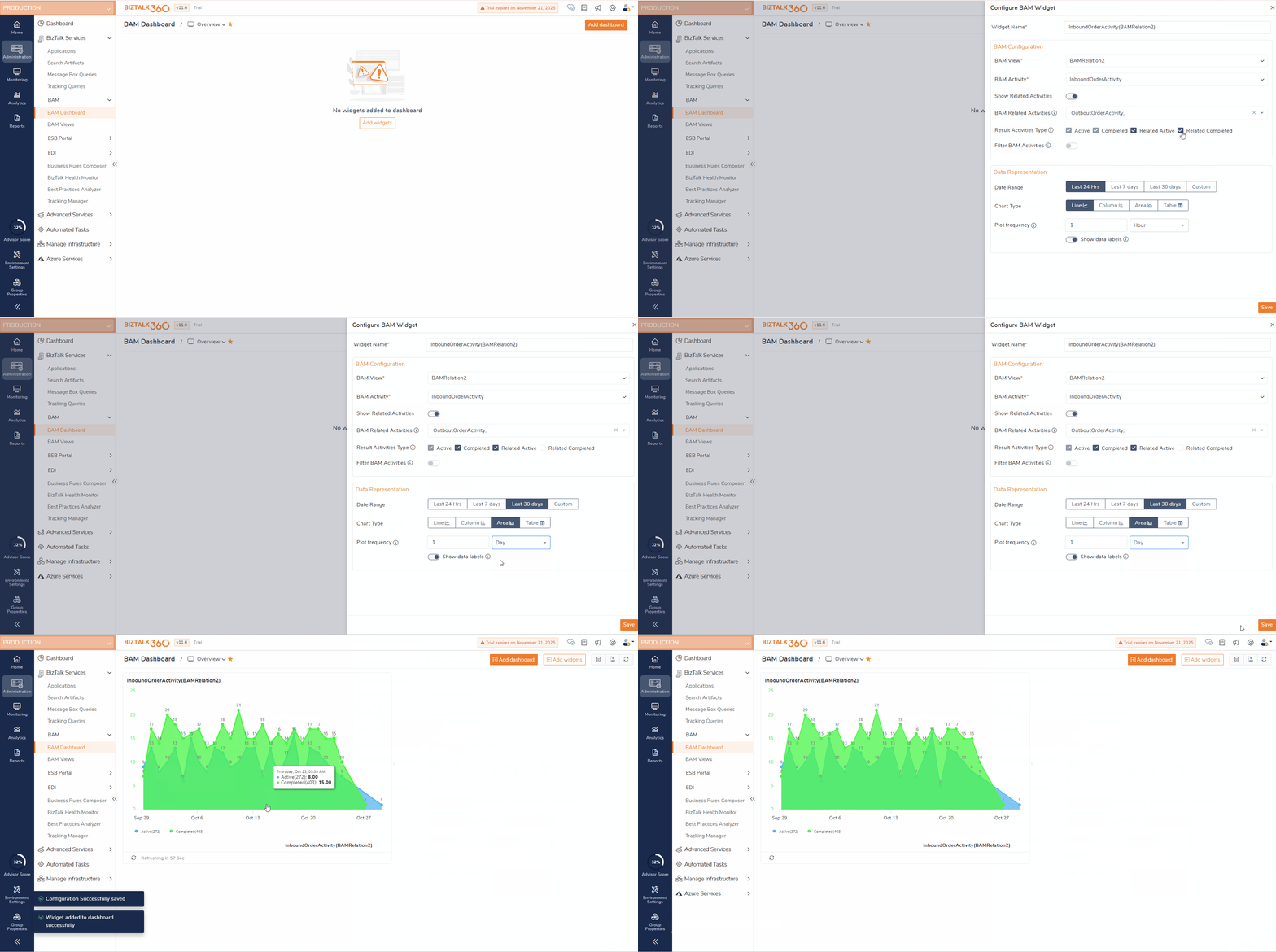
BAM View – This dropdown displays all the BAM Views deployed in the environment. Users can select the desired BAM View they want to configure for the widget.
BAM Activity – Once a BAM View is selected, this dropdown lists all the activities available under that specific view.
Show Related Activities – Enable this toggle if you want the widget to include related activities associated with the selected BAM activity.
BAM Related Activities – This dropdown lists all related activities corresponding to the selected BAM activity, allowing users to include them in the widget configuration.
Result Activity Type – Use this option to define the type of activities (Active, Related active, Completed and Related Completed) that should be displayed in the configured widget.
Filter BAM Activities – Enable this toggle to filter the displayed results based on BAM activity columns and values. When enabled, all available filters will be listed, and users can add the required filters relevant to their business data.
Data Representation
Date Range – Users can use this option to define the period for which data should be displayed. They can choose from predefined ranges such as Last 24 hours, Last 7 days, or Last 30 days, or set a custom date range based on specific requirements.
Chart Type – Users can select the preferred visualization format for their data. Available options include Line, Column, Area, and Table, allowing users to choose the most suitable view.
Plot Frequency – This setting determines the time interval used to display data points on the chart. For example, selecting Hourly plotting is ideal for visualizing large datasets or extended date ranges, ensuring the chart remains clear and easy to interpret.
Show Data Labels – Enable this toggle to display the numerical values of all plotted data points directly on the chart, providing quick insights without the need to hover over individual data points.
Consider a scenario where an organization wants to track its Inbound Order activities along with their related activities for the past month. In this case, users can select the appropriate BAM View and choose the InboundOrderActivity from the available BAM activities. By enabling the “Show Related Activities” toggle, users can include additional related activities for a comprehensive view. They can also specify the desired activity types in the Result Activities Type section and apply filters if further data refinement is needed.
Once the BAM configuration section is set up, users can define how the data should be represented by selecting the date range as last 30 days, chart type as per their need, and plot frequency. After completing these configurations, the dashboard will display Inbound Order activities together with their related activities in a clear and interactive format, enabling users to analyze and monitor their business processes at a glance.
Dashboard Operations
Customize widgets
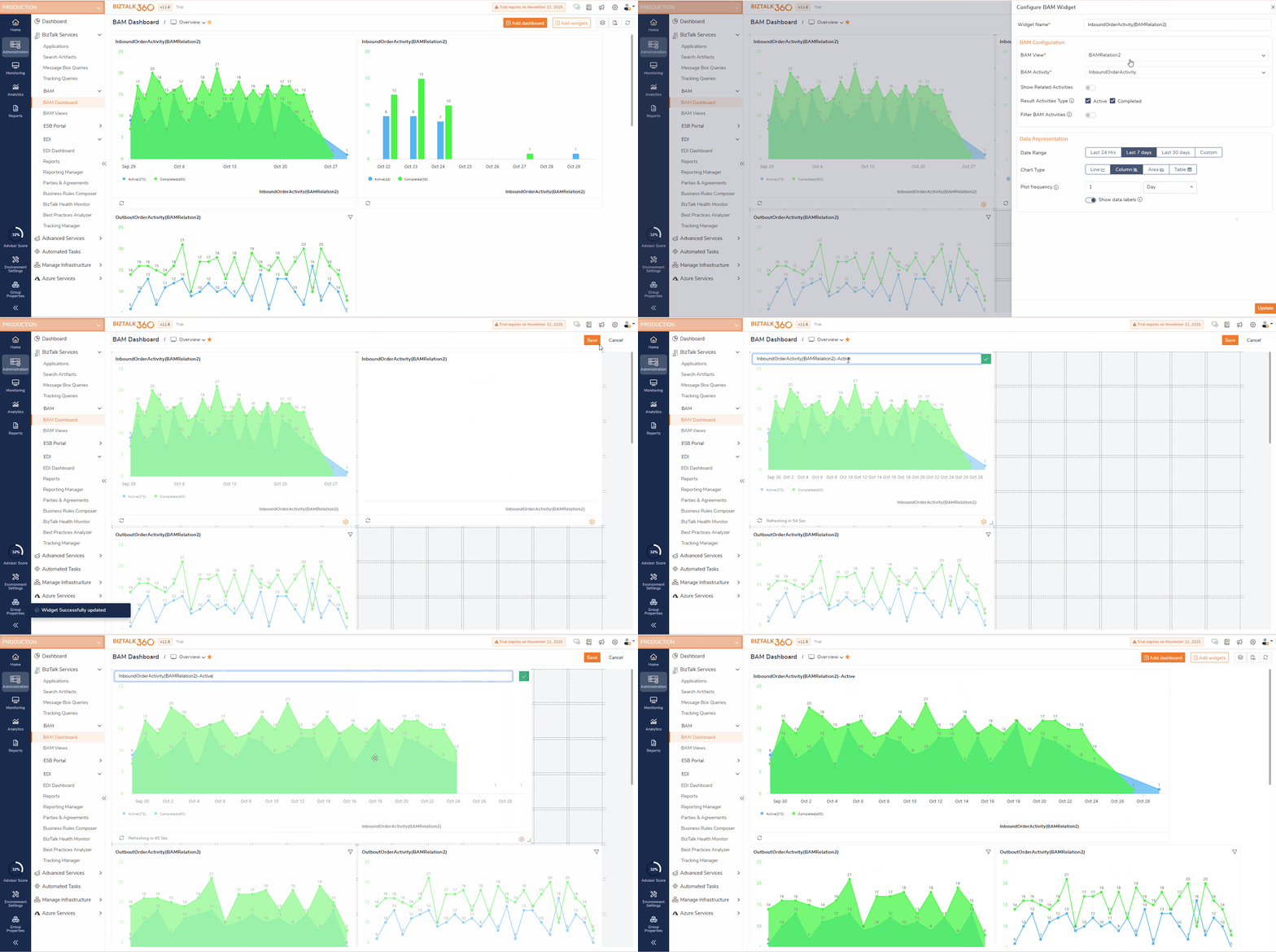
Users can customize the widget configurations by clicking on the customize button and perform the below operations.
Widget title - Users can change the widget title by clicking on the name field.
Edit Configuration - Users can click on the gear icon and select Edit configuration to edit the BAM / data configurations based on the requirements.
Remove Widgets - Users can click on the gear icon and select remove widget to remove the widget from the dashboard.
Resize Widgets - Users can also drag and resize widgets to adjust their layout according to their preferences.
Export to PDF
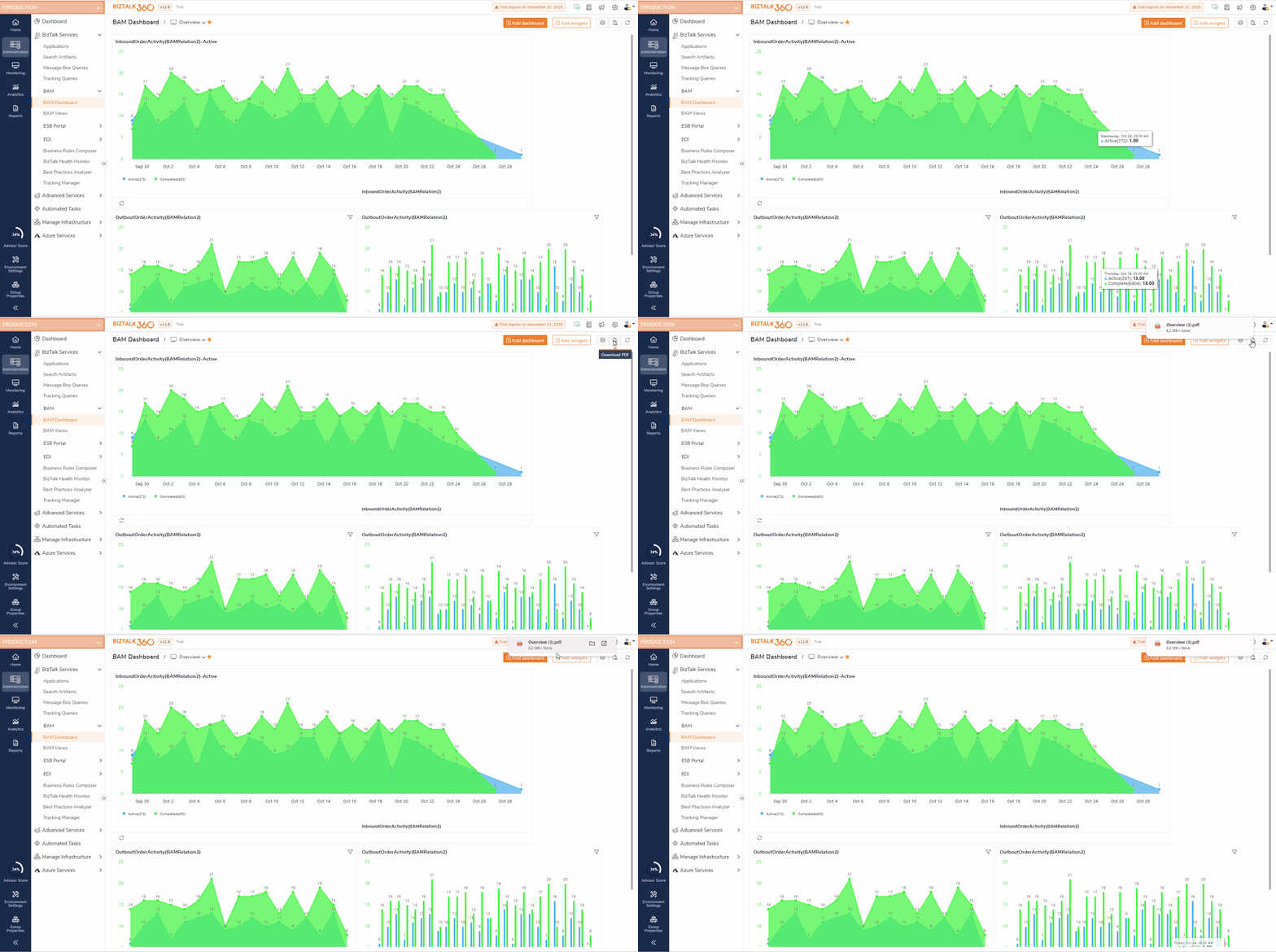
Business users often need to present process performance or operational metrics to management, clients, or audit teams. Exporting the BAM (Business Activity Monitoring) dashboard as a PDF allows them to easily share key performance indicators (KPIs), message flow statuses, and process health without requiring direct system access.
Clone Dashboard and custom widgets
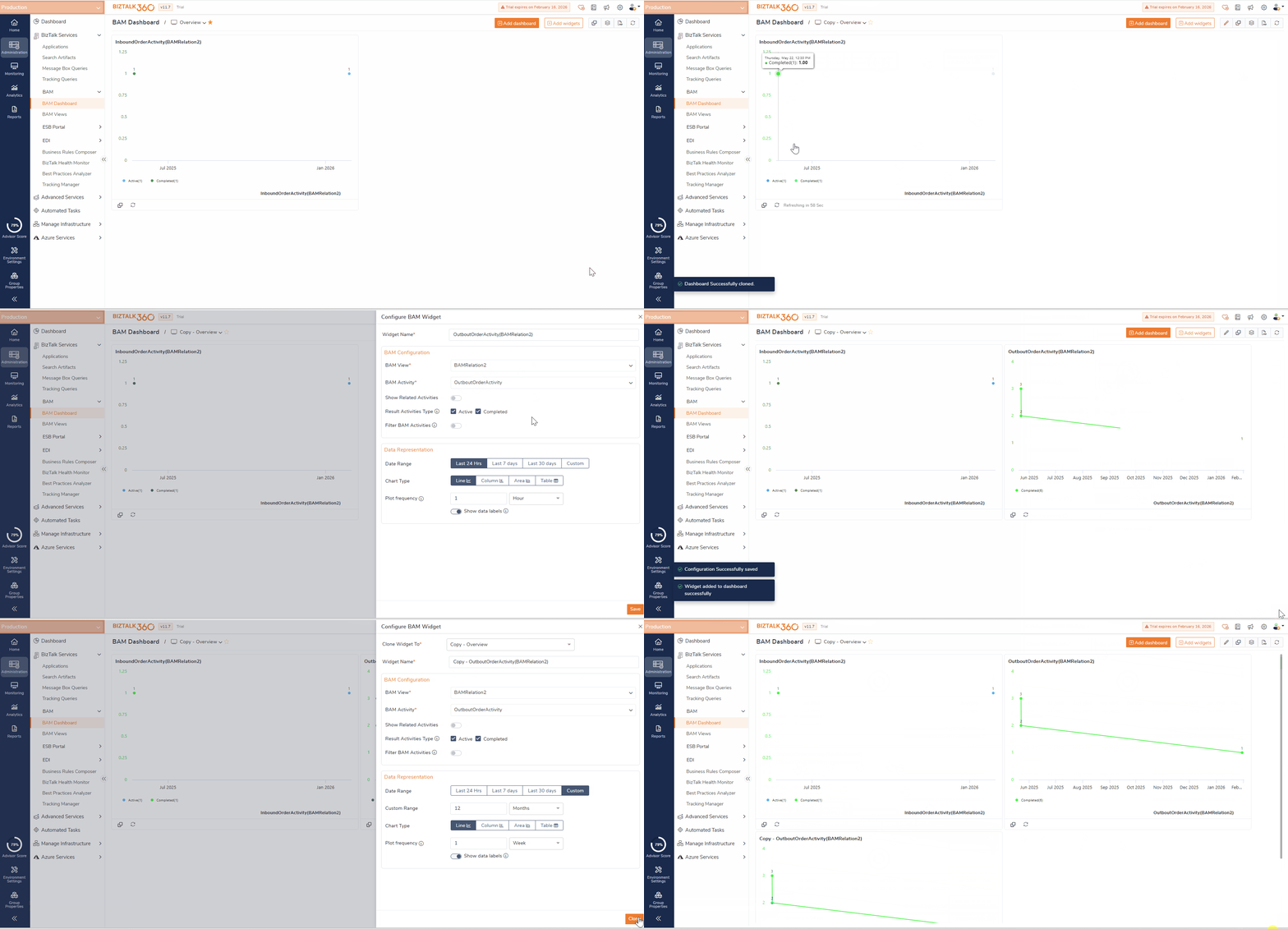
The Clone Dashboard feature allows users to create a copy of an existing dashboard along with all its widgets and configurations, eliminating the need to build dashboards from scratch and saving significant setup time. Users can clone both Overview and Global dashboards. To make a cloned dashboard available globally, users must explicitly enable the Global toggle after cloning.
Each cloned dashboard is created as an independent copy, allowing users to modify or customize it without impacting the original dashboard.
Additionally, user can also clone the widgets added in BAM dashboard with the same configurations.
Set Default Dashboard
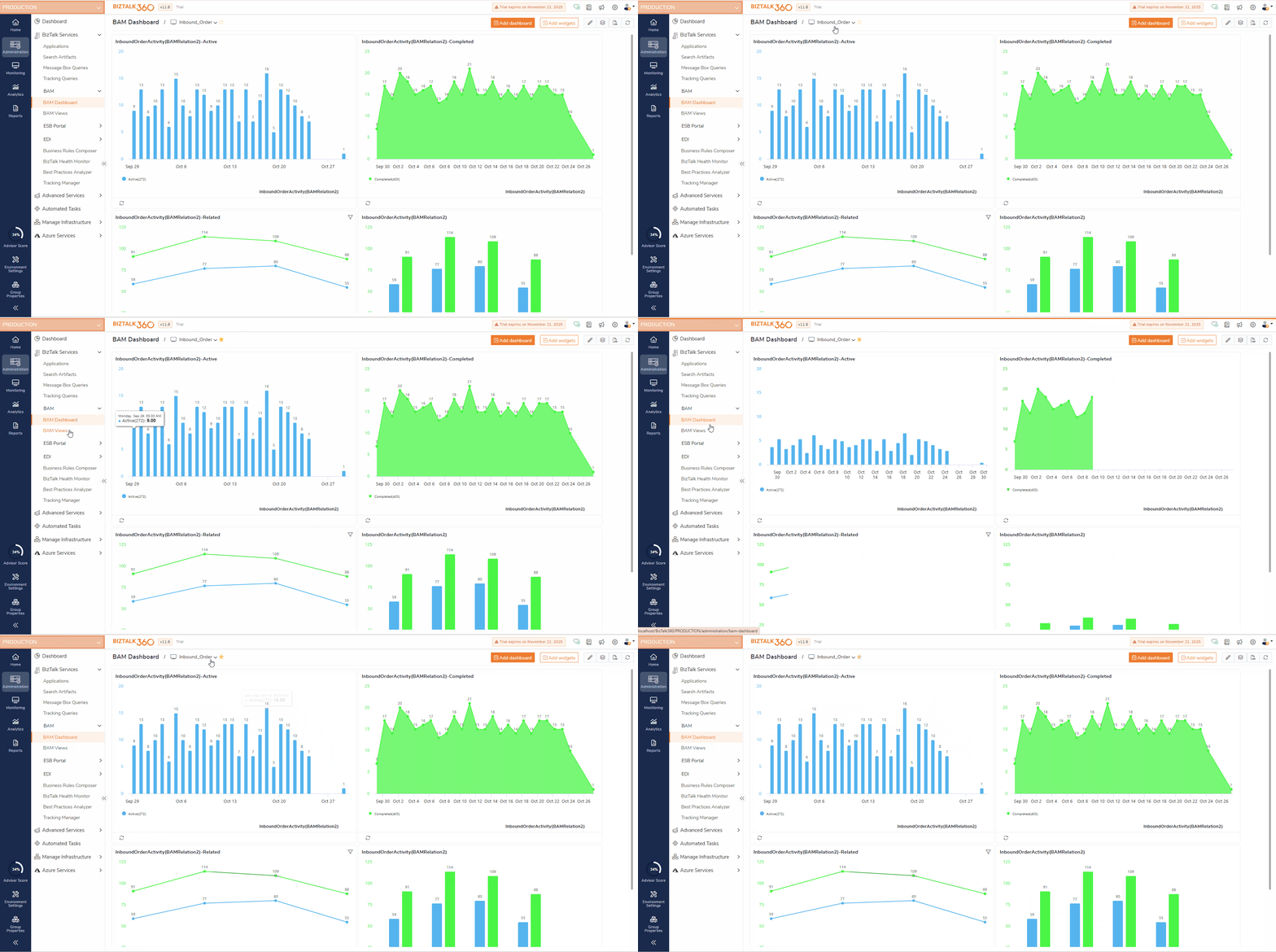
Users can create personalized dashboards with widgets relevant to their business and set one as their default view. The default dashboard automatically loads first when accessing the dashboard section. By default, the Overview dashboard is set as the default, but users can change it based on their business needs. To set a dashboard as default, simply click the star icon next to the dashboard selection dropdown.
Users Access Policy for BAM Dashboard
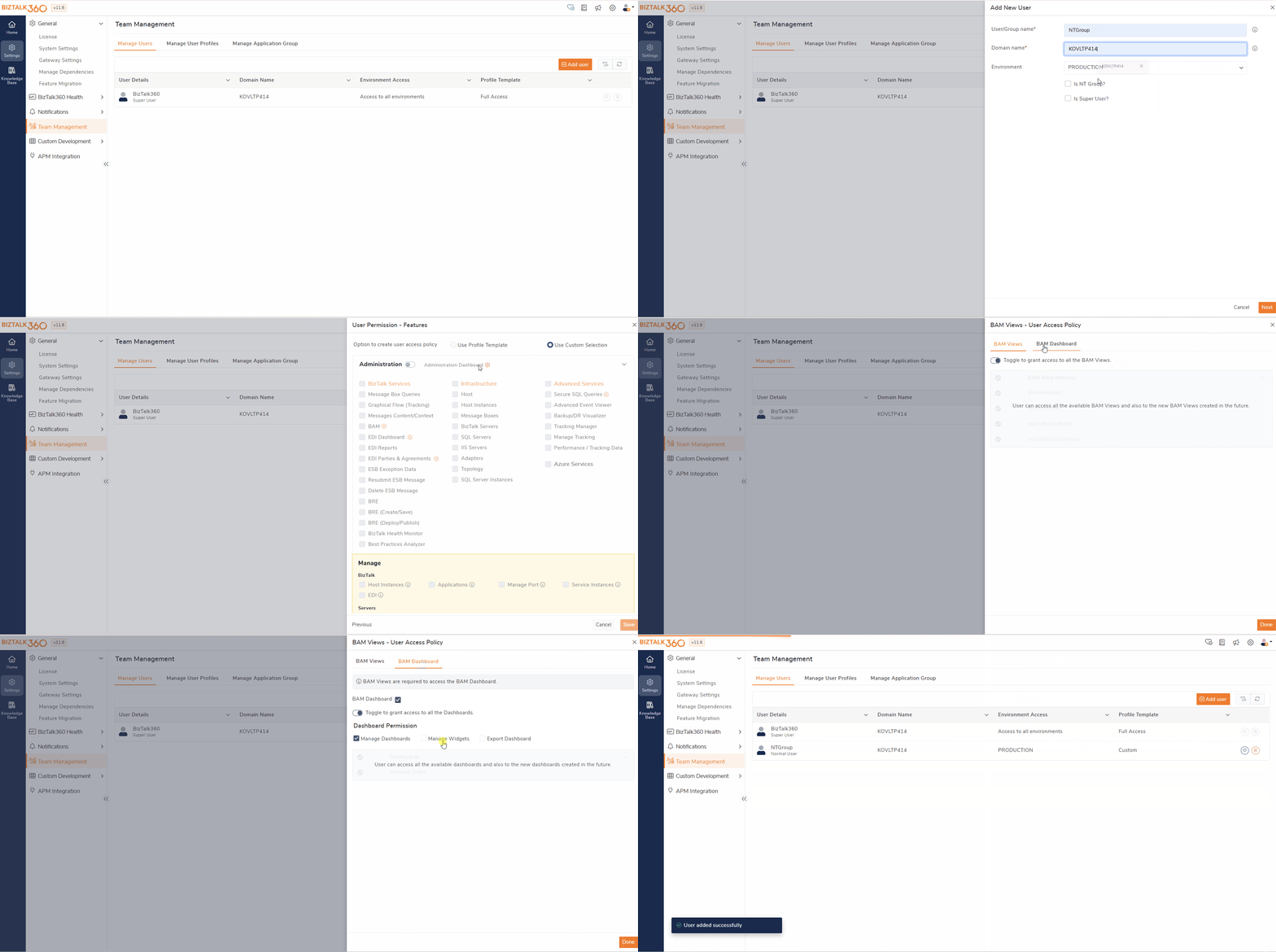
Super users can manage user permissions for accessing and controlling BAM Dashboards. Access to BAM Views is mandatory in order to provide access to BAM Dashboards. By enabling the “Toggle to grant access to all the Dashboards”, user will have access to all available global dashboards in BAM. Additionally below roles can be assigned to the user based on their business.
Manage Dashboards: Allows users to create or modify dashboards.
Manage Widgets: Allows configuration or customization of widgets.
Export Dashboard: Grants permission to export BAM dashboards.
Note:
If a Normal / NT user is provided with Full access template, after migrating to V11.6 the user will have access to all BAM dashboards including manage operations.
If a Normal / NT user is provided with custom access for BAM and BAM views, after migrating to V11.6 the user will have access only to view the BAM dashboards.
Reporting
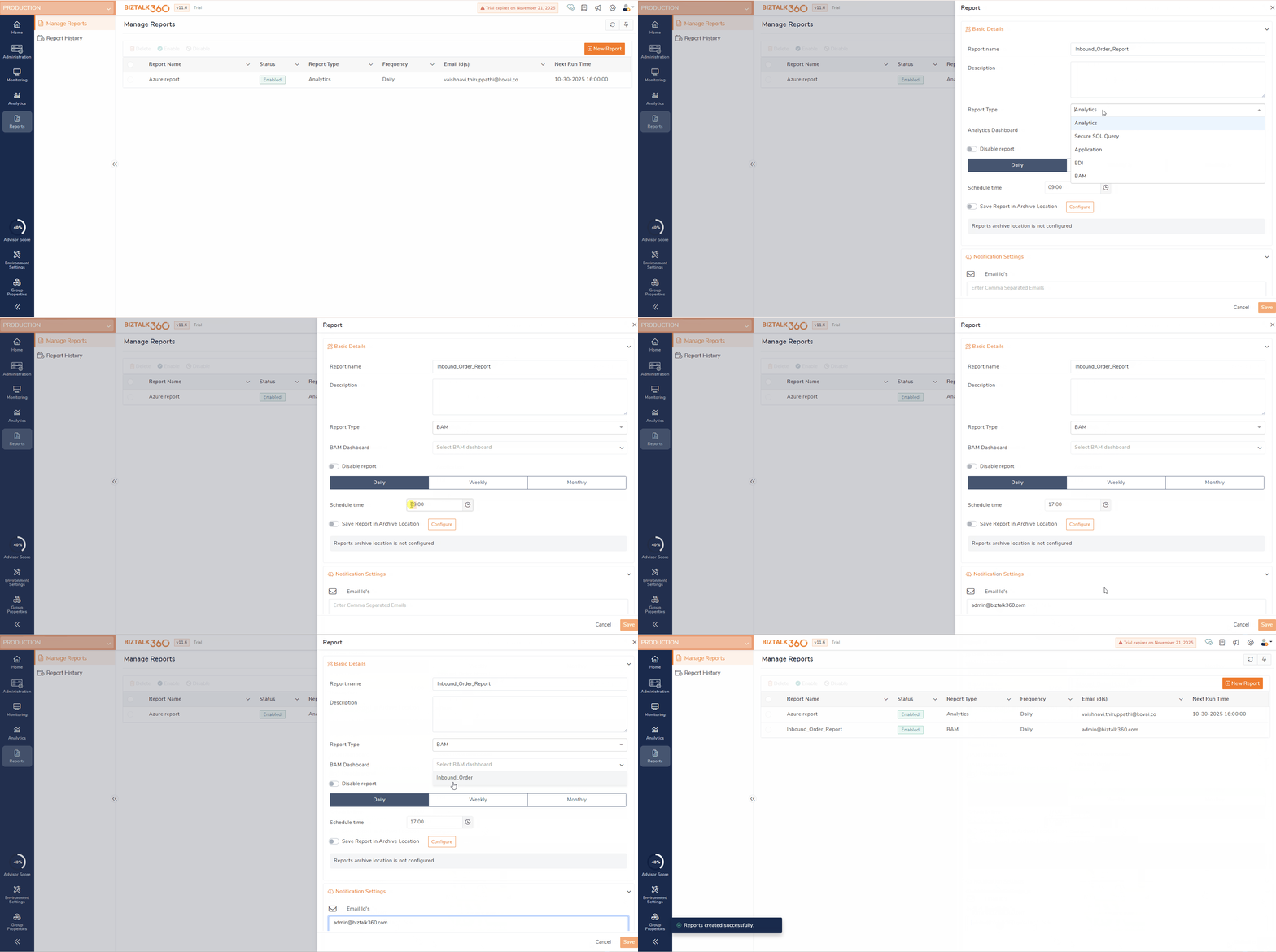
Users can also configure these Dashboards to be included in Reporting enabling them to automatically receive detailed reports of their BAM dashboard data on a Daily, Weekly, or Monthly basis, depending on their monitoring needs.
Mapping the dashboards to reports allows users to schedule periodic reports that capture the latest BAM Data and visual insights directly from the configured dashboards. The reports can be delivered via email to selected recipients, ensuring key stakeholders stay informed about their business activities without any manual interventions.