Problem
At times, Process Monitoring in BizTalk360 may not work as expected. For example, you may have processed several messages during the configured time frame, but BizTalk360 may trigger an alert indicating that no messages were processed.
This can result in a false alert where the actual transaction count shows as 0 even though messages were successfully processed during the configured time frame.
As a design principle, BizTalk360 does not require customers to deploy any custom components, such as pipeline components, custom pipelines, or BAM artifacts, to collect this information. Instead, it utilizes the tracking capabilities provided by BizTalk Server.
Therefore, if the required tracking information is not captured correctly, BizTalk360 may not be able to calculate the actual transaction count. In such cases, Process Monitoring may report an Actual Count of 0, even though messages were processed.
For example, when a message is not tracked for particular artifacts and the corresponding Process Monitor does not show the expected transaction count in the BizTalk360 alert, the first step is to verify whether the required tracking data is being captured.
Solution
BizTalk360 Process Monitoring relies on BizTalk Server tracking data to calculate the transaction volume.
To ensure that Process Monitoring works correctly, verify the following prerequisites.
Make Sure the Tracking Settings Are Working as Expected
Since Process Monitoring relies on BizTalk Server tracking data, the first step is to verify whether the required tracking events are being captured.
You can check this by executing the required query against the BizTalk Tracking Database from the BizTalk Server Administration Console with the appropriate settings.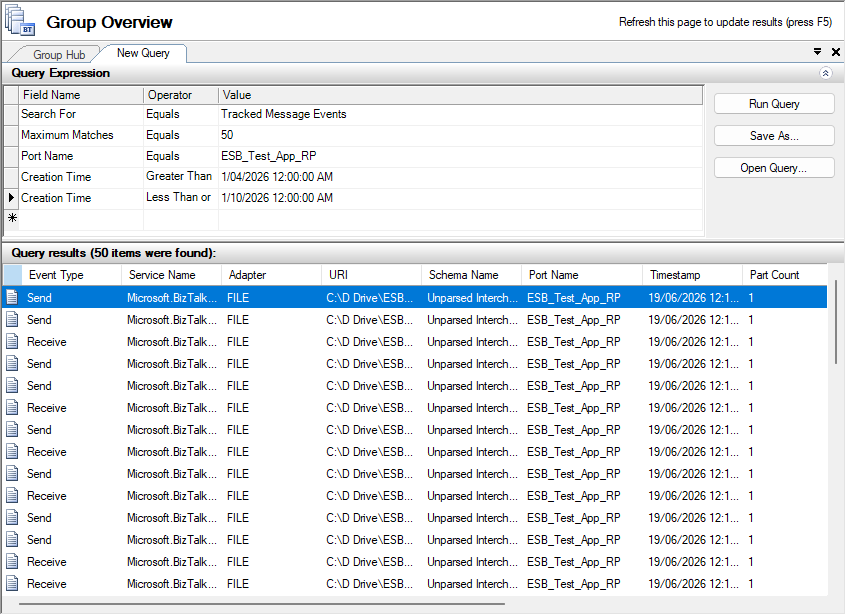
Note: If the query does not return any results, it indicates that the required tracking data is not being captured correctly. Proceed with the following prerequisites to identify and resolve the tracking configuration issue.
1. Global Tracking
Verify that Global Tracking is enabled at the BizTalk Group level.
Navigate to: BizTalk Server Administration Console → BizTalk Group → Group Settings → Tracking
Make sure the required group-level tracking is enabled. Global tracking must be enabled for BizTalk Server to capture the tracking events required by Process Monitoring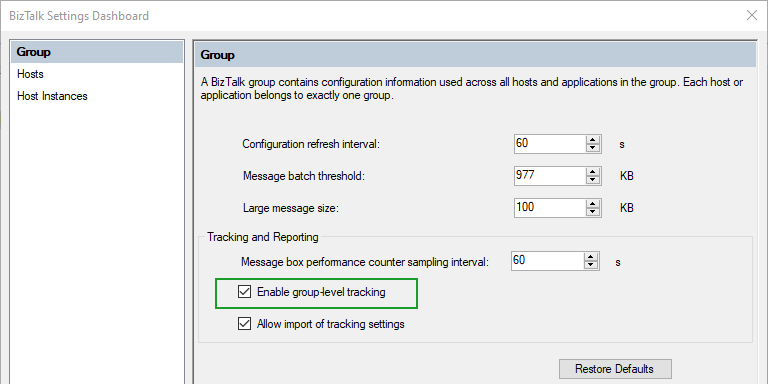
Pipeline Tracking
Verify that Track Events is enabled for the pipelines used by the corresponding Receive Ports and Send Ports.
For example, if the PassThruReceive or PassThruTransmit pipeline is being used, verify that the required tracking options are enabled for the pipeline.
Navigate to:
BizTalk Server Administration Console → Applications → All Artifacts → Pipelines → Select the required pipeline → Properties → Tracking
Enable the required tracking options for the pipeline associated with the corresponding Receive or Send Port.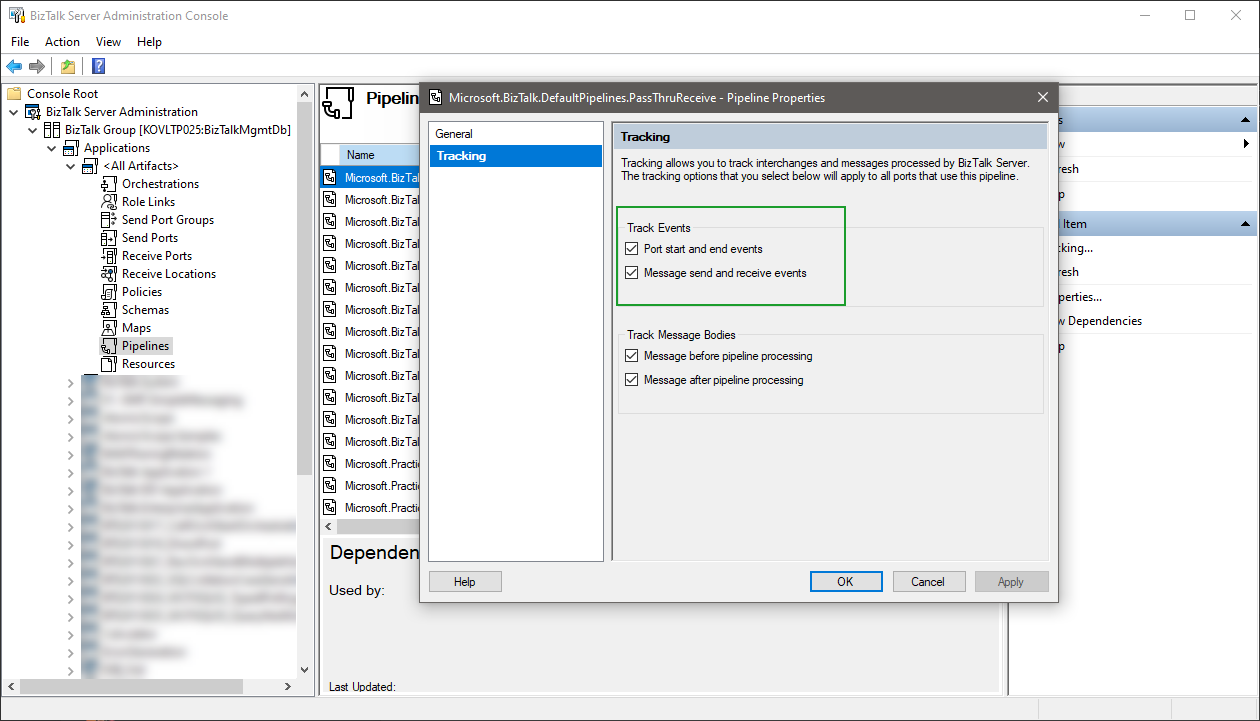
Tracking Host Instance Is Running
BizTalk Server requires a Tracking Host Instance to be running so that tracking data can be processed and written to the Tracking Database.
For example, if BizTalkServerApplication is configured as the Tracking Host, make sure that at least one host instance associated with this host is running.
Navigate to:
BizTalk Server Administration Console → Platform Settings → Host Instances
Verify that at least one instance of the configured Tracking Host is in the Running state.
After enabling the required tracking settings, verify that BizTalk Server is generating tracking data.
You can execute the appropriate query against the BizTalk Tracking Database to confirm that the expected tracking events are being captured.
Enable Tracking Using BizTalk360 Tracking Manager
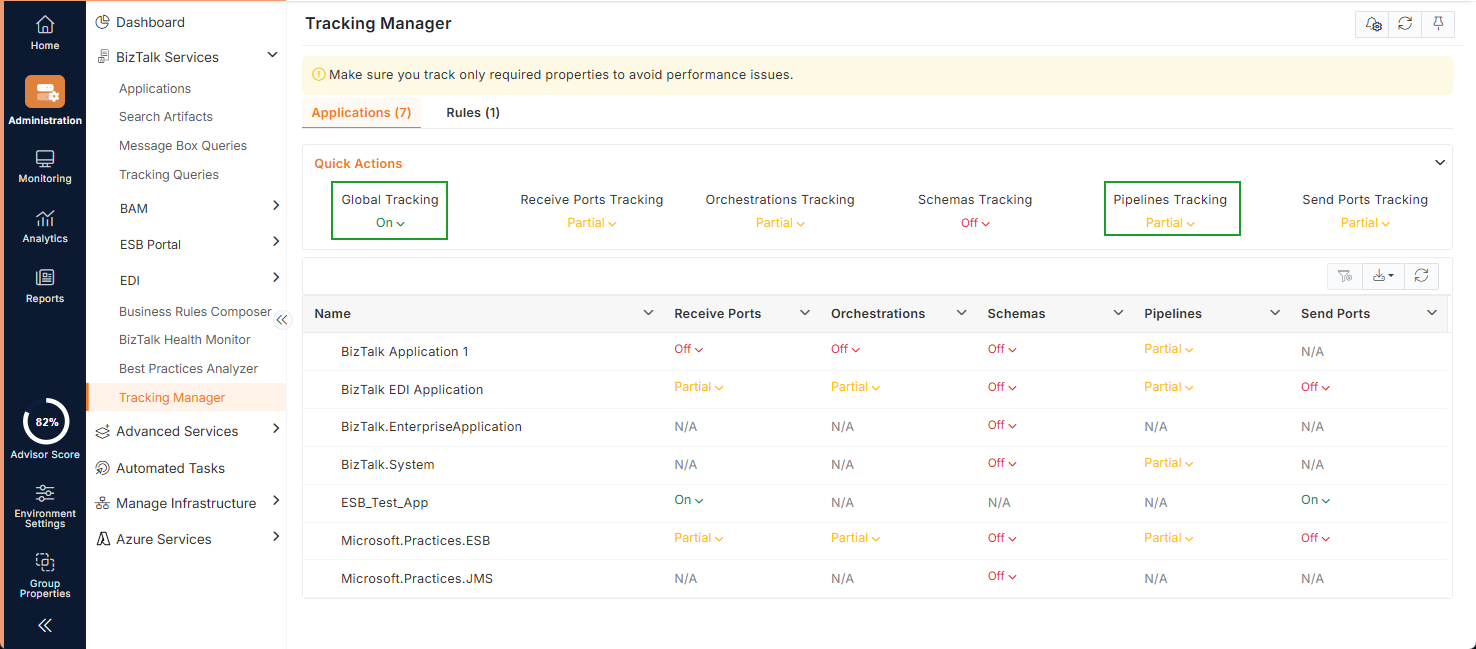
BizTalk360 provides the Tracking Manager to manage the required tracking settings from a single interface (Administration → BizTalk Services → Tracking Manager).
Using the Tracking Manager, mange the tracking settings without having to configure each setting individually from the BizTalk Server Administration Console.