BizTalk360 Advisor plays a pivotal role in helping organizations monitor, evaluate, and optimize the use of BizTalk360 across their BizTalk Server environments. It helps the users providing granular insights into how various modules are being utilized, and helps in identifying the unused features. The primary goal of advisor is to give administrators and stakeholders a clear understanding of environment health, feature usage, and operational behavior within BizTalk360. This is achieved by collecting, visualizing, and sharing relevant usage data at regular intervals.
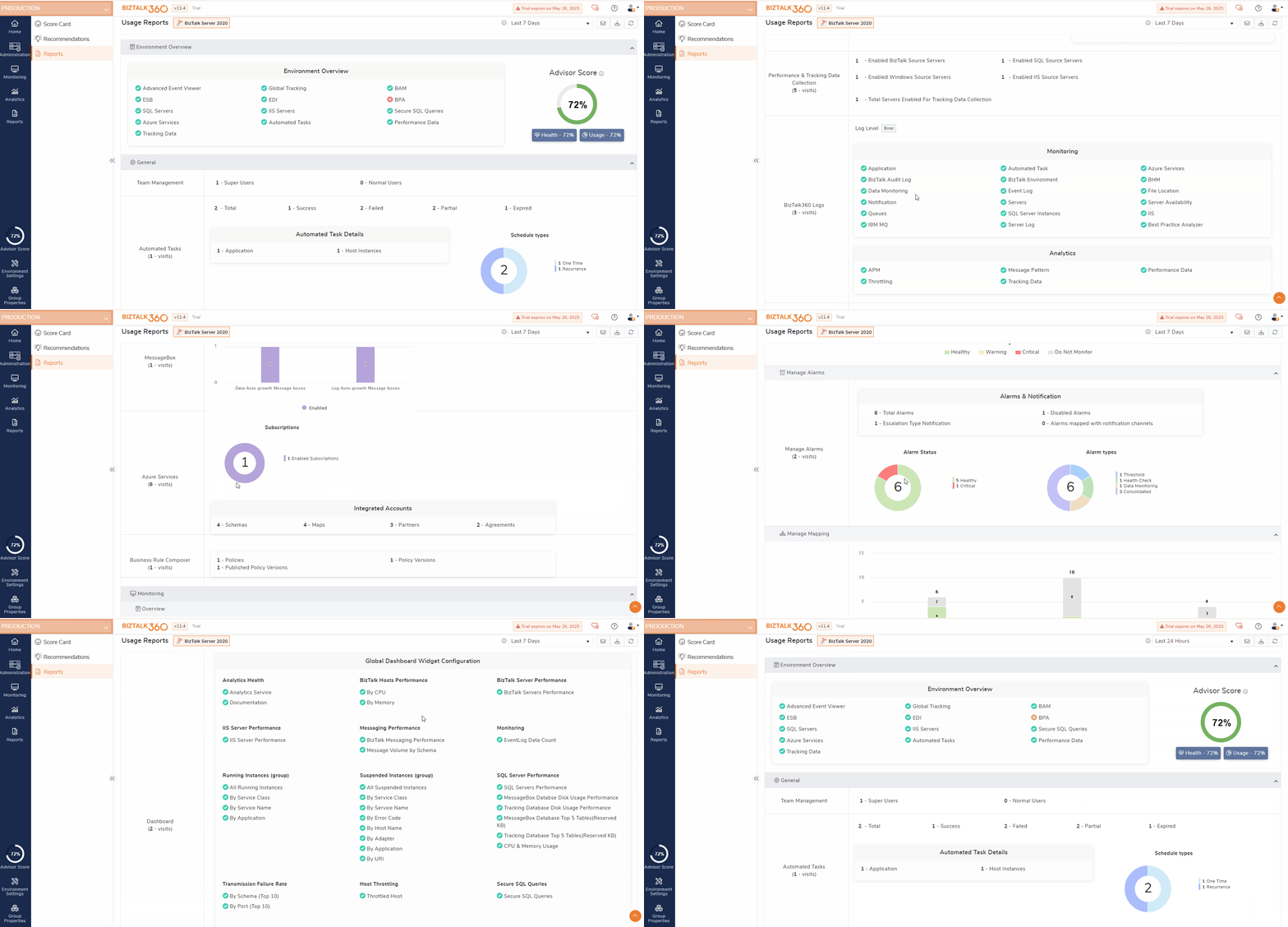
Data and usage metrics for all modules including Administration, Monitoring, Analytics, General Settings, Environment Settings, and Knowledge Base are gathered and displayed using graphs and charts. This gives a quick snap of the environment’s status and activity.
By default the data will be displayed for last 7 days. Users has an option to filter the displayed data based on specific time ranges to analyze or compare usage over different periods. For instance, assume an organization wants to look into the governance and audit activities made with respect to user access policy for the last 24 hours. Users can change the date range to last 24 hours and take a note on the count of audit activities performed over the last 24 hours promptly.
Environment Overview
It highlights the usage status of various features such as Advanced Event Viewer, ESB, SQL Servers, Azure Services, Tracking Data, Global Tracking, EDI, IIS Servers, Automated Tasks, BAM, Secure SQL Queries, and Performance Data. Let us consider that ESB is installed and configured in BizTalk but it is not configured and used in BizTalk360. In this case, ESB feature will be marked in red. The features that is configured in BizTalk and also been used in BizTalk360 will be marked in green. This color-coded overview allows users to quickly identify the unused features and make use of those features offered by BizTalk360 to the fullest.
General
This section provides an overview of user management, displaying the number of Super Users and Normal Users configured in the system. It also shows the total number of automated tasks set up in the environment, helping users keep track of automation levels.
Administration
Users can view the count of various artifacts maintained within the environment. This includes tracking status at the port level, the number of saved queries in each section, business rule policy details, and artifact counts across BizTalk, SQL, and IIS servers. For instance, if EDI is not configured in BizTalk itself, the EDI section will not be shown in the data.
Monitoring
This section provides detailed insights into artifact mappings through the threshold overview. There are several sections in monitoring. If BizTalk server monitoring is enabled in the environment, it will be marked as green. If they are not configured for monitoring it will be marked as red. Following the overview, each section displays the count of artifacts, auto correct enabled artifacts count and automated action enabled count.
For example, in the IIS Servers area, users can see how many websites are being monitored, their health status (healthy or critical), and how many are configured with Auto Correct. Similarly, in Data Monitoring, the section provides the number of monitoring schedules, categorized by frequency and type.
Analytics and Reporting
Within the Analytics section, users can view the widgets added to global dashboards, the number of message patterns, and the count of hosts eligible for publish and delivery throttling. It also displays data from the Reports section, organized by schedule type and frequency.
The collected data can be sent to the BizTalk360 team or within themselves via E-Mail. To send the data via E-Mail, SMTP configuration must be completed. When the user clicks "Send Usage Data via Email," the usage data will be automatically dispatched to the BizTalk360 team. By leveraging these capabilities, BizTalk360 administrators can maintain a healthy environment, streamline operations, and make data-driven decisions for continuous improvement.