The BizTalk Best Practices Analyzer (BPA) is a tool provided by Microsoft to help administrators and developers ensure that their BizTalk environments adhere to recommended best practices. It scans a BizTalk environment and identifies configuration and operational issues, potential problems, and areas where improvements can be made to optimize performance, reliability, and scalability.
Let's consider a scenario where a company relies heavily on its BizTalk Server environment to integrate various systems and applications within its infrastructure. Due to the complexity of the environment and frequent changes in requirements, to meet the business requirement the BizTalk configuration may deviate from best practices over time. Developers might inadvertently introduce configurations that could degrade performance, compromise security, or hinder scalability. So its advised to have regular BPA scan.
You can integrate BPA tool in BizTalk360 and scan the server with the schedule frequency of Daily, Weekly and Monthly to identify the potential problems.
Configure Best Practice Advisor Tool
To generate the Best Practice Analyzer (BPA) report using BizTalk360, you need to configure certain settings at the environment level. Follow the steps below:
1) Configure Service Account Credentials
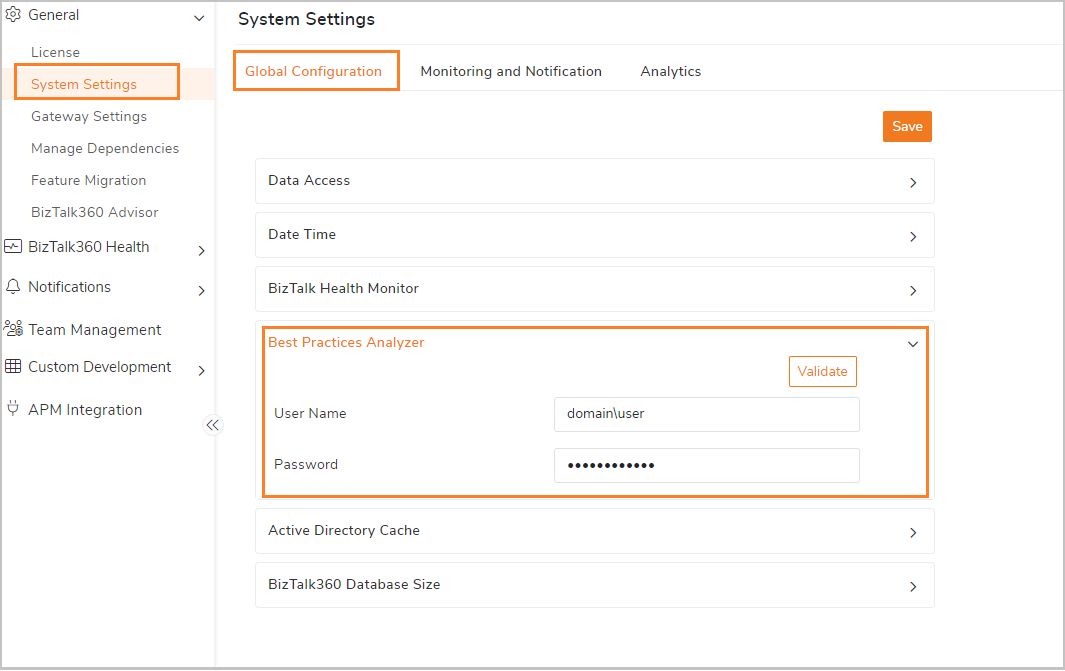
- Navigate to Settings -> General ->System Settings.
- In the System Settings you find an option to update the service account credentials. Provide username and password ,then validate and save the credentials
2) Enable BPA Server for Scanning
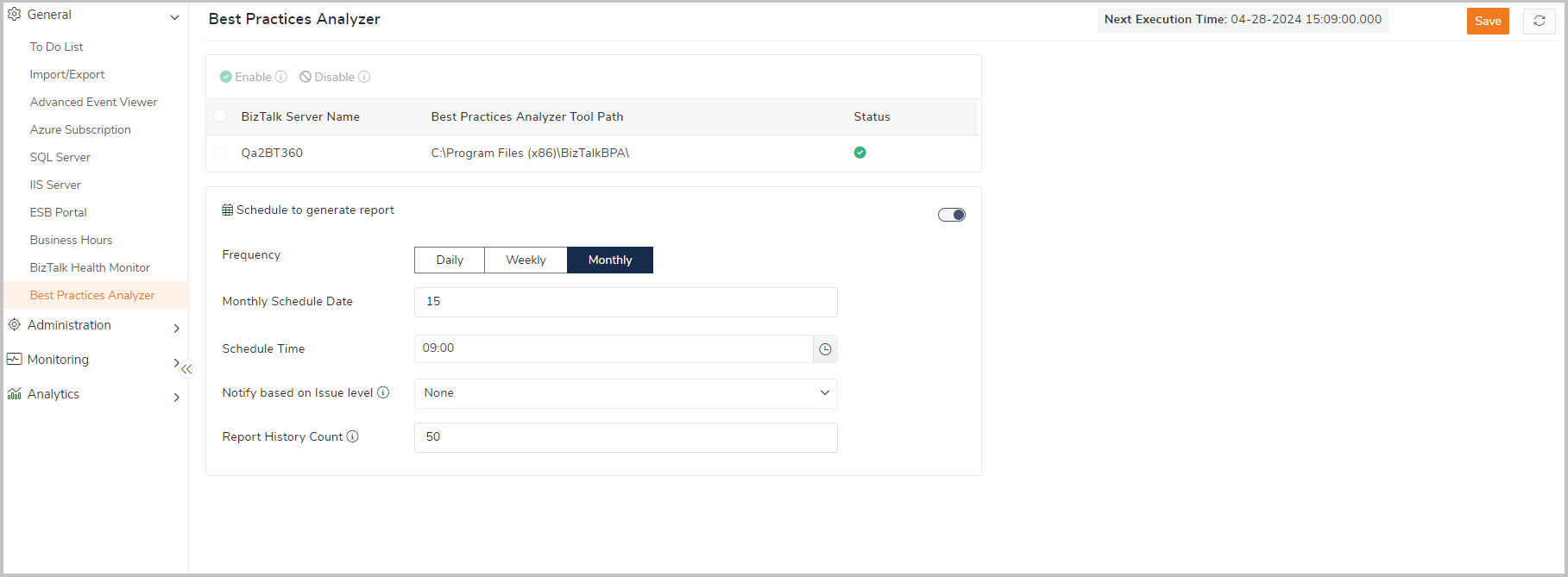
To generate the best practice analyzer report from BizTalk360 , Few configuration must be done at environment level which includes Issue levels(error, warning, info) to be considered for report generation , Report history count , Schedule scanning etc . Follow steps provided in this article https://docs.biztalk360.com/v11-0/docs/best-practices-analyser.
You can even automate the scanning by configuring the schedule .For example, if you want to assess the health of your environment monthly, configure a monthly schedule.
Generate Best Practice Analyzers Report
Once the above configuration is successful , then user can generate, manage and share the report from BizTalk360. Follow below steps,
1. Navigate to Administration -> BizTalk Service -> Best Practice Analyzer.
2. Initiate Scan: Click on "Scan Now" option. The scan will begin in the configured server on the next cycle (approximately 5 minutes).
Results should be available within 5 to 10 minutes.
3. Schedule Scans: You can schedule scans for automatic report generation. Say , if you want to analyze your environment every one month Configure scheduled scans in the Environment settings. Refer to the article for detailed instructions.
4. View Report: The report will list issues with titles and descriptions , also the issues are segregated at levels critical, warning. Click on the "view info" icon to view detailed analysis of each issue.
5. View Scan History: The history of scanned reports is maintained based on user preferences. Access the history by clicking the dropdown at the top.

6. Manage Issues:
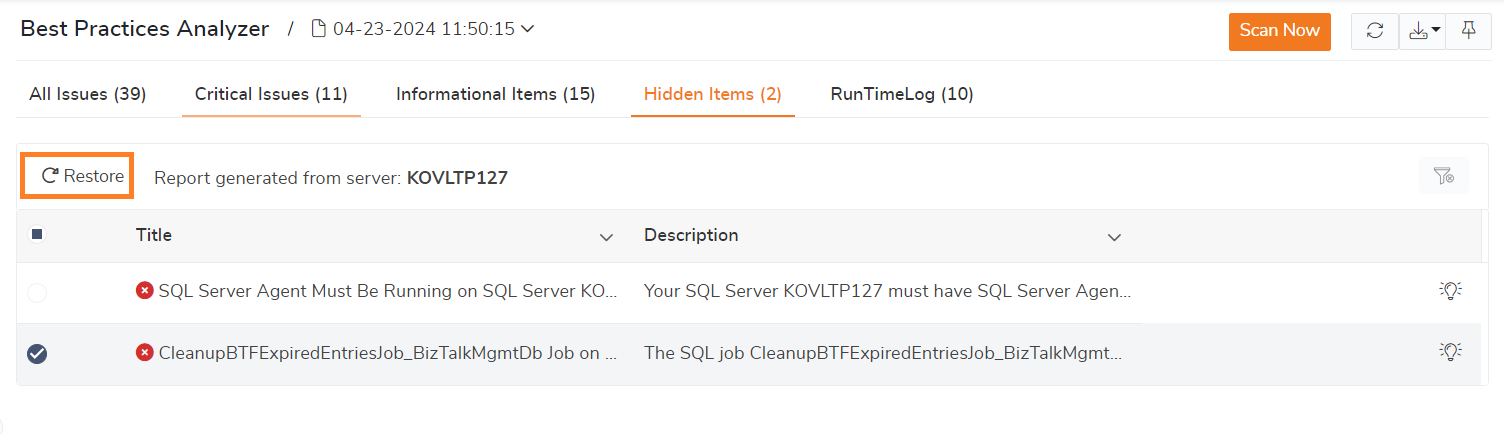
Just like the actual tool, you have the option to hide items that aren't relevant. Select the issue you want to hide, then click on the "Hide" button. The hidden items will be grouped under the "Hidden Items" tab.
You can make this visible by using Restore option.
7. Download and Share: By clicking the download option at top , You can download or send the report via email as an Excel or Pdf file.
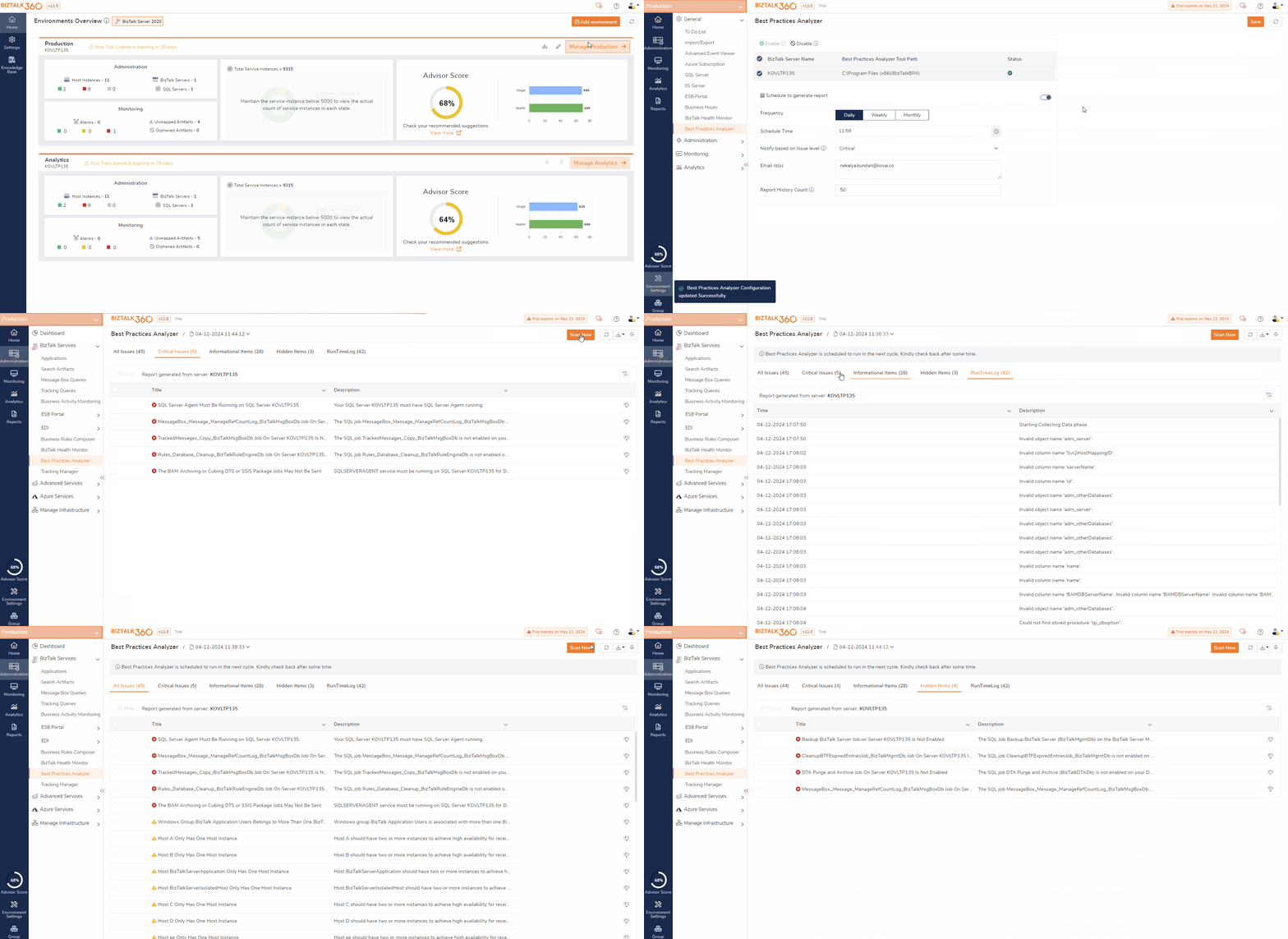
Below video will demonstrate , how you can scan and access BizTalk best practice analyzer reports from BIzTalk360.
Auditing
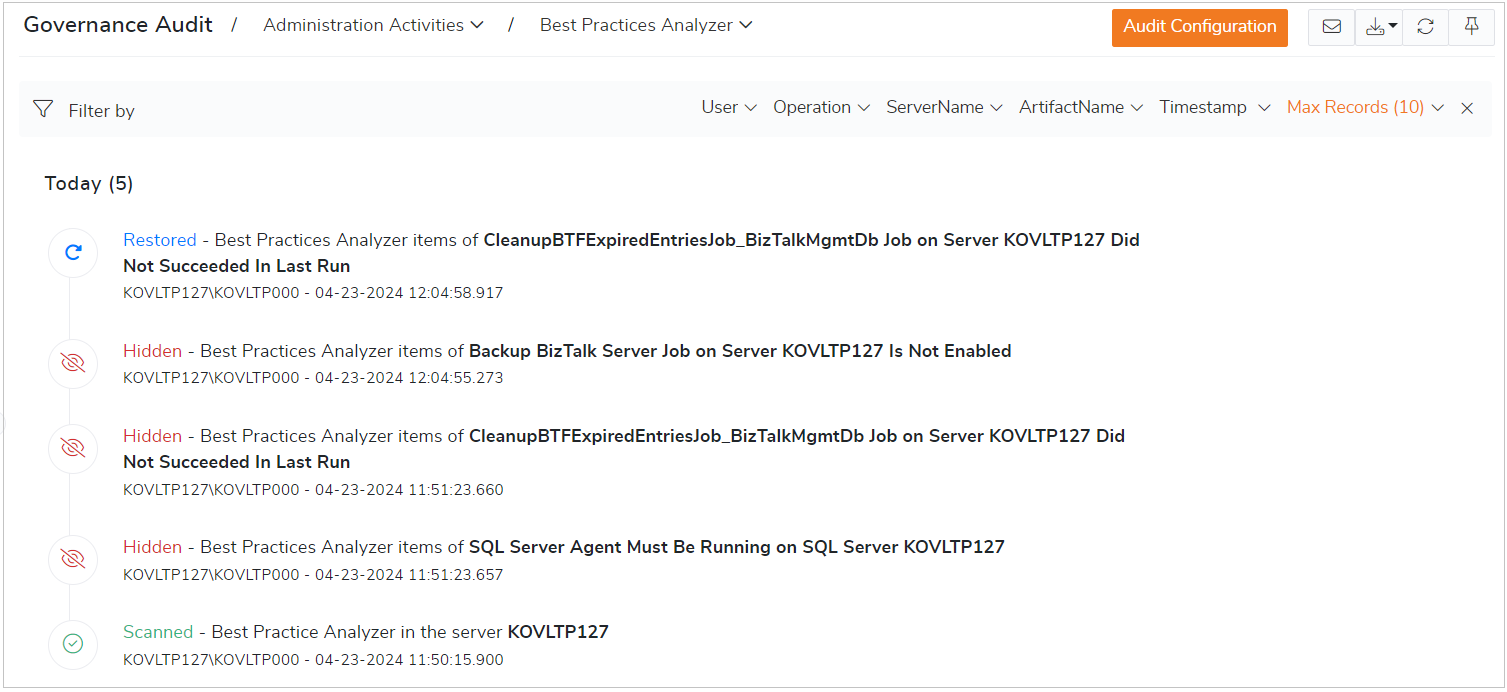
The activities performed in BPA will be audited for security and future reference. Activities like Scanning , Show /Hide the issues will be audited . The audited activities can be seen in governance and audit section
Access Policy
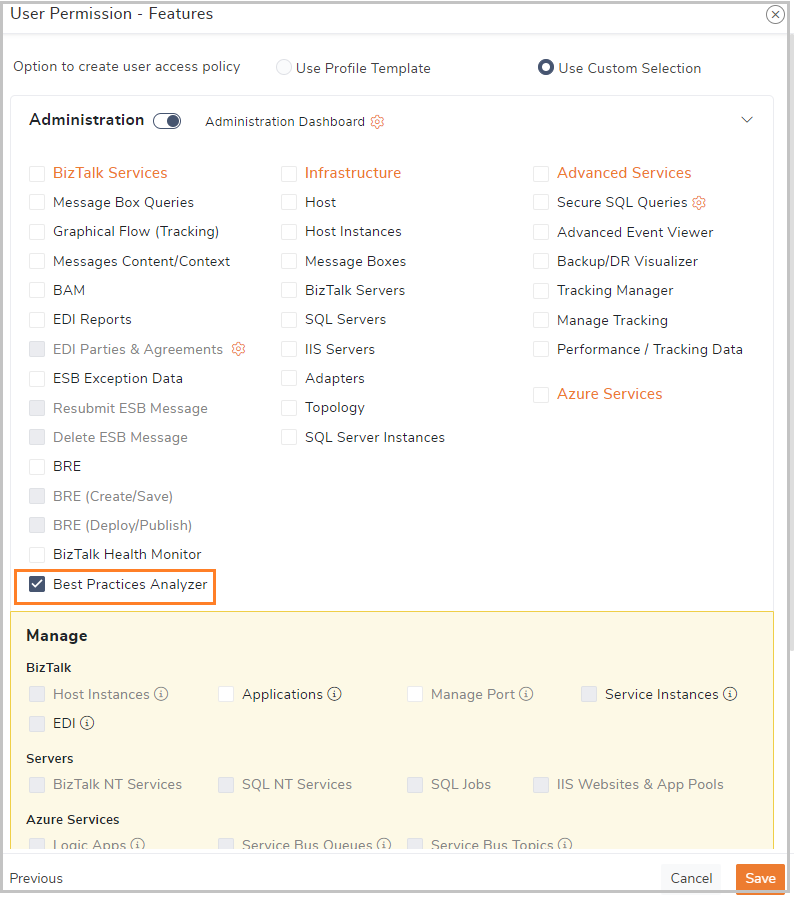
Access to the "Best Practices Analyzer" is required for users to initiate scans or view the scanned reports within BizTalk360.
License
This functionality is accessible starting from the Gold licensing tier.