ActiveMQ is an open-source, robust message broker widely used for reliable and asynchronous communication between distributed systems. In a BizTalk environment, ActiveMQ serves as an connector for the message exchange between BizTalk Server and external applications, supporting multiple messaging protocols such as AMQP, STOMP, and MQTT. This versatility allows BizTalk to seamlessly interact with various systems, bridging the gap between legacy and modern applications.
For example, in a supply chain scenario, BizTalk uses ActiveMQ as a message broker to manage communication between systems like order processing, inventory, and shipping. For example, orders are placed in Order Queue, processed by BizTalk, and routed to inventory and shipping systems via additional queues. Without monitoring, issues like message build-up, stale messages, or paused queues can disrupt workflows, causing delays in order fulfillment. BizTalk360 solves this by enabling real-time monitoring.
Administrators can set expected states ( Resume or Pause), receive alerts for mismatches, and enable Auto Healing to restore queues automatically. This ensures smooth operations, reduces downtime, and enhances system reliability in critical business processes.
This documentation explains how to configure ActiveMQ in BizTalk360 for monitoring . It includes two main steps:
Configuring the ActiveMQ Host
Mapping Queues for Monitoring
Configure ActiveMQ Host
To integrate BizTalk360 with ActiveMQ, you must configure the host settings to establish a connection with the ActiveMQ server. Follow below steps:
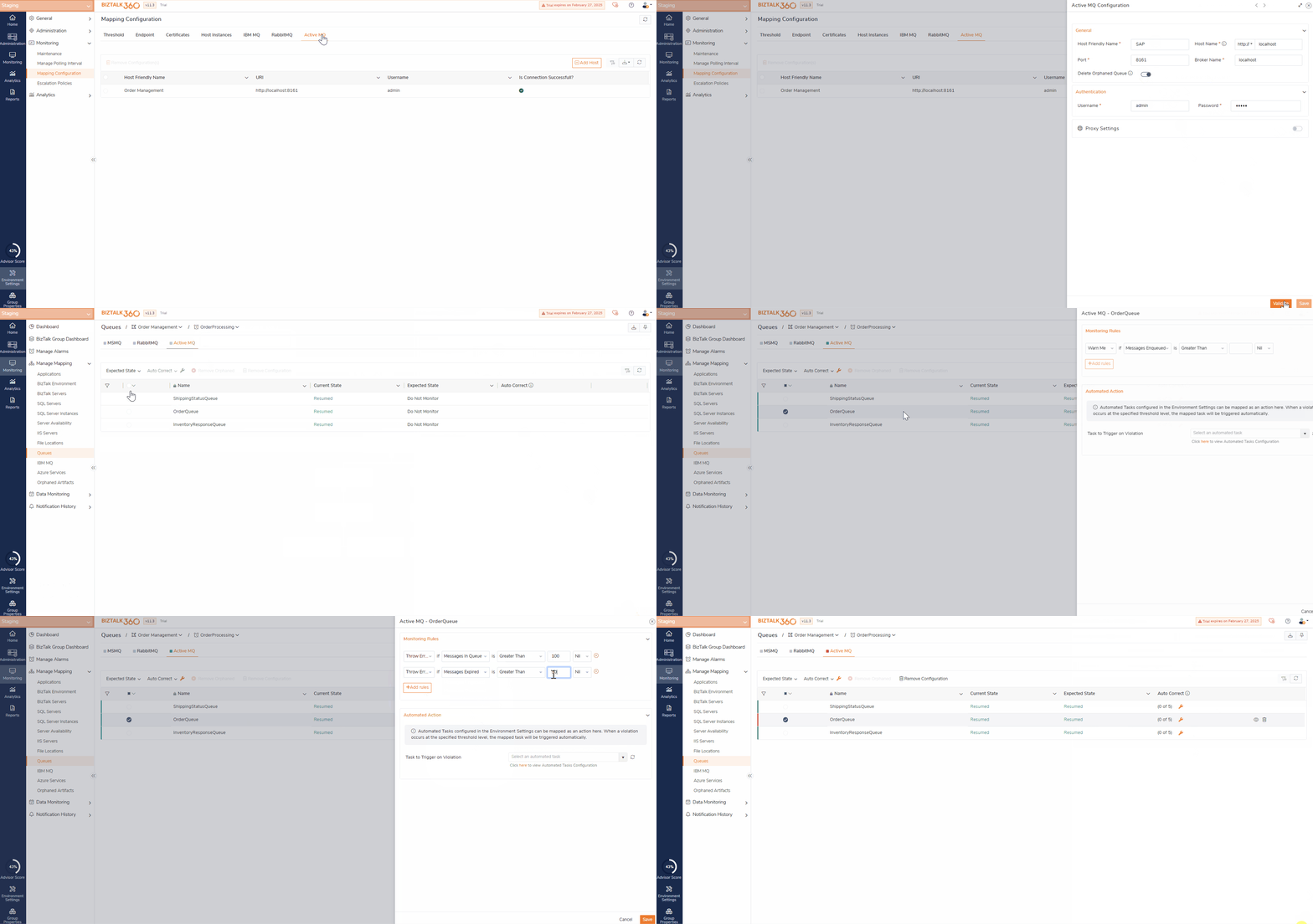
Navigate to BizTalk360 Environment Settings → Monitoring → Mapping Configurations.
Select ActiveMQ and click on Add Host.
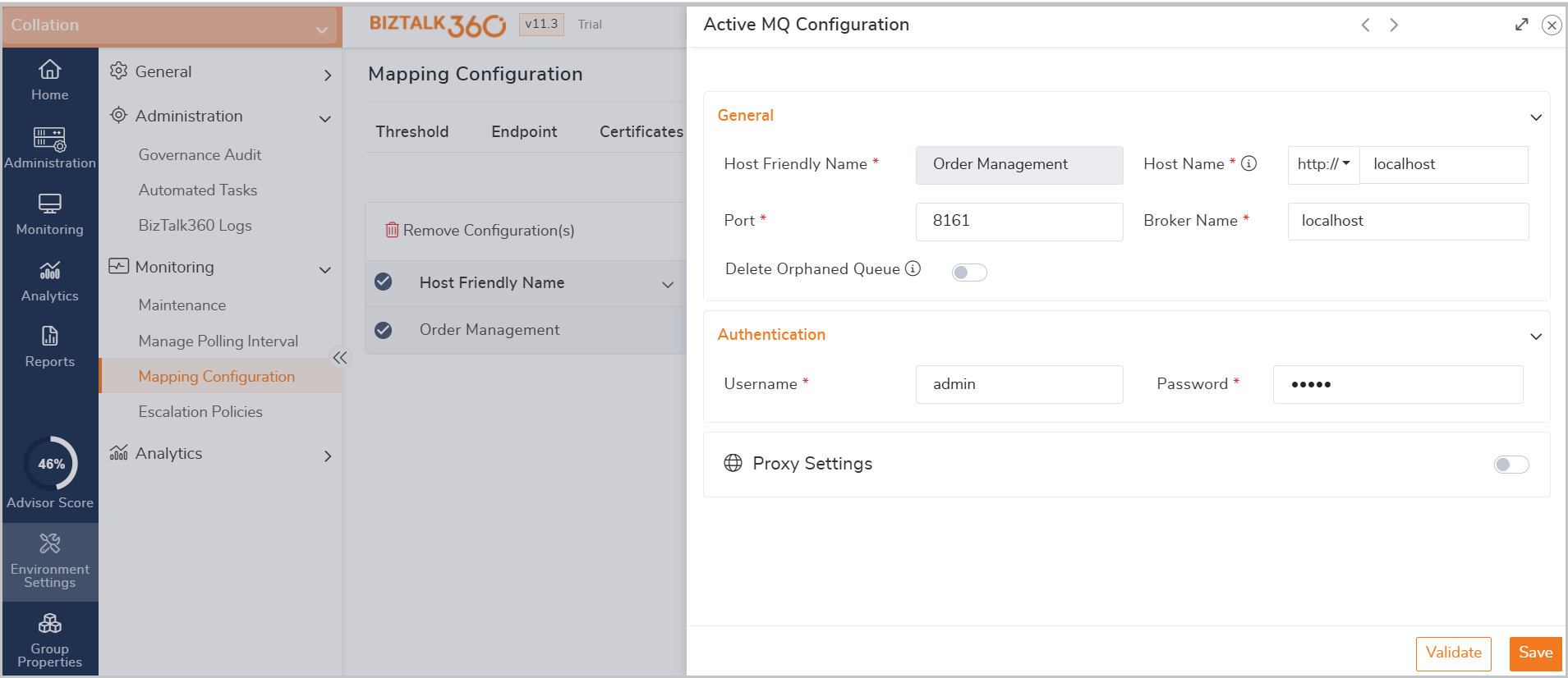
Update the General Information:
Host Friendly Name: Enter a user-friendly name for the host (e.g., "Order Processing Host").
Host Name: Specify the server's name where Active MQ is hosted.
Port: Enter the configured port number for the host (default is 8161).
Broker Name: Unique identifier assigned to a message broker instance . You can find the broker name in the jolokia-access.xml file located at: C:\apache-activemq-6.1.3\conf\jolokia-access.xml.
Delete Orphaned Queue: Enabling this option allows the system to automatically remove orphaned queues mapping.
Authentication: Enter the username and password credentials required to authenticate with the ActiveMQ host.
Proxy Settings: If your organization uses a proxy, enter the required proxy settings for accessing the host.
Proxy settings can be predefined in the Gateway Settings page under BizTalk360 Settings. If already defined there, you can simply toggle the "Use Gateway Proxy" button to utilize the configured proxy settings. If not configured globally, provide the following details:
Server Name: The name of your proxy server.
Port Number: The port number used to connect through your proxy.
Proxy Username: The username for connecting to the proxy server.
Proxy Password: The password used to authenticate the credentials for connecting to the proxy server.
Validate and Save - This ensures that the configuration is saved only if the connection was successful.
Map Queue for Monitoring
Once the ActiveMQ host is configured, BizTalk360 retrieves information about the associated queues, allowing you to monitor their states effectively.
To access the queue information, navigate to Monitoring → Manage Mapping Queues → Active MQ.
Choose the configured ActiveMQ host from the dropdown menu.
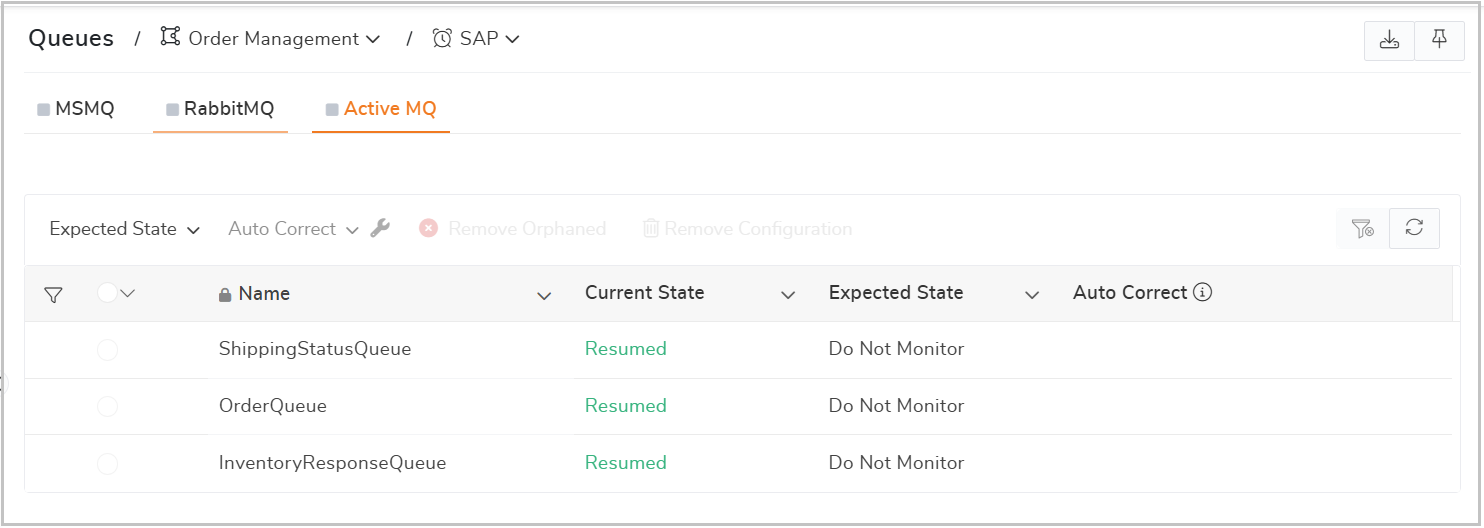
Based on the selection, The system will display all queues under the selected host, along with their current states.
Monitor Queue State-
Users can select a specific queue and set the expected state as either Resume or Pause. The monitoring status is then determined based on a comparison between the current and expected states. The monitoring system will then notify users if there is any violations in the Queue states.
Auto Healing option can be enabled for State-based monitoring, allowing the system to automatically restore the queue to its expected state in case of any violations.
Threshold Monitoring-
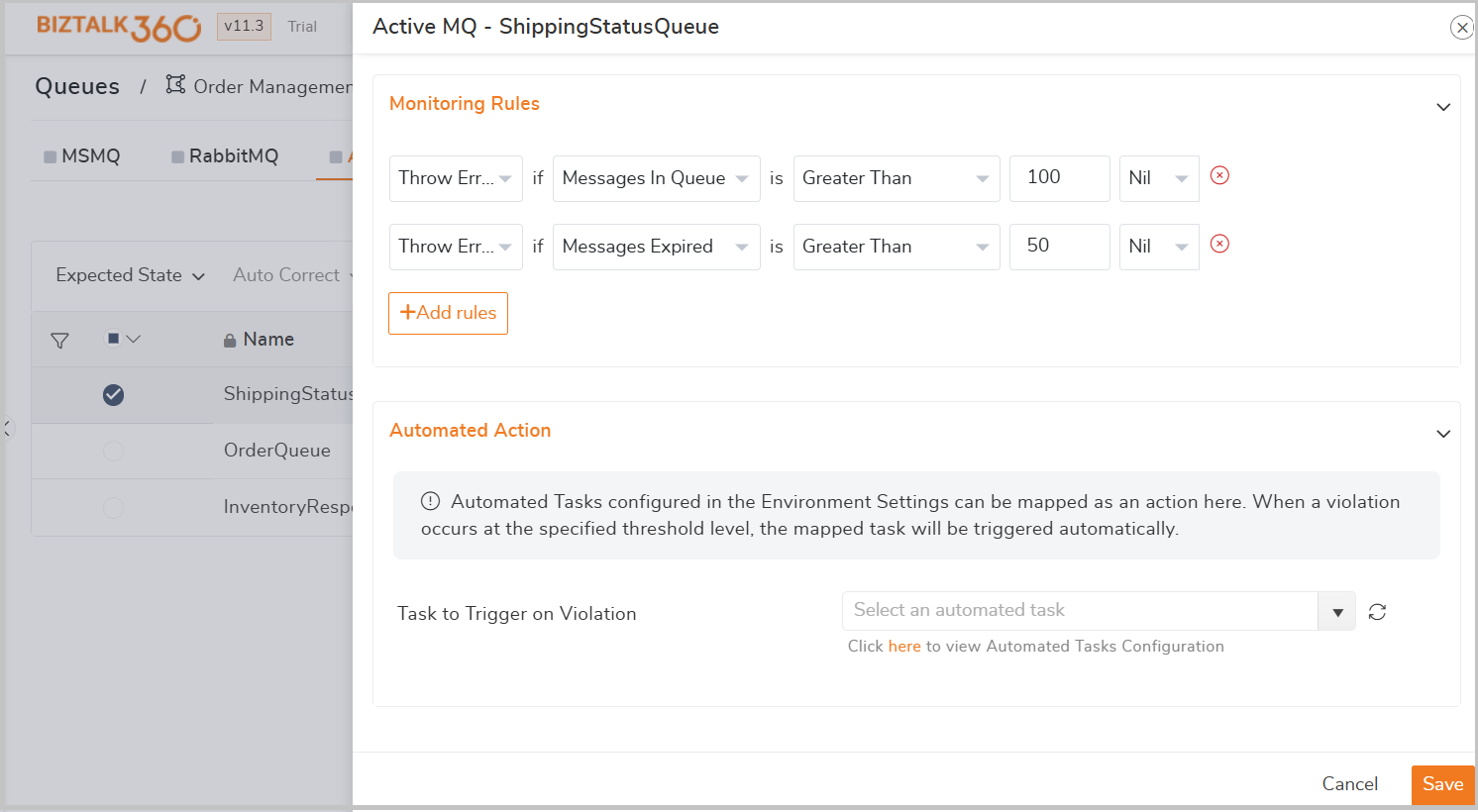
The Rule Monitoring helps to identify threshold violation of Queue metrics. User can do advanced monitoring by configuring the monitoring rule for below queue metrics and get notified if there is any threshold rule violation.
Message Enqueued
Message Dequeued
Messages Size
Message in Queue
Number Of Consumer
Number of Producers
Memory Percentage Usage
Message Expired
Scenario -Managing High Messages in Queue
During a sales event, a surge in customer orders can result in 1000’s of messages being queued in ActiveMQ, which may overwhelm the system and cause delays in real-time order processing. And Messages that are not consumed within 30 minutes expire, potentially leading to missing orders. This issue can be mitigated by configuring threshold rule monitoring.
To address this, set up a threshold rule to monitor the messages in the queue with a limit of 500 messages and an expired message limit of 50.
If the queue size exceeds the set limit or the expired message limit is breached, BizTalk360 will trigger an alert to administrators, enabling them to take proactive action and resolve the issue promptly.
Overview of Mapped Active MQ
Once the Active MQ’s are mapped for monitoring, the health status of the queues will be shown in dashboard in a graphical tree view. If the mapped queue is violated, it will be listed in the errors and warnings along with the associated alarms. You can also navigate to the respective Queue on clicking them.
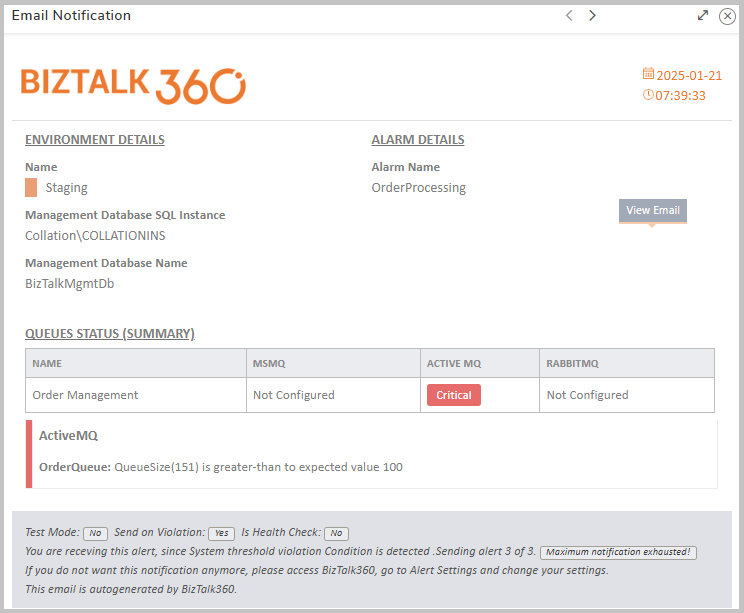
In order to receive email notifications from BizTalk360 on the threshold violation alerts (and auto-correction alerts), you need to configure the SMTP settings under BizTalk360 Settings. Follow the steps in this article to be able to configure the SMTP settings in BizTalk360. You will receive an email notification with the exact details of the status of the Queues.