In this article, we explain how to configure the BHM to generate the BHM report.
Log in to the application (as a Superuser)
To update the BHM installation directory path, navigate to Settings->System Settings->Global Configuration->BizTalk Health Monitor.
Once the path is configured you can view the available profile in the respective environment
Click the Environment and navigate to the Environment settings->General->BHM, to configure the profiles and schedules execution
Profile configuration - Select one or more profiles you wish to manage/monitor. The Analyze level High, Medium, Custom is indicated next to the profile name in the drop-down.
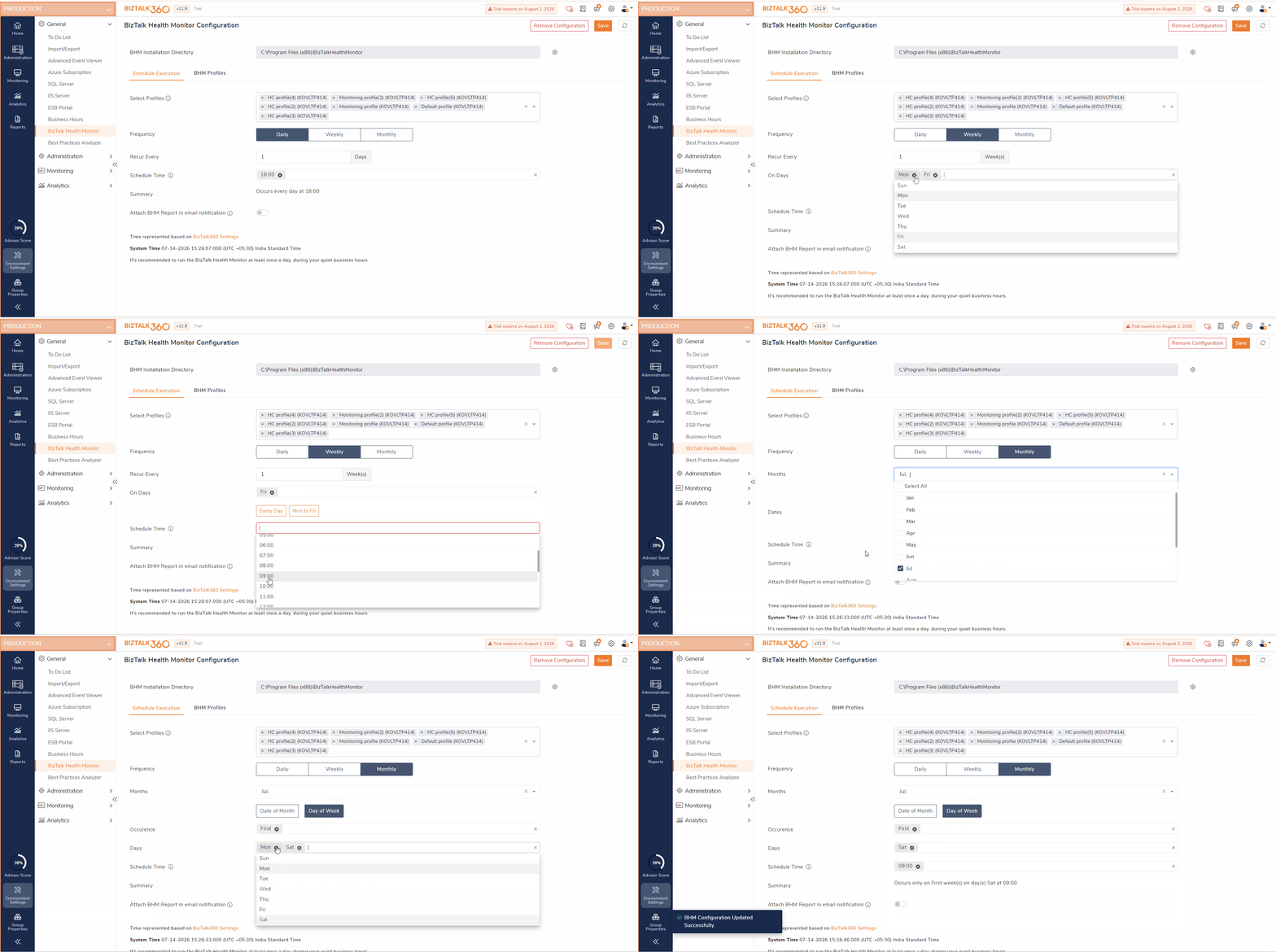
Schedule Configurations - Configure how often the selected BizTalk Health Monitor (BHM) profiles should run by choosing one of the available scheduling frequencies:
Daily: Runs the selected BHM profiles every N Day at one or more specified times. The administrator can schedule the Performance and Database Health profiles to run every day at 2:00 AM and 2:00 PM. This helps identify performance bottlenecks and database issues before they impact business operations.
Weekly: Runs the selected profiles on selected days of the week at the configured time(s), repeating every N week. The administrator can configure BHM profiles to run every week on Friday at 1:00 AM so that a comprehensive health assessment is available before the start of the business week.
Monthly: Runs the selected profiles on a specific day or week of the month at the configured time(s), repeating every N month. The administrator can schedule the Best Practices and Configuration Validation profiles to run on the first Saturday of every month. The generated reports help the operations team review the environment, identify long-term trends, and plan maintenance activities during the monthly maintenance window.If any new profile gets added to BHM, that will be automatically picked up by the BHM sub-services. However, you need to select and save the newly added profile in BizTalk360 for monitoring and report generation.
Attach BHM report in the email notification - By enabling this option, the report will be attached to the BHM alert email.
In a situation where a BHM profile is generated with a machine name, and the BizTalkMgmt instances are set up with a computer name, the created profiles may not appear in BizTalk360. Instead, an info message such as "Make sure BHM Profiles are configured using (Instances) and the Monitoring service is Running" is displayed. To view the created profiles, it is important to ensure that BHM profiles are established using the BizTalk360 BizTalkMgmt instance name.
BHM Profiles
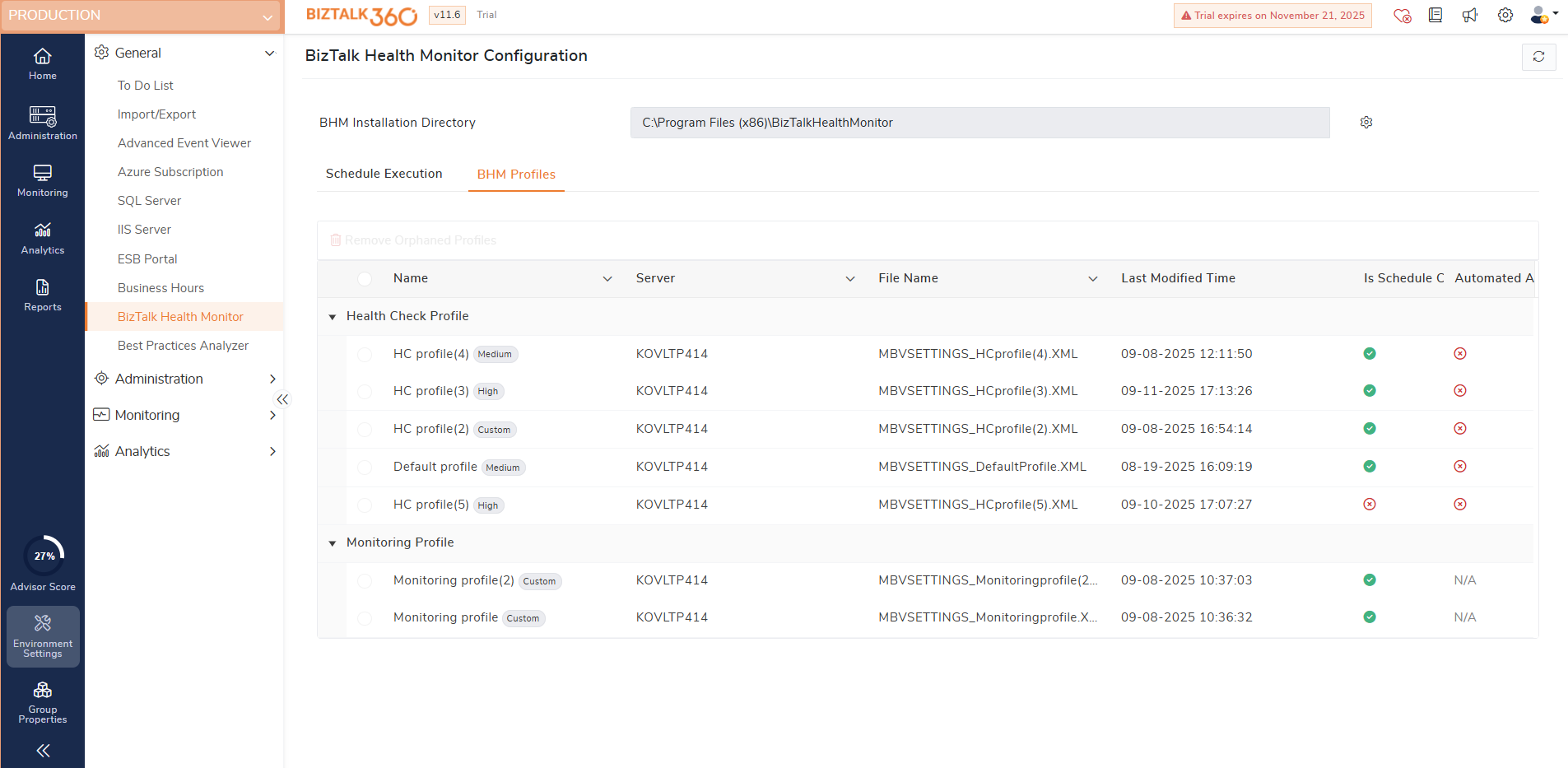
BizTalk Health Monitor - BHM profiles screen provides a centralized view of all the BHM profiles configured within your BizTalk Health Monitor (BHM) installation. This section consolidates Health Check and Monitoring profiles from the configured BHM directory. It also helps to quickly see which profiles are scheduled for periodic execution.
Configure Automated Action for BHM Profiles
To configure automated actions for BHM Health Check Profiles, you must first create the required BHM Maintenance Automated Tasks. For more information on creating BHM Maintenance Automated Tasks, refer this article -https://docs.biztalk360.com/docs/predefined-templates#5bhm-maintenance-integration.
Note: Automated actions can be configured only for BHM Health check profiles that are scheduled for execution.
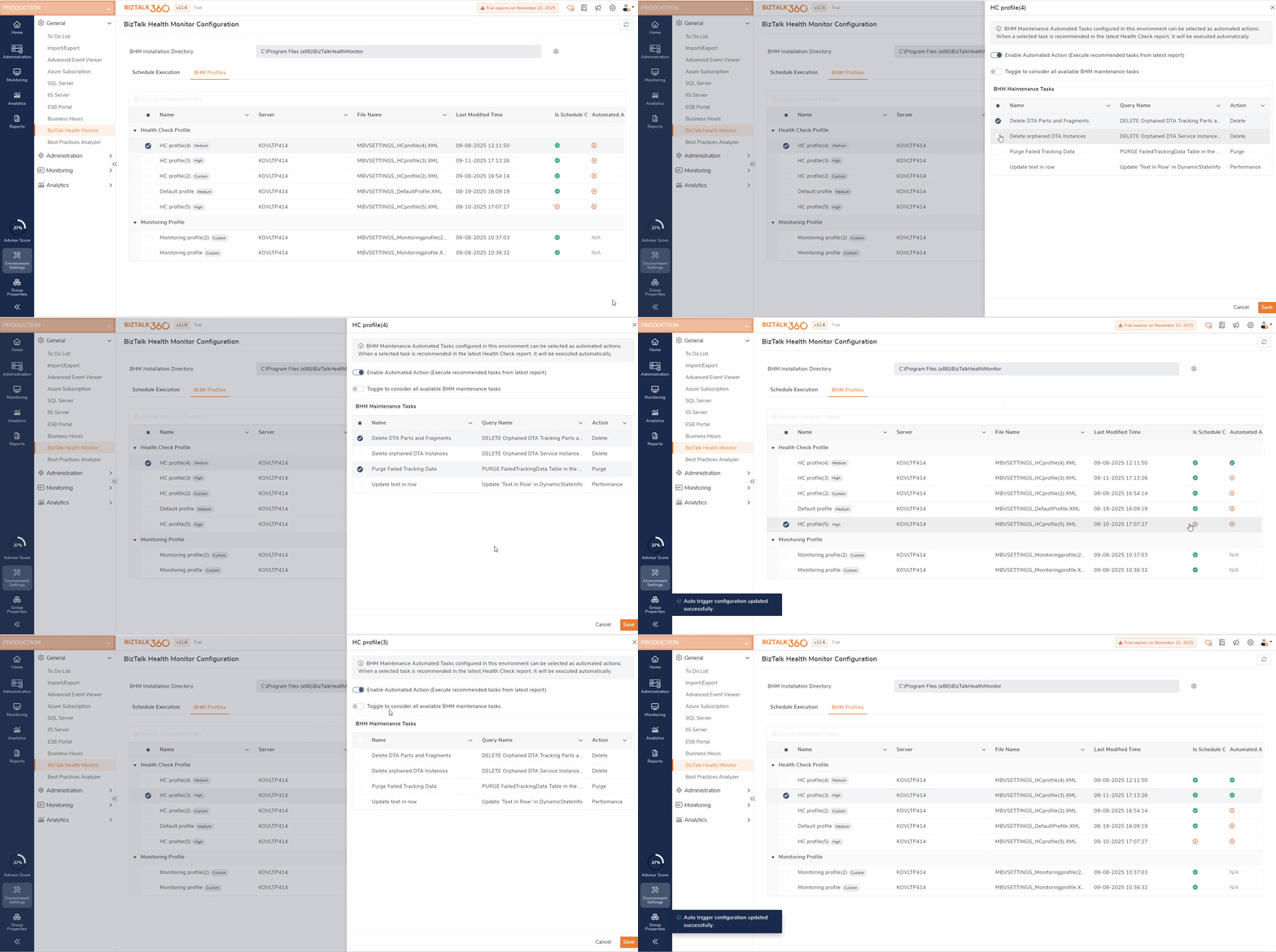
To configure an automated action:
Navigate to the scheduled BHM Health Check Profile.
Select the profile for which you want to configure automated actions.
The configuration blade displays all available BHM Maintenance Automated Tasks.
Enable the toggle“Enable Automated Action“ , which allows you to select the maintenance automated tasks .
Now,Select maintenance tasks to execute automatically after the BHM report is generated.
Enable the option toggle to considered all available BHM maintenance task , to automatically execute all existing maintenance tasks, as well as any new BHM Maintenance Tasks that are created in the future.
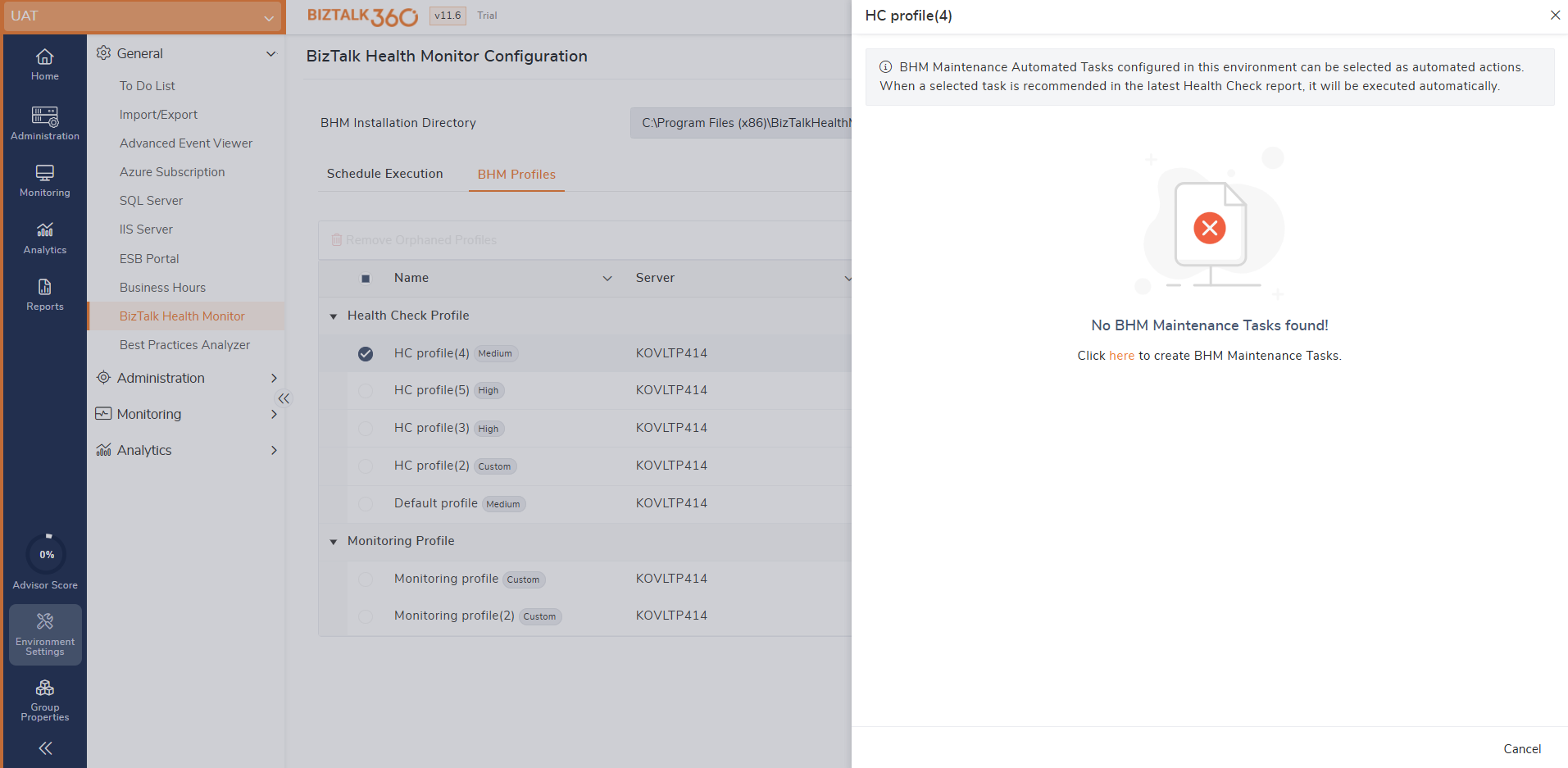
If no BHM Automated Tasks are created, the below screen will be shown directing users to Automated Task page to create BHM Maintenance Tasks.