Cannot see certain tables in BizTalkMgmtDb Database
BizTalk360 requires read access to certain tables in BizTalkMgmtDb (BizTalk Management Database) in order to function properly.
Recently one of the customer raised a concern saying, he cannot see some of the tables (dbo.adm_OtherDatabases, dbo.adm_Server2HostMapping, dbo.adm_ServiceClass, and dbo.BizTalkDbVersion) and BizTalk360 is complaining about the non-existent tables in BizTalkMgmtDb.
The reason you cannot see certain table using SQL Management Studio is because the user may not have appropriate rights. If you take a look at the below picture, you can notice the user access on the LHS is part of the standard "BizTalk Server Operators" group and the user access on the RHS is part of the standard "BizTalk Server Administrators" group. If you notice closely, you can see there are certain table missing on LHS (dbo.adm_ServiceClass). 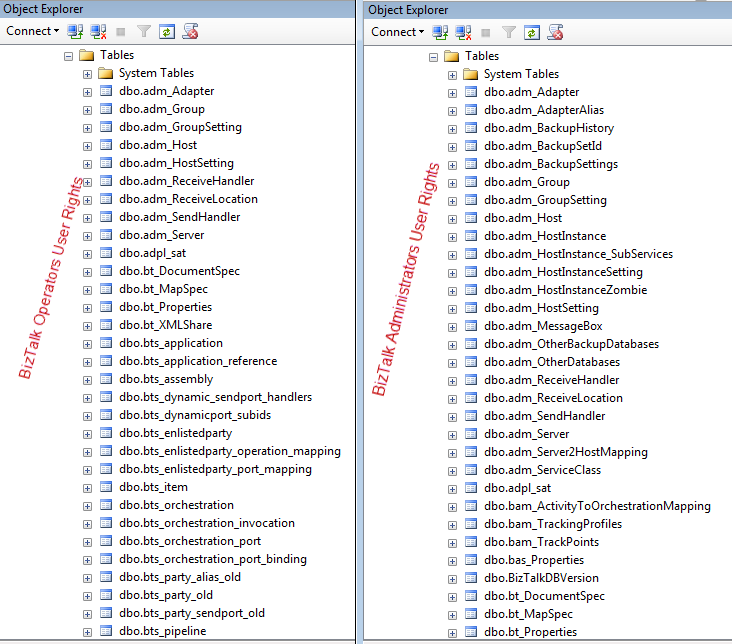
Error Type: Error -2147217900: failed to execute SQL string, error detail: Must declare the scalar variable @timestamp
During installation, you may encounter the exception
Error -2147217900: failed to execute SQL string, error detail: Must declare the scalar variable "@timestamp
The main reason for this error is due to SQL server collation settings. We do not support case sensitive collation (this is the case for Microsoft BizTalk Server as well)
So, you should ask your DBA to change the SQL server collation to one of the supported ones. The one in bold is what normally people will have
The exact list of supported collations is:
Chinese_PRC_CI_AS
Chinese_Taiwan_Stroke_CI_AS
Latin1_General_CI_AS
SQL_Latin1_General_CP1_CI_AS
Modern_Spanish_CI_AS
French_CI_AS
Japanese_CI_AS
Korean_Wansung_CI_AS
Features that increase the size of BizTalk360 database:
There may be occasions when you face performance issues while trying to call the stored procedure(s) that result in a timeout error. The reason for this timeout error is due to the size of the BizTalk360 database.
Generally, the BizTalk360 database does not contain any environment related data, but mainly has the information about the BizTalk360 configuration settings, monitoring details for dashboard, log data, and few additional information like alert history, environment settings, and so on.
The BizTalk360 database grows at an average rate of approximately 200 MB/day. The features that increase the size of the BizTalk360 database are :
Advanced Event Viewer
Governance/Auditing
Monitoring collection
Analytics collection
Throttling Analyser
To prevent the database growth, you need to set the minimum number of days to purge the data under "Purge policy. settings" for these features.
It is recommended to keep low purging days for advanced event viewer (about 5 days), while throttling is restricted to 7 days.
Error Type: Cannot open database requested by the login. The login failed. Login failed for user
You can check few things, if this error happens:
Check the connection strings in Web.config file and make sure it's pointing to correct database
If integrated SQL security is used, make sure the service account under which BizTalk360 IIS application pool is running has dbowner permission on the BizTalk360 database
If SQL authentication is used in the connection string, make sure that account has dbowner rights on the BizTalk360 database.
Work around solution
We have seen one instance where Windows Authentication was used and even after providing all the required permission (sysadmin) level, the error message persisted.
We resolved the problem by creating a brand new windows account, added the account to all NT groups required by BizTalk360, assigned BizTalk360 IIS application pool to the newly created user, added the SQL Login for that user, with user mapping point to BizTalk360 database.
We also noticed a situation where the original user was deleted and then recreated again. Since the SID of both the accounts will be different, SQL server will throw security exception.
You can verify this by opening SQL Management studio using that particular user account, and try to access the database. SQL server will throw an exception "The database is not accessible (ObjectExplorer)".
You can fix this by assigning ownership of the database to the user again.