The Multi Group Dashboard in BizTalk360 allows users to create a consolidated dashboard to monitor multiple BizTalk environments and BizTalk groups in a single place. It provides a centralized view of monitoring data from different environments, eliminating the need to switch between individual environments to check their health and performance.
Note: To access the Multi Group Dashboard, at least two BizTalk360 environments must be activated with a Platinum license.
Adding a New Dashboard (Global Dashboard)
Users can create only global dashboard in Multi group dashboard. It allows them to combine multiple BizTalk environments and groups in one place. This provides a centralized view without switching between individual environments.
Follow the steps below to create a dashboard:
Log in to the BizTalk360 application.
Navigate to Analytics → Multi Group Dashboard.
Click Add Dashboard in the top-right corner.
Provide a suitable name for the dashboard.
Configure the required dashboard settings.
Save the configuration.
The newly created dashboard will be available in the dashboard selection dropdown.
Editing a Dashboard
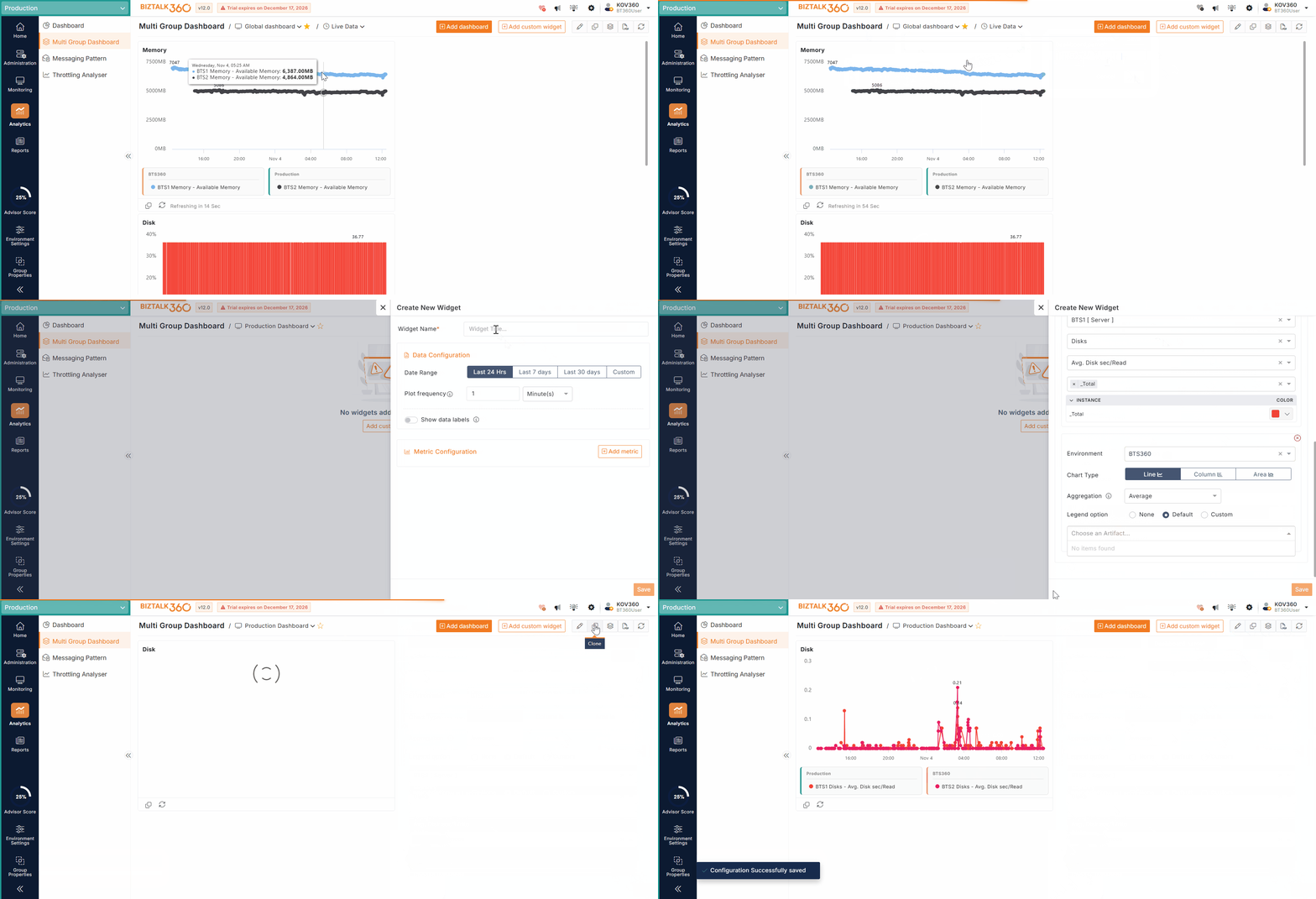
Users can modify an existing dashboard to update its configuration.
Select the dashboard that you want to edit.
Click the Edit icon in the dashboard and Modify the dashboard name.
Save the changes.
Deleting a Dashboard
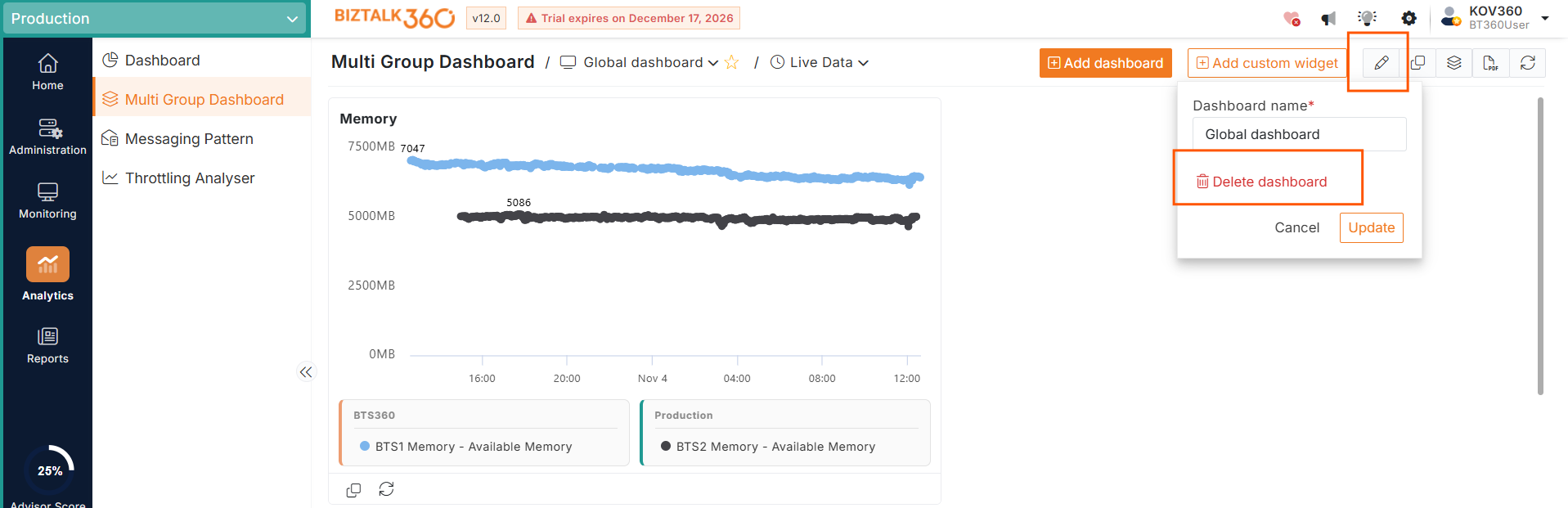
Users can delete a dashboard that is no longer required.
Select the dashboard that you want to delete.
Click the Edit icon in the dashboard operations area.
Select the Delete Dashboard option.
Confirm the deletion in the confirmation dialog.
Note: Deleting a dashboard also removes its associated widget configurations.
Cloning a Dashboard
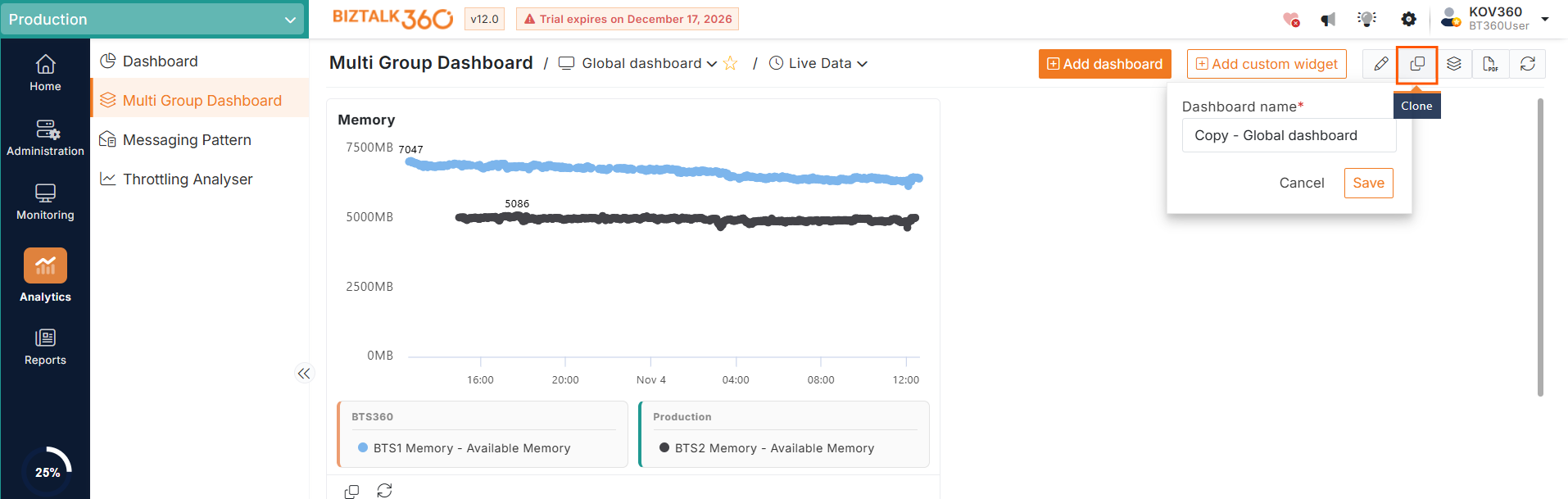
The Clone Dashboard option allows users to create a copy of an existing dashboard, including its widgets and configurations.
Select the dashboard that you want to clone.
Click the Clone Dashboard icon in the dashboard operations area.
Provide the required details for the cloned dashboard.
Save the configuration.
The cloned dashboard will be created independently, allowing users to modify its widgets and configurations without affecting the original dashboard.
Exporting the Dashboard as PDF
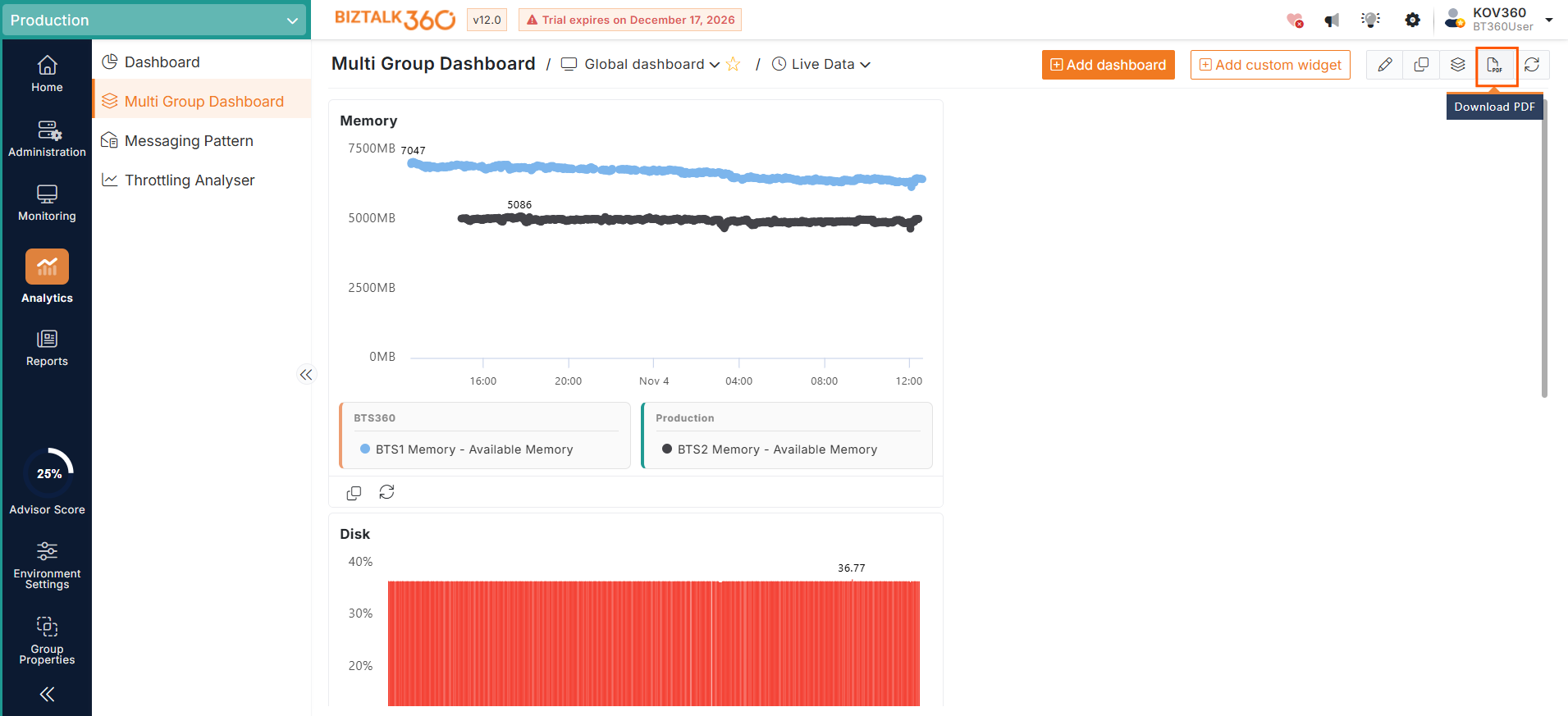
BizTalk360 provides an option to export the Multi Group Dashboard along with its configured widgets in PDF format.
Follow the steps below to export the dashboard:
Select the required Multi Group Dashboard.
Click the Export to PDF icon in the dashboard operations area.
The selected dashboard, along with its widgets, will be exported as a PDF document.
Set As Default Dashboard
User can create their own custom dashboard and map the widgets that are required to get an insight into their environment. The required widgets may vary based on your roles so you can customize and create your own custom dashboard and set that as a default dashboard, which will be loaded first when user navigate to the dashboard section.
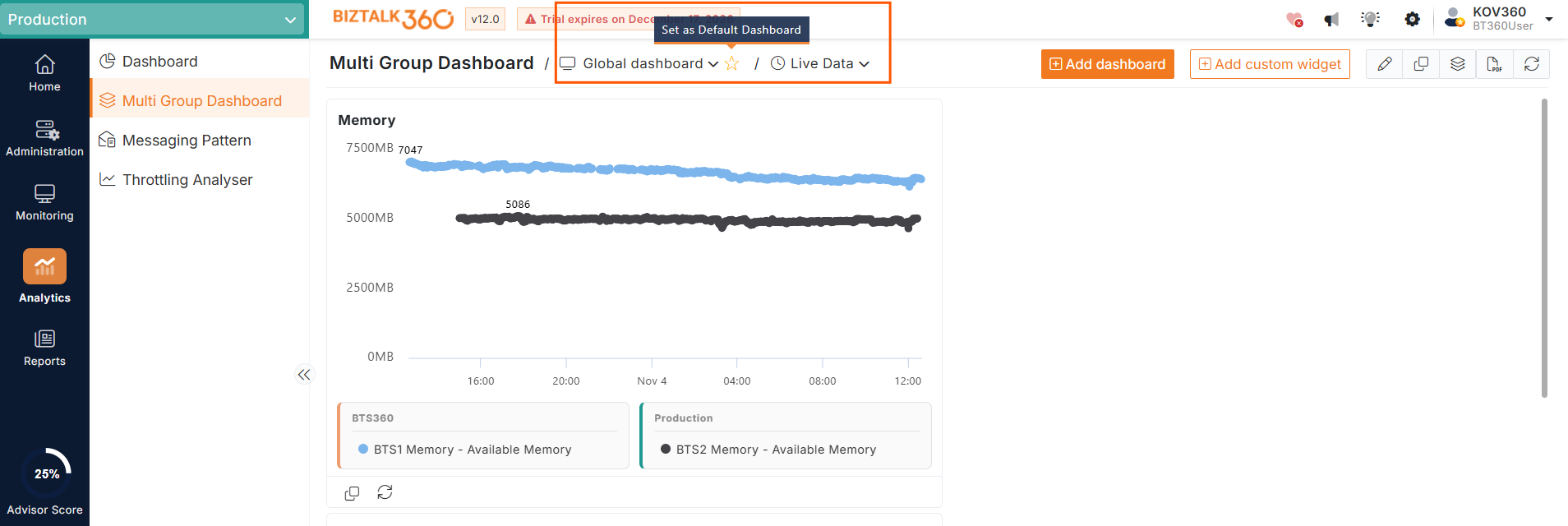
Set the dashboard as the default by clicking the star icon near the dashboard selection drop-down.
Reporting – Mapping Multi Group Dashboard to Reports
BizTalk360 allows users to map the Multi Group Dashboard to reports, enabling them to include a consolidated view of multiple BizTalk environments and groups in the generated reports. Users can select the required Multi Group Dashboard while configuring a report, so the dashboard and its associated widgets are included in the report output. This helps users share and review information from multiple BizTalk environments in a single report based on the configured reporting schedule.