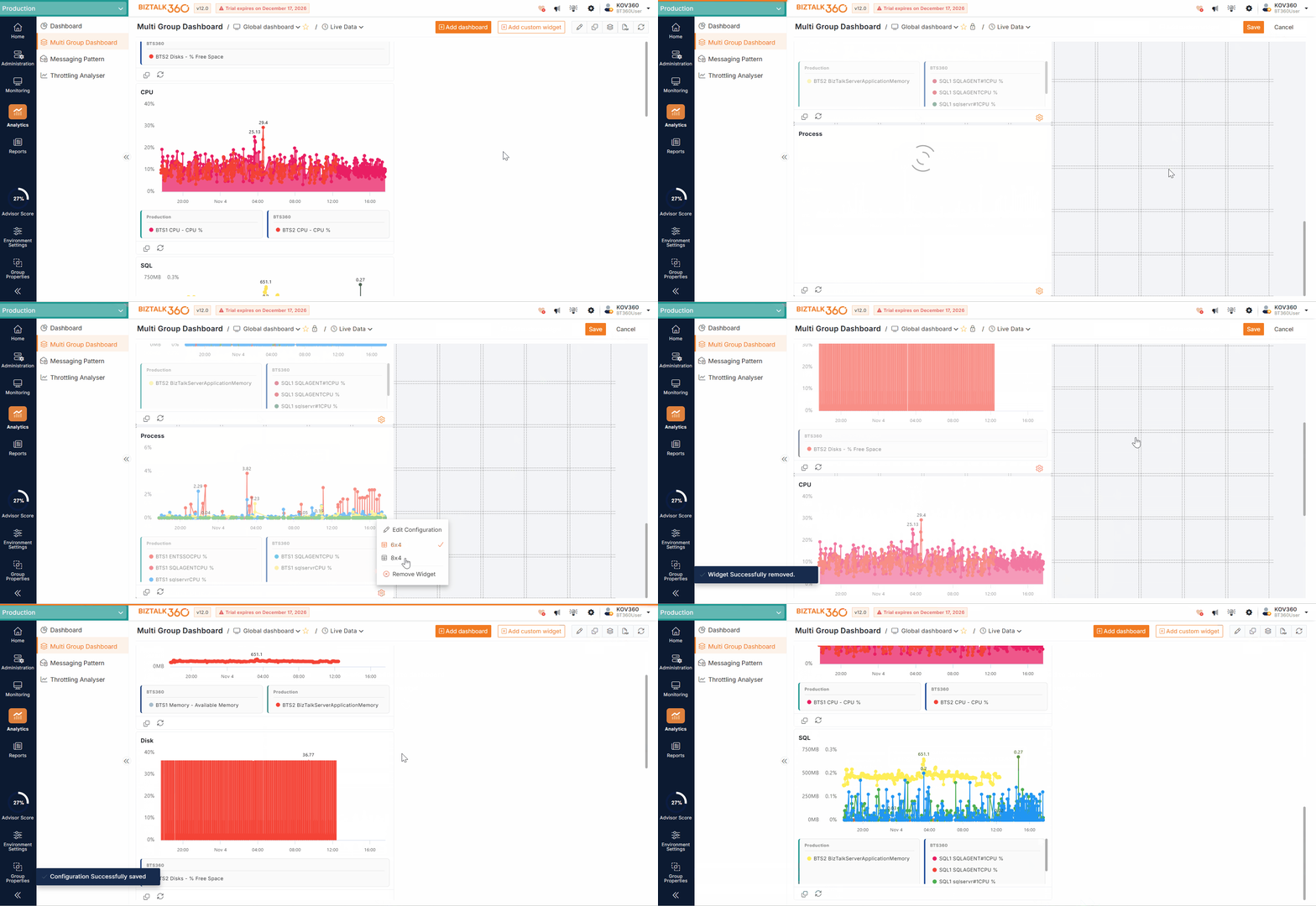
Custom widgets in the Multi Group Dashboard allow users to consolidate specific monitoring information from multiple BizTalk environments and BizTalk groups into a single dashboard. Users can select the required environments and groups while configuring a widget to display relevant data based on their requirements. This eliminates the need to switch between individual environments to monitor the same information.
For example, consider an organization that maintains Development, Testing, and Production environments, each configured with different BizTalk groups. An administrator can add a BizTalk Group Health Status widget and select the required environments and their respective BizTalk groups. The widget displays the health status of all the selected groups in one place, helping administrators quickly identify environments with healthy, warning, or critical statuses. This provides a centralized view of the BizTalk infrastructure and simplifies monitoring across multiple environments.
Custom Widgets Operations
Adding a Widget
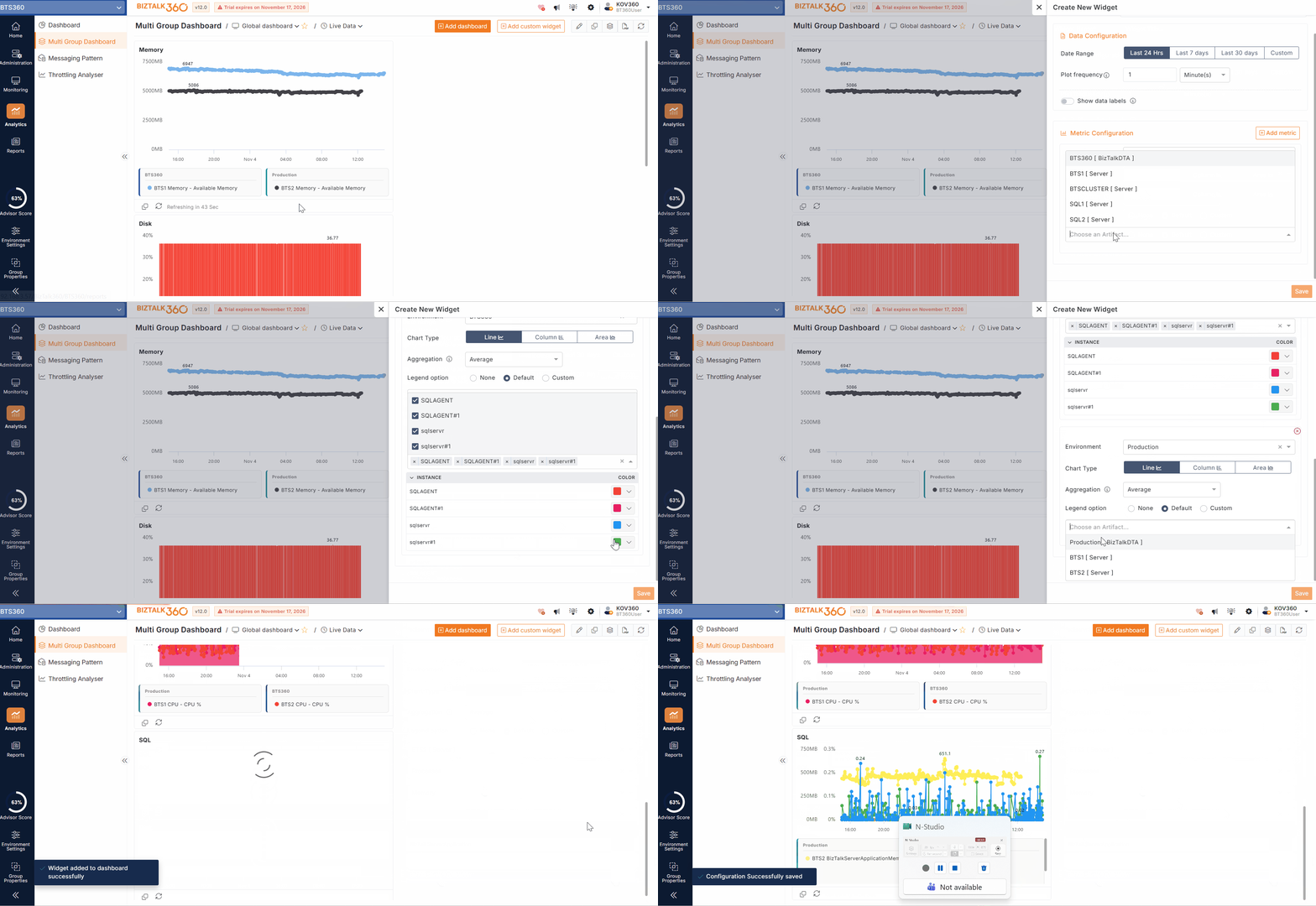
Users can add custom widgets to the Multi Group Dashboard by selecting multiple BizTalk environments and groups. This allows monitoring information from different environments to be displayed together in a single dashboard.
Follow the steps below to add a widget:
Navigate to Analytics → Multi Group Dashboard.
Select the required dashboard.
Click Add Custom Widget.
Select the required widget type.
Choose the BizTalk environments/groups and Configure the required widget settings.
Save the configuration.
The widget will be added to the selected dashboard and display the data from the configured environments and groups.
.gif)
Widget editing
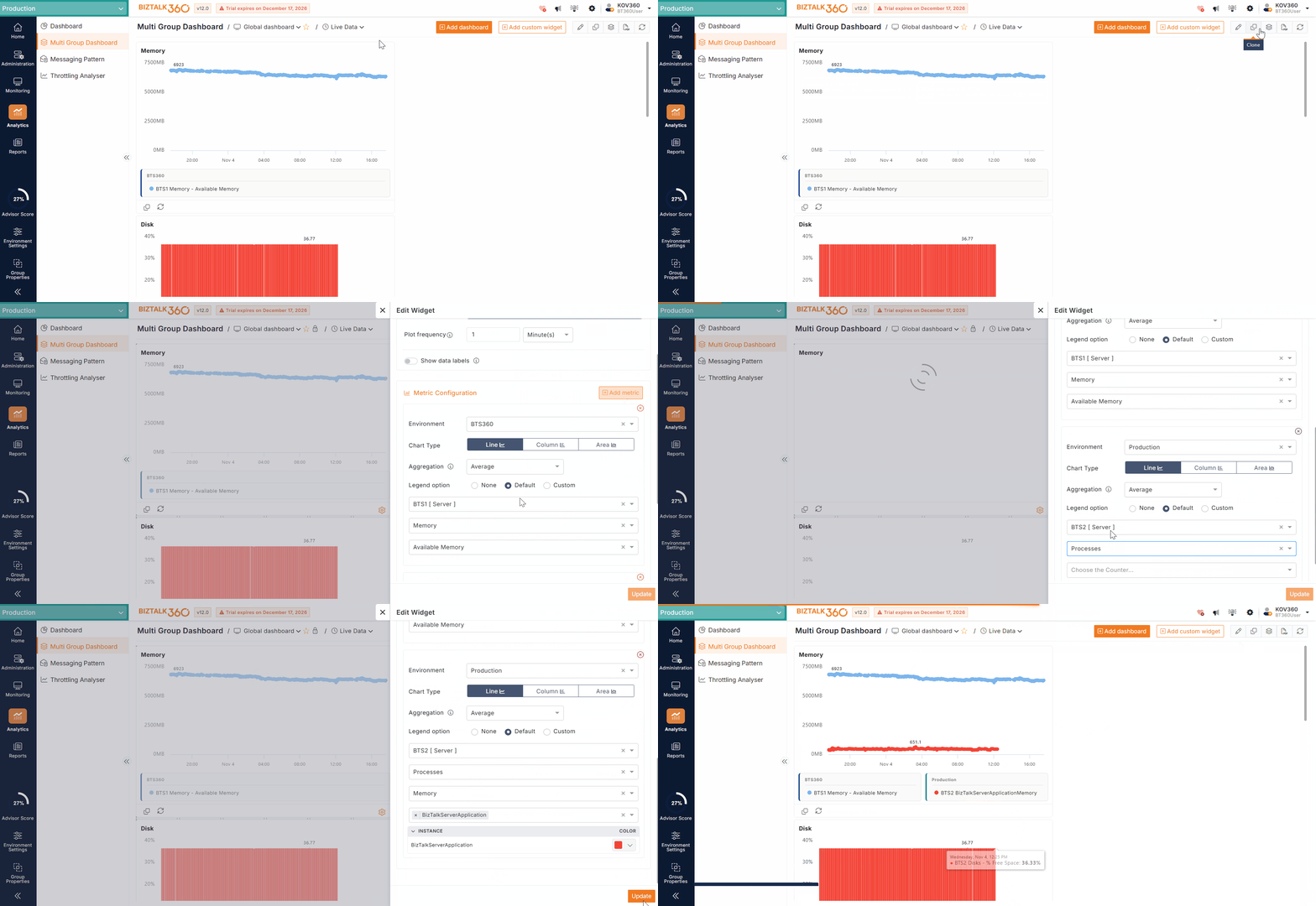
If you have a widget configured to display the Available Memory metric for a server in one BizTalk environment, and you want to monitor the available memory of another server belonging to a different BizTalk group in another environment, you don't need to add a separate widget. Instead, you can edit the existing widget and add the required environment and its corresponding BizTalk group/server to the widget configuration. This allows you to view the available memory of servers across both environments in a single widget, making it easier to compare and monitor resource utilization from one place.
The added widget can be modified as per you needs like
Changing the widget name.
Switching between the time ranges.
Add\Remove the multiple Environment\metrics.
Switch the chart types from Line, columns and Area.
Also, the Category and counter can be changed.
Adding Multiple metrics and multiple environments in Single widget
BizTalk360 Multi Group Dashboard allows users to configure a single custom widget with multiple metrics across multiple BizTalk environments and groups. user can select the color code for the metrics to display in the widget.
For example, consider a scenario where an administrator wants to monitor server resource utilization across Development, Testing, and Production environments. Instead of creating separate widgets for each environment and metric, users can configure a single widget to display metrics such as Available Memory, CPU Utilization, and Disk Usage for the selected servers across multiple environments. This provides a consolidated view of different metrics and helps administrators compare resource utilization and identify potential performance issues across BizTalk environments from a single widget.
Clone Custom widget
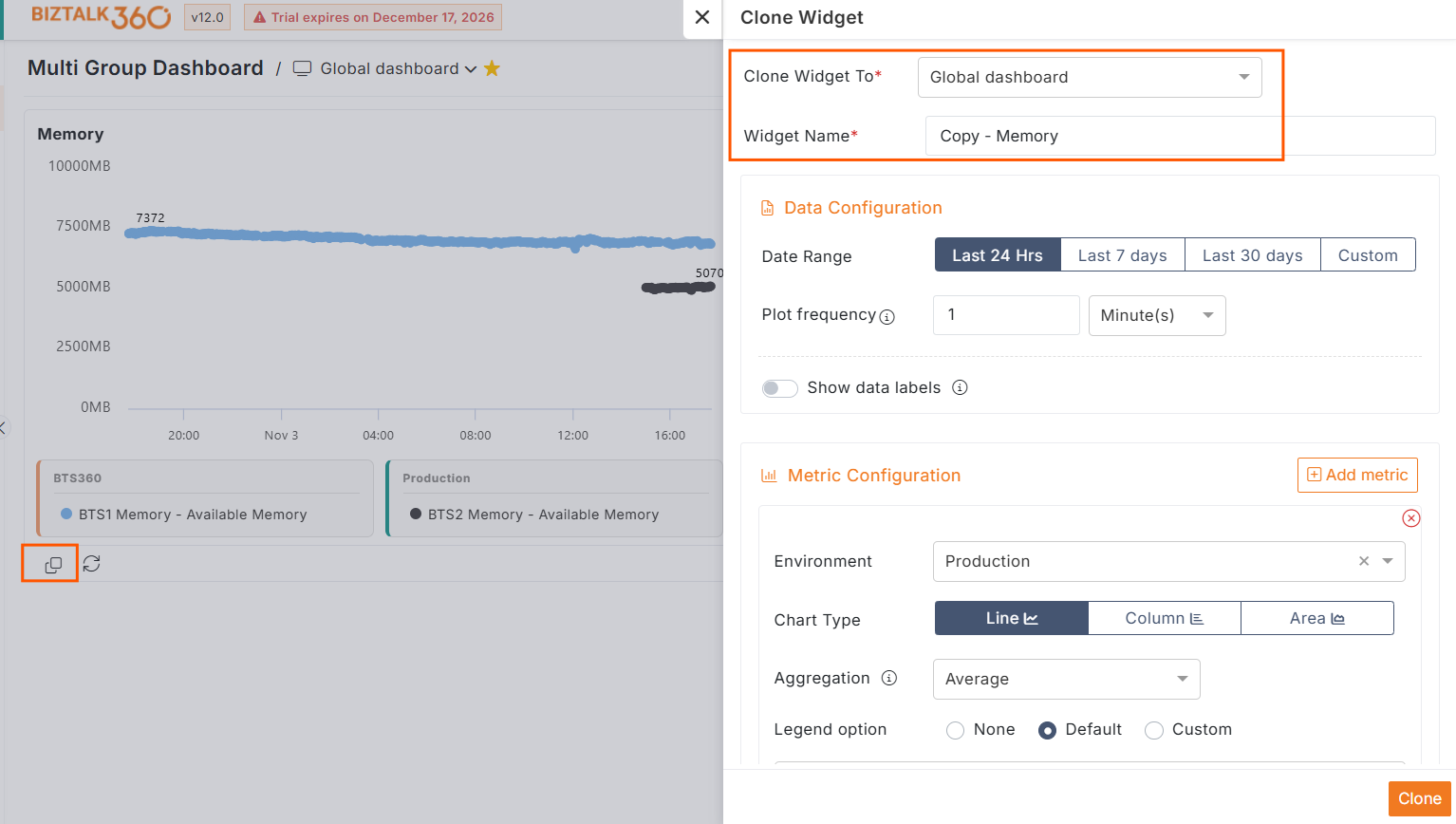
BizTalk360 allows users to clone an existing custom widget and add it to another dashboard without configuring the widget from scratch. The clone option is available within the widget itself, allowing users to select the destination dashboard where the widget needs to be added.
Deleting a Custom widget
BizTalk360 allows users to remove custom widgets that are no longer required in the Multi Group Dashboard.
To remove a widget from the dashboard, follow the steps below:
Click Customize to switch the dashboard to customization mode.
Select the widget that you want to remove.
Click the Gear icon on the selected widget.
Click Remove Widget to remove the widget from the dashboard.
The selected widget will be removed, while the other widgets in the dashboard will remain unchanged.