Introduction
Automated Host Instance task configuration allows you to take an action on BizTalk Host Instances.
At times, host instances abruptly stop due to external factors like host throttle conditions (worker/IO thread utilization or orchestration memory throttling violations). In this situation, the BizTalk Administrator must restart the host instances.
Let's see how to automate the above scenario: BizTalk360 supports the PowerShell notification channel, with this you can call the PowerShell script in case of any threshold violation found in monitoring. Create an alarm to monitor host throttling and enable the PowerShell notification channel, which holds the script to call the host instance automated task api. In case of a throttling violation, the BizTalk360 alarm will call the script that you have added to stop/restart the host instances.
BizTalk360 Automated Host Instances tasks allow you to take the below actions
Start
Stop
Restart
Enable
Disable
Host Instance Task Configuration
Navigate to Environment Settings->Automated Task ->New Task Configuration
In The New Task Configuration select Host Instances which will open the task configuration blade
Add the Task Name and Description
Task Type - Host Instance is chosen by default, which you cannot modify
Select Host Instance- Select one or more Host Instances in which you want to take an action
Action- Select which action needs to perform Start/Stop/restart or Enable/Disable the host instance
At least one Active
The clustered host instances are listed with color codes. To avoid downtime "At least one Active " can be set by selecting both clustered host instances. When the action is set as "At least one Active" the system will make sure at least one instance is up and running.
Task Execution Setting
Enable/Disable Task: By default, the task execution will be enabled. You can disable it if needed which stop the execution.
Skip During Maintenance: Enable this option to prevent the task from executing during the maintenance period.
Run Immediately: Enable this option to run the task immediately after saving the configuration. However ,the task will also execute at the scheduled time.
Follow this article for Schedule Configuration
Notification Configuration - Enable the channels in which you wish to get notified about the actions performed on Application Artifacts.
On successful task configuration, you can see the task in the configuration grid along with the task name, resource type, resource details, action, schedule type, and next execution time.
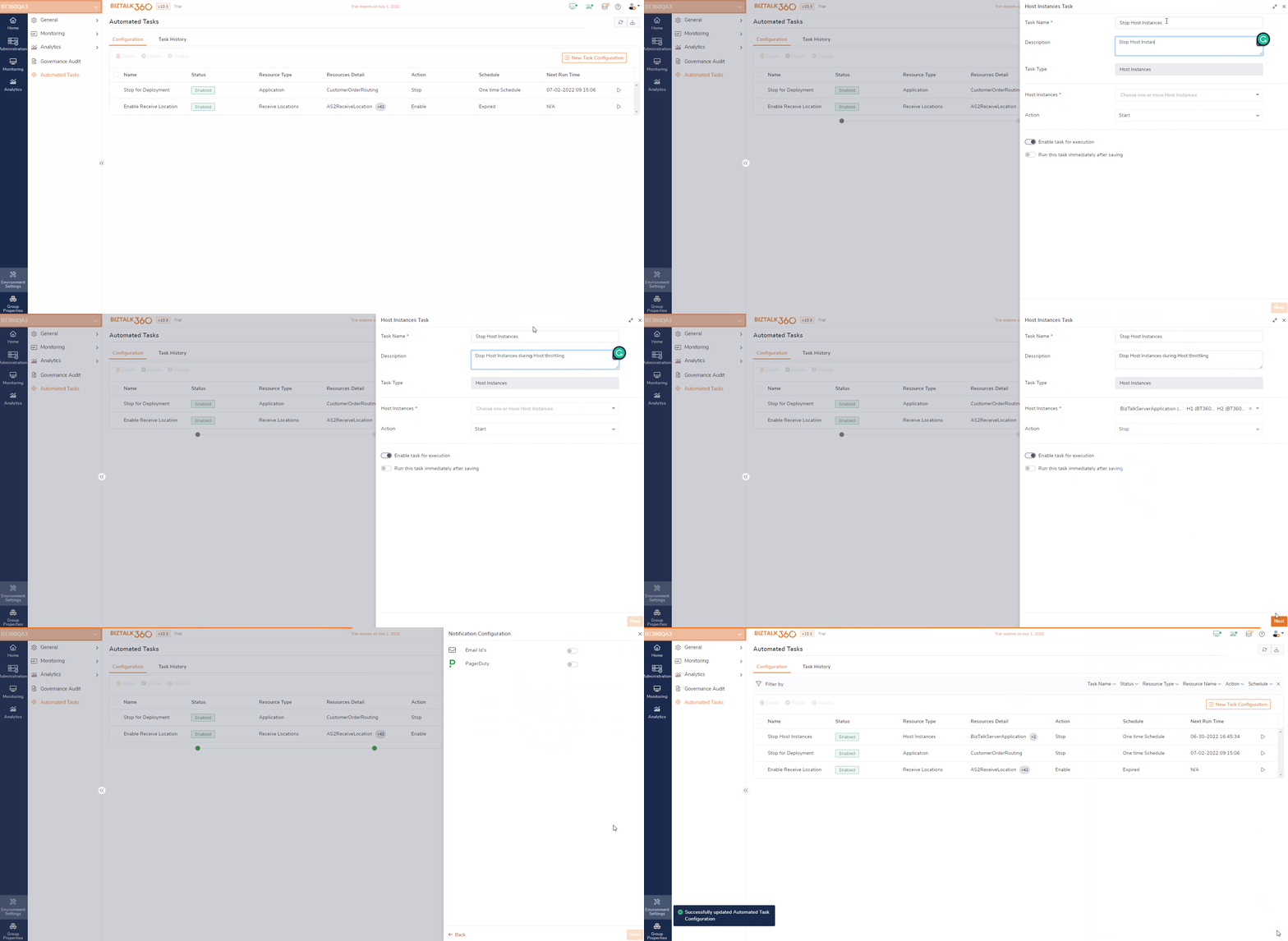
The below gif image shows how to configure the Host Instances task- to stop multiple host instances.
Changes to Automated Host Instance Task Action Types in v11.5
From V11.5, The "At least one active" and "Exactly one active" will action types will not be available as they have been removed to simplify configuration. Instead, users can now select the "Start" action type. When migrating from earlier versions to v11.5, if any automated tasks are configured with at least one active or exactly one active they will automatically be updated to use the “Start” action type.
If the selected host instances are part of a High Availability setup, the system ensures at least one instance remains running.
If the host instances are part of a clustered setup, the system guarantees that only one instance (active) is started.
.gif)