Due to the upgrade of the architecture and environment, certain changes will be necessary and unavoidable. Therefore, you need to move the BizTalk360 application and its database to the new location. Let's explore the possible changes and how BizTalk360 supports this process without any data loss.
Moving the BizTalk360 Application and its database to a new server
For moving the BizTalk360 database along with the BizTalk360 application from machine 1 to machine 2, please proceed with the following steps:
Deactivate the license from the old BizTalk360 Application server
Move the BizTalk360 database from Machine 1 to Machine 2 (with the help of SQL Administrator).
Uninstall BizTalk360 from the old BizTalk360 Application server.
Re-install the BizTalk360 Application on the new server where you want to move the application during the installation.
During the installation process, deselect the Database feature as shown in the image below (so that the installer will avoid overwriting the existing database). You can provide the new SQL server details where the BizTalk360 database was moved and get it installed.
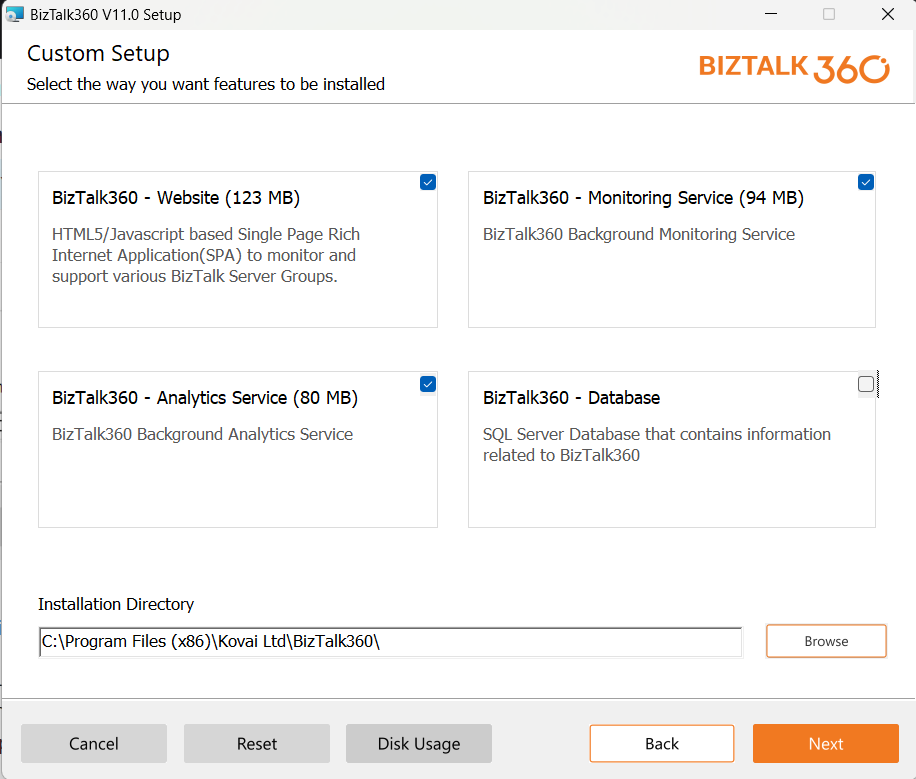
Once the installation is completed, the license can be activated to start using the application without any data loss.
Moving the BizTalk360 Database to a new SQL instance
Say your scenario might be due to some reason. The BizTalk360 server needs to be shut down, and you have to migrate the BizTalk360 database to a new server, and you need all your KB articles, alarms, & alarm mapping to be restored to the same. What could be the steps you can follow to achieve this?
Explanation: The first thing you have to know is that our BizTalk360 license has combined with the SQL server name, so when you change the SQL server from one server to another server, please deactivate the licenses provided and activate it again once after moving to another SQL server. You can refer to the link for the instructions. https://docs.biztalk360.com/v11/docs/license-activationdeactivation
Treat the BizTalk360 database like any other normal database, we suggest contacting your Database Administrator to move from one server to another server.
Once after move the BizTalk360 database to the new server, please find the instructions on what needs to be changed in regards to the BizTalk360 DB server configuration to point to a new SQL instance.
For changing the BizTalk360 DB SQL instance, we need to change in three Locations
BizTalk360 installation Folder (web)
Installation Folder (Monitoring Service)
installation Folder (Analytics service) - if installed with analytics
Web Folder:
Please navigate to
C:\Program Files (x86)\Kovai Ltd\BizTalk360\Web (according to your installation location)
C:\Program Files (x86)\Kovai Ltd\BizTalk360\Analytics
C:\Program Files (x86)\Kovai Ltd\BizTalk360\Service
Click on the Web.Config file
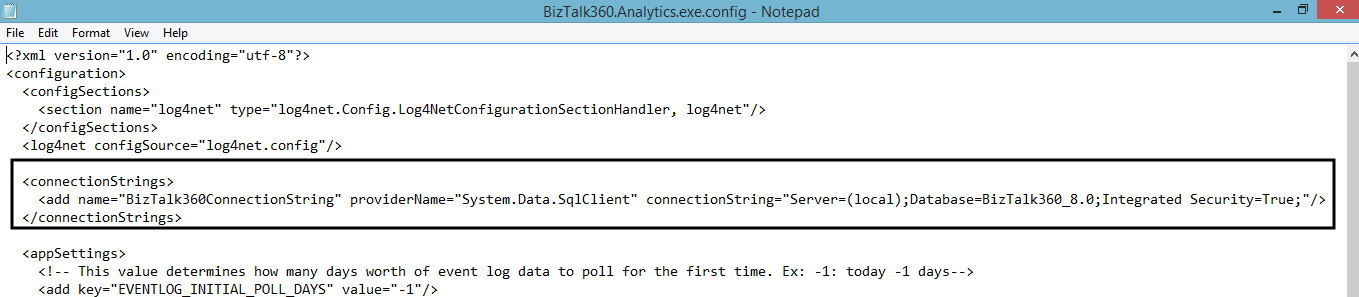
Change the connection string for new SQL instance details in this particular line of code.
Changing the connection string for a new SQL instance has to be done for both Monitoring Service config files & Analytics service config files (analytics, if installed)
Moving just the BizTalk360 application to a new server
Follow the below steps to move the BizTalk360 application from machine 1 to machine 2.
Deactivate the license and uninstall BizTalk360 from Machine 1.
Run the BizTalk360 installer on the new machine (machine 2) where you want to move the application.
During the installation process, deselect the BizTalk360-Database feature and move to the Next steps.
Provide the BizTalk360 existing database details and install only the services and web in Machine 2.
Once the installation is completed, the license can be activated to start using the application without any data loss.
Before moving the BizTalk360 application or database to a new server, please follow the below checklists