A BizTalk Host is a logical set of BizTalk runtime processes in which you deploy items such as receive locations (including pipelines), and orchestrations. A BizTalk Host provides a container for items such as receive locations (including pipelines), orchestrations and Send Ports. Hosts have the following characteristics:
Hosts are the logical containers of BizTalk objects
Only one instance of a specific host can exist on each server
You can map one host to multiple servers
Viewing host information in BizTalk360
Log in to the BizTalk360 application
Click the Administration tab in the Navigation panel
Click the expand button against Manage Infrastructure tab and select Hosts
The BizTalk Hosts screen will display all the basic information. Click the Host Name to view the Host Instances, Throttling Settings, Receive Locations, Send Ports and Orchestrations information associated with the particular Host
The screen has the following information:
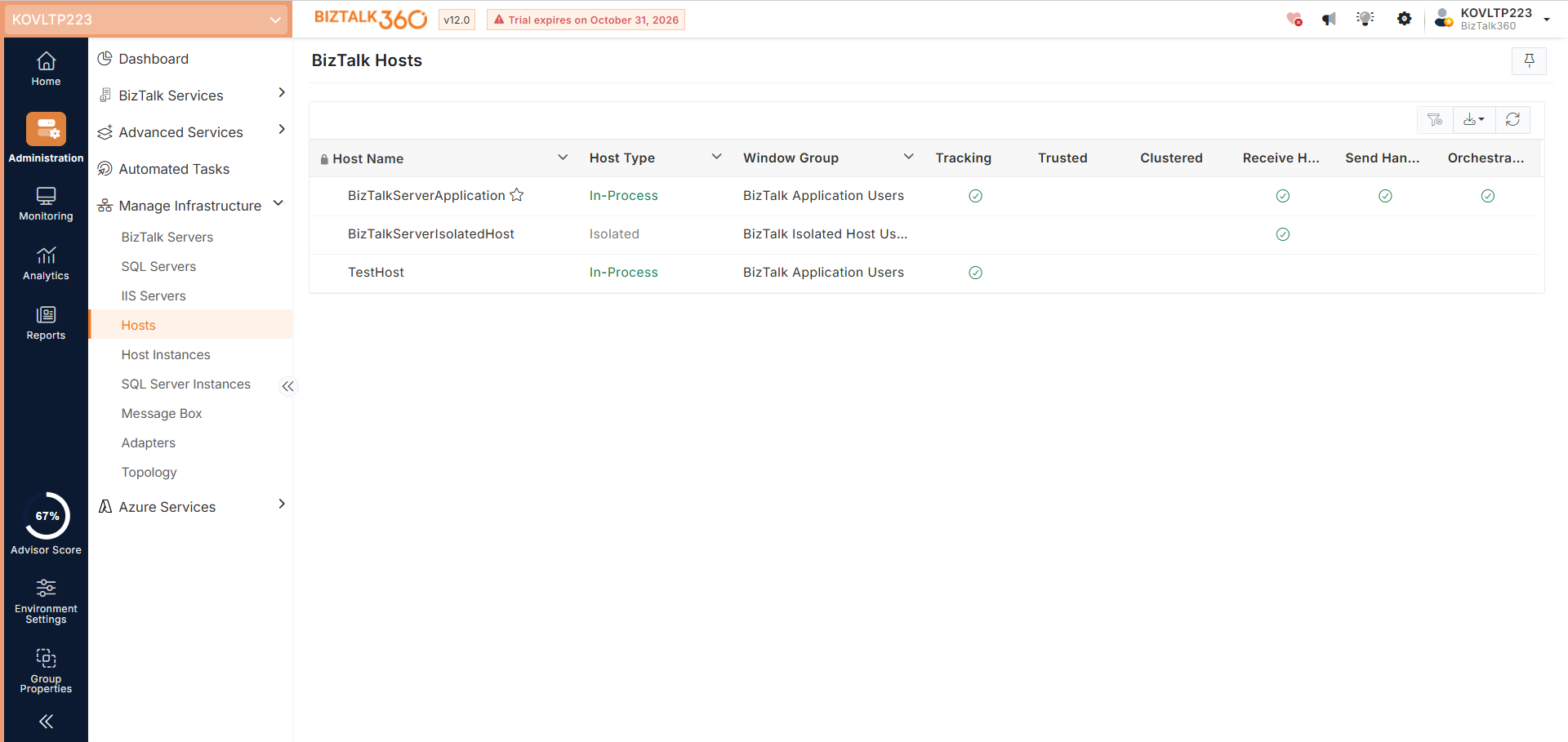
General Info - This section provides information about the host name, host type, etc.
Properties - This section provides information about the BizTalk Host properties like Tracking, Authentication etc.
Host Instances - This section provides information about the associated Host Instances running on the server. The host can be start/stopped or enabled/disabled from this tab
Rate based and Resource based Throttling - This section provides information about the Rate based and Resource based Throttling settings
Receive Locations, Orchestrations, Send Ports - This section provides information about the Host Container like Orchestrations, Receive Ports and Send Ports
Refresh - Click the Refresh button at the top right corner of the page to refresh the Host Instances information
Filter Implementation for Grids
To do a better search from the grid columns a Filter capability is implemented for the grid columns. A user can filter the data from the respective rows according to their needs.
The following types of filters have been implemented in the grid columns of the Hosts:
Text Filter
Text Filter
This is the most commonly used filter. Using this filter, a user can perform a text-based search. The text filter has the following options:
Is equal to
Is not equal to
Starts with
Ends with
Contains
Does not Contains
Is Null
Is not null
Is Empty
Is not Empty