User profiles help users in customizing the experience for individual users, improving usability and satisfaction. By storing their own preferences, the system can adapt to each user's unique needs and preferences. This customized approach not only enhances convenience but also fosters a stronger connection between the user and the system.
BizTalk360 allows users to save their preferences of below items in order to make the application user friendly. Once the user saves the below preferences it will be applied to the respective areas across the application.
- Time Zone.
- Date Time Format.
- Launch application with.
- Show warning for unsaved changes.
Time Zone
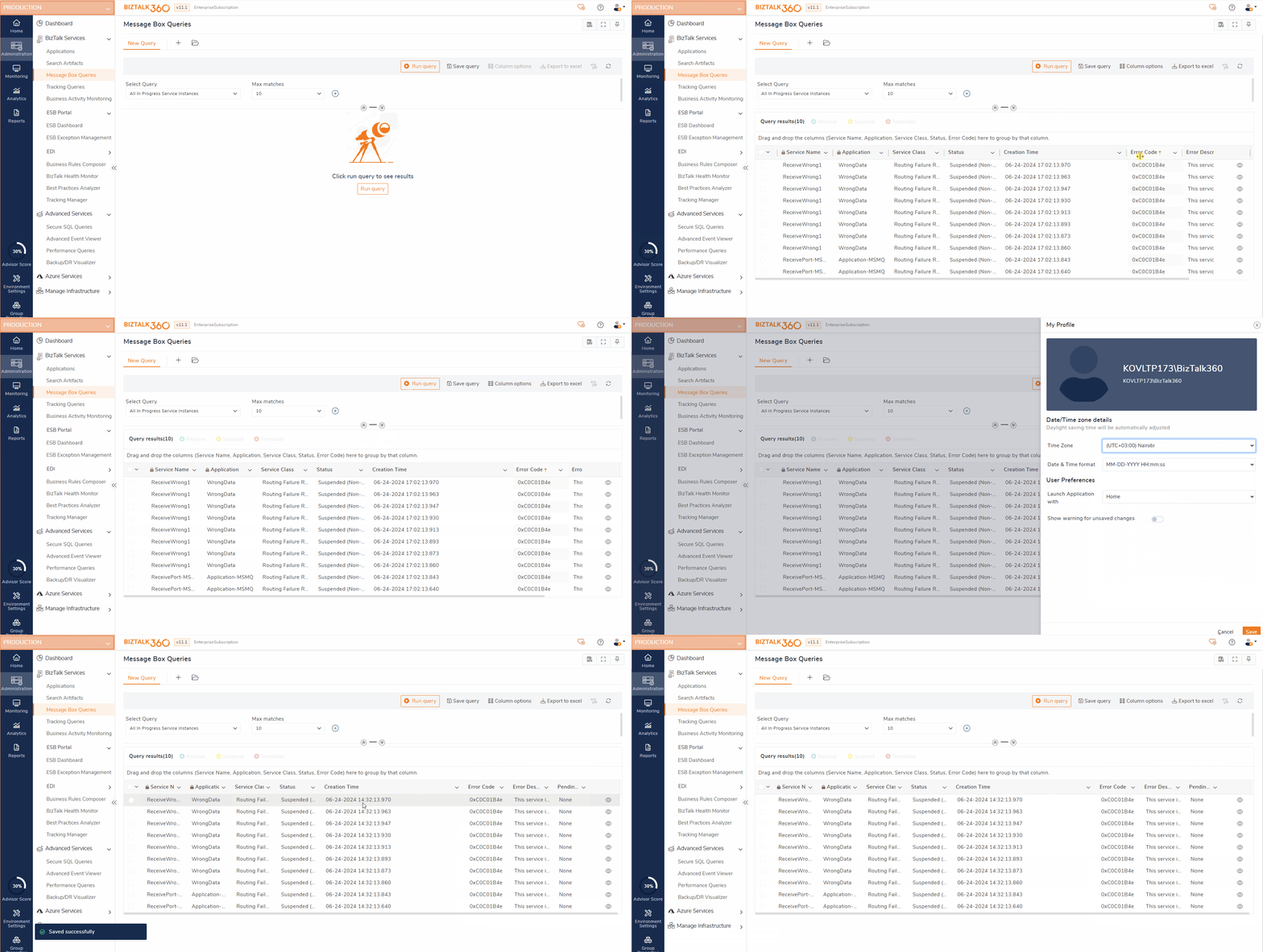
Users can select and save the time zone in their user profile. Once the user saves the time zone here, data's shown in the grids across the application are shown based on the time zone selected in the user profile.
Date Time format
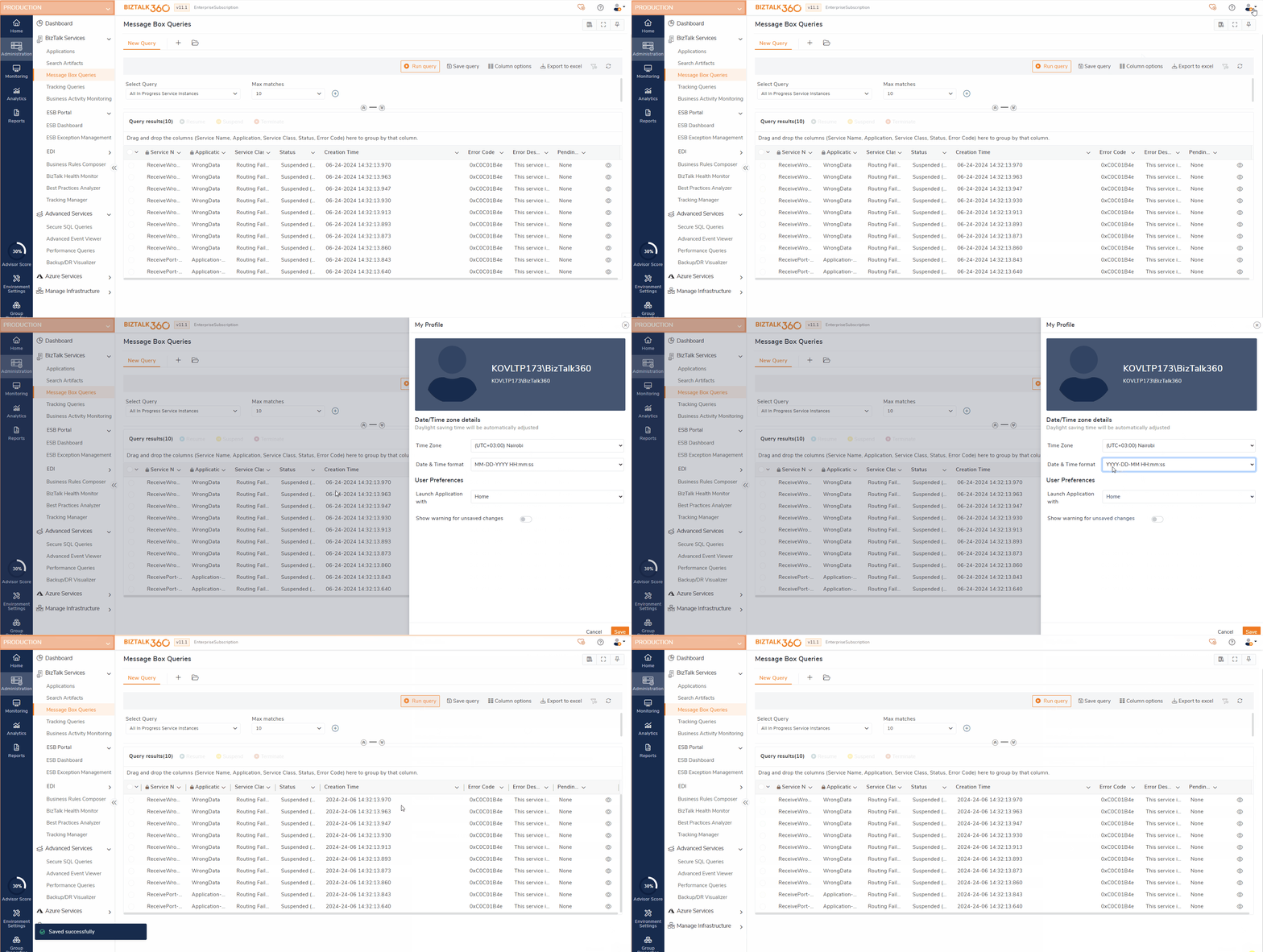
Users can select and save the date time format in their user profile. Once the user saves the date time format here, data's shown in the grids across the application are shown based on the date time format selected in the user profile.
Application Launch
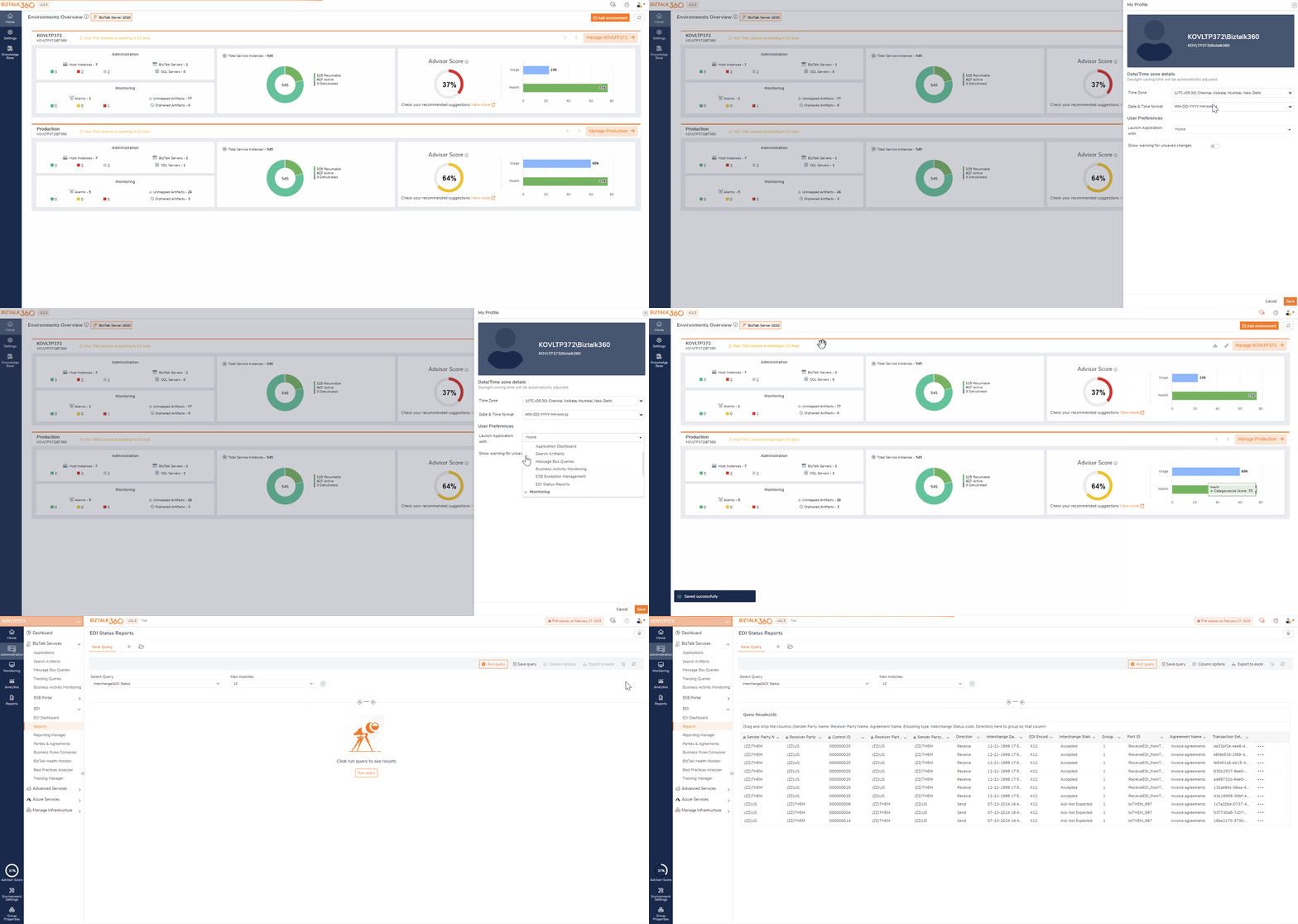
Users have an option to set either Home/ any of the sections in Administration/ Particular sections in Monitoring/Analytics Dashboard/ Reports. as their launching page. Users can select the launch application with option and save their preference in the user profile. Then after, the selected page will be set as their launching page.
For instance, when the customer wants to visit the EDI status reports whenever they launch BizTalk360 can set the Launch application with as "EDI Status Reports".
Show warning for unsaved changes
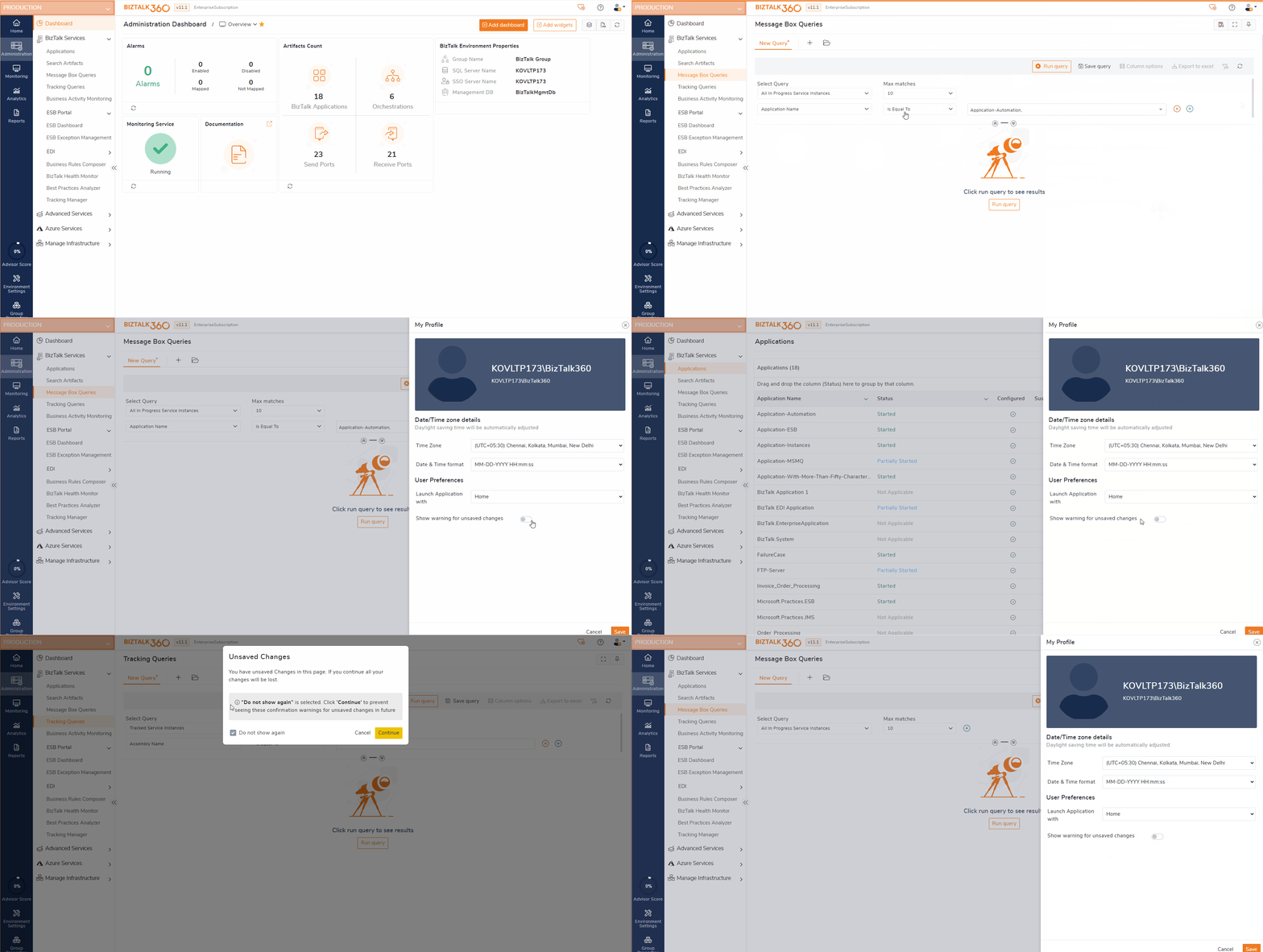
Imagine a scenario where a user is working on a message box query with filters but hasn’t saved the query. If the user accidentally navigates to another page, there’s a risk that all their unsaved changes will be lost. To prevent this, a pop-up warning appears, stating, "You have unsaved changes on this page. If you continue, all your changes will be lost."
To enhance user control, a new feature has been implemented allowing users to disable this pop-up warning. Users can turn off this warning in their user profile settings. Once the user disables the "show warning for unsaved changes" pop-up, they will no longer see the warning, even if they have unsaved changes. This gives users the flexibility to manage their workflow according to their preferences without being interrupted by warning messages.
- The time zone, date and time format, and launch application options saved in the system settings will automatically apply to the user profiles of all newly created users.
- If needed, new users can customize these preferences within their user profiles.
- This ensures a consistent default setup while still allowing individual users the flexibility to adjust their settings according to their personal preferences.