Configure BizTalk360 SMTP Settings
Go to Settings > Notifications > SMTP in BizTalk360.
Set Login Type to OAuth (Office 365) and Authentication to Client Credentials.
Enter the Admin Mail, Tenant ID, Client ID, and Client Secret.
Click Verify, then Save.
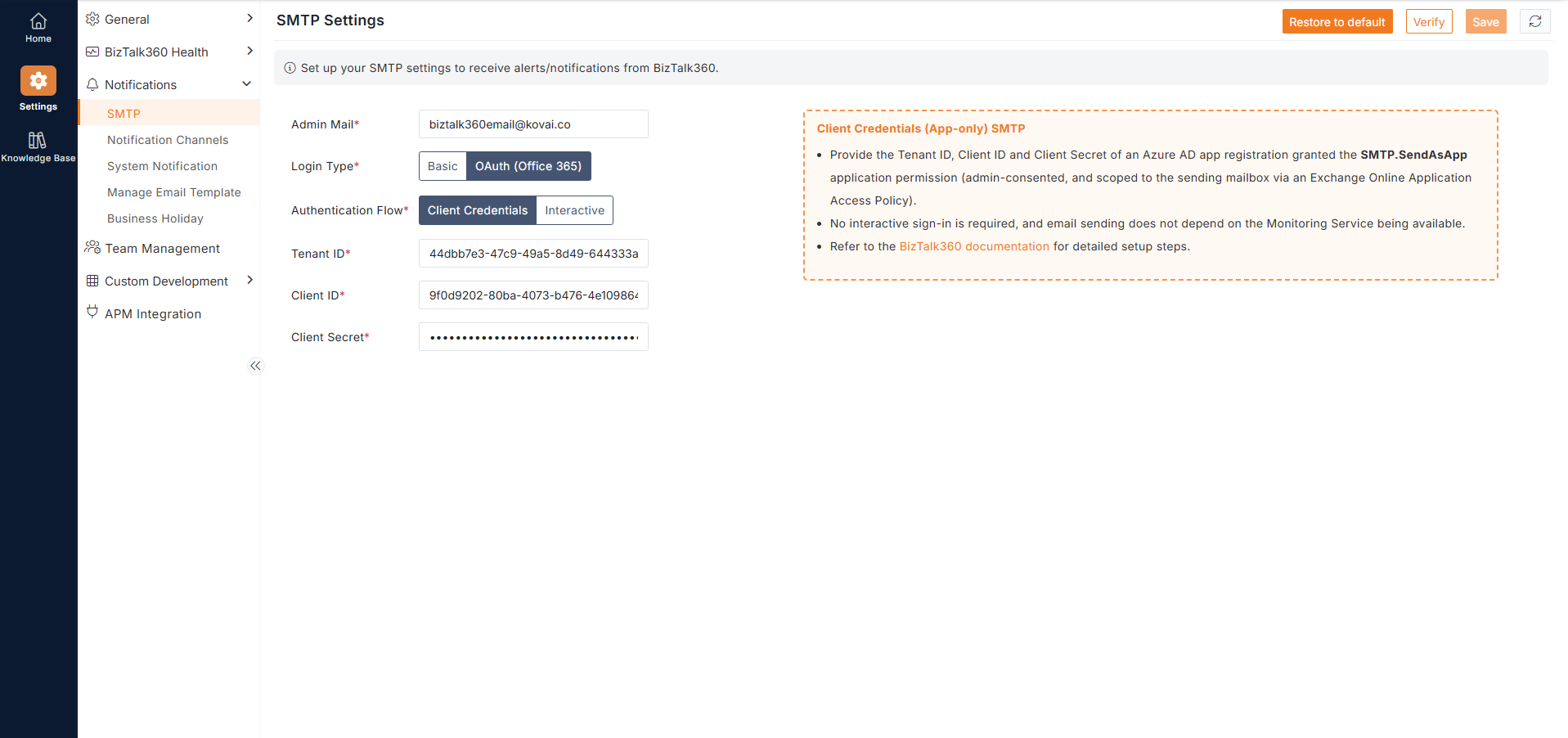
Steps to configure to send emails through Office 365 using OAuth 2.0 Client Credentials (app-only) authentication.
This process consists of the following steps:
Register the Azure AD App
Add the SMTP.SendAsApp API Permission and Create a Client Secret
Register the App as a Service Principal in Exchange Online
Grant Mailbox Access to the Service Principal
Enable SMTP AUTH
Register the Azure AD App
Log in to the Microsoft Entra admin center.
Go to Entra ID> App registrations > New registration.
Enter a Name for the application. Ex:
BizTalk360 SMTP Email.Leave Redirect URI blank and click Register.
Copy the Application (client) ID and Directory (tenant) ID from the Overview page.
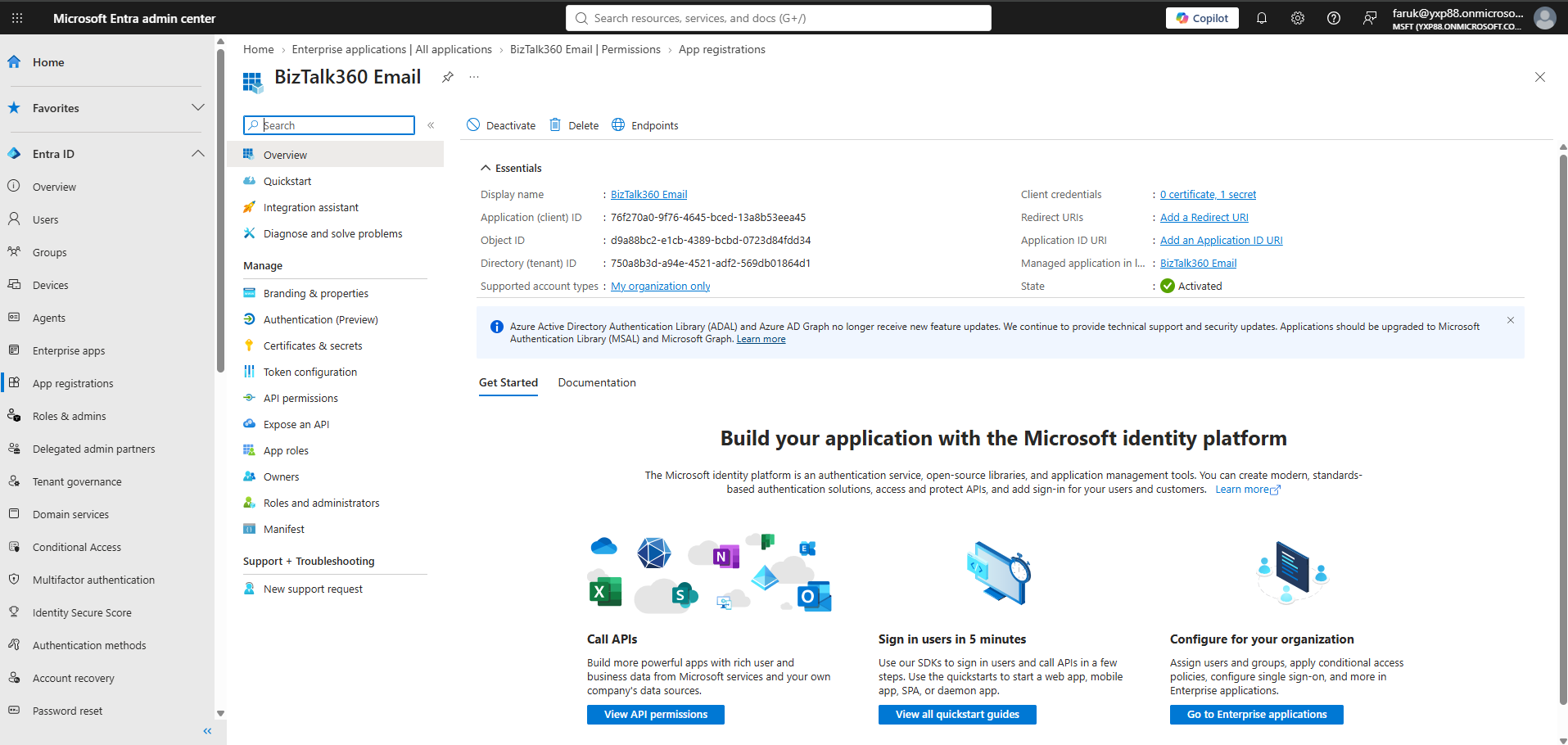
Add the SMTP.SendAsApp API Permission and Create a Client Secret
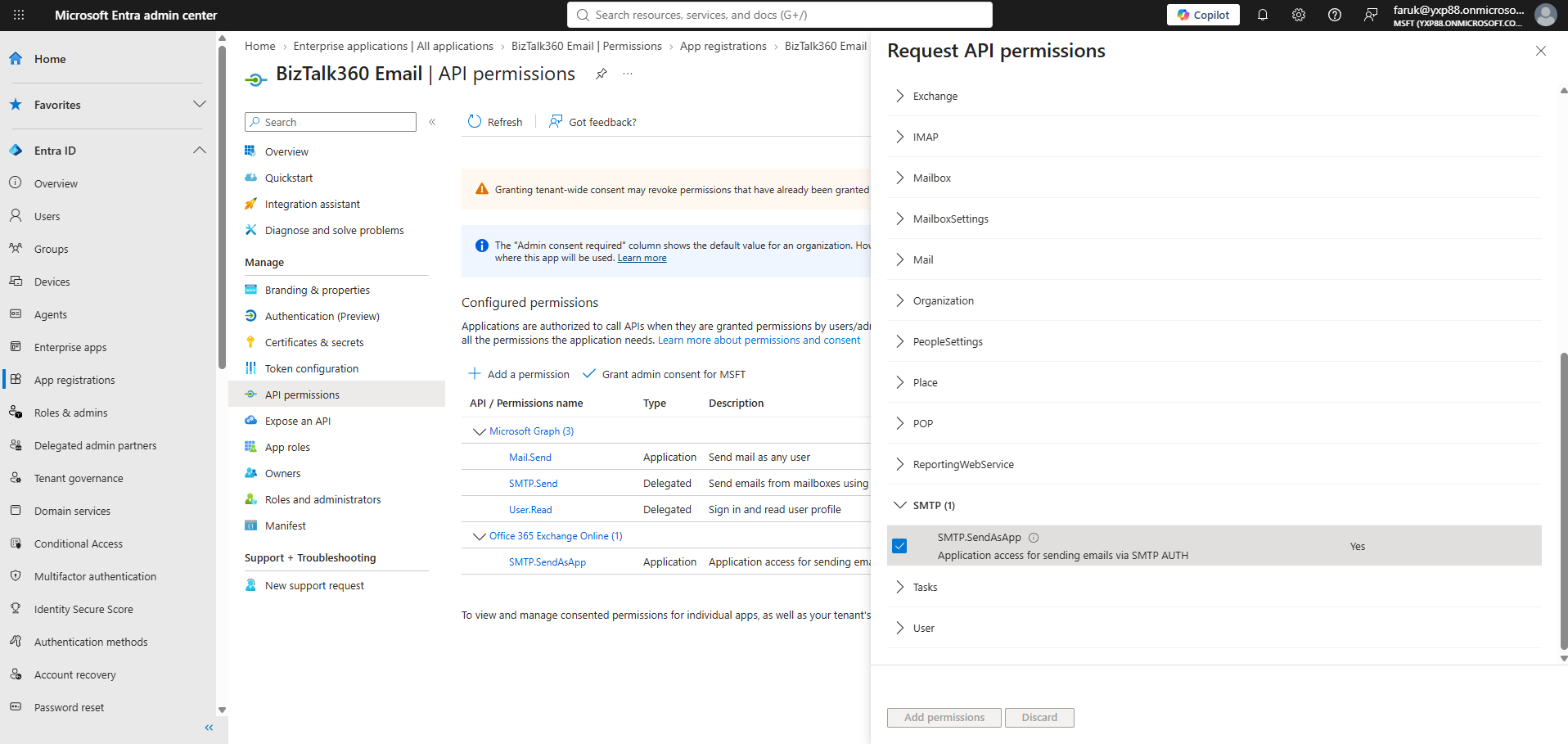
Go to API permissions > Add a permission > APIs my organization uses, and search for Office 365 Exchange Online.
Select Application permissions, choose SMTP.SendAsApp, and click Add permissions.
Click Grant admin consent and confirm.
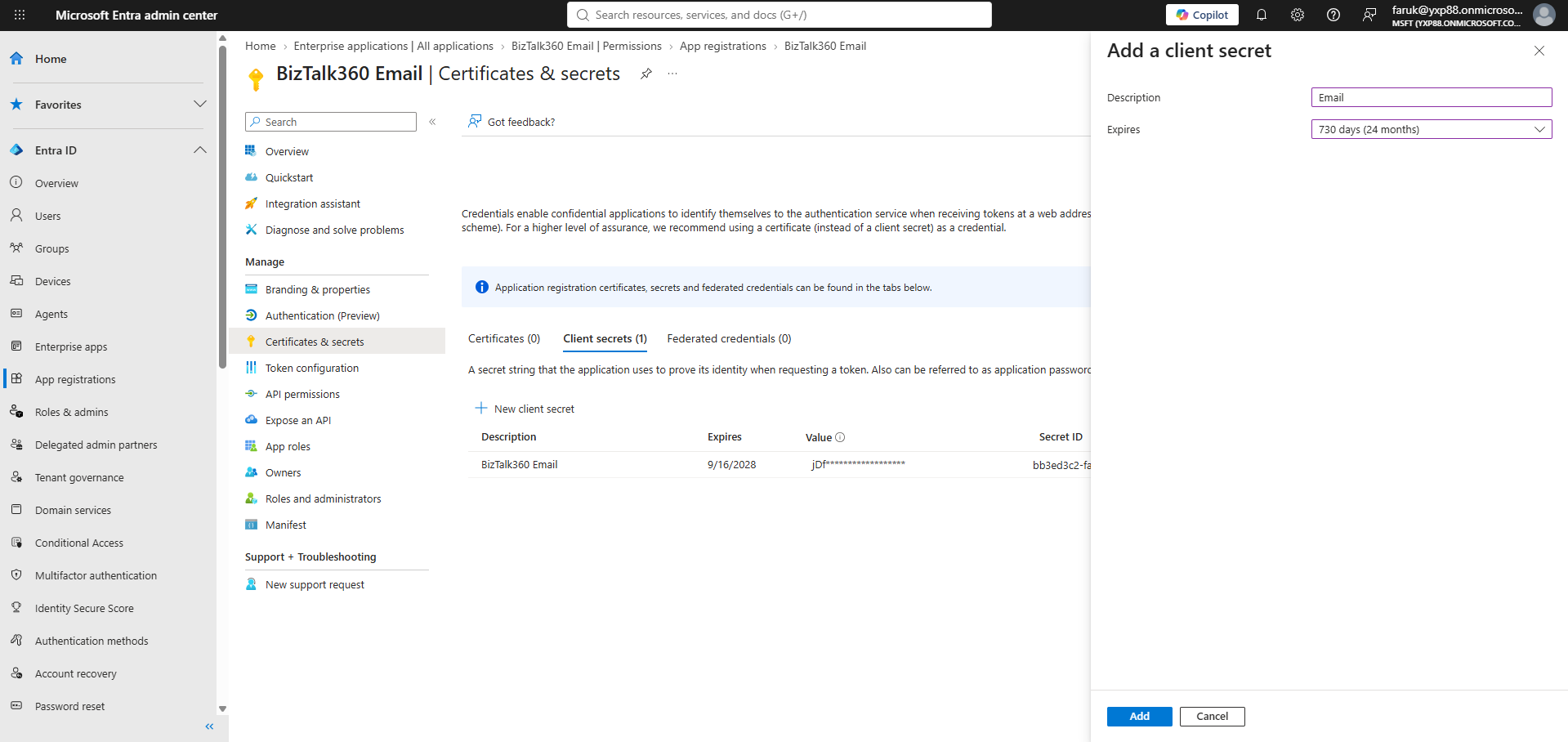
Go to Certificates & secrets > New client secret, add a description and expiry, then click Add.
Copy the secret Value immediately, it is shown only once.
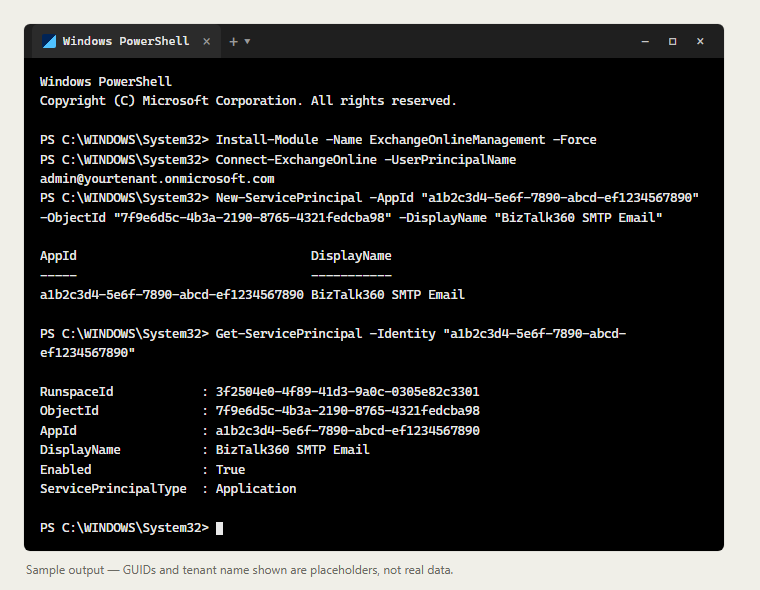
Register the App as a Service Principal in Exchange Online
Install Exchange Online in PowerShell
Install-Module -Name ExchangeOnlineManagement -Force.Connect to Exchange Online
Connect-ExchangeOnline -UserPrincipalName admin@yourtenant.onmicrosoft.com.Register the app:
New-ServicePrincipal -AppId "<Client ID>" -ObjectId "<Enterprise Application Object ID>" -DisplayName "BizTalk360 SMTP Email".Confirm it:
Get-ServicePrincipal -Identity "<Client ID>".
Grant Mailbox Access to the Service Principal
Grant mailbox access:
Add-MailboxPermission -Identity "biztalk360email@yourtenant.onmicrosoft.com" -User "<Enterprise Application Object ID>" -AccessRights FullAccess.Grant Send As rights:
Add-RecipientPermission -Identity "biztalk360email@yourtenant.onmicrosoft.com" -Trustee "<Enterprise Application Object ID>" -AccessRights SendAs.
Enable SMTP AUTH
Enable per mailbox if still blocked:
Set-CASMailbox -Identity "biztalk360email@yourtenant.onmicrosoft.com" -SmtpClientAuthenticationDisabled $false.Verify:
Get-CASMailbox -Identity "biztalk360email@yourtenant.onmicrosoft.com" | Select-Object SmtpClientAuthenticationDisabledshould returnFalse.
Troubleshooting
Symptom | Cause |
|---|---|
| SMTP AUTH not enabled, follow Enable SMTP Auth |
| Service Principal doesn't have mailbox permission yet |