Configure Office 365
The Office 365 integration in BizTalk360 enables secure and modern email communication using OAuth-based authentication. As Microsoft has deprecated basic authentication, BizTalk360 now leverages OAuth for sending alerts and reports, ensuring stronger security, improved reliability, and compliance with enterprise standards.
Follow the steps below to configure Office 365:
Select OAuth (Office 365) as the authentication method, Interactive as authentication and click Save.
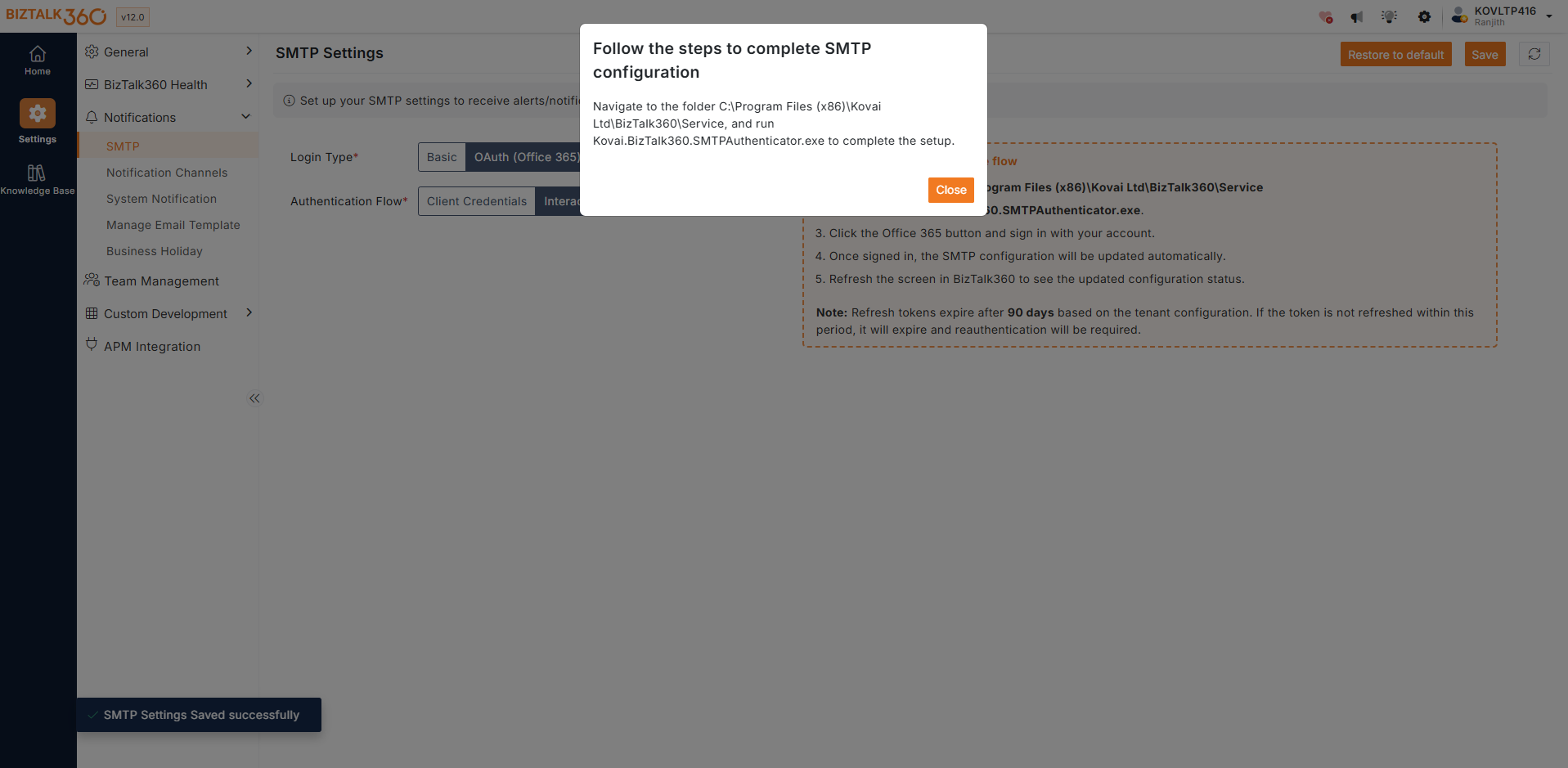
Run the inbuilt SMTP Authenticator:
Navigate to the installation path - C:\Program Files (x86)\BT360\Service
Run the executable file Kovai.BizTalk360.SMTPAuthenticator.exe.
In the Authenticator window, select Office 365 and enter the required account details.
Configure proxy settings (if applicable):
If a proxy connection is required, update the proxy details and enter the necessary credentials.
Selecting “Use default credentials” allows BizTalk360 to automatically use the configured credentials for the proxy connection.
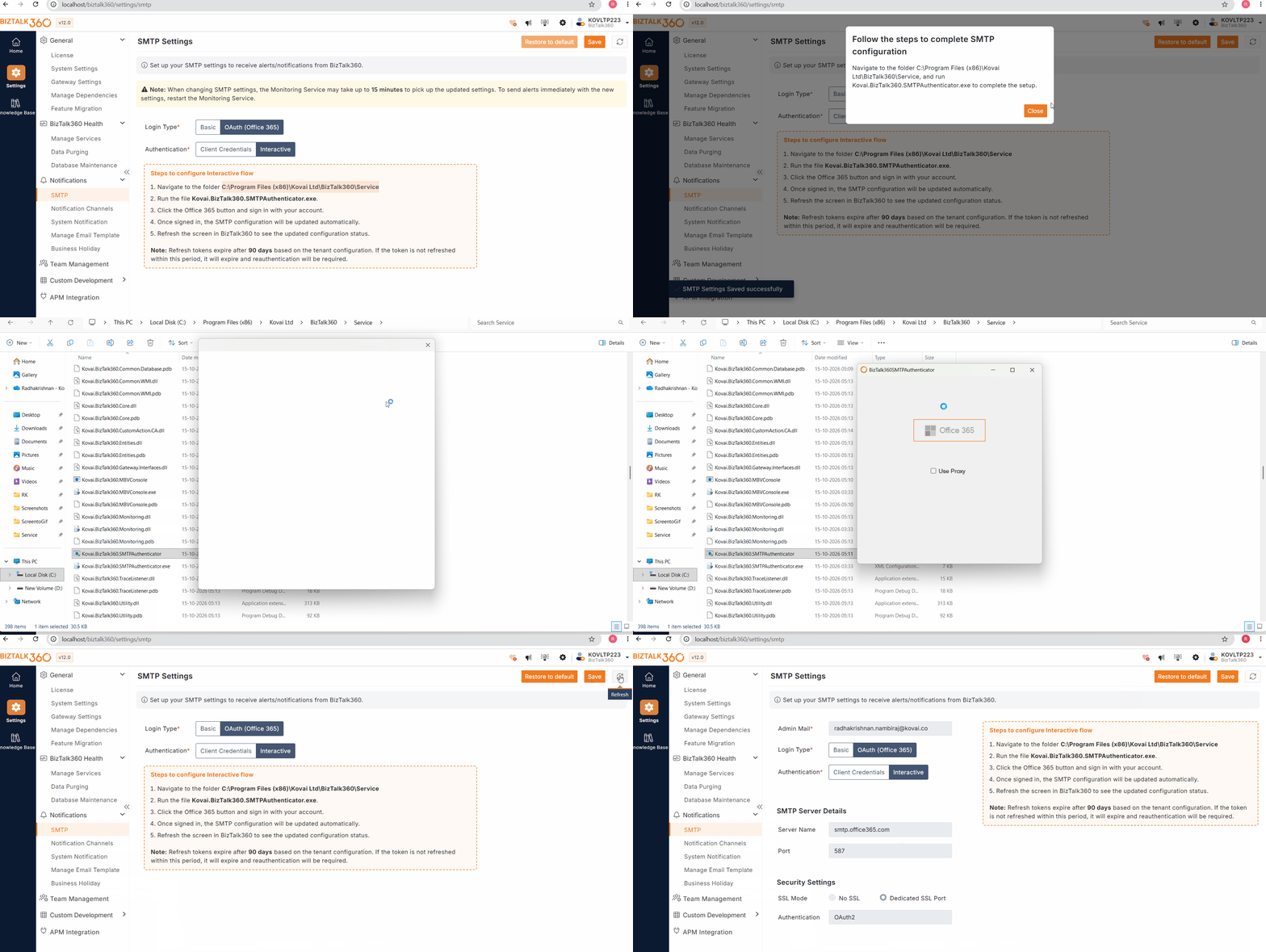
Once configured successfully, the Office 365 account details—including Admin Email, SMTP Server, and Security Type—will be displayed in the BizTalk360 UI.
To clear the configuration, click Restore to Default.
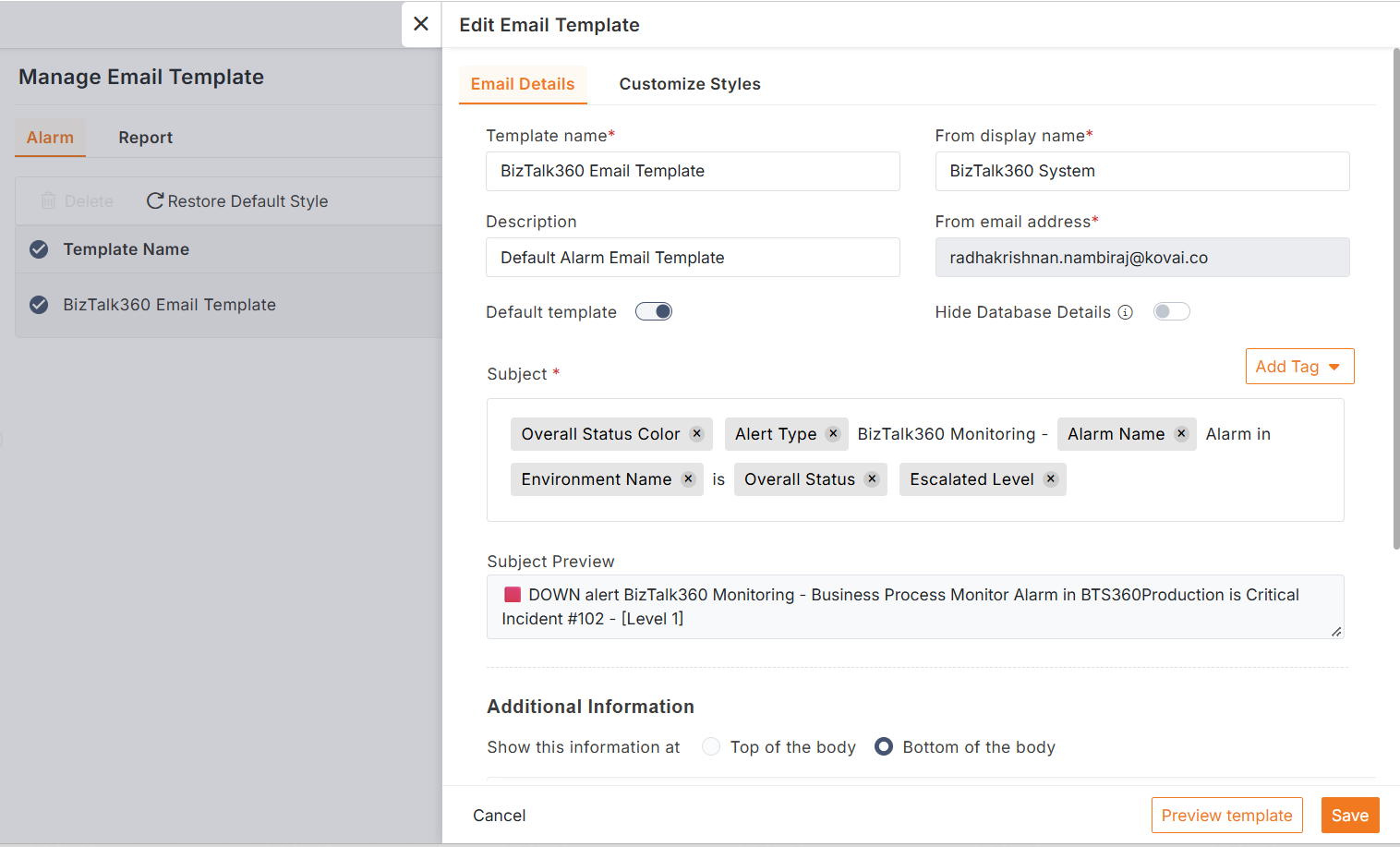
After Office 365 is configured, the “From” email address in all alarm and report templates will be updated with the configured email id automatically.