When you encounter the following exception within BizTalk360:
StackTrace: Microsoft.BizTalk.ExplorerOM.BtsException: Could not retrieve transport type data for Receive Location " " from config store. Retrieving the COM class factory for component with CLSID {CF3C637A-0D4E-47BD-9210-DB40A33BD488} failed due to the following error: 80040154 Class not registered (Exception from HRESULT: 0x80040154 (REGDB_E_CLASSNOTREG)).
You might encounter the same exception when accessing the corresponding Receive Location through the BizTalk Server Administration Console in BizTalk360 server
Cause
This issue generally indicates that the required Enterprise Single Sign-On (SSO) components or related BizTalk components are missing, incorrectly installed, or incompatible on the BizTalk360 server.
This connectivity issue occurs between the BizTalk360 server, BizTalk Server, and SQL Server, or because required services such as WMI and MSDTC are blocked or not configured correctly.
Solution
To resolve the issue follow the configuration steps as mention below.
1. Install the SSO Service Components
Make sure the Enterprise SSO service components are installed on the machine where BizTalk360 is installed. But you do not need to configure SSO on the BizTalk360 server for this purpose.
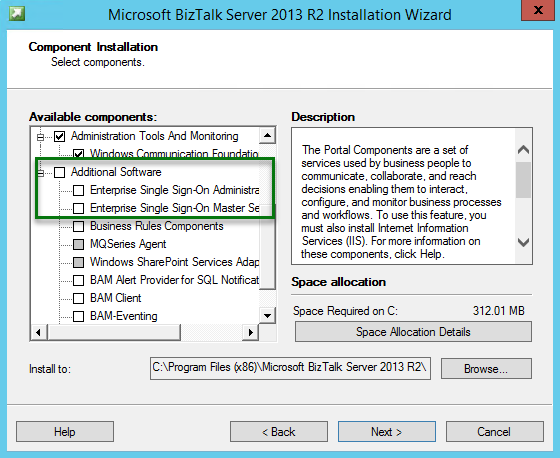
2. Verify Connectivity Using DTCPing
Verify that connectivity between the BizTalk360 server and the SQL Server is working correctly. Use DTCPing to test the required Distributed Transaction Coordinator connectivity.
Download DTCPing from Microsoft
3. Troubleshoot Enterprise SSO
If the issue is related to Enterprise SSO, refer to the Enterprise SSO Survival Guide for additional troubleshooting steps.
4. Check Firewall, WMI, and MSDTC Configuration
Verify that no firewall rules or other services are blocking communication required by WMI and MSDTC. Make sure the required MSDTC-related services are enabled and configured correctly on all relevant machines.
For information about the ports and protocols required by BizTalk360, refer to: BizTalk360 Dependent Ports and Protocols
For additional information about troubleshooting MSDTC issues, refer to: Troubleshooting MSDTC Issues
5. Verify SSO and Adapter Pack Versions
Make sure the SSO components and BizTalk Adapter Pack installed on the BizTalk360 server match the versions installed on the BizTalk Server environment.
Also ensure that the architecture is consistent. For example, if the BizTalk Server environment uses 64-bit components, the corresponding components on the BizTalk360 server should also be installed with the appropriate 64-bit architecture.
6. Reinstall the Required Runtime Components
As a final troubleshooting step, install the required runtime components on the BizTalk360 server. This ensures that all required files are available under the SSO installation folder.
After installing the runtime feature, run the BizTalk Server setup again and remove the runtime feature if it is not required on the BizTalk360 server.