Before configuring the IBM MQ monitoring in BizTalk360, please follow the below mentioned instructions to ensure that the necessary permissions are in place for smooth functioning.
| Areas/Components | Permissions / Requirements |
| Users and Groups |
|
| Queue manager | Use the below commands to update object authorization of Queue Manager and its queues.
References: |
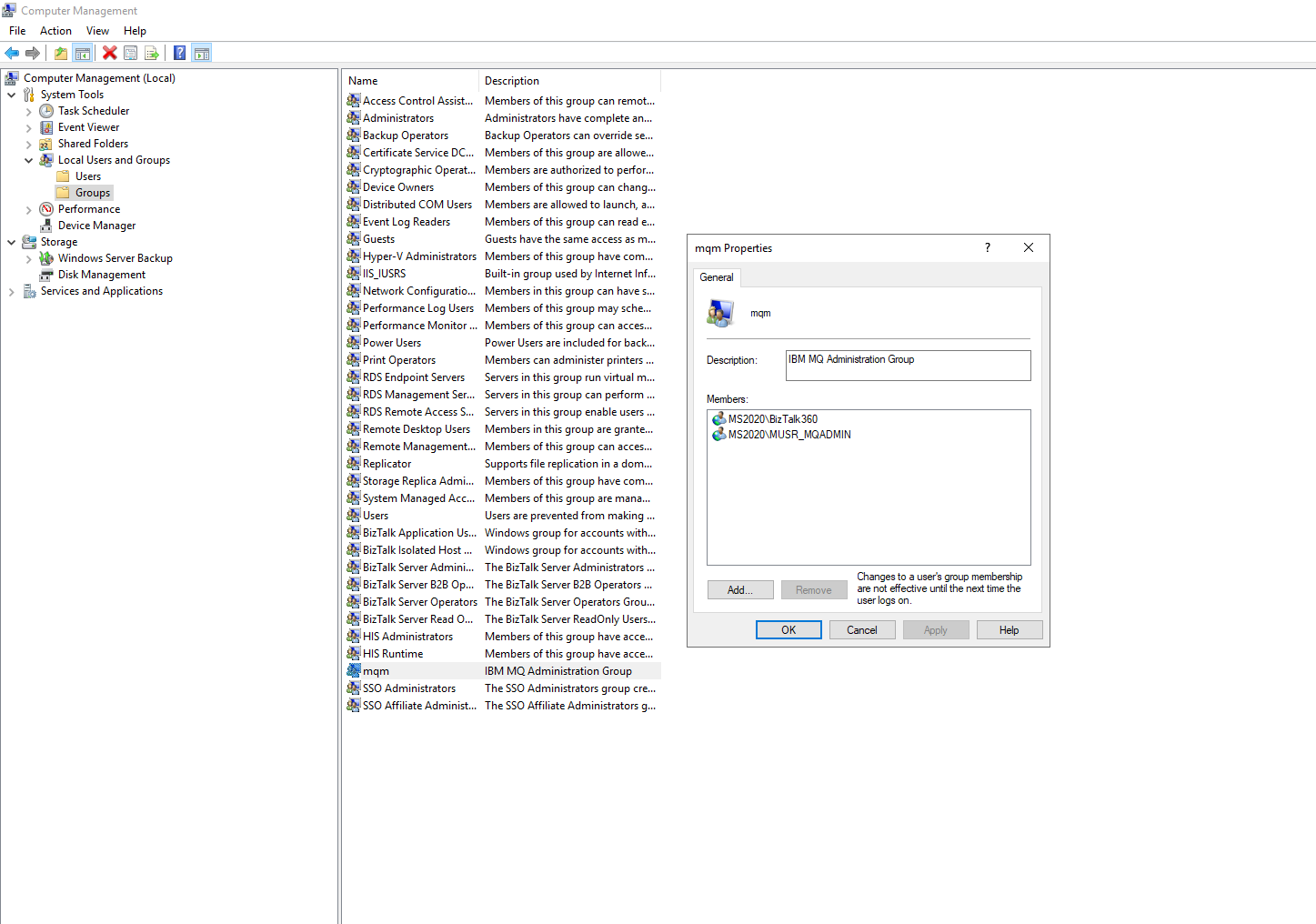
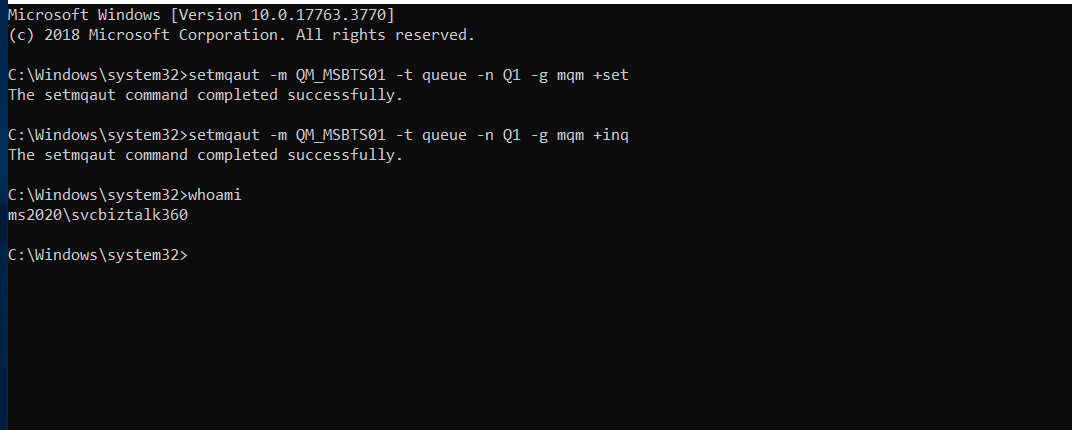
Note:
- Start an MQ Explorer as an Administrator
- QM's Listener must be started for connection.
- Check the block user list in the Queue Manager -> Channels-> Channel Authentication Records. Delete the Record if UserList has the MQADMIN . This might help to resolve the Error (2033 – MQRC_NO_MSG_AVAILABLE , 2035 – MQRC_NOT_AUTHORIZED ,2538 – MQRC_HOST_NOT_AVAILABLE , 2540 - MQRC_UNKNOWN_CHANNEL_NAME)
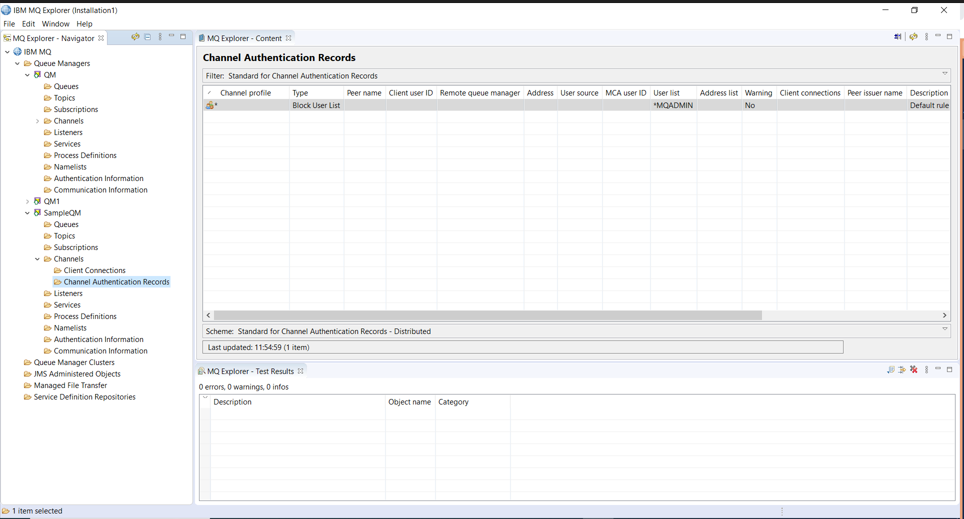
MQ-admin Override default rule
IBM has suggested the following steps to override this default rule for a particular MQ-admin user:
- In the MQ Server machine, Open command prompt in administrator mode
- Enter the following command to connect to the respective Queue Manager ( Replace YourQueueManagerName with your actual Queue manager name)
runmqsc YourQueueManagerName- Create a new dedicated server connection channel (E.g. BizTalk360.Channel) for overriding purpose:
DEFINE CHANNEL ('BIZTALK360.CHANNEL') CHLTYPE (SVRCONN) TRPTYPE (TCP)- Create a rule to Block all access on this channel:
SET CHLAUTH ('BIZTALK360.CHANNEL') TYPE(ADDRESSMAP) DESCR('Block all access to this channel') ADDRESS('*') USERSRC(NOACCESS)- Create a rule to Override the default block access of *MQADMIN:
SET CHLAUTH('BIZTALK360.CHANNEL') TYPE(BLOCKUSER) DESCR('Rule to override *MQADMIN block user on this channel') USERLIST('nobody') ACTION(replace)- Create a rule to Allow particular user to access the new channel ( Replace YourUserName with your actual username for which the access is to be given)
SET CHLAUTH('BIZTALK360.CHANNEL') TYPE(USERMAP) CLNTUSER('YourUserName') USERSRC(MAP) MCAUSER('YourUserName') DESCR('Allow BizTalk360 Account to access the channel') ACTION(ADD)