Steps to access remote registry from BizTalk360 server
To access the remote registry on another computer in a network, BizTalk360 service account typically need administrative privileges on the remote machine. By default, regular users do not have permission to access the remote registry for security reasons.
Here are the steps to grant the necessary permissions to BizTalk360 Service account to access the remote registry:
On the Remote Machine:
Log in to the remote machine(BizTalk & SQL Servers) with administrative privileges.
Open the Registry Editor by pressing Win + R, typing regedit, and pressing Enter.
Navigate to HKEY_LOCAL_MACHINE\SYSTEM\CurrentControlSet\Control\SecurePipeServers\winreg.
Right-click on winreg, select "Permissions..."
Add the user or group that needs remote registry access and grant them appropriate permissions (typically Full Control for administrators or specific permissions as needed).
Click Apply and OK to save the changes.
Enable Remote Registry Service:
Open the Services snap-in by pressing Win + R, typing services.msc, and pressing Enter.
Find the "Remote Registry" service, right-click it, and select Properties.
Change the Startup type to Automatic and start the service if it's not already running.
Click Apply and OK to save the changes.
Windows Firewall Configuration:
If Windows Firewall is enabled, make sure that it allows Remote Registry access. You may need to create an inbound rule to allow the Remote Registry service (port 135) and possibly additional ports if necessary.
Network Permissions:
Ensure that network permissions allow remote access to the machine. This includes checking any domain or local security policies that may restrict remote access.
After completing these steps, users with the appropriate permissions should be able to access the remote registry using tools such as Regedit, PowerShell, or other remote registry access methods.
Remote Registry connectivity of SQL servers Always nodes
If your database is configured with SQL Always on Availability and when you add its listener name in BizTalk360 UI for monitoring, you may face the below exceptions from the SQL server > NT Services section:
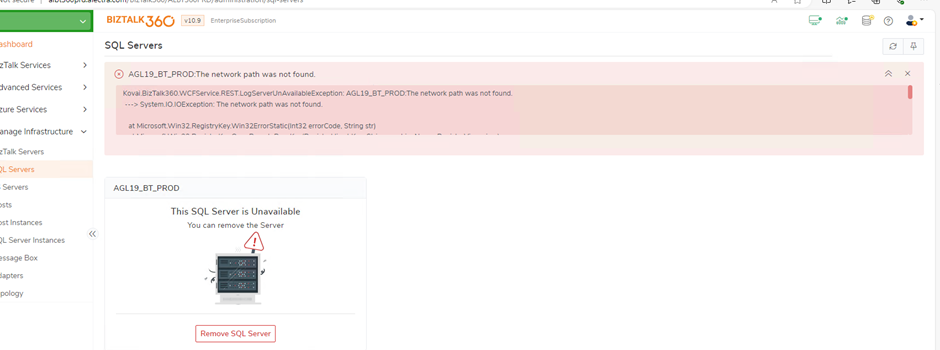
System.IO.IOException: The network path was not found.at Microsoft.Win32.RegistryKey.Win32ErrorStatic(Int32 errorCode, String str) at Microsoft.Win32.RegistryKey.OpenRemoteBaseKey(RegistryHive hKey, String machineName, RegistryView view) at B360.Plugin.NTServices.Helper.ConvertToNTServiceStartMode(Object serviceName, Object startMode, String serverName)
Troubleshoot:
The above exception occurs when BizTalk360 could not connect with the Registry of the active SQL server through its listener.
To troubleshoot the problem, you need to open the Registry Editor from BizTalk360 server and try to connect network registry using SQL listener name to verify connectivity.
In this case, the network registry connectivity would gets failed as the exception “ Network path was not found” arose due to this connectivity failure.
Solution:
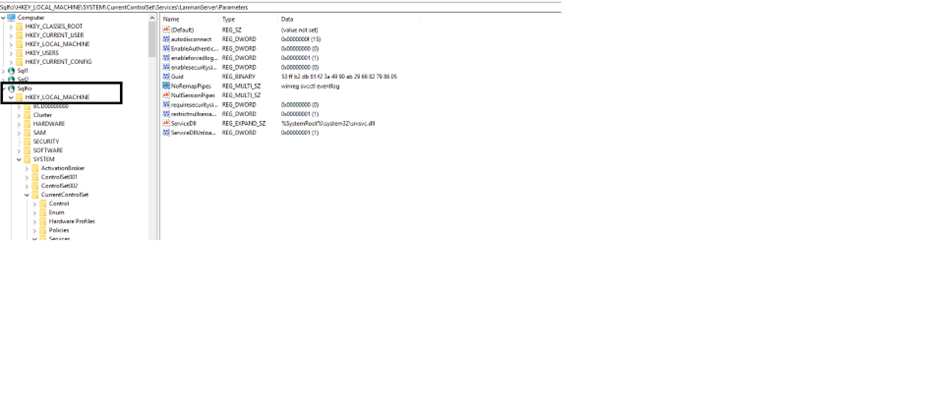
To overcome this exception, it is required to establish registry connection via SQL listener from BizTalk360 server. It can be achieved by adding the following key to the registries of both active and passive nodes of SQL Server Always On.
You can see from the below screenshot that the corresponding registry key has been added in one of the SQL nodes.
Key: HKEY_LOCAL_MACHINESYSTEMCurrentControlSetServicesLanmanServerParameters Name: NoRemapPipes Type: REG_MULTI_SZ Data: winreg __svcctl __eventlog
 In the below screenshot, you can see that the SQL Listener “SQLFCI” can be connected from the Registry of BizTalk360 server after adding Registry Keys in both SQL nodes.