When you migrate or upgrade your BizTalk Server environment, the necessary changes must also be made in BizTalk360 so that it can connect to and monitor the latest BizTalk Server environment.
After completing the BizTalk Server upgrade or migration, perform the following steps on the BizTalk360 server. For example, let us consider an upgrade from BizTalk Server 2016 to BizTalk Server 2020.
1. Update the BizTalk Server Administration Components
Only one version of the BizTalk Server Administration Components can be installed on a server at a time. Therefore, after upgrading BizTalk Server, you must also update the BizTalk Server components installed on the BizTalk360 server.
Before proceeding, ensure that all the BizTalk Server 2020 prerequisites are met on the BizTalk360 server, similar to the requirements for the BizTalk Server environment.
There are two ways to update the BizTalk Server Administration Components.
Option A: Upgrade the Existing BizTalk Server Components
You can upgrade the existing BizTalk Server 2016 components to BizTalk Server 2020 components.
Run the BizTalk Server 2020 setup file.
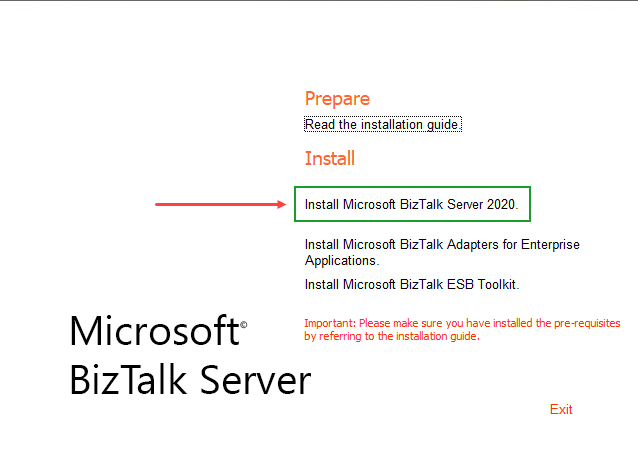
Provide the required details and proceed with the upgrade.
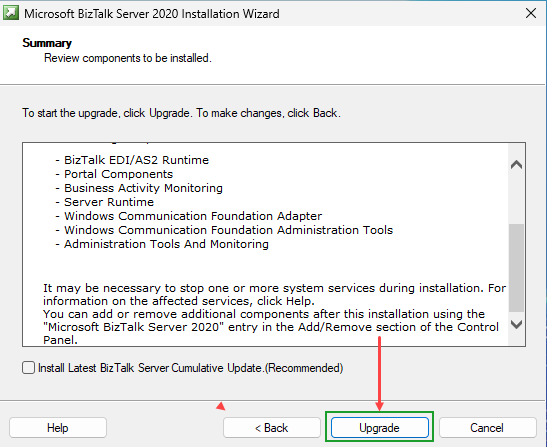
Continue through the setup wizard to upgrade the BizTalk Server components to 2020.
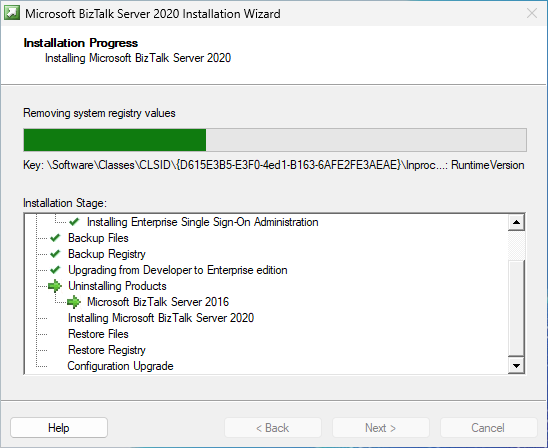
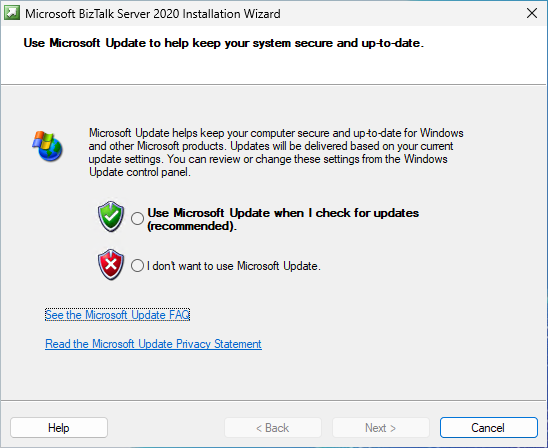
Option B: Uninstall BizTalk Server 2016 and Install BizTalk Server 2020
In some cases, the upgrade or installation may fail for various reasons, and you may encounter an error similar to the one shown below.
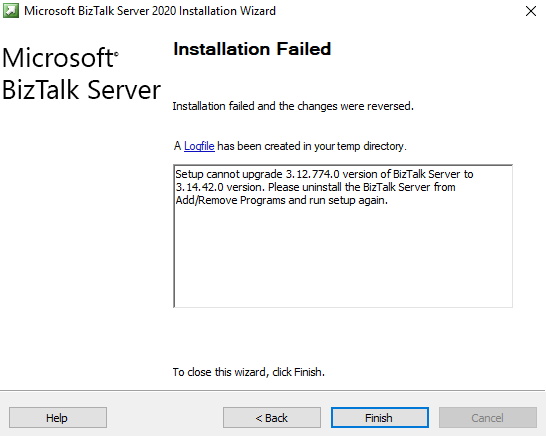
If you encounter this error, it is recommended to uninstall the existing BizTalk Server 2016 components from the BizTalk360 server and install the BizTalk Server 2020 Administration Components.
Uninstall the existing BizTalk Server 2016 components.
Install the required BizTalk Server 2020 Administration Components, matching the version used by the BizTalk Server environment.
Refer to this document to learn which BizTalk Server Administration Components need to be installed.
Note: Before making any changes to the BizTalk Server environment, it is advisable to consult the Microsoft BizTalk Support team or your organization's administrator.
2. Back Up the BizTalk360 Database
Before making any changes to the BizTalk360 configuration, take a full backup of the BizTalk360 database. This backup serves as a precautionary measure and allows you to restore the database if any issues occur during the upgrade or configuration process.
3. Deactivate the BizTalk360 Environment License
Before proceeding with the environment changes, deactivate the BizTalk360 environment license. This ensures that the existing environment license is properly deactivated before the environment configuration is updated.
4. Update the BizTalk Server Version Details
After installing the BizTalk Server 2020 Administration Components, update the BizTalk Server version details stored in the BizTalk360 database. The required changes depend on whether you upgraded the existing BizTalk Server environment or configured a new environment.
Update the following values in the BizTalk360 database:
[dbo].[b360_admin_BizTalkEnvironment] → BizTalkMgmtSqlInstance
[dbo].[b360_admin_BizTalkEnvironment] → BizTalkMgmtDb
[dbo].[b360_admin_BizTalkEnvironment] → BizTalkVersion
[dbo].[b360_admin_GlobalProperties] → MS_BIZTALK_VERSION
[dbo].[b360_admin_GlobalProperties] → MS_BIZTALK_INSTALL_LOCATION
Make sure the values correspond to the new BizTalk Server 2020 environment.
Note: If you have configured a new BizTalk Server environment and updated the required environment details in the BizTalk360 database, you can skip Step 5.
5. Update the Environment Configuration
After updating the BizTalk Server details in the BizTalk360 database, you may need to update the existing environment configuration in BizTalk360 to reflect the new BizTalk Server 2020 environment.
The Update Environment option allows you to modify the existing environment details and point BizTalk360 to the new BizTalk Server environment.
For detailed information, refer to the Edit an Environment documentation.
6. Activate the BizTalk360 Environment License
After the successful installation and updates with the environment changes, activate the BizTalk360 environment license.
This ensures that the current environment license is properly updated.
Summary
After upgrading or migrating BizTalk Server, ensure that the corresponding changes are made on the BizTalk360 server and in the BizTalk360 database.
The recommended sequence is:
Update the BizTalk Server Administration Components on the BizTalk360 server.
Take a full backup of the BizTalk360 database.
Deactivate the BizTalk360 environment license.
Update the BizTalk Server version and environment details in the BizTalk360 database.
Update the BizTalk360 environment configuration, if required.
Activate the BizTalk360 environment license.
Following these steps ensures that BizTalk360 is correctly configured to connect to and monitor the upgraded or newly configured BizTalk Server environment.