In a BizTalk Server support scenario, different members will have their own set of SQL queries that they run on a regular basis to get some insights and reporting on BizTalk or other related databases. However, storing these SQL files in different machines will lead to maintenance issues; if a query needs to be updated or modified, it may need to be updated in multiple places, which can be time-consuming and error-prone. And it is crucial to monitor such queries and get to know the issues periodically.
BizTalk360 offers the ability to continuously monitor the data (Scalar value) returned from a SQL query. It will proactively monitor the configured query based on the polling interval and send alerts if any violation is detected.
For instance, the spool table within the BizTalk Message Box database serves as the repository for all message transactions in the system. Its size can vary based on the nature of processing activities performed. Ideally, in a well-operating environment, the spool table should maintain a relatively small size, except during periods of prolonged orchestrations or error conditions. Consistent growth in the size of the spool table without any reduction could indicate potential issues within the environment. Therefore, it's crucial to monitor the spool size closely.
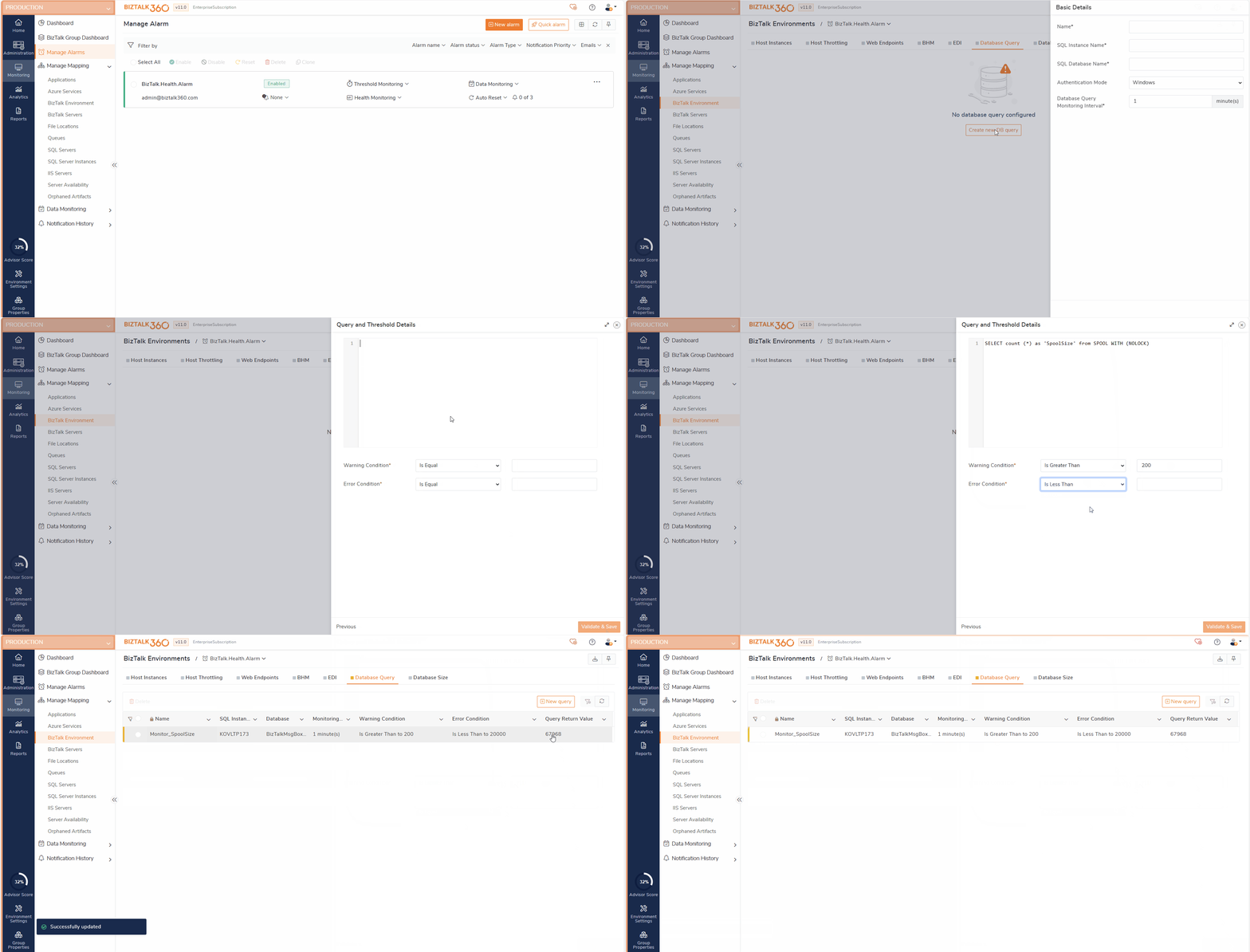
Monitoring the Spool Size can be easily achieved by executing the SQL query "SELECT count (*) as 'SpoolSize' from SPOOL WITH (NOLOCK)" against the BizTalkMsgBoxDb database and establishing warning and error thresholds to flag any abnormal growth.
Setting up monitoring for Database queries
Log in to the BizTalk360 application.
Navigate to Monitoring -> Manage Mapping -> BizTalk Environment -> Database Query.
Select the Alarm name (see Manage Alarms) from the drop-down for which users would like to associate the alerts.
Click the 'New Query' button to set up monitoring for the database query.
Enter the Name for the Alert, add the SQL Instance name, select the 'Authentication Mode' (Windows Authentication/ SQL Server Authentication/ Azure AD Authentication), and the 'SQL Database name'.
Authentication mode
Windows Authentication - BizTalk360 connects to the SQL instance using Windows system users.
SQL Authentication - BizTalk360 connects to the SQL instance using the username and password provided by the user. Users can also connect to the Azure database using SQL authentication.
Azure Active Directory Authentication- BizTalk360 connects to the Azure SQL servers using Azure Active Directory password/ Azure Active Directory service principal /Azure Active Directory Access Token based on the user selection.
Click 'Next' to add the Query and Threshold details.
Enter the 'SQL query' in the space provided.
Select the 'Warning' and 'Error' Conditions when BizTalk360 must return an alert.
Click 'Validate & Save' to save the monitoring information.
Thumb rule for Database Query monitoring
The query you have entered should only return a scalar value (int, string or bool) at all the times. Verify this by running your query on SQL Server Management Console.
The BizTalk360 service account user should have atleast READ access to the database you are trying to monitor.
Make sure your scalar query returns the results under 15 seconds on average.
By default BizTalk360 monitoring service checks the status of the database queries every 1 min. It is now configurable in manage poling interval.
Dashboard and Notifications
Once the database query is configured for monitoring, its health status will be shown in the dashboard in a graphical tree view. If the configured query is violated, it will be listed in the errors and warnings along with the associated alarms. You can also navigate to the respective query by clicking it.
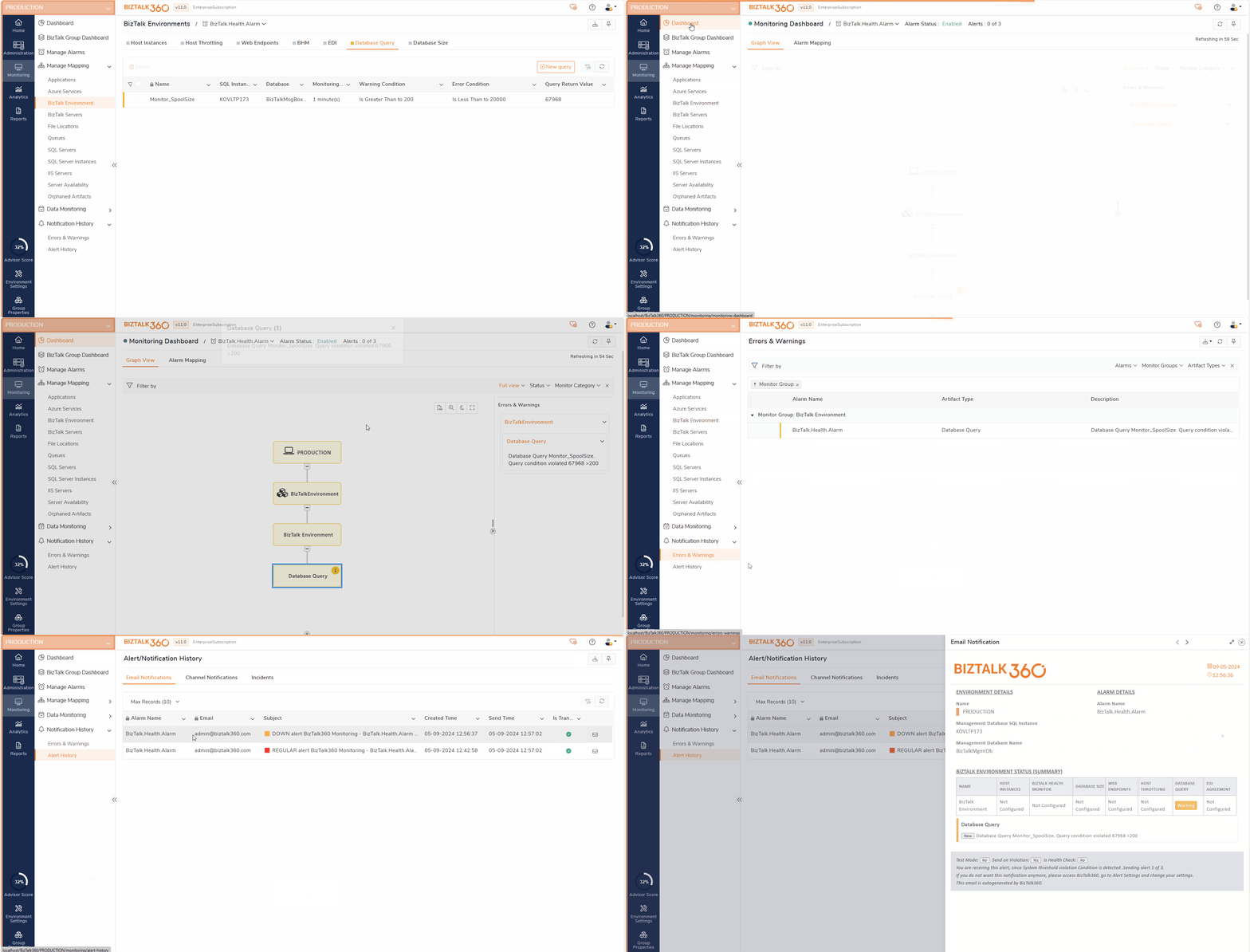
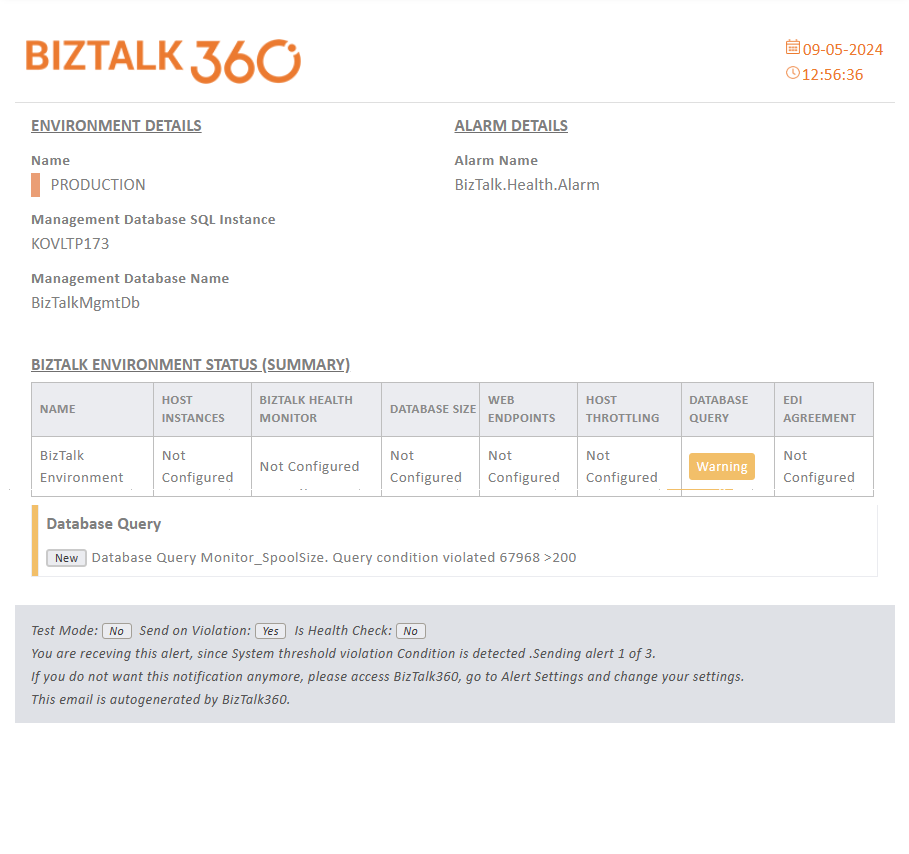
In order to receive email notifications from BizTalk360 on the threshold violation alerts (and auto-correction alerts), you need to configure the SMTP settings under BizTalk360 Settings. Follow the steps in this article to be able to configure the SMTP settings in BizTalk360. You will receive an email notification with the exact details of the status of the database query.