The potential of automated tasks is limitless. Beyond the straightforward use cases mentioned in our previous articles, numerous custom scenarios can be effectively addressed using this feature. Here are a few.
Disable receive location on the number of suspended message
Case: Disable the Receive location based on the number of suspended messages which are errored at the Send port.
To achieve the scenario where a receive location is automatically disabled when its associated send port results in suspended service instances, we can utilize the Alarms - Automated Tasks Integration feature along with the Database query monitoring feature.
Steps to Implement:
-
Create an Automated Task an configure an automated task to disable the receive location.
-
Set Up a DB Query Monitoring Rule.
- Create a Database query monitoring to monitor the number of suspended service instances in the send port (e.g., AS2 MDN).
- Use the below query to collect the Suspended Instance using a URL. Modify the query based on your requirements.
SELECT Count(*) FROM [dbo].[Instances Suspended] WHERE nState In (4, 32) AND nvcURI IN('http://localhost/FabrikamAS360/AS2Sender.aspx? Destination=_MDNToFabrikam') -
Associate the DB Query monitoring for suspended instances with the Automated Task created in Step 1, as highlighted below.
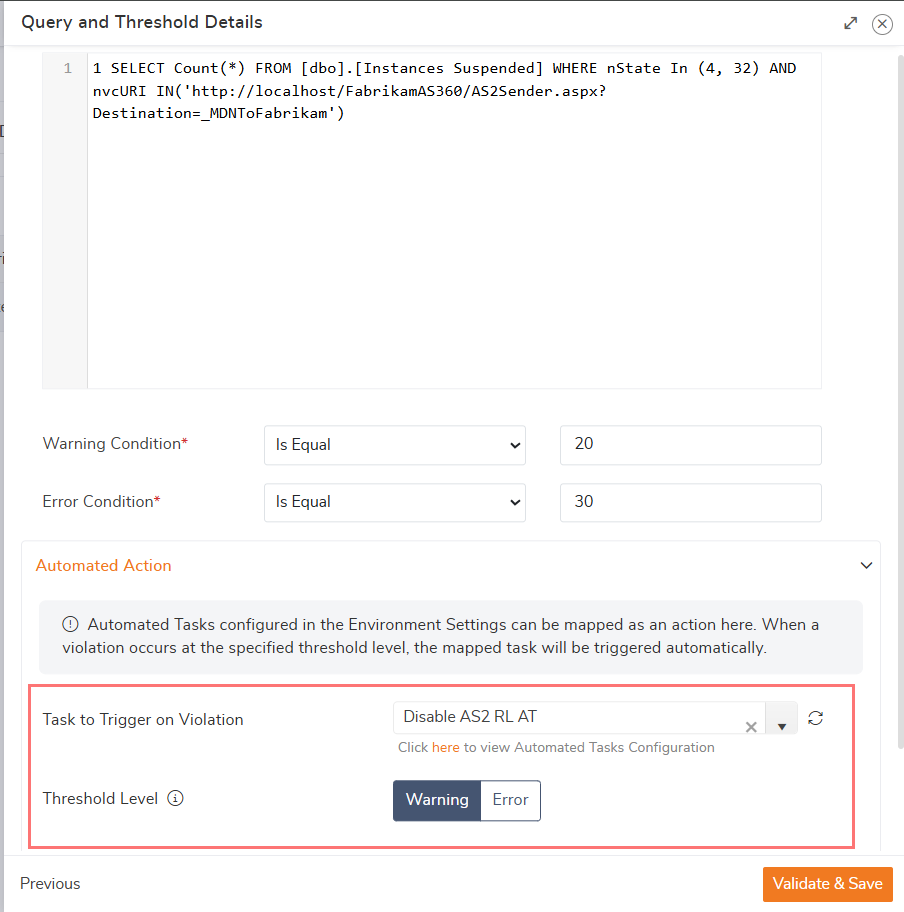
Once configured, the system will automatically disable the receive location whenever the associated send port accumulates the suspended service instances threshold limit.

You can modify and apply the above method to perform actions for other automated tasks, such as managing Host Instances, BizTalk Application Artifacts, etc.
Restart the host instances on a specific error in the event viewer
Case: I have set up a "Manage Schedule" to look for a specific error in the Event Viewer. When triggered, it should execute a specific task configured in "Automated Task", which restarts certain host instances.
To achieve the task, we can utilize the Alarms - Automated Tasks Integration along with the event viewer monitoring feature like the previous use case.
Steps to Configure This Setup
-
Configure Event Viewer Monitoring
-
Create an Automated Task to Restart Host Instances.
-
Link the Event Viewer Schedule to the Automated Task
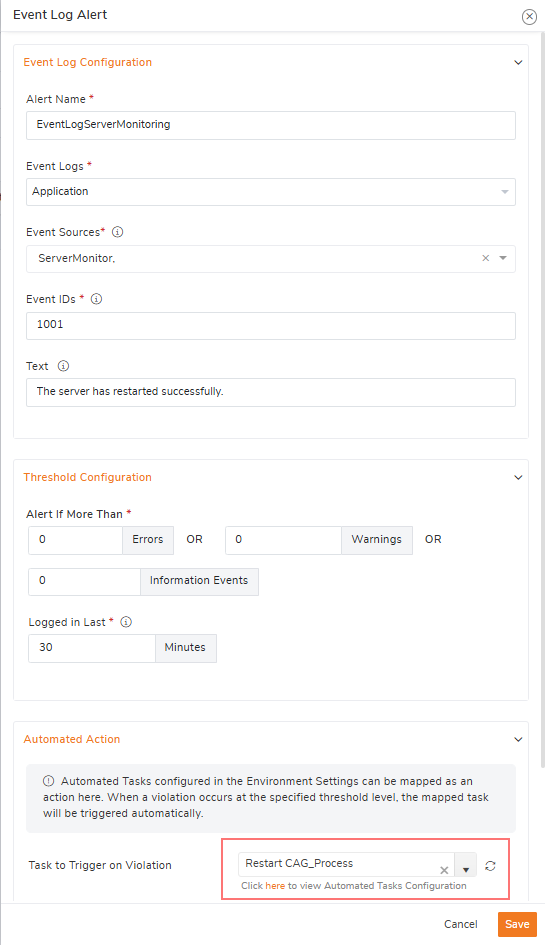
When the specific error is detected in the Event Viewer, BizTalk360 will trigger the automated task to restart the selected host instances.