Overview
Azure Logic Apps Standard enables users to build and run automated workflows that integrate applications, services, and systems. Managing workflows directly through the Azure portal can require users to switch between different subscriptions and resource groups.
BizTalk360 simplifies this experience by allowing administrators to view and manage Standard Logic Apps workflows directly from the BizTalk360 UI, without navigating to the Azure portal for routine workflow operations.
With this capability, users can view workflow status, inspect run and trigger history, analyze workflow execution details, and enable or disable workflows based on their assigned permissions.
Prerequisites
Before viewing Standard Logic Apps workflows in BizTalk360, ensure that the required Azure subscription has been configured. To configure an Azure subscription, refer to the Azure subscription configuration article.
Users must also have the appropriate permissions to access or manage Standard Logic Apps workflows. The ability to view workflow information and the ability to enable or disable workflows depend on the user's assigned permissions.
View and Manage Standard Logic Apps Workflows
Follow these steps to view and manage the available workflows.
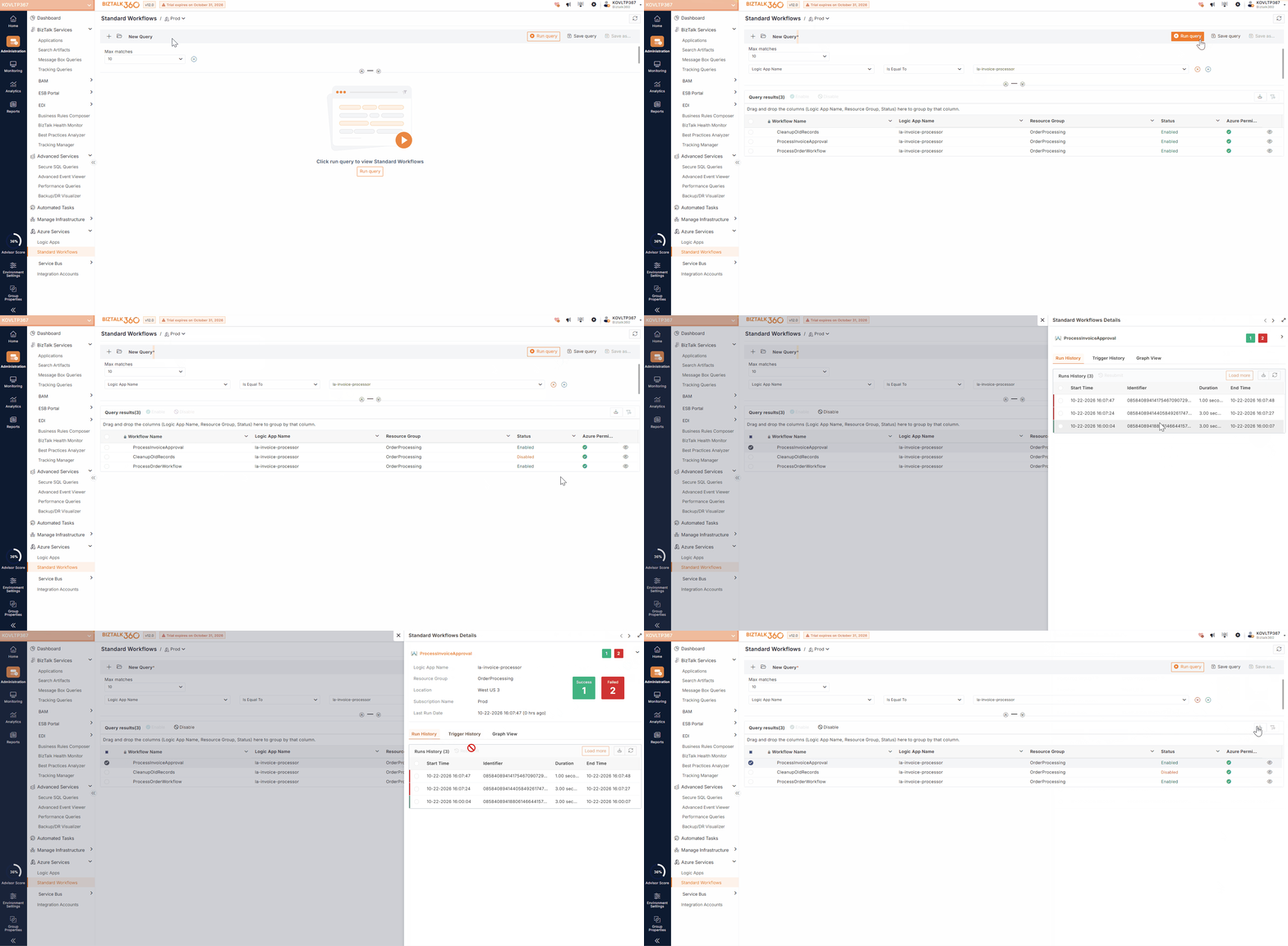
Navigate to Administration → Azure Service → Standard Workflows.
Select the required Azure subscription.
Configure the available filters to narrow down the results. Filter workflows by subscription, resource group, Logic App, workflow name, and status.
Click Run Query to retrieve the matching workflows.
The results display the available workflows along with the following information:
Workflow Name: The name of the workflow.
Logic App Name: The Standard Logic App that contains the workflow.
Resource Group: The Azure resource group to which the Logic App belongs.
Status: The current workflow status.
Save queries - Save frequently used filter combinations for quick access and reuse.
For example, if an administrator who frequently checks workflows in a particular resource group or needs to review all disabled workflows, they can configure the relevant filters and save the query.
Manage Workflows - Authorized users can manage workflows directly from the listing.
Select one or more workflows from the results.
Click Enable or Disable, depending on the required action.
Note: Users must have the Manage permission for Standard Workflows to enable or disable workflows. Users without this permission cannot perform these management actions.
Execution Insights - To inspect an individual workflow, click the eye icon corresponding to the workflow in the results. Workflow details includes successful and failed run counts, run history, trigger history, and graphical workflow representation.
Export workflow details - Click Export to download the filtered workflow details.
The exported information can be shared with operations and support teams, used for reporting, or retained for operational reviews.
Business Use Case
Consider an organization that uses Azure Logic Apps Standard to process customer orders, synchronize inventory, and send shipment notifications. It’s critical to observe the behaviour of the individual workflows to identify the failling scenarios. These workflows are distributed across multiple resource groups and support different business functions.
An operations administrator needs to identify disabled workflows and investigate failed executions without switching between multiple Azure portal views.
Using BizTalk360, the administrator selects the required subscription, filters workflows by resource group and status, and runs the query. The resulting list highlights the workflows that need attention.
The administrator opens the workflow details to review successful and failed run counts, examines run and trigger history to investigate execution issues, and exports the filtered results for the support team.
If a workflow needs to be enabled or disabled, an authorized user can perform the action directly from BizTalk360, subject to the assigned permissions.
This centralized approach simplifies routine workflow monitoring, reduces the need to navigate between Azure portal views, and helps operations teams investigate issues more efficiently.