Azure Logic Apps Standard workflows automate critical business processes, such as order processing, inventory synchronization, and shipment notifications. If a workflow becomes disabled unexpectedly, triggers fail, or workflow executions encounter errors, these processes may be delayed or interrupted.
Monitoring workflows helps operations teams identify issues early, maintain workflow availability, and respond to failures before they affect business operations.
BizTalk360 enables users to monitor Standard Logic Apps workflows and receive alerts when workflow states or execution metrics deviate from configured expectations. With state monitoring, metrics monitoring, and automatic correction, users can proactively manage workflow health from a centralized interface.
Prerequisites
Before configuring workflow monitoring, ensure that the required Azure subscription has been configured in BizTalk360.
For instructions, refer to the Azure Subscription Configuration article.
Setting Up Alerts for Workflows
Navigate to Monitoring → Azure Service → Standard Workflows.
Select the required Subscription and Alarm from the dropdowns at the top of the page.
The workflows available under the selected subscription will be listed with the Workflow Name, Logic App Name, Status
State Monitoring -State monitoring helps ensure that a workflow remains in its expected state, such as Enabled or Disabled.
Select the workflow you want to monitor
Choose the Expected state from dropdown
The monitoring service compares the workflow's current state with the configured expected state. If the current state does not match the expected state, a monitoring violation is raised and an alert is triggered through the associated alarm.
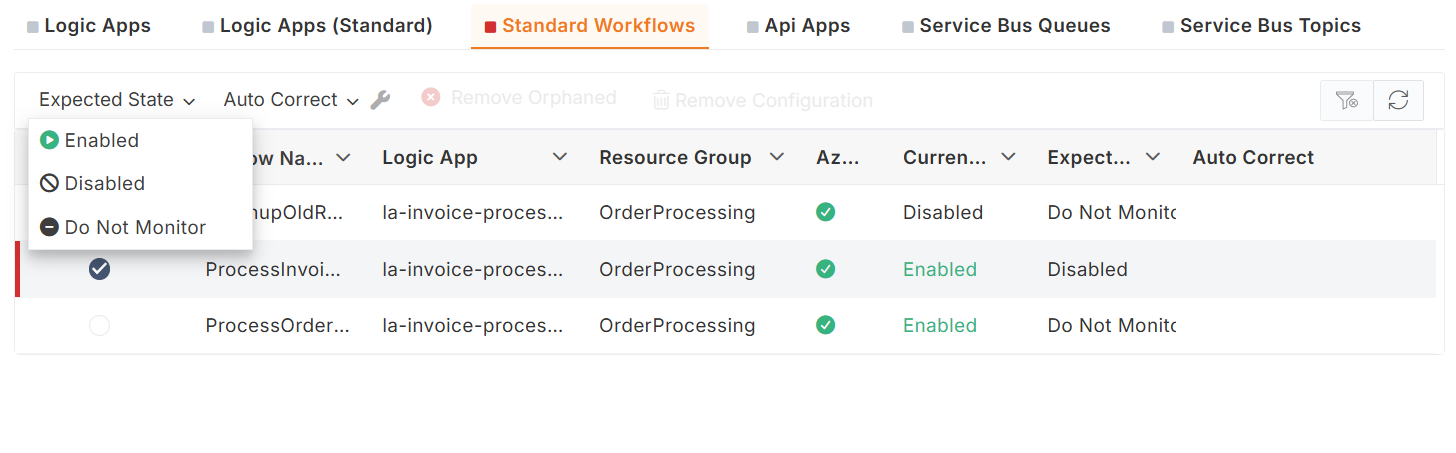
Auto Correction -Auto-correction attempts to restore a workflow to its expected state when a mismatch occurs.
Select the workflow that has been enable for monitoring
Enable the Auto-Correct option.
Example: suppose a workflow is expected to Enabled state, but it becomes Disabled. When auto-correction is configured, BizTalk360 attempts to enable the workflow and restore it to the expected state.
Threshold Monitoring - Threshold monitoring allows you to configure rules to monitor the metrics ,which helps identify workflow execution issues by tracking trigger and run counts against configured thresholds.
Click on the workflow you want to monitor. This opens the Rule Configuration blade.
Configure the Aggregation Period to specify the time window for evaluating the metric.
Configure the required monitoring metrics:
Failed Trigger Count: Monitors the number of failed triggers.
Failed Run Count: Monitors the number of failed workflow executions.
Succeeded Run Count: Monitors the number of successful workflow executions.
Set the required threshold values and save the monitoring configuration.
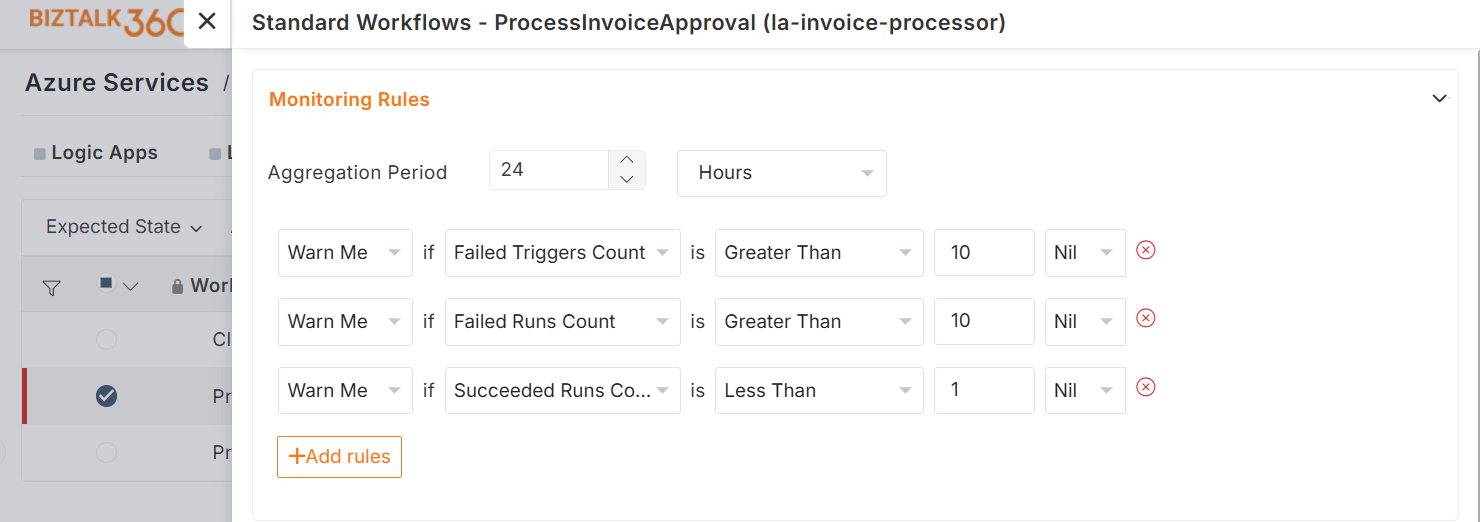
Example - Configure Failed Trigger Count monitoring with an aggregation period of 24 hours and a threshold of > 10 failed triggers.
The monitoring service evaluates the number of failed triggers within the configured 24-hour period and compares the aggregated count against the threshold. If the count exceeds 10, a monitoring violation is raised, and a notification is sent through the associated alarm.
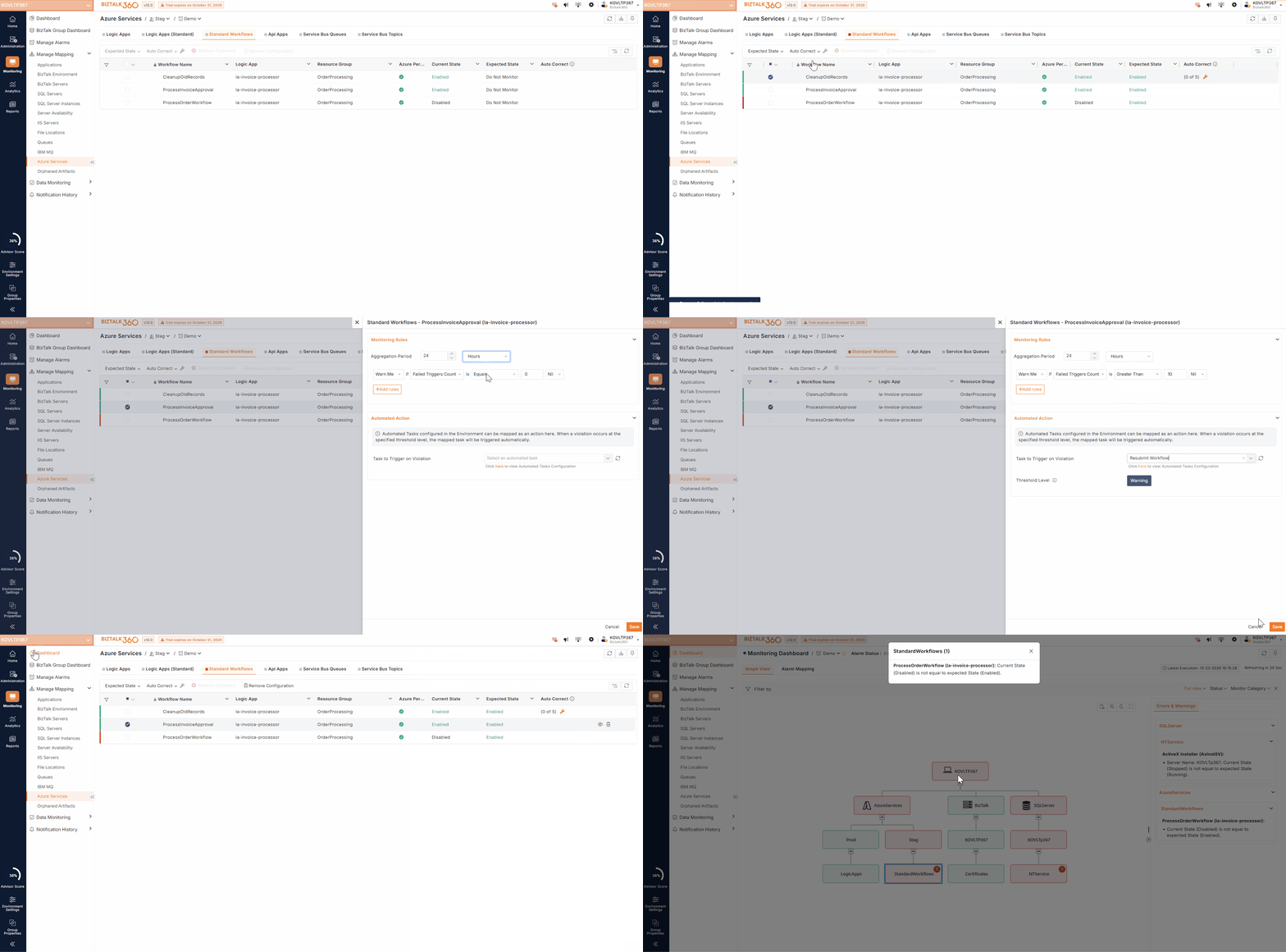
Automated Action Integration
By integrating Automated Tasks into Standard Workflow monitoring, the system can automatically trigger actions such as starting, stopping, or resubmitting workflows, enabling or disabling Logic Apps, restarting BizTalk host instances, and executing PowerShell scripts.
For instance, you can configure a threshold rule to monitor the failed trigger count and initiate an automated action when the count exceeds the configured limit. You can also define the threshold level at which the action should occur, such as during a Warning or Error violation.
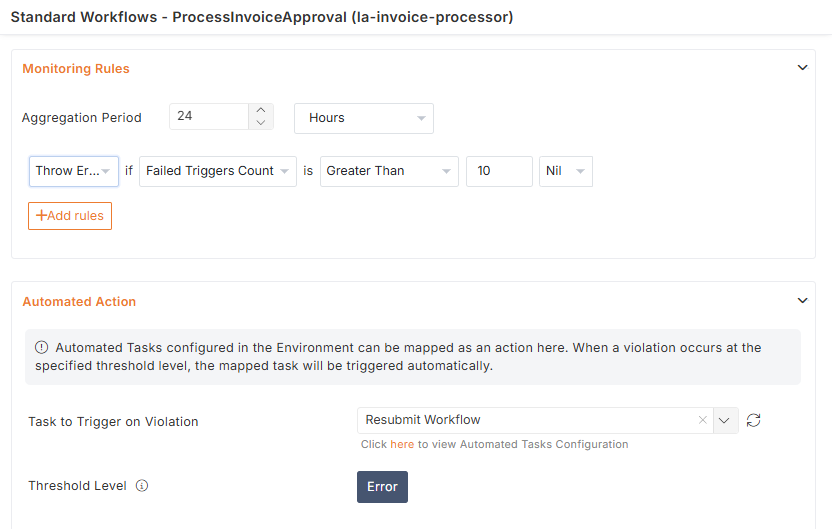
This helps reduce manual intervention and enables faster responses to workflow issues.