Why do you need Dependency files
Most BizTalk360 features work without any extra setup. Some features need third-party files that you download separately. The Reporting feature needs them to generate PDF reports.
BizTalk360 stores these files in the dependency folder:C:\Program Files (x86)\Kovai Ltd\BizTalk360\Analytics\
The account that BizTalk360 runs under must have Modify permission on this folder, so BizTalk360 can download and configure the files there.
Download and configure dependency files
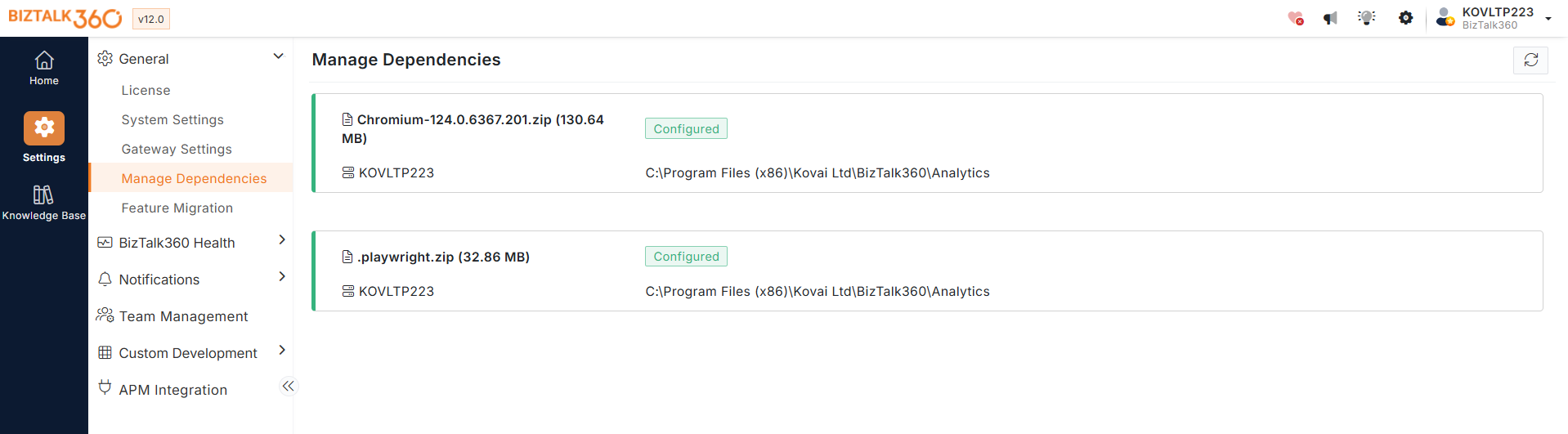
Log in to BizTalk360 and navigate to Settings → General → Manage Dependencies.
On the Manage Dependencies page, the dependency files show the status Not Configured.
Click the Download icon to download the required packages:
Chromium-Edge-155.0.4283.62.zipplaywright-1.64.1.zip
BizTalk360 saves the packages to the dependency folder and configures them automatically. When the download completes, the status changes from Not Configured to Configured.
Note: Chromium and Playwright dependencies must be reconfigured when upgrading from a BizTalk360 version earlier than v11.6.
Configure dependency files in an offline environment
If the BizTalk360 server has no internet access, the Download option cannot reach the BizTalk360 download repository. Download the packages on another machine and copy them across instead.
On a machine with internet access, download the packages for the report browser you use:
Chromium: https://biztalk360.blob.core.windows.net/publicshare/browser-binaries/Chromium-156.0.8078.4.zip
Chromium-Edge: https://biztalk360.blob.core.windows.net/publicshare/browser-binaries/Chromium-Edge-155.0.4283.62.z…
Playwright: https://biztalk360.blob.core.windows.net/publicshare/browser-binaries/playwright-1.64.1.zip
Copy the downloaded .zip files to the dependency folder on the BizTalk360 server:
C:\Program Files (x86)\Kovai Ltd\BizTalk360\Analytics\In BizTalk360, refresh the Manage Dependencies page and check that the status shows Configured.
Remove older dependency files
A security vulnerability was reported in older versions of the Chromium and Playwright packages. To fix it, BizTalk360 12.0 uses these versions:
Chromium-Edge 155.0.4283.62
Chromium 156.0.8078.4
Playwright 1.64.1
Upgrading does not delete the older files. They stay in the dependency folder, and security scanners will keep flagging them until you remove them.
To remove them, open
C:\Program Files (x86)\Kovai Ltd\BizTalk360\Analytics\and delete the older packages.
Switch the report browser from Chromium-Edge to Chromium
From v12.0, BizTalk360 downloads and uses Chromium-Edge for report generation by default. To use Chromium instead, follow these steps.
Note: Back up the BizTalk360 database before making direct database changes.
Open SQL Server Management Studio (SSMS) and connect to the SQL Server instance hosting the BizTalk360 database.
-- Switch report browser: Microsoft Edge 155 -> Chromium 156 UPDATE [b360_admin_ManageDependencies] SET SerializedSourceInfo = '[{"fileName":"Chromium-156.0.8078.4.zip","fileLocation":"https://biztalk360devblob.blob.core.windows.net/sharedfiles/Chromium%20Binaries/LatestChromiumAndPlaywright/Chromium-156.0.8078.4.zip","fileSize":174279946,"relativePath":"Analytics"}]', SerializedDestinationInfo = REPLACE(SerializedDestinationInfo, 'Chromium-Edge-155.0.4283.62.zip', 'Chromium-156.0.8078.4.zip') WHERE SerializedSourceInfo LIKE '%Chromium-Edge-155.0.4283.62.zip%' GONavigate back to BizTalk360. Navigate to Settings → Manage Dependencies.
On the Manage Dependencies page, you will see the dependency files in the Not Configured state and changed from Chromium to Chromium-Edge.
Click the Download icon to download the required dependency packages (Chromium-xx and .playwright-xx.zip). The downloaded packages are stored in the BizTalk360 dependency folder (
C:\Program Files (x86)\Kovai Ltd\BizTalk360\Analytics\)and are automatically configured for use.Once the download is complete, the dependencies are configured automatically, and their status changes from Not Configured to Configured.